

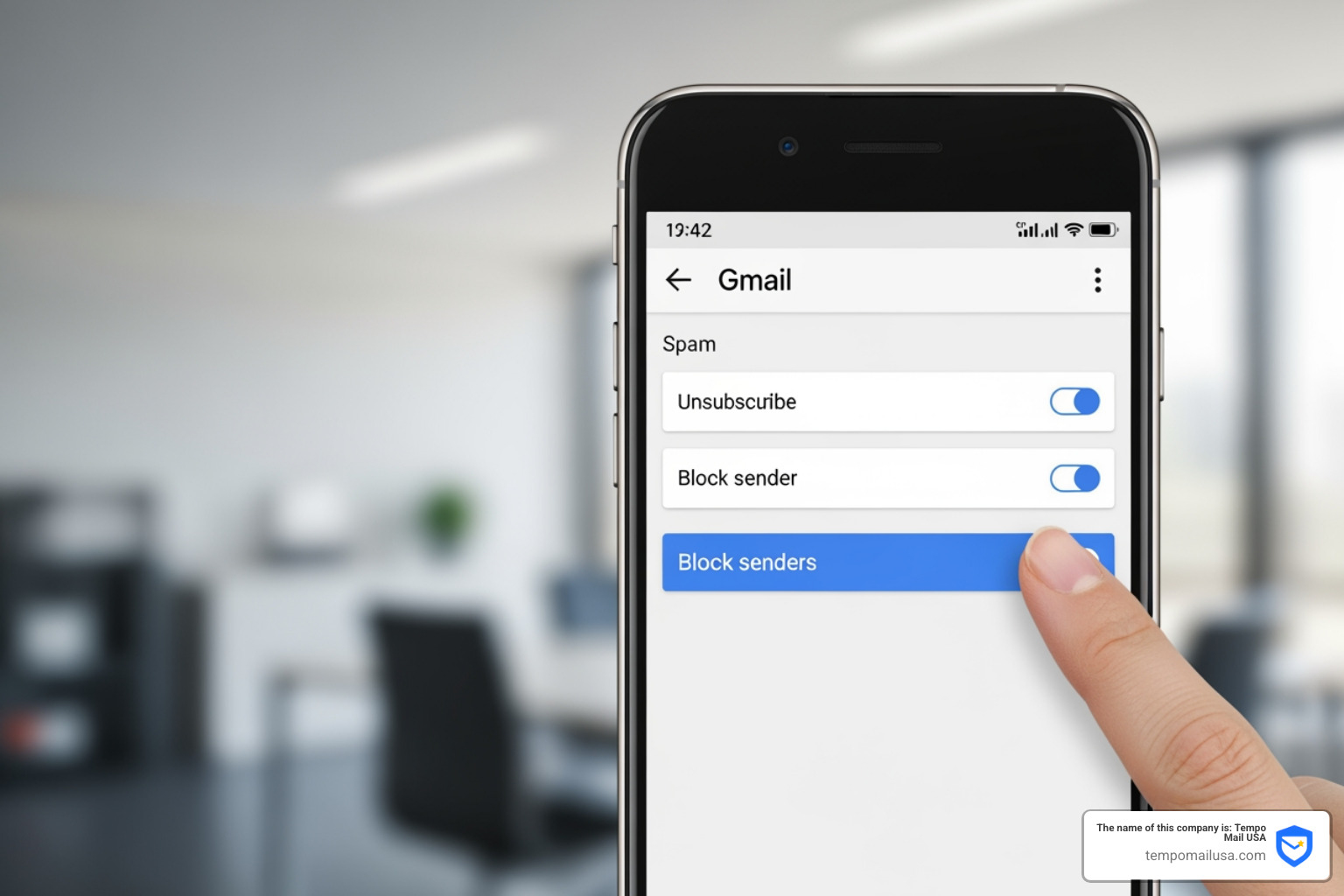

Why Your Mobile Gmail Inbox Needs Immediate Attention
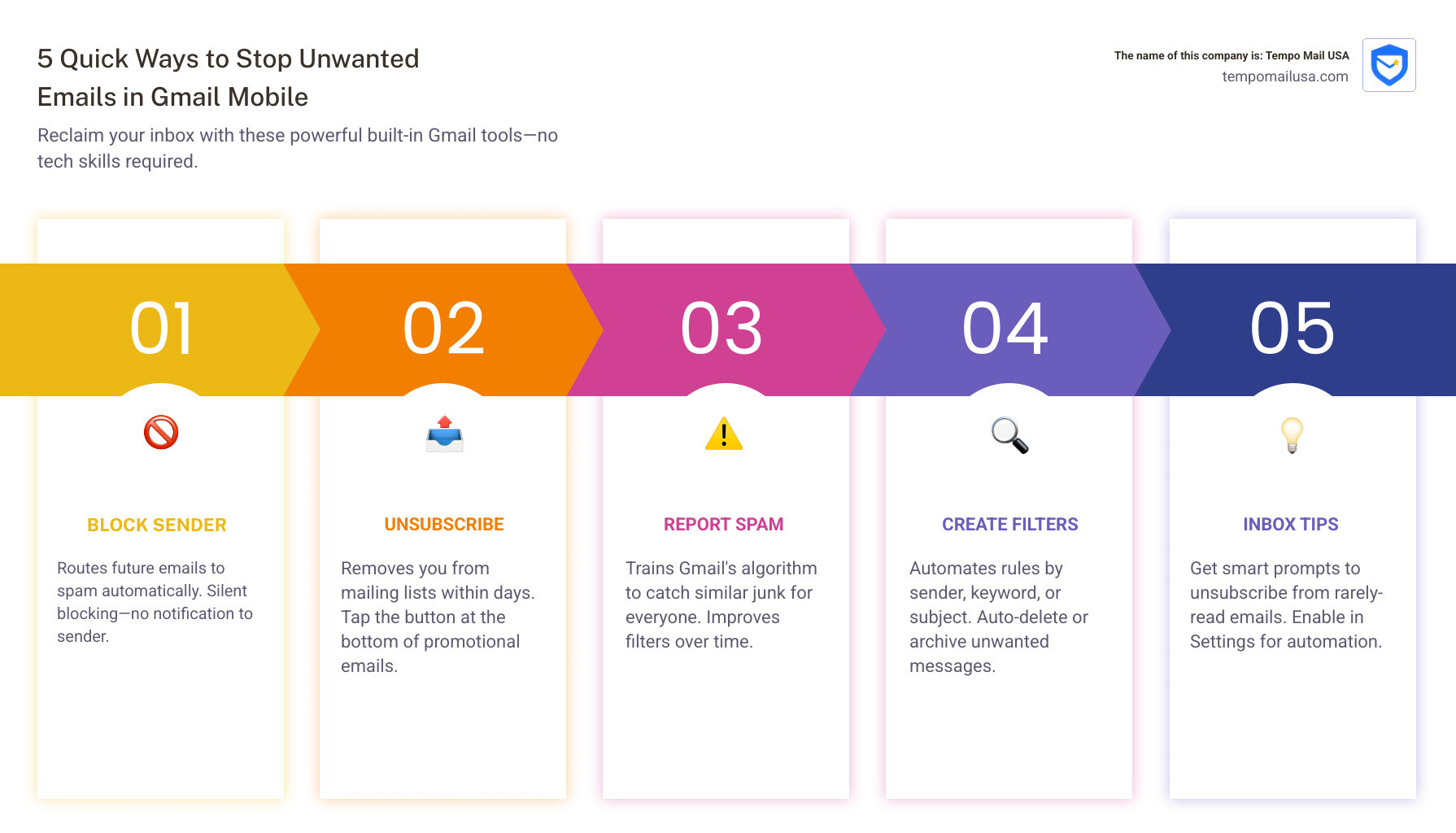
How to stop unwanted emails in gmail in mobile is simpler than you think—and you don't need to be tech-savvy to do it. Here's the quick answer:
Quick Solutions to Stop Unwanted Emails on Mobile Gmail:
- Block the sender - Open the email, tap the three dots menu, select "Block [Sender]"
- Unsubscribe from newsletters - Tap "Unsubscribe" next to the sender's name in promotional emails
- Report spam - Tap the three dots menu and select "Report spam" to train Gmail's filters
- Create filters - Use the search bar to set up automatic rules for specific senders or keywords
- Enable Unsubscribe Tips - Go to Settings > Inbox Tips to get prompts for emails you rarely read
If you're reading this on your phone while drowning in unwanted emails, you're not alone. According to Statista, spam accounts for more than 45% of all email traffic worldwide. That means nearly half the emails hitting your Gmail inbox are digital junk you never asked for.
The impact goes beyond annoyance. Research from All About Cookies shows that 77% of people feel digital clutter negatively impacts their life. Every promotional email, every newsletter you forgot you signed up for, and every suspicious message creates mental noise that drains your productivity.
The good news? Your Gmail app has powerful built-in tools to take back control—and they work right from your phone. Whether you're dealing with persistent marketers, old subscriptions, or suspicious phishing attempts, this guide will show you exactly how to clean up your mobile inbox without breaking a sweat.
How to Block a Sender in the Gmail App on Android or iOS
When a specific person or company just won't take the hint, blocking is your most effective weapon. It’s like putting a "Do Not Disturb" sign on your digital door that only one person can see. Learning how to stop unwanted emails in gmail in mobile starts with mastering the block button.
Android Steps
If you are using an Android device, the process is incredibly straightforward:
- Open the Gmail app.
- Open the message from the sender you want to silence.
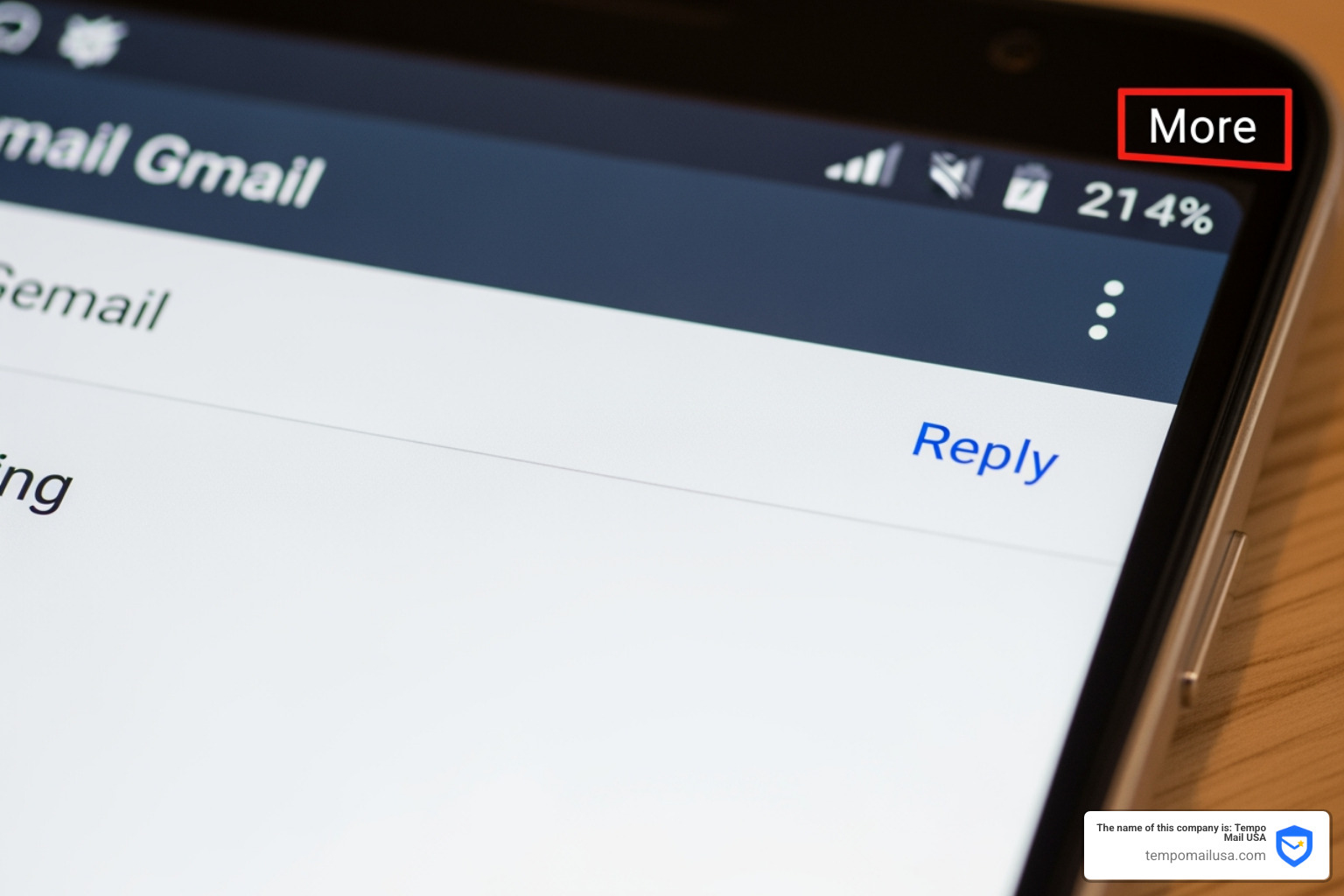
- In the top right of the message (next to the Reply button), tap More (the three vertical dots).
- Tap Block "[sender]".
iOS Steps (iPhone & iPad)
For those in the Apple ecosystem, the steps are nearly identical:
- Open the Gmail app on your iPhone or iPad.
- Open the email from the sender.
- Tap the three horizontal dots (More) located in the top-right corner of the email header.
- Select Block "[sender]".
Once you perform this action, you won't have to see their face—or their emails—in your primary inbox ever again. If you're looking for more ways to beat spam and stop unwanted emails on Gmail, this is the most direct route for individual offenders.
What Happens After You Block Someone?
Many of us hesitate to block because we worry about the consequences. Will they know? Will the email bounce back to them?
In Gmail, blocking is a silent, internal process. The sender is never notified that they’ve been blocked. Instead, Gmail performs an "automatic routing" maneuver. Every future email from that specific address is sent directly to your Spam folder.
These messages stay in the Spam folder for 30 days. After that period, Gmail automatically deletes them forever. It’s a clean, efficient way of silencing unwanted senders without the drama of a confrontation.
How to Unblock a Sender Using the Gmail Mobile App
We all make mistakes. Maybe you accidentally blocked your favorite aunt or a newsletter you actually enjoyed. Don't worry; unblocking is just as easy as blocking.
To unblock someone:
- Find an old email from that sender (check your Spam folder if you can't find one in your inbox).
- Open the message.
- Tap the More menu (three dots).
- Tap Unblock "[sender]".
Restoring messages to your inbox might require a little extra work if they are already buried in Spam, but this action ensures all future correspondence arrives safely. For a deeper look at managing these settings, check out our guide on how to block someone on Gmail.
How to Stop Unwanted Emails in Gmail in Mobile by Unsubscribing
Blocking is great for harassment or persistent spam, but what about those 50 clothing brands you subscribed to three years ago? For marketing materials, the "Unsubscribe" button is your best friend.
According to a study by All About Cookies, 77% of people feel digital clutter negatively impacts their life. Unsubscribing is the most "polite" way to clean up because it tells the sender's system to stop sending the mail at the source.
How to unsubscribe on mobile:
- Open a promotional email or newsletter.
- Look at the top of the email, next to the sender's name.
- Tap Unsubscribe.
- A pop-up may appear asking you to confirm or "Go to website." Tap Unsubscribe.
It may take a few days for the request to process, but soon those newsletters will vanish. If you're in a hurry to declutter, we have some simple tips on how to reduce spam emails fast that go beyond just one-by-one unsubscribing. You can also unsubscribe from an email officially through Google's support steps if the button doesn't appear.
Enabling Unsubscribe Tips for a Cleaner Inbox
Did you know Gmail can actually suggest which emails you should ditch? This feature is called Inbox Tips. It uses machine learning to identify newsletters you haven't opened in weeks or months and offers a one-tap unsubscribe prompt.
To enable this on mobile:
- Tap the Menu (three lines) in the top left.
- Scroll down and tap Settings.
- Select your email account.
- Under the "Inbox Tips" section, tap Inbox Tips settings.
- Ensure Unsubscribe tips is checked.
This automation is a game-changer for saying goodbye to spam. Instead of hunting for unwanted mail, Gmail brings the "delete" button to you.
Advanced Tactics: How to Stop Unwanted Emails in Gmail in Mobile Using Filters
Sometimes blocking and unsubscribing aren't enough. Maybe you want to keep emails from a certain sender but have them skip the inbox and go straight to a specific folder (label). This is where filters come in.
While the mobile app is slightly limited for creating complex filters compared to the desktop version, you can still use the search bar to manage bulk unwanted mail.
| Action | Best For | What Happens |
|---|---|---|
| Blocking | Harassment / Persistent Spam | Goes to Spam folder automatically |
| Unsubscribing | Newsletters / Promotions | Sender stops sending (eventually) |
| Filtering | Organizing / Auto-Deleting | Custom rules (e.g., skip inbox) |
By using search operators like from:sender@example.com, you can quickly identify every email from a specific source and delete them all at once. For more on locating where these filtered emails go, you can discover where the spam folder is in Gmail easily.
Reporting Spam vs. Phishing: Which One Should You Use?
There is a big difference between an annoying newsletter and a malicious email trying to steal your bank password. Knowing which "report" button to hit is crucial for your digital safety.
According to Statista, spam accounts for more than 45% of all email traffic worldwide. When you Report Spam, you aren't just cleaning your own inbox; you are training Gmail’s global algorithm. When thousands of people report the same sender, Gmail begins to block that sender for everyone.
- Report Spam: Use this for unwanted marketing, "get rich quick" schemes, or random junk.
- Report Phishing: Use this for emails that impersonate a bank, government agency, or service (like Netflix or Amazon) to steal your credentials.
Reporting phishing sends a high-priority alert to Google’s security team. You can find these options in the same More (three dots) menu where the block button lives. Using these tools is a key part of mastering Gmail spam.
Handling Suspicious or Phishing Emails on Gmail Mobile
Phishing is no joke. Phishing attacks account for over 36% of all data breaches. If you receive an email that feels "off"—perhaps it has a sense of extreme urgency or a strange sender address like support@paypall-security.com—do not click any links.
Steps to take on mobile:
- Don't click: Even clicking a link to "unsubscribe" in a phishing email can confirm your email address is active to a hacker.
- Check the link: On mobile, you can long-press a link to see the actual URL without opening it.
- Report Phishing: Tap the three dots and select "Report phishing."
- Security Checkup: If you think you’ve already interacted with a bad link, go to your Google Account settings and perform a Security Checkup.
For more comprehensive strategies, read our guide on how to stop spam emails.
Dealing with Harassment and Gmail Program Policies
If the "unwanted email" you are receiving is actually harassment, threats, or intimidation, this goes beyond simple spam. Such behavior violates Gmail's Program Policies.
In these cases, blocking is the first step, but it may not be the last. If you feel you are in physical danger or being targeted by cyber-harassment, Google recommends contacting your local authorities immediately. Keep the emails as evidence, but use the block feature to prevent the harasser from reaching your primary line of communication.
Frequently Asked Questions about Mobile Gmail Management
Where can I find and manage my list of blocked senders?
If you want to see a full list of everyone you’ve ever blocked, the mobile app makes it a bit tricky. Usually, you have to access your Google Account settings or use a mobile browser to view the "Filters and Blocked Addresses" tab in Gmail settings.
However, because Gmail syncs across all devices, any block you initiate on your phone will carry over to your desktop. If you are an iPhone user trying to find where your "junk" is hiding, check out our article on locating your spam folder on iPhone.
How do I access and empty the Spam folder on mobile?
Your Spam folder can take up valuable storage space if left unchecked. To empty it:
- Open the Gmail app.
- Tap the Menu (three horizontal lines) in the top left.
- Tap Spam.
- Tap Empty spam now at the top of the list.
Cleaning this out regularly is a great habit for deep-diving into your digital dumpster and ensuring your storage doesn't hit its limit.
Can I stop unwanted emails in Gmail in mobile without blocking?
Yes! If you don't want to go as far as blocking, you can:
- Use Inbox Categories: Enable tabs like "Promotions" and "Social" so junk stays out of your "Primary" inbox.
- Use Tempo Mail USA: This is one of the most effective prevention strategies. By using a temporary email alias when signing up for new services, you act as a firewall. If that service starts sending too much spam, you simply delete the alias, and your real Gmail address remains untouched. This is a top-tier prevention tip to stop emails from going to spam.
Conclusion
Reaching "Inbox Zero" on your phone isn't just about productivity; it’s about peace of mind. By mastering how to stop unwanted emails in gmail in mobile, you reduce digital clutter and protect your personal data from the 83% of organizations that experienced phishing attacks last year.
There's even an environmental bonus to your spring cleaning. Did you know that one email generates an emission of about 10g of CO2 per year? With 200 million emails sent every minute, the carbon footprint is massive. By deleting old mail and unsubscribing from junk, you're doing a small favor for the planet too.
At Tempo Mail USA, we believe the best way to stop spam is to never let it find you in the first place. Our temporary email aliases provide a secure identity proxy, shielding your real PII (Personally Identifiable Information) from services. Think of us as your personal data firewall.
Ready to take your privacy to the next level? Start using aliases for your online sign-ups today and discover how easy it is to manage your Gmail when the junk never even arrives.