


Understanding Your Gmail Spam Folder: Your First Line of Email Defense
The gmail spam folder is your digital gatekeeper, automatically filtering unwanted emails away from your inbox. Here's what you need to know:
Quick Access Guide:
- Desktop: Click "More" in the left sidebar, then select "Spam"
- Mobile: Tap the three horizontal lines (hamburger icon), scroll down, and tap "Spam"
- Search Method: Type
in:spamin the Gmail search bar
Key Facts:
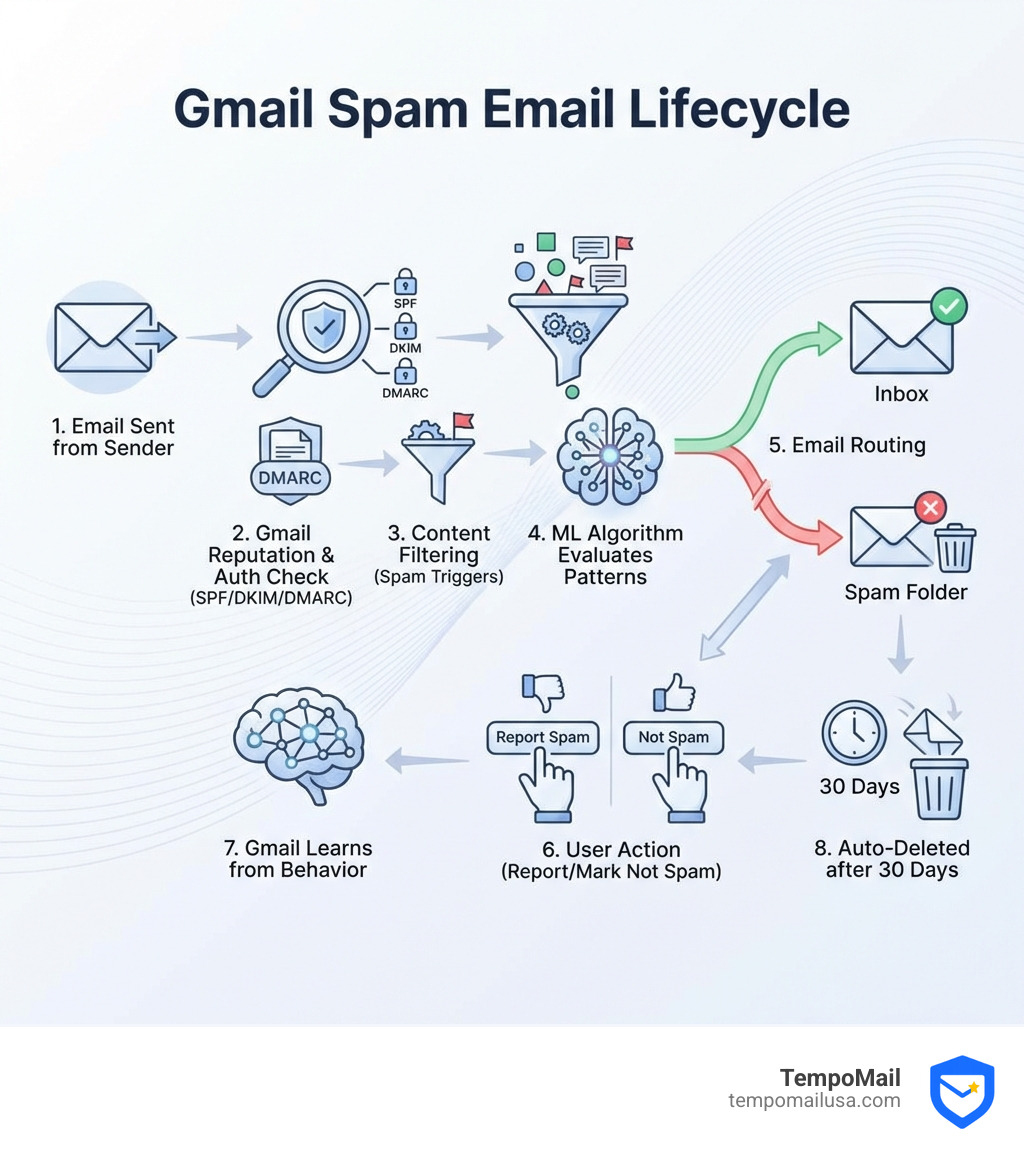
- Emails in spam are automatically deleted after 30 days
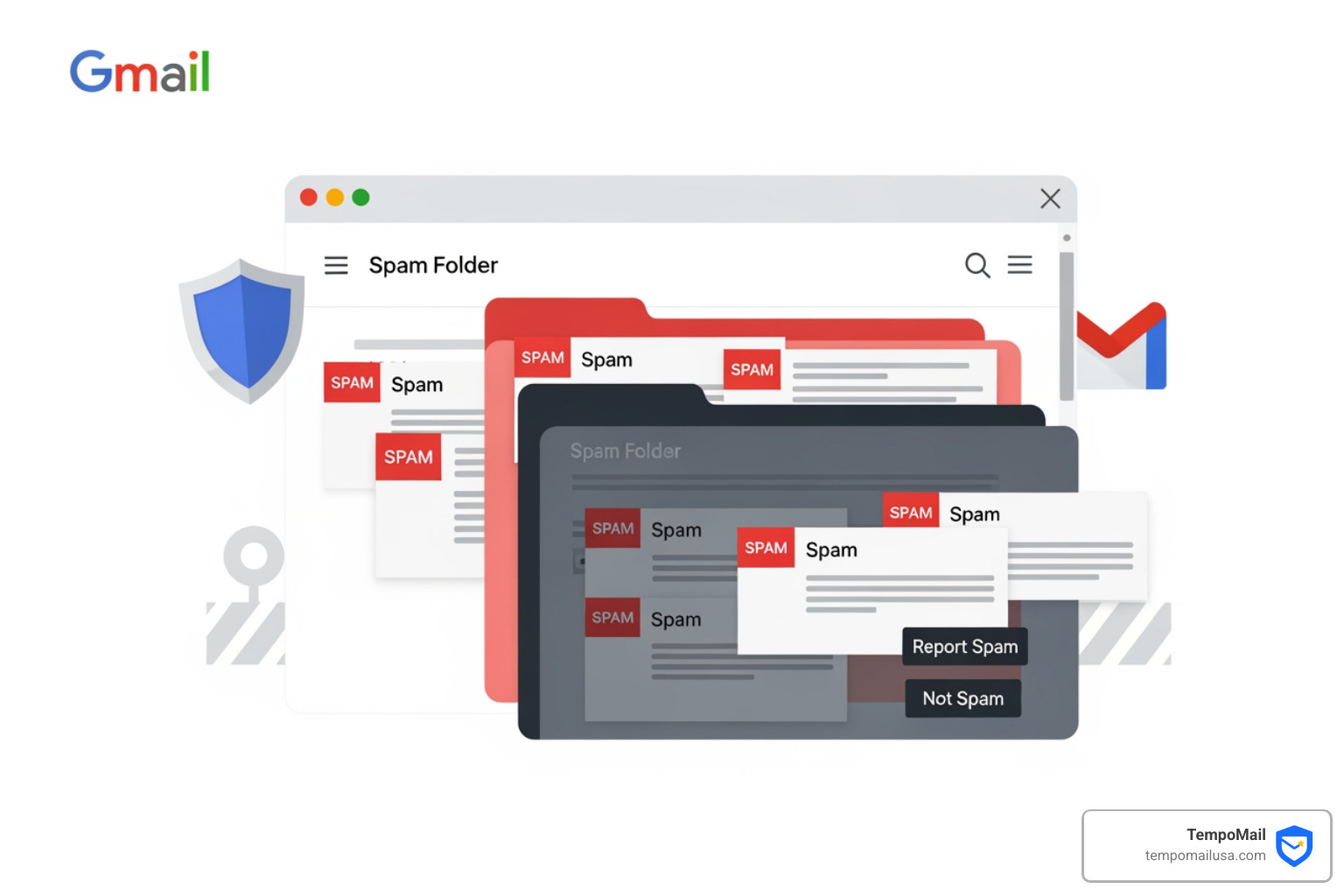
- You can mark emails as "Not Spam" to recover them
- Gmail uses machine learning to improve filtering based on your reports
Your spam folder isn't just a digital trash can. It's a sophisticated filter powered by machine learning that analyzes countless signals—sender reputation, email content, authentication protocols, and user behavior patterns. While Gmail's spam filtering catches the vast majority of junk mail and phishing scams, it's not perfect. Important emails sometimes get caught in the crossfire, and some spam inevitably slips through.
Understanding how your spam folder works helps you maintain a cleaner inbox while ensuring legitimate messages don't disappear into the void. Whether you're troubleshooting missing emails, protecting yourself from phishing attempts, or just curious about where all those promotional messages go, mastering your spam folder is essential for effective email management.
The privacy angle matters too. Every email that lands in your inbox is another potential vector for tracking, data harvesting, or exposure of your personal information. Your spam folder acts as a first line of defense, but understanding its limitations helps you make smarter decisions about email security.
I'm Mohammad Waseem, and through my work building online tools and platforms like TempoMail, I've spent years analyzing how email filtering systems work and helping users manage their gmail spam folder more effectively. Let me walk you through everything you need to know about finding, managing, and optimizing your spam folder for better privacy and inbox control.
Locating the spam folder gmail on Desktop and Mobile
We have all been there: you are waiting for a crucial confirmation email, a job offer, or a password reset, and it simply never arrives. You refresh your inbox until your finger hurts, but nothing happens. Most of the time, that "missing" email is actually sitting quietly in your gmail spam folder. But if you don't check it often, you might not even know where it's hiding!
Accessing Spam on Desktop
On your computer, finding the gmail spam folder is relatively straightforward, though Google does its best to keep it tucked away to keep your sidebar clean.
- Open the Gmail website and sign in.
- Look at the left-hand sidebar where your labels (Inbox, Starred, Sent) are listed.
- You might need to scroll down and click on the "More" button with a downward arrow.
- Once expanded, scroll further until you see the Spam folder (usually accompanied by an exclamation mark icon).
Accessing Spam on Mobile (Android, iPhone, and iPad)
If you are using the Android or iPhone, iPad app, the process is slightly different but just as easy:
- Open the Gmail app.
- Tap the three horizontal lines (the "hamburger" icon) in the top-left corner of the screen.
- Scroll down through the list of folders.
- Tap on Spam.
The Secret Shortcut: Search Operators
If you want to feel like a total Gmail power user, you can bypass the menus entirely. Simply type in:spam into the search bar at the top of Gmail and hit enter. This will instantly display every message currently held in your spam folder. For a more detailed guide on this, check out our post on how to Discover Where Is The Spam Folder In Gmail Easily.
Managing Your Spam: Reporting, Deleting, and Recovering
Once you have found the gmail spam folder, the next step is knowing what to do with the messages inside. We like to think of this folder as a "holding cell." Gmail has flagged these emails as suspicious, but it gives you 30 days to review them before they are permanently executed (deleted).
The 30-Day Rule
It is a critical statistic to remember: Gmail automatically deletes spam messages after 30 days. This is great for saving storage space, but it’s a nightmare if a legitimate email ends up there and you don't check it for a month. Once that 30-day window closes, the email is gone forever—it doesn't even go to the Trash folder first.
How to "Unspam" an Email
If you find a legitimate message in the gmail spam folder, you need to tell Gmail it made a mistake. This is called "training the algorithm."
- On Desktop: Open the email and click the "Not spam" button at the top.
- On Mobile: Open the email, tap the three vertical dots in the top-right, and select "Report not spam."
When you do this, Gmail moves the email to your inbox and takes a mental note: "Okay, the user actually wants emails from this sender." This is a vital part of Mastering Gmail Spam: A Step-by-Step Guide.
Emptying the Dumpster
If you are running low on Google storage space, your spam folder might be the culprit. While Gmail cleans it out every 30 days, you can do it manually by clicking "Delete all spam messages now" at the top of the folder. This is a satisfying way to clear out the digital clutter.
How to Report spam folder gmail Content to Google
Gmail's filters are top-notch, but they aren't infallible. Sometimes, junk mail lands in your Primary inbox. When this happens, don't just delete it—report it!
When you Report spam in Gmail, Google receives a copy of the email. Their security team analyzes the headers and content to help protect other users from similar abuse.
Steps to report:
- Select the unwanted email in your inbox.
- Click the Report Spam icon (the stop sign with an exclamation mark).
- If it's a dangerous scam trying to steal your password, click the three dots and select "Report phishing" instead. Phishing reports are handled with higher priority because they involve identity theft risks.
Difference Between Reporting Spam and Blocking a Sender
Many of our users ask: "Should I report it as spam or just block the person?" There is a big difference!
- Reporting Spam: You are telling Google's AI that this type of content is bad. This helps the filter get smarter for everyone. If enough people report a sender, that sender's reputation drops, and they may eventually be blacklisted.
- Blocking a Sender: This is a more personal "ignore" button. When you block someone, their future emails will still arrive, but they go straight to the gmail spam folder instead of your inbox. It doesn't necessarily report them to Google's central database, but it keeps them out of your sight.
For more tips on choosing between these options, read our article on how to Beat Spam: How to Stop Unwanted Emails on Gmail.
Why Legitimate Emails End Up in the spam folder gmail
It is incredibly frustrating when a "good" email goes "bad." Why does Gmail's AI sometimes turn on your friends or colleagues? Usually, it's because the email triggered one of Gmail's many "red flags."
The Technical Trio: SPF, DKIM, and DMARC
Gmail uses numerous signals to spot spammy or malicious mail. The most important ones are authentication protocols. If a sender hasn't set these up correctly, Gmail can't verify that the email is actually from who it says it's from.
| Feature | What it does | Why it triggers Spam |
|---|---|---|
| SPF | Lists authorized servers | If sent from an unauthorized server, it looks like a spoof. |
| DKIM | Adds a digital signature | If the signature is missing or broken, the email might have been tampered with. |
| DMARC | Tells Gmail what to do if SPF/DKIM fails | If the sender's policy is strict, Gmail will dump it in Spam. |
You can learn more about these technical requirements here:
- SPF (Sender Policy Framework)
- DKIM (DomainKeys Identified Mail)
- DMARC (Domain-based Message Authentication, Reporting & Conformance)
Other Common Spam Triggers
Beyond the technical stuff, there are simpler reasons your emails might be redirected:
- Spammy Language: Using words like "FREE," "URGENT," or "CONGRATULATIONS" in all caps with too many dollar signs ($$$).
- Poor Formatting: Excessive HTML, hidden text, or inconsistent fonts can look like a phishing attempt.
- Missing Unsubscribe Link: Commercial emails are required by law (like the CAN-SPAM Act) to have an opt-out. If they don't, Gmail's filters will likely flag them.
- Bad Sender Reputation: If a sender uses a shared IP address that was previously used by a spammer, they might be "guilty by association."
We go into more detail on these triggers in our guide: Why Use Email Spam Filters for Ultimate Inbox Protection.
Proactive Steps to Prevent Important Emails from Going to Spam
We don't just want to find spam; we want to prevent it from messing with our lives. Here are the best ways to ensure your important mail always hits the "Primary" tab.
1. Add Senders to Google Contacts
This is the simplest trick in the book. When you add a sender to your Google Contacts, you are essentially "whitelisting" them. Gmail trusts your contacts list and is much less likely to send their messages to the gmail spam folder.
2. Create Custom "Never Send to Spam" Filters
If you have a specific newsletter or sender that consistently ends up in the wrong place, you can force Gmail to behave.
- Open the email you want to whitelist.
- Click the three dots in the top-right and select "Filter messages like this."
- Click "Create filter."
- Check the box that says "Never send it to Spam."
- (Optional) Check "Always mark it as important" to be extra sure.
3. Use Wildcard Filters
Are you getting spam from many different addresses at the same domain (e.g., sales@spammycompany.com, info@spammycompany.com)? You can use a wildcard. In the "From" field of your filter settings, type @spammycompany.com. This will catch everything from that domain.
For more advanced strategies, check out our Stop Spam Now: Effective Tips to Prevent Spam guide.
Frequently Asked Questions about the Gmail Spam Folder
How long does Gmail keep messages in the spam folder?
As mentioned earlier, the standard retention period is 30 days. After this, messages are permanently deleted. Some users believe is excessive and wish they could set it to delete immediately, while others worry 30 days isn't enough time to catch mistakes. Regardless of your opinion, it's a hard rule set by Google.
Can I recover a spam email after it has been deleted?
Unfortunately, no. Once an email is deleted from the gmail spam folder (either manually or after the 30-day limit), it is gone from Google's servers. It does not go to the Trash folder. This is why we recommend a quick weekly scan of your spam folder to ensure nothing important is about to be purged.
Why is my spam folder hidden?
By default, Gmail hides labels that you don't use frequently. If you can't see the "Spam" label even after clicking "More," you may have accidentally set it to "Hide" in your settings.
- Go to Settings (the gear icon) > See all settings.
- Click the Labels tab.
- Find "Spam" in the list and click "Show."
You can find a more visual walkthrough here: Discover Where Is The Spam Folder In Gmail Easily.
Conclusion
Managing your gmail spam folder is a constant battle, but it's one you can win with the right tools and knowledge. By understanding where the folder is, how to train the algorithm, and why certain emails get flagged, you can take full control of your inbox.
At TempoMail USA, we believe the best way to manage spam is to prevent it from ever reaching your real email address. We are in the cybersecurity and privacy industry, providing "identity proxying" services. Instead of giving your real Gmail address to every website you sign up for, you can use our secure aliases. These act as a firewall, protecting your Personally Identifiable Information (PII) and ensuring that if a site starts sending too much junk, you can just "turn off" that alias without affecting your main account.
Protecting your digital life starts with a clean inbox. For more tips on staying safe online, explore our resources on Anti-Spam Tracking & Online Safety. Stay safe, stay private, and keep that digital dumpster empty!