

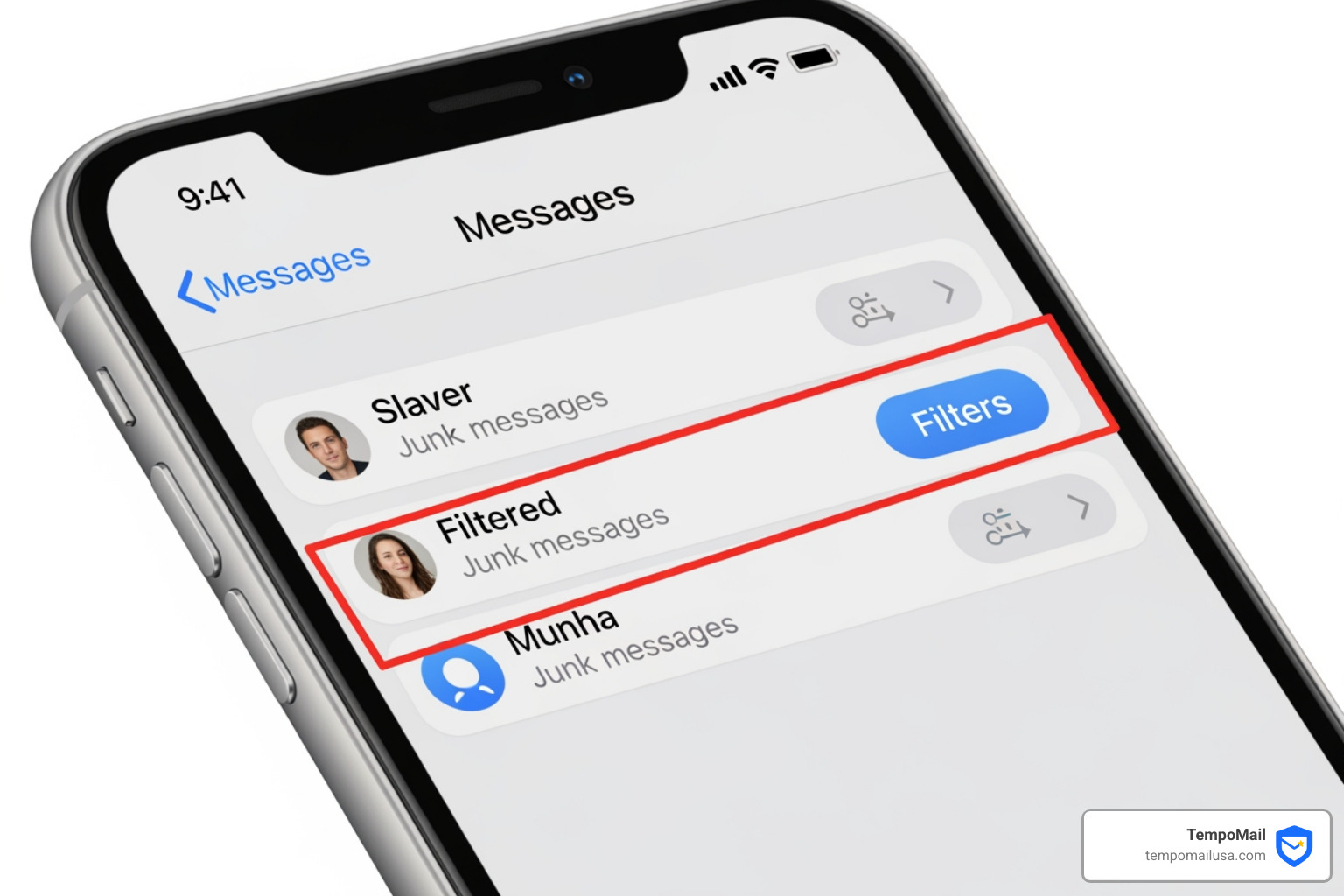

Why iPhone Spam Filtering Matters for Your Privacy
How to unhide spam folder on iphone depends on whether you're looking for text messages or email. Here's the quick answer:
For Messages (SMS/iMessage):
- Open the Messages app
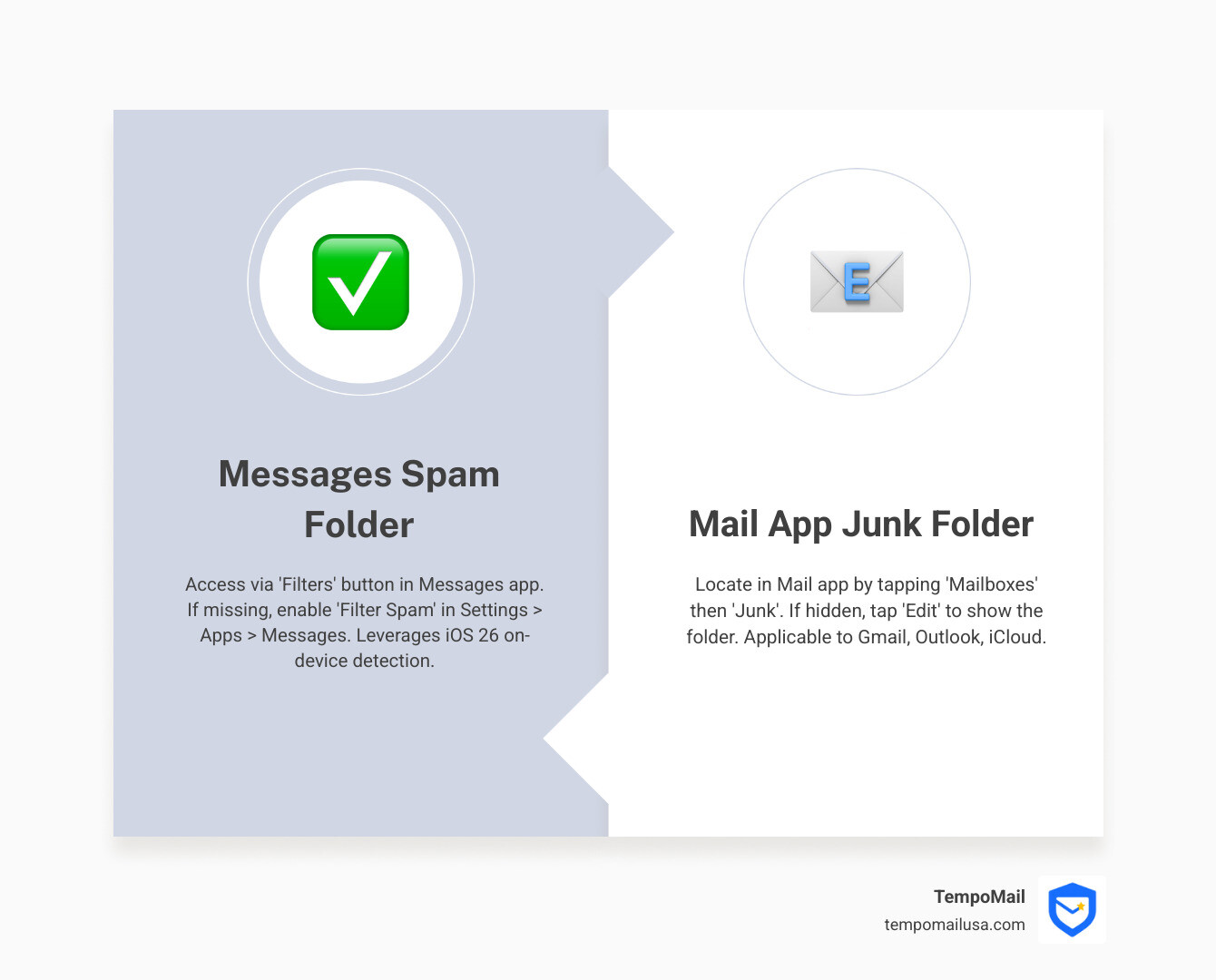
- Tap the Filters button (top-left corner)
- Tap Spam to view filtered messages
- If you don't see Filters, go to Settings > Apps > Messages and turn on Filter Spam
For Email (Mail app):
- Open the Mail app
- Tap Mailboxes (top-left)
- Scroll down to find Junk folder
- If missing, tap Edit and check if Junk is available to enable
The confusion around spam folders on iPhone is real. With 91 users reporting "Me too" on Apple forums about missing junk folders, you're not alone in this struggle. iOS 26 introduced automatic spam detection that filters junk messages by default—but if the feature is turned off or your folder disappeared, important messages might be sitting hidden somewhere you can't see.
Your privacy matters, especially when legitimate verification codes or account alerts get caught in spam filters. Missing these messages can lock you out of accounts or cause you to miss time-sensitive information. Understanding where iOS stores filtered messages—and how to access them—gives you control over what reaches your inbox.
I'm Mohammad Waseem, and I've spent years testing and optimizing mobile platforms, including deep dives into iOS messaging systems and privacy features. Throughout this guide, I'll show you exactly how to unhide spam folder on iphone across different apps and iOS versions, so you never miss an important message again.
How to Unhide Spam Folder on iPhone Messages
With the release of iOS 26, Apple significantly upgraded its on-device spam detection. This means your iPhone is now smarter at figuring out which messages are helpful and which are just digital clutter. When this feature is active, it automatically pushes junk into a dedicated folder. However, many users find that the "Spam" folder seems to play hide-and-seek.
To find it, you first need to locate the Filters button in your Messages app. This button is your gateway to everything that isn't in your main conversation list. If you've been wondering how to unhide spam folder on iphone within the Messages app, the secret is that the folder only appears when the filtering system is actually enabled.
Once you tap that Filters button in the top-left corner, a menu will slide out. Here, you'll see categories like "All Messages," "Known Senders," and "Unknown Senders." In iOS 26, a specific "Spam" category will appear here if the system has caught anything. According to Apple Support, you won't receive notifications for messages identified as spam, which is why checking this folder manually is so important.
Steps to Unhide Spam Folder on iPhone Settings
If you tap the top-left corner of your Messages app and don't see a "Filters" button at all, it means the filtering feature is currently disabled in your system settings. We need to tell your iPhone that you want it to start sorting your mail.
Follow these steps to enable the folder:
- Open the Settings app on your iPhone.
- Scroll down and tap on Apps, then find Messages.
- Scroll down to the Message Filtering section.
- Toggle the switch for Filter Unknown Senders or Filter Spam to the ON position.
By turning this on, you are essentially creating the "Filters" button in the Messages app. This is the primary way to "unhide" the folder. If you want to dive deeper into blocking specific numbers, you can check out Apple's guide on how to Block, filter, and report messages on iPhone.
Why is My Spam Folder Missing?
It can be incredibly frustrating when you follow the steps and the folder still isn't there. There are a few common reasons why your spam folder might be missing:
- Filtering is Disabled: As mentioned above, if the toggle in your Settings is off, the folder won't exist in the Messages app.
- Carrier Restrictions: Sometimes, your cellular provider handles spam at the network level before it even reaches your phone. If you don't see options for reporting SMS or MMS junk, you might need to contact your carrier.
- iOS Version: Older versions of iOS handled "Unknown Senders" but didn't have a dedicated "Spam" folder. If you aren't on iOS 26 or later, your filtered messages will likely all be under the "Unknown Senders" tab.
- Empty Folder: In some versions of iOS, the Spam folder may hide itself if it's completely empty to keep the interface clean.
Managing Email Junk: Gmail, Outlook, and iCloud
While text message spam is a growing headache, email junk is the "classic" problem. On an iPhone, most of us use the native Mail app to juggle multiple accounts like Gmail, Outlook, and iCloud. Each of these services has its own way of naming and hiding the "trash" pile.
In the Mail app, the spam folder is usually called Junk. To see it, you need to steer to the "Mailboxes" root screen. If you are inside an inbox, tap the back arrow in the top-left until you see the list of all your accounts.
If you use iCloud for your mail, Apple has specific protocols for how it identifies and moves these messages. You can learn more about how to Set up Messages in iCloud to ensure your settings sync across all your devices.
How to Unhide Spam Folder on iPhone for Gmail and Outlook
Gmail and Outlook users often face a unique challenge: the "Spam" or "Junk" folders are sometimes hidden behind a "More" or "All Mail" label.
- For Gmail: If you don't see the Spam folder in the Mail app, it might be because of your Gmail IMAP settings. You may need to log into Gmail on a web browser, go to Settings > Labels, and ensure that "Show in IMAP" is checked for the Spam label.
- For Outlook: Outlook calls its folder Junk Email. If it's missing, you might need to tap Edit at the top of the Mailboxes screen in the Mail app, then check the circle next to the Junk folder for your Outlook account to make it visible.
If you're having trouble with iCloud-specific mail, Apple provides a guide to Identify and filter junk mail in iCloud which can help you troubleshoot server-side filtering issues.
Difference Between Unknown Senders and Spam Folders
One of the most common questions we hear is: "What's the difference between 'Unknown Senders' and 'Spam'?" It's easy to get them confused, but they serve different purposes in the iOS ecosystem.
| Feature | Unknown Senders | Spam Folder |
|---|---|---|
| Logic | Any number not in your Contacts list. | Messages identified as junk by Apple's algorithm. |
| Notifications | Usually silenced (if setting is on). | Never sends a notification. |
| Interaction | You can read and reply immediately. | Links and replies are disabled until moved. |
| Sender Reputation | Neutral (just someone you don't know). | Negative (likely a bot or scammer). |
Essentially, the "Unknown Senders" tab is a catch-all for anyone not in your phone book—like a new delivery driver or a doctor's office. The "Spam" folder is specifically for messages that the iPhone's on-device intelligence has flagged as potentially harmful or unwanted.
Recovering and Reporting Spam Messages
Mistakes happen. Sometimes a legitimate message from your bank or a flight update gets caught in the digital dragnet. If you've found your "hidden" spam folder and realized an important text is sitting in there, don't panic—you can get it back.
To recover a message in iOS 26:
- Open Messages and tap Filters.
- Tap Spam.
- Tap the message you want to save.
- Tap Not Spam at the bottom.
- Choose Move to Inbox or Move to Inbox and Report Not Spam.
Moving the message to your inbox is the only way to "open up" it. Until you do, you won't be able to click any links or tap any phone numbers inside that message. This is a safety feature to prevent you from accidentally triggering a phishing link. For more tips on staying safe, see Apple's advice on how to Recognize and avoid phishing messages.
How to Unhide Spam Folder on iPhone to Restore Deleted Texts
What if the message isn't in the Spam folder because you already deleted it? In recent versions of iOS, there is a "Recently Deleted" folder that acts as a safety net.
If you've accidentally trashed a message:
- Tap Filters in the Messages app.
- Tap Recently Deleted.
- Select the conversation and tap Recover.
If the message is gone from there too, your last resort is an iCloud backup. If you have been backing up your phone regularly, you might be able to Restore messages from iCloud. Just be careful: restoring an old backup will revert your entire phone to the state it was in on that date, which means you might lose newer photos or data.
Implications of Reporting Messages as Junk
When you tap "Delete and Report Junk," you're doing more than just cleaning your inbox. You're participating in a global effort to stop scammers.
When you report a message:
- Apple Receives Data: The sender's information and the content of the message are sent to Apple.
- Carrier Notification: Depending on your region, your carrier may also receive a report to help them block the sender at the network level.
- On-Device Learning: Your iPhone learns that messages from this specific sender or with this specific wording should be filtered in the future.
Reporting is powerful, but it's not the same as blocking. Reporting tells Apple "this is a bad message," while blocking tells your phone "never let this person contact me again." For maximum peace of mind, we recommend doing both for persistent scammers.
Frequently Asked Questions about iPhone Spam
Can I manually add a spam folder if it's missing?
You cannot manually "create" the system Spam folder in the Messages app; it is a built-in feature that appears when filtering is enabled. However, in the Mail app, if your Junk folder is missing, you can sometimes force it to appear. Try moving a legitimate email to "Junk" manually (swipe left > More > Move to Junk). This action often triggers the IMAP server to create the folder if it was missing. If that fails, removing and re-adding your email account in Settings > Mail > Accounts usually fixes folder sync issues.
What happens when I report a message as junk?
When you report a message as junk via iMessage, the message is permanently deleted from your device and the sender's info is sent to Apple. If it’s an SMS or MMS, the report may go to your carrier. It’s important to note that reporting junk does not automatically block the sender. They could still text you from the same number unless you manually tap their profile and select "Block this Caller."
How does iOS 26 handle spam messages?
iOS 26 uses "on-device detection," which means your phone analyzes the text of the message locally. It doesn't need to send your private texts to a server to figure out if they are spam. By default, it suppresses notifications for these messages and disables all interactive elements (like links) within the message to protect you from malware or phishing.
Conclusion
Navigating digital privacy can feel like a full-time job. Knowing how to unhide spam folder on iphone is a great first step, but it’s only one part of the puzzle. Scammers are getting smarter every day, and even the best filters can occasionally let something through—or hide something important.
At TempoMail, we believe the best way to handle spam is to prevent it from ever reaching your real inbox in the first place. We specialize in the cybersecurity and privacy industry, offering identity proxying services that keep your personal information safe.
By using TempoMail to generate secure aliases, you create a powerful firewall between your true identity and the online services you use. This protects your Personally Identifiable Information (PII) from being leaked in data breaches or sold to advertisers. When you use an alias, you can simply "turn off" that email address if it starts receiving spam, without ever having to change your primary contact info.
Take control of your digital footprint today. Protect your data with anti-spam tracking and enjoy a cleaner, safer, and more private iPhone experience.