



Block Unwanted Emails on Gmail
Unwanted emails are a nuisance. This clear, step-by-step guide shows you how to block someone on Gmail so your inbox stays tidy. You’ll learn what blocking actually does, how to block on desktop and mobile, how to manage and unblock senders, troubleshooting tips, and how disposable email tools like TempoMailUSA can reduce future spam.
What Happens When You Block a Sender on Gmail?
When you block a sender in Gmail, their future messages are sent straight to your Spam folder. You won’t get notifications, and those messages won’t show up in your inbox. Knowing this helps you decide when blocking is the right move.
How Does Gmail Handle Blocked Emails?
Gmail filters blocked messages into the Spam folder automatically. That keeps your inbox cleaner, and you can still check Spam if you think a message was routed there by mistake.
Can Blocked Senders Still Reach Your Inbox?
Generally no. After you block an address, future emails from that address go to Spam and won’t appear in your inbox. This is a useful way to stop persistent spammers or unwanted contacts.
How to Block an Email Sender on Gmail Desktop: Step-by-Step Methods
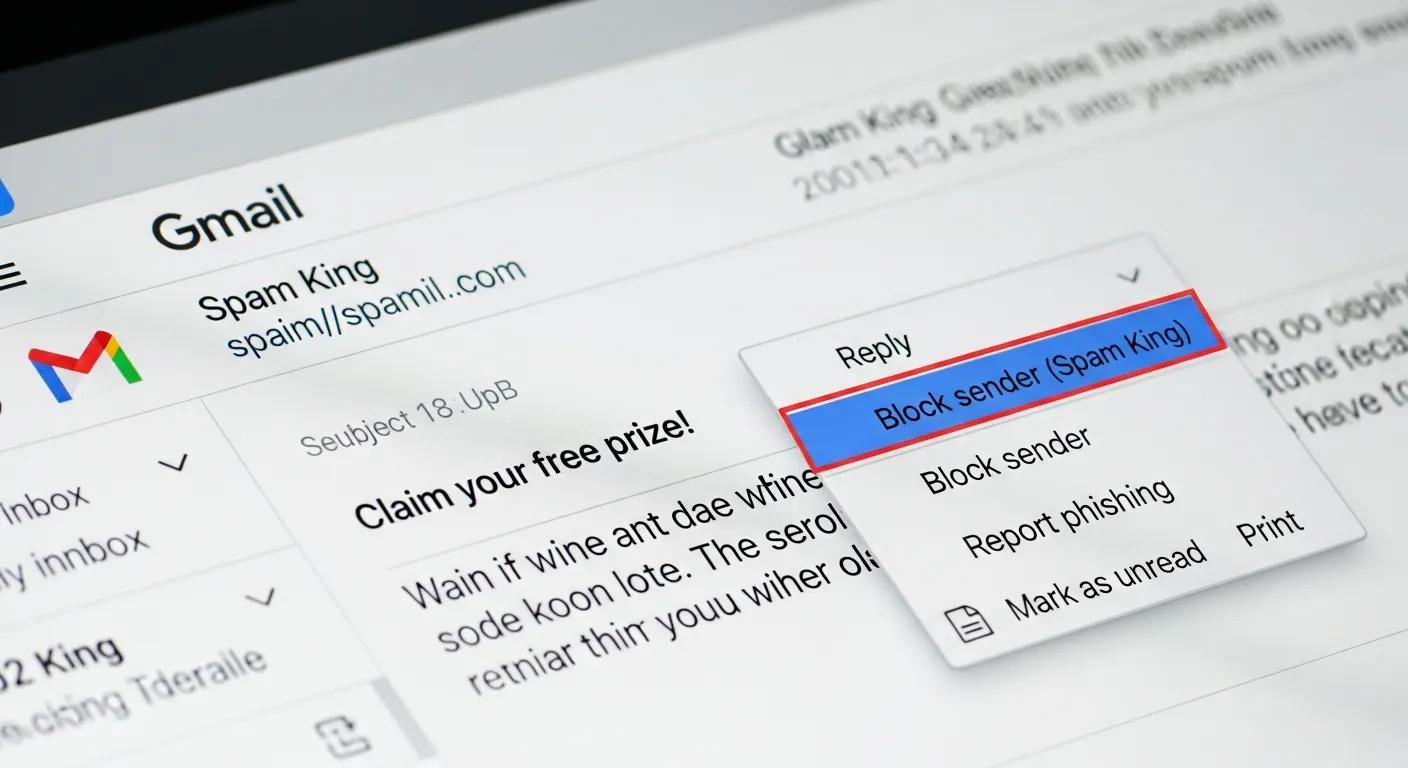
Blocking someone in Gmail on desktop is quick. Here are two reliable ways to do it.
Blocking Directly from an Open Email
- Open the email from the sender you want to block.
- Click the three vertical dots (more options) in the top-right corner of the message.
- Select "Block [Sender's Name]" from the dropdown menu.
This method is fast and keeps you right inside the message while you block the sender.
Creating Filters to Block Specific Senders
- Click the gear icon in the top-right and select "See all settings."
- Open the "Filters and Blocked Addresses" tab.
- Click "Create a new filter."
- Enter the email address you want to block and click "Create filter."
- Check the box next to "Delete it" and click "Create filter."
Use filters when you want to block multiple addresses or an entire domain — it’s more flexible for bulk unwanted mail.
How to Block Emails on Gmail Mobile App for Android and iPhone
Blocking on the Gmail mobile app is just as simple. Follow the steps below for Android or iPhone.
Blocking Senders Using the Gmail App on Android
- Open the Gmail app and open the email from the sender you want to block.
- Tap the three vertical dots in the top-right corner of the message.
- Select "Block [Sender's Name]."
After that, future emails from that address will go to your Spam folder and won’t clutter your inbox.
Blocking Senders Using the Gmail App on iPhone
- Open the Gmail app and find the message from the sender you wish to block.
- Tap the three vertical dots in the top-right corner.
- Choose "Block [Sender's Name]."
The iPhone app works the same way as Android — blocked senders are routed to Spam.
How to Manage and Unblock Senders in Gmail
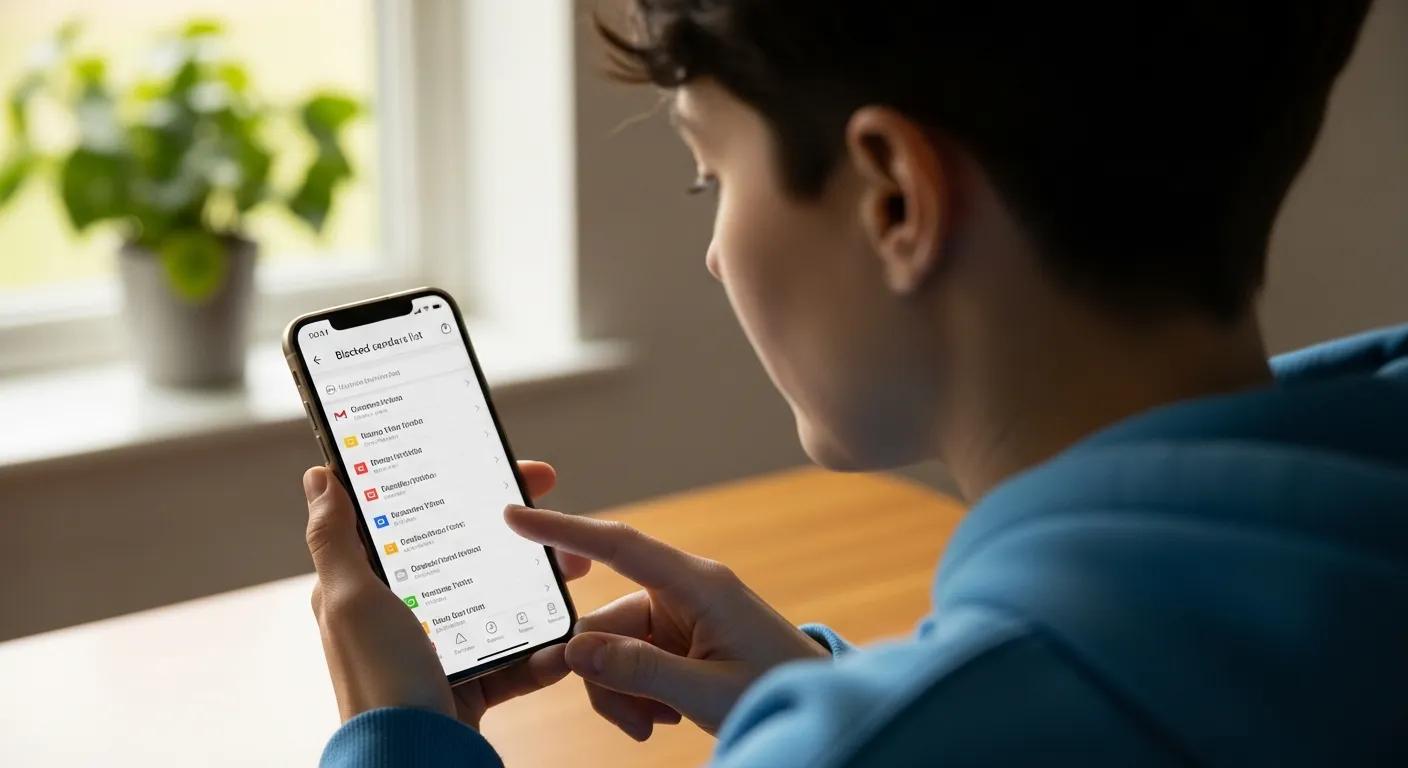
It’s easy to review and edit who you’ve blocked. Regularly checking this list helps prevent accidentally keeping someone blocked.
Viewing and Editing Your Blocked Senders List
- Open Gmail settings by clicking the gear icon and selecting "See all settings."
- Go to the "Filters and Blocked Addresses" tab.
- There you’ll see all blocked senders — click "unblock" next to any address you want to restore.
This lets you quickly manage blocked contacts and make changes as needed.
Steps to Unblock Someone on Gmail
- Open the "Filters and Blocked Addresses" tab in Gmail settings.
- Find the sender you want to unblock.
- Click "unblock" next to their email address.
Once unblocked, messages from that address will start appearing in your inbox again.
How to Report Spam and Phishing Emails in Gmail for Better Inbox Security
Reporting spam and phishing helps keep your inbox and the wider Gmail community safer. Gmail gives you built-in tools to report these messages.
Using Gmail’s Spam Reporting Features
- Open the email you want to report.
- Click the three vertical dots in the top-right corner.
- Select "Report spam."
Reporting spam trains Gmail’s filters and helps protect other users from similar messages.
Recognizing and Reporting Phishing Attempts
Phishing emails often ask for personal info or include suspicious links. To report phishing:
- Open the email.
- Click the three vertical dots in the top-right corner.
- Select "Report phishing."
Reporting phishing helps stop scammers and keeps everyone safer online.
Why Are Blocked Emails Still Reaching My Gmail Inbox? Troubleshooting Common Issues
If blocked emails still land in your inbox, a few common causes usually explain why. Checking these can help you fix the problem quickly.
Understanding Sender Address Changes and Spoofing
Blocked messages can slip through if the sender uses a different address or spoofs your trusted contacts. Spoofing means the sender forges the "From" address to look like someone you know, which can trick filters.
Resolving Filter Conflicts and Gmail Settings
Filter conflicts or misconfigured settings can let unwanted mail into your inbox. Review your filters in "Filters and Blocked Addresses" and make sure rules don’t conflict — for example, a rule that skips the inbox can override other actions.
How Can Temporary Email Services Like TempoMailUSA Help Prevent Unwanted Emails?
Disposable email services are a practical way to limit spam. Use a temporary address for sign-ups and one-off tasks to keep your main inbox private.
Using Disposable Emails to Avoid Future Blocking
Disposable addresses let you sign up for sites without exposing your primary email. When a temporary address starts getting spam, you can discard it and start fresh.
Benefits of TempoMailUSA for Privacy and Spam Prevention
| Feature | What it does | Why it helps |
|---|---|---|
| No IP Logging | We don’t store user IP addresses | Keeps your activity private |
| Encrypted Mail | Protects the contents of messages | Prevents unauthorized access |
| Auto-Deletion | Messages are removed after a set time | Keeps inboxes uncluttered |
Frequently Asked Questions
Can I block multiple senders at once on Gmail?
Yes. Create filters that target specific email addresses or entire domains. Filters can automatically delete or move messages from many senders, which saves you from blocking each one manually.
What should I do if I accidentally block someone important?
If you blocked someone by mistake, go to "Filters and Blocked Addresses" in Gmail settings, find the sender, and click "unblock." Their messages will start appearing in your inbox again.
How can I prevent spam emails before they reach my inbox?
Use a disposable address from services like TempoMailUSA for sign-ups and one-off uses. Don’t share your primary email unnecessarily, and report spam in Gmail to help improve filtering.
Is there a limit to how many senders I can block on Gmail?
Gmail doesn’t publish a strict limit on blocked addresses, but a long list can become hard to manage. Periodically review and remove addresses you no longer need blocked.
What happens if I block a sender and they change their email address?
Blocking applies to the specific address, so messages from a new address won’t be blocked automatically. If the sender switches addresses, you’ll need to block the new one or create a domain-based filter.
Can I block emails from an entire domain in Gmail?
Yes. Create a filter and enter the domain (for example, *@example.com) in the criteria. Then choose to delete or send those messages to Spam to block mail from that domain.
How do I know if my blocked emails are still being sent?
Blocked messages are moved to Spam, so you won’t get notifications. Check your Spam folder to confirm. If messages from a blocked address appear in your inbox, review your filters and blocked list to fix the issue.
Conclusion
Blocking senders and using filters are simple, effective ways to keep your Gmail inbox under control. Combine these tools with disposable emails from TempoMailUSA to protect your privacy and reduce future spam. Take a few minutes to set up filters and you'll save time and keep distractions out of your inbox.