



Why Your Gmail Junk Mail Filter Matters for Privacy and Inbox Sanity
Gmail junk mail filter is your inbox's first defense against unwanted emails, but understanding how to customize it can mean the difference between a clean inbox and missing important messages.
Quick Answer: Customizing Your Gmail Spam Filters
- Report Spam: Click "Report spam" to train Gmail's filter.
- Mark Not Spam: Move legitimate emails from the Spam folder to your inbox.
- Create Custom Filters: Use Settings > Filters to automatically manage emails.
- Add Trusted Senders: Add contacts to prevent their emails from going to Spam.
- For Admins: Use the Google Workspace Admin console for organization-wide settings.
We've all been there: waiting for a crucial email, only to find it buried in the Spam folder while junk floods our inbox. This isn't just annoying; it's a privacy risk. Every spam email is a potential threat, carrying phishing attempts, malicious links, or tracking pixels that expose your personal identifiable information.
Gmail blocks over 99.9 percent of spam, phishing, and malware, but its machine learning filter isn't perfect. It relies on user feedback, meaning you play a vital role in its accuracy. While Gmail's filters are highly customizable, its default settings may not meet your needs, causing important emails to be lost or junk to slip through.
A key limitation most users don't know: you cannot directly filter emails to the Spam folder using standard options. This is to protect the global training data that benefits all users. This guide will show you how to work with Gmail's filter to create a personalized defense system that protects your privacy and ensures you never miss what's important.
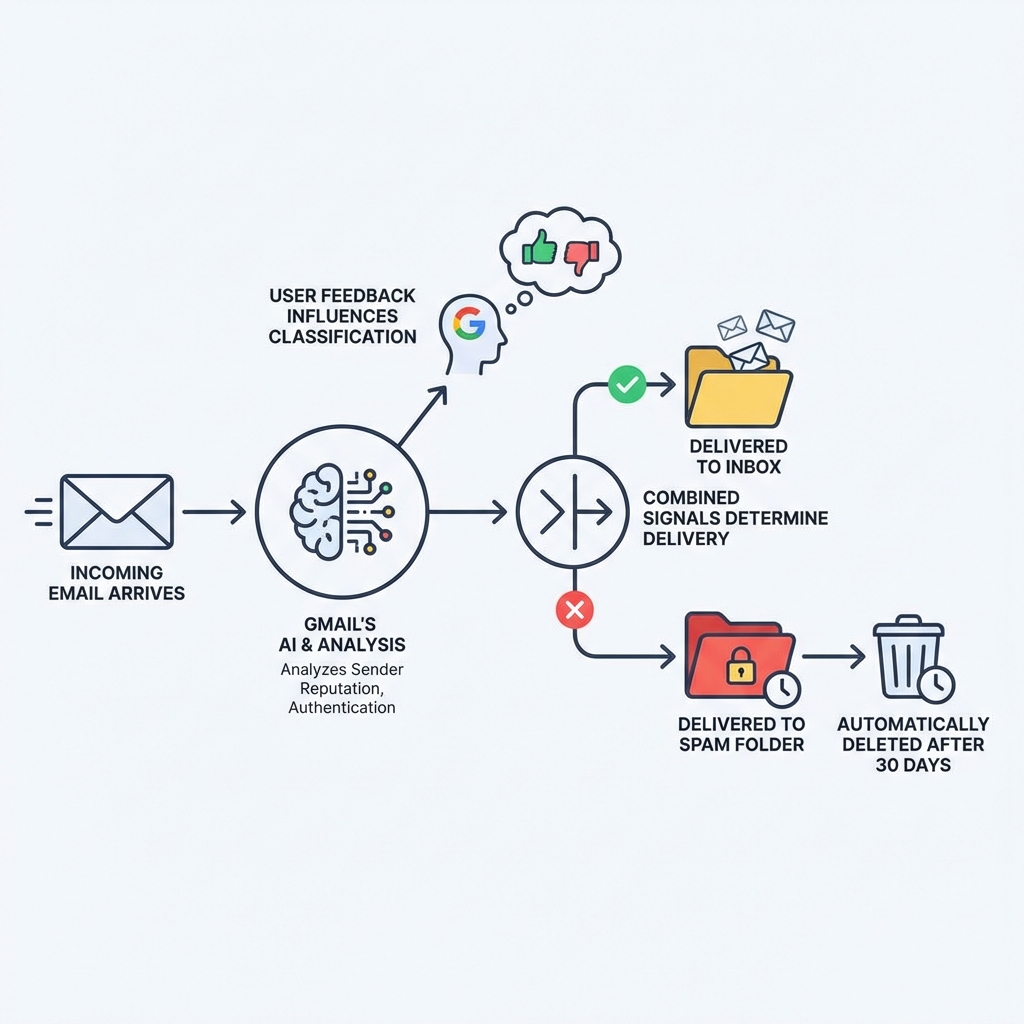
How Gmail's Spam Filter Works: The Brains Behind Your Clean Inbox
Gmail's spam filter acts as a digital bouncer for your inbox, using sophisticated, AI-driven technology to stop unwanted messages. The system relies on machine learning to identify patterns common to spam, phishing, and malware by analyzing a vast array of signals, including:
- Sender Reputation & IP Address: The history and origin of the sender.
- Domain Characteristics: The legitimacy of the sender's domain.
- Email Content: The structure, links, attachments, and language used.
- Sender Authentication: Verification through protocols like SPF, DKIM, and DomainKeys to confirm the sender's identity.
- User Feedback: Your actions of reporting spam or marking emails as "not spam" are crucial for training the filter.
This multi-layered approach allows Gmail to block more than 99.9 percent of spam, phishing, and malware. The system is always on and cannot be turned off, ensuring a baseline of security. Even messages from approved senders are blocked if they contain a virus. You can learn more about this system at So much time, so little spam.
Understanding the different types of spam warnings
Gmail often provides context for why an email was flagged. Pay attention to these warnings in your Spam folder:
- Spoofed email address: The sender may be mimicking a legitimate address to trick you. Verify the sender before interacting.
- Phishing scam warning: The email is suspected of trying to steal personal information. Do not click links or provide data.
- Unconfirmed sender: Gmail could not verify the sender's identity via authentication protocols like SPF or DKIM. Proceed with caution.
- Empty message content: Spammers may send empty emails to verify if your address is active, potentially leading to more spam.
The crucial role of user feedback
Google's AI relies on the Gmail community to improve. Every time you click "Report spam" or "Not spam," you're providing valuable feedback. Reporting spam helps the system learn to block similar messages for everyone, while rescuing legitimate emails teaches the filter what's trustworthy. This collaborative feedback loop is what makes Gmail's filter so effective and quick to adapt to new threats.
Basic Spam Management: Your First Line of Defense
Even with sophisticated filters, some junk mail may reach your inbox, or legitimate emails might land in Spam. Active management is key to refining the filter's behavior.
How to report spam and remove legitimate emails from the spam folder
Properly reporting spam and correcting misclassifications is fundamental to a clean inbox.
To report an email as spam:
- In Gmail, select one or more emails.
- At the top, click the Report spam button (exclamation mark icon).
This action moves the email to Spam and helps train Gmail's filter. For more details, see Google's guide on Report spam in Gmail.
To mark an email as "not spam":
- Go to your Spam folder (under "More" in the left menu).
- Select the email you want to move.
- At the top, click Not spam.
This moves the email to your inbox and tells Gmail it was a false positive.
To delete spam messages permanently:
Emails in Spam are deleted after 30 days, but you can do it manually.
- Go to the Spam folder.
- Click Delete all spam messages now to clear the folder, or select specific emails and click Delete forever.
Be careful, as this action is irreversible.
Best practices for preventing good emails from going to spam
To minimize the chances of important emails going to Spam:
- Add Senders to Contacts: Adding a sender to Google Contacts is the most effective way to whitelist them.
- Create a "Never send to Spam" Filter: For crucial senders, go to Settings > Filters and Blocked Addresses and create a filter with the sender's email in the "From" field, then select the "Never send it to Spam" option.
- Check Your Spam Folder Regularly: A quick check can prevent you from missing something important.
- Always Mark as "Not Spam": If you find a legitimate email in Spam, always use the "Not spam" button to train the algorithm.
- Unsubscribe Carefully: Use the "unsubscribe" link for unwanted newsletters. If it looks suspicious, just mark the email as spam instead.
How to Create a Custom Gmail Junk Mail Filter from Scratch
For a more granular approach, custom filters let you tell Gmail exactly how to handle incoming messages based on specific criteria. You can automatically label, archive, delete, or forward emails, giving you precise control. For full guidance, see how to Create rules to filter your emails.
Creating a filter from the search bar
One of the easiest ways to create a filter is directly from the search bar. This method is intuitive because we can test our search criteria first to see which emails would be affected.
- Open Gmail.
- In the search box at the top, click the Show search options icon (it looks like a downward-pointing triangle).
- Enter your search criteria. You can use fields like
Fromfor a specific sender,Subjectfor phrases in the subject line, orHas the wordsfor keywords anywhere in the email (e.g.,newsletter@example.com). You can also filter by size or attachments and use search operators likeORor-(to exclude). - If you want to check that your search worked correctly, click Search to see what emails show up.
- At the bottom of the search window, click Create filter.
- Choose what you’d like the filter to do. Powerful options include Skip the Inbox (Archive it), Apply the label, Delete it, and Never send it to Spam.
- Optionally, check Also apply filter to X matching conversations to apply the filter to existing emails.
- Click Create filter to finalize.
Creating, editing, and deleting your custom filters
As our email habits evolve, so too might our filtering needs. Gmail makes it easy to manage our existing filters.
- Open Gmail.
- At the top right, click Settings (the gear icon), then See all settings.
- Click the Filters and Blocked Addresses tab.
- Here, you can Edit or Delete existing filters. You can also Export filters as an XML file for backup or Import them into another account.
Managing our filters regularly ensures our inbox stays organized and responsive to our current needs.
Understanding the Gmail junk mail filter's limitations
While Gmail's filtering system is incredibly versatile, it does have one significant limitation that often surprises users: we cannot directly send emails to the Spam folder using custom filters.
This isn't an oversight; it's a deliberate design choice by Google to protect the integrity of its global, user-trained spam detection system. Allowing automated filtering to Spam could corrupt the data and make the system less effective for everyone.
So, if we can't filter directly to Spam, how do we handle persistent junk mail that Gmail's default filter misses?
- The "Junk" Label Workaround: Create a filter to apply a "Junk" label to unwanted mail. Periodically, select all emails with this label and manually click "Report Spam." This provides the necessary feedback to Google.
- Auto-Delete for Known Junk: For messages we are absolutely certain are junk and never want to see, we can create a filter that uses the "Delete it" action. This sends them directly to the Trash.
- Google Apps Script: For the more technically inclined, Google Apps Script offers a programmatic way to move emails to the Spam folder.
- Blocking Individual Addresses: Open an email from the unwanted sender, click the three-dot "More" menu, and select "Block [Sender]." Their future emails will go to Spam.
Advanced Strategies for Senders and Admins
Advanced strategies are available for bulk email senders and Google Workspace administrators who need more control over email filtering.
For bulk senders: Postmaster Tools and best practices
Organizations sending mass emails must ensure high deliverability. Gmail's free Postmaster Tools helps senders monitor their domain's health by providing data on IP/domain reputation, spam rate, authentication status, and delivery errors.
To avoid the Spam folder, Google's best practices for sending bulk email recommend:
- Using strong authentication (SPF, DKIM, DMARC).
- Sending only to recipients who have opted in.
- Providing a clear unsubscribe option.
- Maintaining a good sender reputation.
For administrators: Customizing spam settings for your organization
Google Workspace administrators can customize spam settings for their entire organization. After you Sign in to the Google Admin console, steer to Menu > Apps > Google Workspace > Gmail > Spam, Phishing and Malware.
Key administrative controls include:
- Aggressive Filtering: Enable more stringent spam filtering.
- Administrative Quarantine: Route suspected spam to a quarantine for admin review instead of users' Spam folders.
- Approved Sender Lists: Create whitelists to bypass spam filters for trusted partners, though messages with viruses will still be blocked.
- Bypassing Filters for Internal Senders: Ensure internal communications are never marked as spam.
You cannot turn off Gmail's default spam scanning. Bypassing filters for all senders is not recommended due to security risks. These controls offer a way to balance protection with communication needs.
Frequently Asked Questions About Gmail's Spam Filtering
How long are emails kept in the Spam folder?
Gmail automatically keeps emails in your Spam folder for 30 days before permanently deleting them. This 30-day window acts as a safety net, giving you time to review the folder for any legitimate emails that were misclassified. After 30 days, the emails are gone forever and cannot be recovered.
Can I completely turn off the Gmail junk mail filter?
No, you cannot completely turn off the Gmail junk mail filter. Gmail automatically scans all incoming mail for spam, phishing, and malware as a core security feature. Even Google Workspace administrators cannot disable this default scanning. While you can customize filter behavior, the underlying detection system is always active to provide a baseline of protection for all users.
Why can't I filter emails directly to the Spam folder?
This is a common question, and the reason is quite insightful! You can't create a filter to send emails directly to Spam because Gmail's filter relies on global user feedback. When you manually mark an email as spam, you're training the system for all users. Allowing automated filters to do this could corrupt the training data, potentially causing legitimate emails to be blocked globally. This design choice prioritizes the integrity of the collective intelligence system. The recommended alternatives are to filter unwanted mail to a label for manual reporting or to create a filter that automatically deletes it.
Conclusion: From Reactive Filtering to Proactive Protection
Our journey through the Gmail junk mail filter has shown us that it's far more than just a simple "on/off" switch. It's a sophisticated system, powered by advanced AI and constantly refined by our collective actions. We've learned about its impressive ability to block over 99.9% of unwanted emails, the crucial role of user feedback in its learning process, and how to harness its built-in filtering capabilities to keep our inboxes tidy.
However, we've also acknowledged its limitations. No filter is perfect, and relying solely on reactive filtering means we're always playing catch-up with the latest spam tactics. This is especially critical when considering the implications for our Personally Identifiable Information (PII). Every spam email that slips through, every phishing attempt, or every tracking pixel represents a potential vulnerability for our personal data.
This is where a proactive approach to email privacy becomes indispensable. While Gmail's filter is an excellent first line of defense, it's just one piece of the puzzle. To truly safeguard our PII and maintain our online safety, we need solutions that create a "firewall" around our identity. Tempo Mail USA provides precisely this kind of proactive protection, generating secure email aliases that act as identity proxies. By using these aliases, we add an extra layer of defense, ensuring that our real PII remains private, even if an alias is compromised.
Mastering Gmail's filters empowers us to manage our digital communications more effectively. But for ultimate peace of mind and robust PII protection, we encourage you to explore proactive security measures that shield your identity from the changing threats of the internet. Learn more about how to Protect your online safety with anti-spam tracking.