



Block Gmail Spam Effectively
Spam can bury the messages that matter. This guide walks you through clear, easy-to-follow tactics to cut down spam in Gmail and keep your inbox organized. You’ll learn how spam works, how to block and filter unwanted senders, and how using a disposable address from TempoMailUSA can protect your main email. We’ll also cover combining Gmail filters with temporary emails and the growing role of AI in spotting malicious messages.
What Are Spam Emails and Why Do They Target Gmail?
Spam are unsolicited bulk messages—usually ads, promotions, or scams—sent to many addresses at once. Gmail is a common target because of its huge user base and the ease with which spammers can create accounts or scrape addresses. While exact percentages vary, a notable portion of email traffic to Gmail is spam, so it’s smart to adopt reliable spam-management habits.
How Does Gmail Identify and Handle Spam?
Gmail uses machine learning and a variety of signals to flag spam. That includes sender reputation, message content, links, and how users interact with similar messages. When you mark a message as spam, Gmail learns from that action and refines its filters, which helps keep more unwanted mail out of your inbox over time.
Why Is Spam Still a Problem Despite Gmail's Filters?
Even with strong filters, some spam slips through. Phishing attempts, messages from newly created accounts, and sophisticated spoofing techniques can bypass detection. Also, if users click links or reply to spam, it can signal to spammers that an address is active. Knowing these limits helps you layer protections and reduce risk.
How to Block Spam Emails in Gmail: Step-by-Step Guide

Blocking unwanted senders in Gmail is quick and effective. Follow these hands-on steps to stop repeat offenders from reaching your main inbox.
How Do You Block Specific Senders in Gmail?
To block a sender in Gmail, do this:
- Open the message from the sender you want to block.
- Click the three-dot menu in the message’s top-right corner.
- Choose "Block [Sender's Name]".
After blocking, future emails from that address will go to your Spam folder so your inbox stays cleaner.
What Are the Best Practices for Gmail Spam Filter Setup?
Try these simple habits to make Gmail’s spam filtering work better for you:
- Regularly review your Spam folder: Check occasionally to rescue any legit messages that were filtered by mistake.
- Create custom filters: Auto-sort incoming mail by sender, subject, or keywords to keep clutter out of sight.
- Report spam: Use Gmail’s “Report spam” button—your reports help improve detection for everyone.
Following these steps will make your spam controls more accurate and your inbox more manageable.
How to Use Gmail's Unsubscribe and Report Spam Features Effectively
Gmail includes tools to remove unwanted subscriptions and report suspicious messages. Knowing when and how to use them keeps your inbox under control.
When and How Should You Unsubscribe From Emails in Gmail?
Unsubscribing is a fast way to stop legitimate newsletters and promos:
- Open the email you no longer want.
- Find the "Unsubscribe" link—usually near the top or bottom of the message.
- Click the link and follow the prompts to confirm your choice.
Be cautious: if an email looks suspicious or the unsubscribe link seems deceptive, don’t click it—report it instead.
What Happens When You Report Spam in Gmail?
When you report a message as spam, Gmail moves it to the Spam folder and uses that feedback to refine its filters. Reporting helps Gmail recognize new spam patterns faster, which benefits all users.
How Can Temporary Email Services Like TempoMailUSA Help Stop Spam on Gmail?
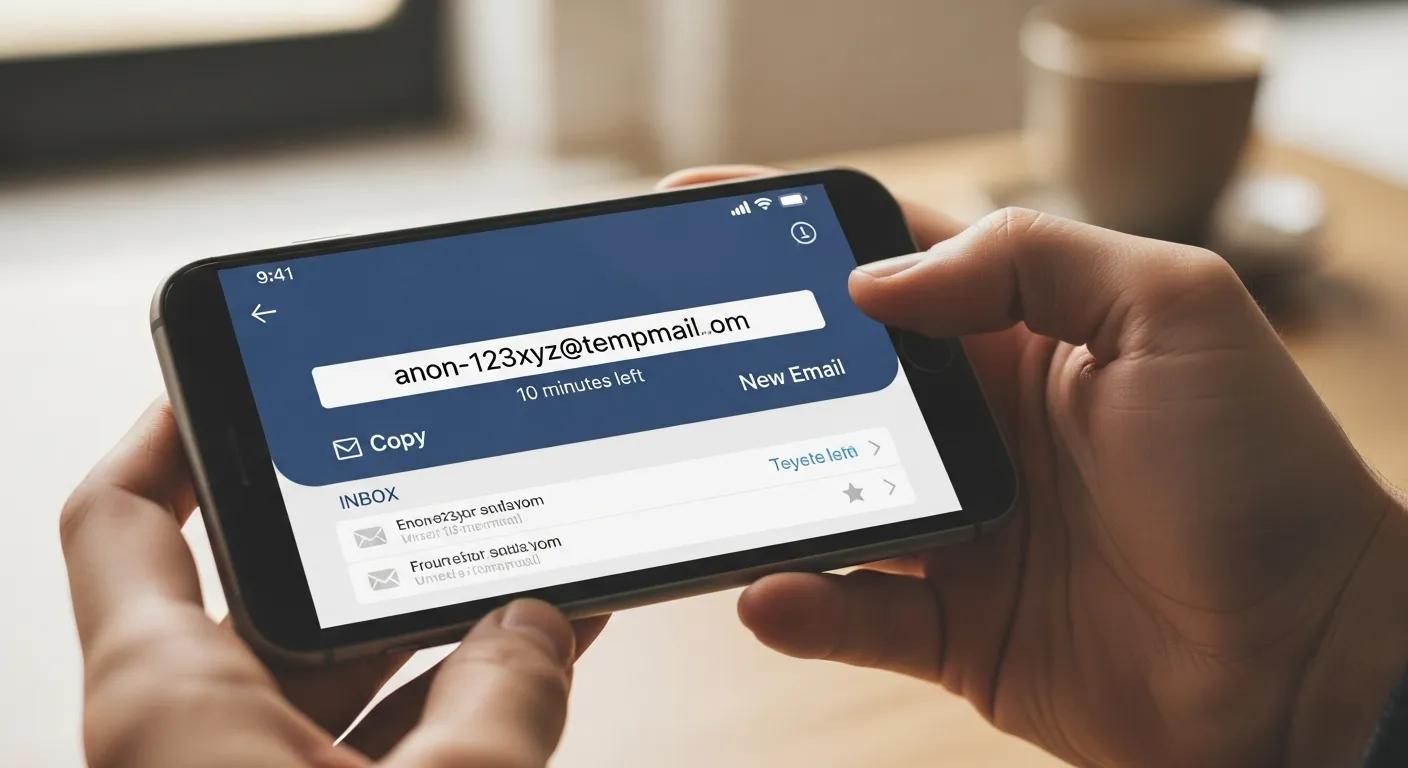
Disposable email addresses stop spam before it reaches your primary Gmail account. Use a temporary address for sign-ups, trials, or sites you don’t fully trust—then discard it when it’s no longer needed.
What Is a Temporary Email and How Does It Protect Your Gmail Inbox?
A temporary email is a short-lived, disposable address you can use instead of your personal inbox. It lets you receive messages without exposing your real email. With a service like TempoMailUSA, you can throw away the temporary address if it starts getting spam, keeping your main Gmail clean and private.
How to Use TempoMailUSA to Prevent Spam Before It Reaches Gmail
Getting started is simple:
- Go to TempoMailUSA and generate a temporary email address.
- Use that address for site sign-ups, newsletters, or one-off registrations.
- Check the temporary inbox for messages and discard the address when you’re done.
This keeps promotional and risky emails away from your primary Gmail account and reduces the chance of future spam.
How to Integrate Gmail Filters with Temporary Email for Ultimate Spam Protection
Using Gmail filters alongside temporary emails gives you more control. Filters help manage messages that reach your main account, while disposable addresses prevent many unwanted emails from arriving in the first place.
How Do Gmail Filters Complement Temporary Email Services?
Filters can automatically sort or archive messages to your primary Gmail account—especially useful for mails forwarded from temporary addresses, receipts, or trusted services. Since temporary addresses are separate, filters won’t act on mail sent only to the disposable inbox, but they’re ideal for managing related communications that do land in Gmail.
What Are Practical Scenarios for Using Both Gmail Filters and Temporary Emails?
Common use cases include:
- Online shopping: Use a temporary address for purchases to avoid promo overload in your main inbox.
- Newsletter sign-ups: Subscribe with a disposable email to keep your primary Gmail uncluttered.
- Testing and development: Developers can use temporary addresses for testing without filling up their main accounts.
Together, these tools let you keep important mail visible while isolating or discarding everything else.
What Are the Upcoming AI Tools for Spam Detection and How Will They Improve Gmail Security?
AI is changing how spam and phishing are detected, making filters faster and smarter at spotting risky messages. Continued advances mean better protection against new tactics and scams.
How Will TempoMailUSA's AI Spam Email Checker Enhance Spam Prevention?
TempoMailUSA is developing an AI-based spam checker that analyzes incoming messages for spam signals. Using machine learning, it should adapt to new threats and help reduce unwanted mail before it reaches you.
What Role Does AI Play in Detecting Phishing and Scam Emails in Gmail?
AI spots unusual patterns in email content, sender behavior, and link destinations—things that are hard to catch with static rules. That lets systems flag phishing and scams more quickly and accurately, improving user safety as tactics evolve.
| Service | Feature | Benefit |
|---|---|---|
| TempoMailUSA | Temporary Email Generation | Keeps your personal inbox private and spam-free |
| Gmail Filters | Custom Sorting | Automatically organizes incoming mail for a cleaner inbox |
| AI Spam Checker | Advanced Detection | Identifies suspicious emails and reduces phishing risk |
Spam is annoying, but manageable. With Gmail’s tools, smart filtering, disposable addresses like those from TempoMailUSA, and emerging AI defenses, you can dramatically cut unwanted messages and protect your inbox.
Frequently Asked Questions
What should I do if spam emails keep coming even after blocking senders?
If spam persists after blocking, spammers may be sending from other addresses or domains. Check your Spam folder regularly and create filters to catch recurring patterns or keywords. Reporting spam also helps Gmail improve its detection, so keep marking unwanted messages when you see them.
Can I recover emails that were mistakenly marked as spam?
Yes. Open your Spam folder, find the message, and click "Not spam." The email will move back to your inbox and Gmail will use that feedback to avoid filtering similar messages in the future.
How can I prevent spam when signing up for online services?
Use a temporary email for any sign-ups you’re unsure about. TempoMailUSA provides disposable addresses you can toss if they start getting spam. Also look for legitimate unsubscribe links and avoid sharing your main email on untrusted sites.
What are the risks of interacting with spam emails?
Responding to or clicking links in spam can expose you to phishing, malware, or identity theft. It also confirms to spammers that your address is active, which can increase unwanted messages. When in doubt, don’t click and report the message instead.
Are there any tools to help manage spam beyond Gmail's built-in features?
Yes—third-party apps and browser extensions can add extra filtering, help identify phishing, and consolidate subscriptions. Popular options include Cleanfox, Unroll.me, and MailWasher. Always verify a tool’s privacy policy before granting access to your email.
How often should I check my spam folder?
Check your Spam folder at least once a week to rescue legitimate messages and spot patterns. If you notice repeated spam from the same senders, block them or add filters to handle future messages automatically.
Conclusion
Keeping Gmail free from spam takes a few simple habits: block repeat offenders, set up filters, use disposable addresses for risky sign-ups, and report suspicious mail. Combine these steps with services like TempoMailUSA and the latest AI tools, and you’ll keep your inbox cleaner and your personal data safer. Start applying these tips today and take control of your email.