



Master Your Gmail Spam Folder
Your Gmail spam folder acts like a safety net — it catches unwanted mail and keeps risky content out of your main inbox. Knowing where to find it and how to use it helps you keep your primary inbox clean and secure. This guide shows how to stop spam now on desktop and mobile, what to do if the label goes missing, how to handle messages correctly, and how disposable addresses can cut down on junk.
What’s coming up: where to find Spam on desktop and mobile, how to unhide a missing Spam label, how to manage items in Spam, how Gmail’s spam filters work, and how temporary emails can reduce unwanted mail.
How do I find the Gmail Spam folder on desktop and mobile?
Whether you’re at a computer or using your phone, locating Gmail’s Spam folder is quick. Below are clear, step‑by‑step instructions for both setups.
Finding the Spam folder in Gmail on desktop (web browser)

Open the Spam folder in Gmail on a desktop with these steps:
- Go to the Gmail website in your browser.
- Sign in if you aren’t already.
- On the left sidebar, scroll down and click "More" to expand labels.
- Click "Spam" to view messages Gmail marked as junk.
That’s all — scan the folder for anything important that was filtered by mistake. Getting used to the menu saves time when you manage email.
Accessing the Spam folder in the Gmail mobile app (Android and iOS)
To open Spam in the Gmail app on your phone: beat spam
- Open the Gmail app.
- Tap the three horizontal lines in the top-left to open the menu.
- Scroll down and tap "Spam."
- Browse the messages Gmail moved to spam on your device.
The layout is slightly different from desktop, but the steps are just as simple. Knowing both ways means you can check Spam anytime, anywhere.
Why is my Gmail Spam folder missing and how do I unhide it?
Sometimes the Spam label disappears from view. Below are common reasons and a quick fix to bring it back.
Common causes for a missing Spam folder in Gmail
- Settings changes: You or someone with access may have hidden the label in Gmail settings.
- Interface updates: Gmail layout updates can move labels or change where they appear.
- Account sync issues: Temporary sync or account problems can affect label visibility.
Recognizing the likely cause makes it easier to restore the folder and continue managing messages.
How to unhide the Spam folder in Gmail settings — step by step
If Spam isn’t visible, restore it like this:
- Open Gmail and click the gear icon in the top-right to open Settings.
- Select "See all settings" from the menu.
- Go to the "Labels" tab.
- Locate the "Spam" label and choose "Show in label list."
- Save changes and return to Gmail — the Spam label should be back.
Once it’s visible again, you can review and manage messages as usual.
How can I manage emails in the Gmail Spam folder effectively?
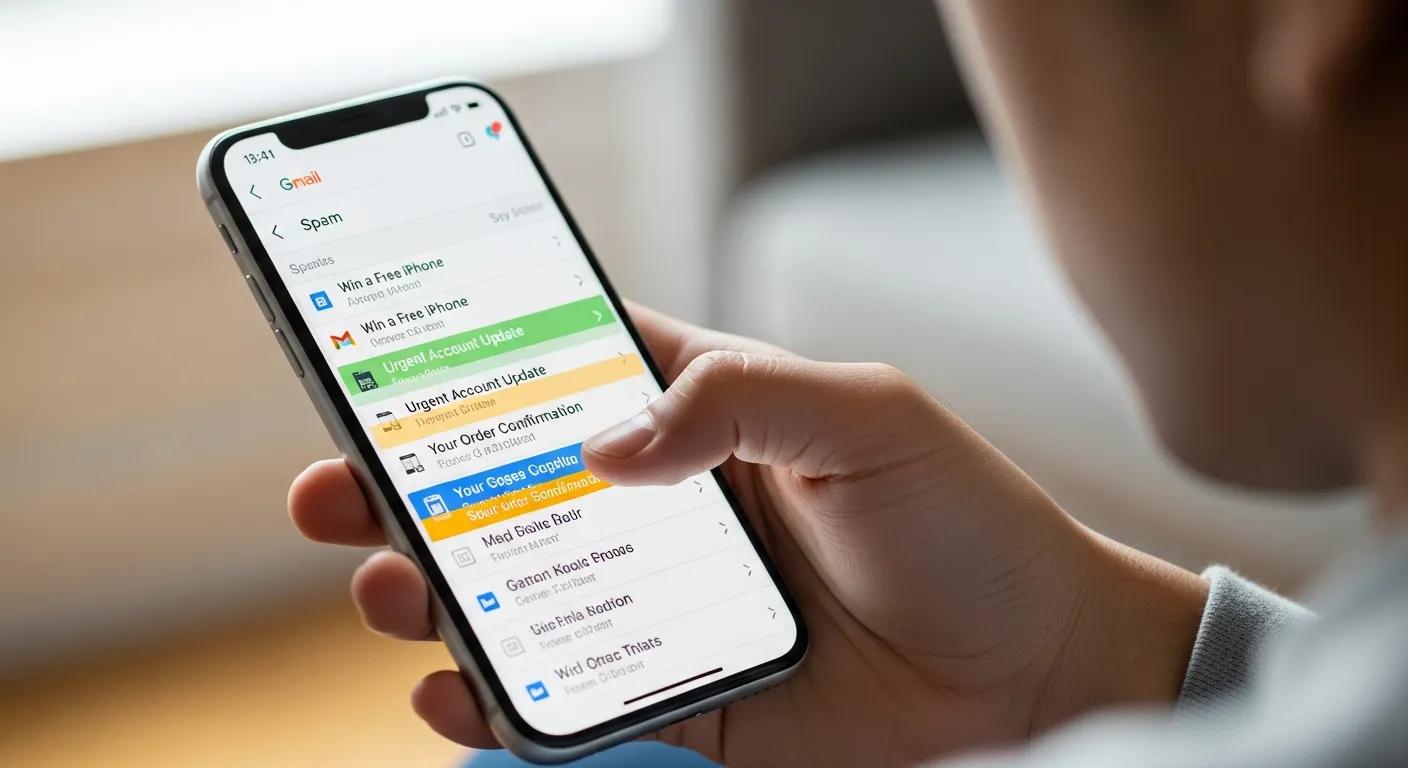
Keeping Spam under control prevents important emails from getting lost and stops junk from building up. Use these practical steps to stay on top of it.
How to mark emails as Not spam and recover them
If a legitimate message lands in Spam, move it back like this:
- Open the Spam folder.
- Select the message you want to recover.
- Click the "Not spam" button at the top — Gmail will return it to your inbox.
Best practices for emptying and deleting emails from Spam
Keep your Spam folder tidy with these habits:
- Regular checks: Look through Spam occasionally and delete anything you don’t need.
- Know retention: Gmail typically deletes items in Spam after 30 days — save anything important before then.
- Improve inbox habits: Clearing Spam regularly helps you notice misclassified emails sooner.
Small, regular checks reduce the chance you miss something important while keeping junk under control.
What are Gmail’s spam filters and how do they affect the Spam folder?
Gmail’s spam filters decide which messages go to Spam. Understanding how they work explains why some emails get filtered out of your inbox.
How Gmail identifies and filters spam
Gmail looks at several signals to spot spam, including:
- Sender reputation: Messages from known spam sources are filtered more strictly.
- Content checks: Gmail scans text, links, and formatting for spam-like patterns.
- User feedback: When people mark messages as spam or not spam, Gmail uses that feedback to improve filtering.
These systems keep your primary inbox cleaner by moving likely junk to Spam.
Retention period and differences between Spam and Trash
Here’s how Spam and Trash differ:
- Retention period: Items in Spam are usually deleted automatically after 30 days; Trash is also emptied after 30 days.
- Why they exist: Spam holds messages Gmail flagged as unwanted; Trash contains items you deleted yourself.
Knowing the difference helps you decide whether to save, move, or remove a message.
How can temporary email services help prevent spam in Gmail?
Disposable email addresses are a practical way to keep spam out of your main account. Here’s why they help.
Using disposable emails to protect your primary Gmail inbox
Temporary email services give you throwaway addresses for sign-ups and one‑time use. The benefits include: the benefits.
- Less spam: Use a disposable address for risky sign-ups so junk doesn’t reach your main inbox.
- Better privacy: A temporary address keeps your real email off marketing lists and data brokers.
- Easy cleanup: When that address starts getting junk, you can discard it without touching your primary account.
For many people, disposable emails are an easy, low-effort layer of protection.
Meet TempoMailUSA’s AI Spam Checker for stronger inbox protection
TempoMailUSA offers an AI Spam Checker that helps stop unwanted messages before they arrive. Key benefits:
- Advanced filtering: AI rules catch patterns basic filters might miss.
- Simple interface: Built to fit smoothly into your email routine.
- Privacy-first: Designed to protect your email activity and personal data.
Using tools like this with disposable addresses can significantly cut down on spam and keep your inbox safer.
| Feature | Description | Benefit |
|---|---|---|
| AI Spam Checker | Advanced filtering technology | Reduces spam in inbox |
| Temporary Emails | Disposable email addresses | Protects primary inbox |
| Privacy Protection | Keeps personal information secure | Enhances user privacy |
Frequently Asked Questions
1. How does Gmail decide what goes into the spam folder?
Gmail combines several signals to spot spam: sender reputation, content analysis (text, links, and formatting), and user actions like marking messages as spam or not spam. Over time, that feedback helps Gmail make better filtering choices for everyone.
2. Can I recover emails that were deleted from the spam folder by mistake?
Emails deleted from Spam are typically removed permanently after the 30-day retention period. If you deleted a message and it’s in Trash, you may still recover it there. If it’s gone from both Spam and Trash, it’s likely unrecoverable.
3. What if my Spam folder is still missing after unhiding it?
If Spam doesn’t reappear after you unhide it, try signing out and back into your account or clearing your browser cache. Also check whether a different Gmail interface or app version is active. If the problem persists, contact Google Support for help.
4. Which types of emails are most likely to be marked as spam?
Emails with misleading subject lines, lots of links or attachments, or messages from unknown senders are often flagged. Generic promotional emails from unverified domains also get caught. Clear, relevant messages from trusted domains are least likely to be marked as spam.
5. How can I improve my email security beyond using the spam folder?
Boost security by enabling two-factor authentication (2FA), using strong, unique passwords, and avoiding sharing your primary email unnecessarily. Keep antivirus software up to date and stay alert to phishing attempts to further protect your inbox.
6. What are the benefits of using a dedicated spam management tool?
Dedicated tools offer stronger filtering, better privacy controls, and richer reporting than standard filters. Many use machine learning to adapt to new spam tactics and help manage subscriptions and unwanted mail more efficiently.
7. How can I help others learn to manage spam in Gmail?
Share simple tips: how to spot spam, the importance of checking the Spam folder periodically, and how to mark messages as spam or not spam. A short guide or quick demo can make a big difference in improving email habits.
Conclusion
Taking control of Gmail’s Spam folder keeps your inbox cleaner and more secure. With a few quick steps you can find, restore, and manage Spam, and using disposable emails plus tools like TempoMailUSA’s AI Spam Checker reduces junk before it reaches you. Spend a few minutes updating your settings today for a clearer, safer inbox tomorrow.