


Why Managing Unwanted Emails Matters for Your Privacy
How do I block a gmail address? Here's the quick answer:
- Open Gmail on your computer or mobile device
- Open a message from the sender you want to block
- Click the three vertical dots (More menu) next to the Reply button
- Select "Block [sender]" from the dropdown menu
- Click "Block" to confirm
All future emails from that sender will automatically go to your Spam folder.
If your inbox has become a minefield of unwanted emails, you're not alone. Blocking email addresses in Gmail is one of the most effective ways to protect your privacy and keep your inbox clean. Whether you're dealing with persistent marketers, spam, or unwanted personal contacts, Gmail's blocking feature sends all future messages from specific senders straight to your spam folder—before they ever clutter your inbox.
But blocking is just one tool in your email management arsenal. Understanding the difference between blocking, reporting spam, and unsubscribing helps you take control of your digital communications and protect your personal information from exposure.
I'm Mohammad Waseem, and through my work building privacy-focused web tools and testing email platforms, I've learned how do I block a gmail address and manage unwanted communications effectively. This guide will walk you through every step of blocking emails in Gmail, plus advanced techniques to keep your inbox secure.
Step-by-Step: How Do I Block a Gmail Address on Desktop?
Blocking an email address in Gmail tells the platform to automatically route all future messages from a specific sender to your spam folder. Unlike deleting, blocking prevents new messages from reaching your main inbox going forward.
Common reasons to block an email address include:
- Stopping unsolicited marketing emails: Blocking cuts through the noise of daily promotional messages you never signed up for.
- Avoiding unwanted contacts: Some unwanted emails come from individuals rather than companies, and blocking keeps those messages out of sight.
- Reducing inbox clutter: A cleaner inbox means less time spent sorting and more time focused on important messages.
When you block an email address, all future emails from that sender go directly to your spam folder rather than your main inbox.
Here's how do I block a gmail address using a desktop browser:
- Open Gmail on your computer. Steer to mail.google.com and log in to your account.
- Open a message from the sender you wish to block. Find any email from the specific address you want to block.
- Click the "More" options (three vertical dots) next to the Reply button. This icon is located in the top-right corner of the open email, near the sender's name and email address.
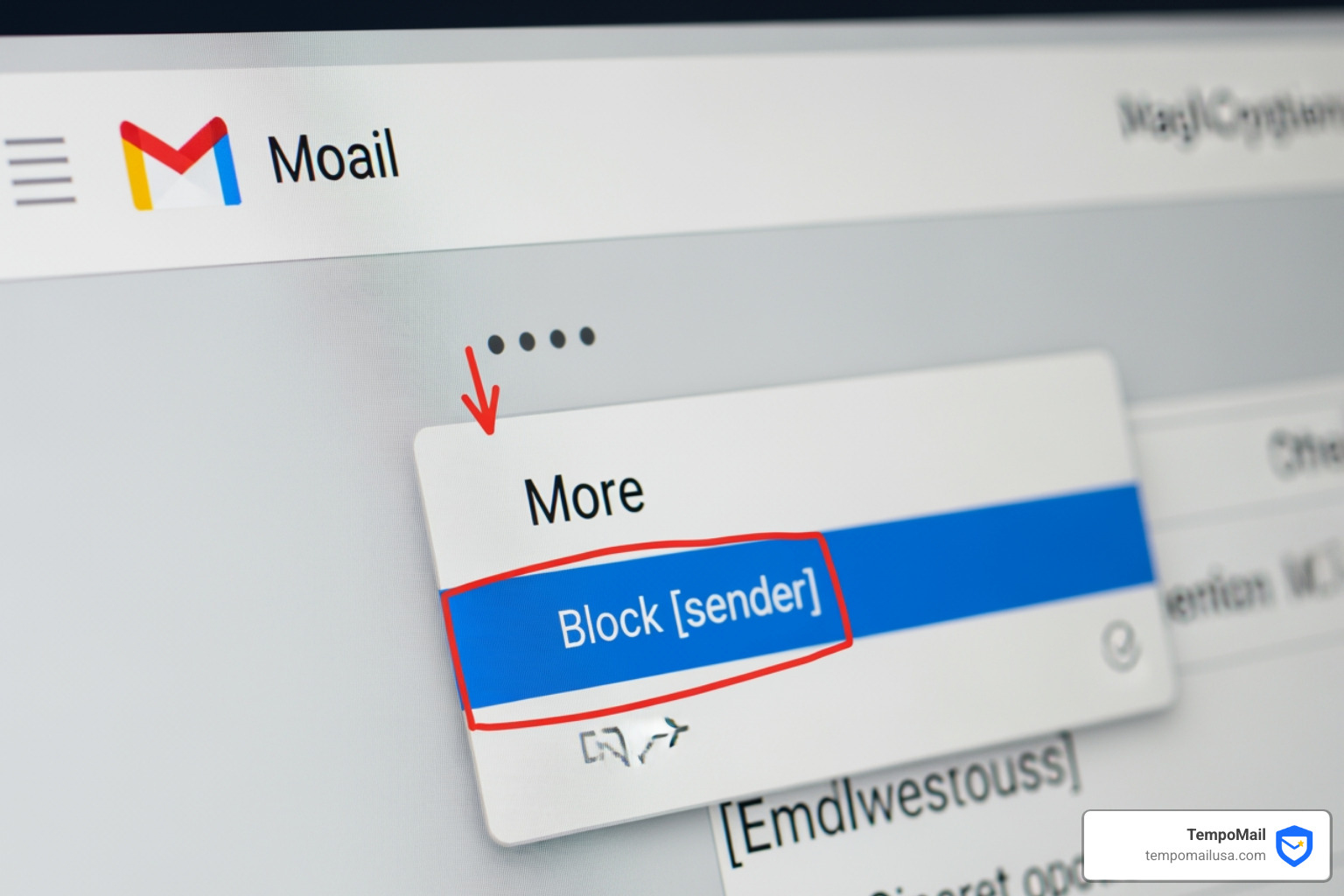
- Select "Block [sender]" from the dropdown menu. A confirmation pop-up will appear.
- Click "Block" to confirm the action.
All future emails from that sender will now bypass your inbox and go straight to your spam folder. For more details, refer to Google's official support page on Block an email address in Gmail. We also have a comprehensive guide on Block Annoying Emails: How to Block Someone on Gmail that covers additional strategies for managing unwanted senders.
How do I block a gmail address on the mobile app?
Blocking emails works on the Gmail mobile app for both Android and iOS devices. The process mirrors the desktop version.
Here's how do I block a gmail address using the Gmail mobile app:
- Open the Gmail app on your Android or iOS device.
- Open an email from the sender you want to block.
- Tap the "More" menu. This is represented by three vertical or horizontal dots, typically located near the sender's name or at the top-right of the email view.
- Tap "Block [sender]" from the options.
- Confirm the action if prompted.
Once confirmed, future emails from that sender will be automatically routed to your spam folder, keeping your mobile inbox organized.
How to Unblock and Manage Your Blocked List
Sometimes you may block an email address prematurely, or circumstances change and you need to receive emails from that sender again. Unblocking an email address in Gmail is straightforward.
There are two primary ways to unblock an email address:
1. Unblocking directly from an email: If you find an email from the blocked sender in your spam folder, you can unblock them directly from that message.
- Open Gmail on your computer.
- Open the message from the sender you wish to unblock.
- Click the "More" options (three vertical dots) next to the Reply button.
- Select "Unblock [sender]" from the dropdown menu.
All future emails from that sender will then arrive in your inbox. You can find more information on this at Unblock a sender in Gmail.
2. Managing your blocked list through Gmail settings: This method is useful for reviewing and managing multiple blocked addresses at once.
- Open Gmail on your computer.
- Click the "Settings" icon (a gear shape) in the top-right corner.
- Select "See all settings."
- Click on the "Filters and Blocked Addresses" tab at the top.
- Scroll down to the "Blocked Addresses" section to see all email addresses you've blocked.
- To unblock, check the box next to each sender you want to unblock.
- Click "Unblock selected addresses."
For a detailed guide, you can refer to Manage blocked addresses in Gmail settings.
After unblocking, if emails from that sender still end up in spam, you may need to add them to your contacts or create a "Never send to spam" filter, which is covered later in this guide.
Here's a comparison of Gmail's tools for managing unwanted emails:
| Feature | What it does | Best for | Impact on Sender |
|---|---|---|---|
| Blocking | Sends all future emails from a specific sender to your Spam folder. | Preventing unwanted personal communications or persistent unsolicited marketing. | None (they don't know) |
| Reporting Spam | Notifies Google that an email is spam, helping improve their spam filters. | Identifying malicious emails (phishing, malware) or general unsolicited junk mail. | None (they don't know) |
| Unsubscribing | Removes your email address from a sender's mailing list. | Legitimate newsletters or promotional emails you initially opted into but no longer want. | Removed from list |
Advanced Inbox Management and Security
Beyond blocking, Gmail offers several features to help maintain a secure and orderly inbox. These tools are important for dealing with phishing attempts, spam, and harassment.
How to Report Spam Emails in Gmail: Even with strong spam filters, some unwanted messages get through. Reporting spam helps Google's algorithms improve, benefiting all users.
- On Desktop: Open the spam email, then click the "Report spam" icon (an octagon with an exclamation mark) in the toolbar above the message.
- On Mobile: Open the spam email, tap the "More" menu (three dots), and select "Report Spam."
How to Report Phishing Emails in Gmail: Phishing emails attempt to trick you into revealing sensitive information like passwords or credit card numbers. They often impersonate legitimate organizations. If you encounter a suspicious email requesting personal information, report it.
- On Desktop: Open the suspected phishing email, click the "More" menu (three vertical dots) in the top-right corner, and choose "Report phishing." Confirm by clicking "Report Phishing Message."
Reporting phishing helps Google investigate and prevent these attacks from reaching others. For more on combating unwanted emails, check out our guide on Stop Spam in its Tracks: Combat Email Spam Effectively.
What is the difference between blocking an email and reporting spam?
- Blocking is a personal action: It tells your Gmail account to send all future emails from a specific address to your spam folder. The sender is not notified, and it only affects your inbox.
- Reporting Spam is a community action: It sends a copy of the message to Google, helping their global spam filters identify and block similar messages for all users. While it may also route future emails from that sender to your spam folder, its primary purpose is improving Google's spam detection.
How can I unsubscribe from unwanted newsletters or promotional emails in Gmail? For legitimate newsletters or promotional emails you once opted into, unsubscribing is the cleanest approach. The Federal Trade Commission requires all commercial emails to contain a working unsubscribe link.
- Look for an "Unsubscribe" link: Typically found at the bottom of the email in small print. Gmail sometimes adds an "Unsubscribe" link next to the sender's name at the top of the email.
- Click the link and follow the instructions. This usually involves confirming your choice on a webpage.
Unsubscribing removes you from the sender's mailing list, which is more appropriate than blocking when you simply no longer want their content.
What should I do if I receive harassing emails in Gmail? Receiving harassing, intimidating, or threatening emails is a serious matter. Gmail's Program Policies prohibit such behavior.
- Document everything: Keep records of the emails, including dates, times, and content.
- Report to Google: Block the sender and report them to Google.
- Contact local authorities: If you feel you are in danger, contact your local authorities immediately. Google states: "If you feel that you're in danger, contact your local authorities right away, and ask whether any cyber harassment laws apply to your situation."
For more information, consult Gmail's Program Policies.
How do I block a gmail address using filters for permanent deletion?
The standard block feature sends emails to the spam folder, but you can go further with permanent deletion using Gmail's filter system. This ensures emails from a specific address are deleted before reaching your inbox or spam folder.
Here's how do I block a gmail address for permanent deletion using filters:
- Open Gmail on your computer.
- Click on "Show search options" (the small downward-pointing arrow or filter icon) on the right side of the search bar. This opens an advanced search window.
- In the "From" field, enter the email address you want to permanently delete emails from.
- Click "Create filter" at the bottom right of the search options window.
- On the next screen, check the box next to "Delete it." This ensures the emails are removed entirely.
- Click "Create filter" to finalize the rule.
Any new emails from that sender will be automatically deleted upon arrival. For more advanced techniques, explore our guide on Mastering Gmail Spam: A Step-by-Step Guide.
Frequently Asked Questions about Gmail Blocking
Here are answers to common questions about blocking email addresses in Gmail.
What happens to emails from a blocked sender?
When you block an email address in Gmail, all future emails from that sender are automatically moved to your spam folder. They will not appear in your primary inbox or in any category tab like Social or Promotions.
Blocking does not delete past emails from that sender; it only affects messages sent after the block is applied. Existing emails remain wherever they were before you blocked the sender. To remove past emails, you need to manually delete them or use Gmail's search to find and delete them in bulk.
Emails from a blocked sender remain in the spam folder for approximately 30 days before Gmail automatically deletes them. This provides a window to review them if you change your mind or suspect a legitimate email was mistakenly blocked.
Can I block multiple email addresses at once in Gmail?
Gmail does not offer a native feature to block multiple email addresses simultaneously. The standard blocking feature works on a per-sender basis, requiring you to open an email from each sender and block them individually.
However, Gmail's filter system provides a way to manage bulk unwanted emails or block multiple addresses from a specific domain.
Here's how to use filters for bulk management:
- Open Gmail on your computer.
- Click the "Settings" icon (gear shape) in the top-right corner, then select "See all settings."
- Go to the "Filters and Blocked Addresses" tab.
- Click "Create a new filter."
- In the "From" field, enter multiple email addresses separated by "OR" (e.g.,
spam1@example.com OR spam2@example.com). To block an entire domain, enter@example-spam.com. - Click "Create filter."
- Choose an action:
- "Delete it" for permanent deletion.
- "Skip the Inbox (Archive it)" to keep them but hide them from your inbox.
- "Mark as read" to clear notifications.
- Click "Create filter" to save.
This approach lets you set rules for multiple senders or entire domains. To reverse these rules later, return to the "Filters and Blocked Addresses" tab and edit or delete the relevant filter.
How can I ensure important senders don't go to spam after blocking others?
Blocking unwanted senders should not affect emails from trusted contacts, but here are steps to make sure important messages always reach your inbox:
- Add them to your Google Contacts list: Gmail generally trusts senders who are in your contacts.
- Go to Google Contacts.
- Click "Create contact" on the top left.
- Enter the sender's name and email address.
- Click "Save."
- Create a "Never send to spam" filter: This whitelists specific senders.
- Open Gmail on your computer.
- In the search bar, click "Show search options" (the downward-pointing arrow).
- In the "From" field, enter the important sender's email address.
- Click "Create filter."
- Check the box next to "Never send it to Spam."
- Click "Create filter."
- Mark as "Not spam": If an important email lands in your spam folder, open it and click the "Report not spam" button. This trains Gmail to recognize emails from this sender as legitimate.
These steps let you block unwanted senders confidently without risking missed messages from trusted contacts.
Conclusion
Taking control of our email inbox is a fundamental step towards better digital hygiene and improved online privacy. Learning how do I block a gmail address empowers us to filter out the noise, reduce stress, and protect ourselves from potential threats. We've explored the straightforward steps for blocking on both desktop and mobile, learned how to unblock and manage our blocked list, and dived into advanced techniques like using filters for permanent deletion.
Beyond blocking, we now understand the critical differences between blocking, reporting spam, and unsubscribing—each serving a unique purpose in our inbox management strategy. We also know what to do when facing serious issues like phishing attempts or, even worse, online harassment, by reporting to Google and contacting local authorities if necessary.
In an increasingly interconnected world, our email address often acts as our digital identity, a gateway to our personal information. At TempoMail USA, we understand the paramount importance of privacy and cybersecurity. Our mission is to safeguard your online identity by offering identity proxying services that generate secure aliases. These aliases act as a firewall, protecting your Personally Identifiable Information (PII) from online services and reducing the direct exposure of your primary email.
By implementing the blocking and management techniques discussed here, combined with solutions like TempoMail's disposable emails, we can significantly reduce our vulnerability to spam, phishing, and unwanted communications. It's about building a robust defense around our digital lives, ensuring that only the information we want, from the sources we trust, reaches us.
Ready to further strengthen your email defenses and enjoy a cleaner, more secure inbox? Explore how TempoMail can provide you with a powerful layer of protection.
Discover more about how TempoMail is your go-to solution for disposable emails.
Protect your inbox with anti-spam tracking and online safety tools.