



Why Your iPhone Handles Junk Mail Differently Than You Expect
Why is there no spam folder on iphone? The truth is, there is a spam folder on your iPhone—it's just called the Junk folder. Apple uses the term "Junk" instead of "Spam" in its Mail app, which confuses many users who are looking for familiar terminology. Additionally, depending on your email provider (Gmail, Outlook, Yahoo), the folder might not appear by default until you manually mark an email as junk or adjust your mailbox settings.
Quick Answer:
- For Email: Your iPhone Mail app uses a "Junk" folder, not "Spam"
- For Text Messages: iOS 16+ filters suspicious texts into an "Unknown Senders" list
- Why it's hidden: The folder may not display until you mark your first email as junk
- Provider differences: Gmail, Outlook, and other services handle spam filtering on their servers, which can affect folder visibility
The confusion deepens when you switch between email providers or upgrade to a new device. As one frustrated iPad user finded in an Apple forum: "I used to have a spam folder on my iPad 1 and I don't have one on the iPad 2... so many emails from friends go into my spam." This real-world frustration highlights why understanding Apple's approach to junk mail is essential for anyone concerned about missing important messages.
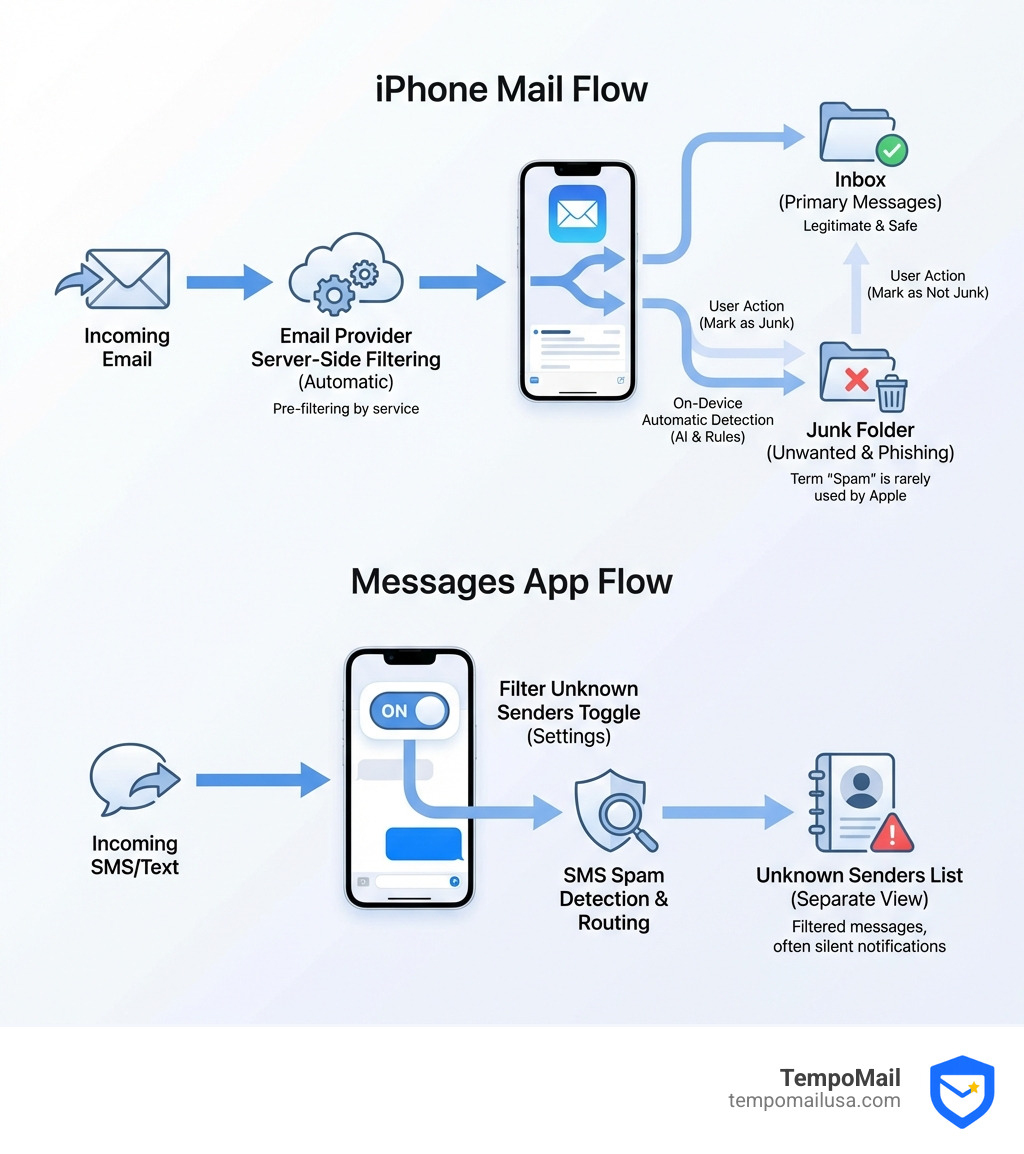
Apple's spam filtering works differently than other platforms. Instead of creating a visible spam folder immediately, iOS relies on server-side filtering by your email provider and on-device detection that quietly sorts suspicious messages. For text messages, iOS 16 introduced automatic spam detection that diverts malicious texts to a separate list—no notifications, no clutter.
I'm Mohammad Waseem, and through managing multiple email systems and testing various privacy tools, I've helped users steer the exact confusion around why is there no spam folder on iphone and how to regain control of their inbox filtering.
Why is there no spam folder on iPhone Mail?
If you are hunting for a folder specifically labeled "Spam" in the native Apple Mail app, you might be looking for a ghost. One of the primary reasons users ask why is there no spam folder on iphone is simply a matter of semantics. Apple has historically used the term "Junk" to describe unwanted marketing emails, phishing attempts, and unsolicited messages.
Naming Conventions and the Junk Folder
In email, "Spam" and "Junk" are essentially synonyms, but software developers choose one over the other. Apple’s ecosystem—spanning macOS, iPadOS, and iOS—exclusively uses "Junk." When you add an account to your iPhone, the Mail app attempts to "map" the folders from your email provider to its own interface. If you use Gmail, which calls it "Spam," the iPhone Mail app usually translates this and displays it under the "Junk" mailbox icon.
IMAP vs. POP: The Technical Culprit
The visibility of your junk folder often depends on how your email account was set up.
- IMAP (Internet Message Access Protocol): This is the modern standard. It syncs all folders between the server and your iPhone. If your provider has a spam folder, IMAP should show it as "Junk" on your phone.
- POP (Post Office Protocol): This is an older method that often only downloads the "Inbox." If your account is set up via POP, your iPhone literally cannot see any other folders on the server, including the spam/junk folder.
To keep your inbox clean from the start, we recommend following Stop Spam in its Tracks: Effective Prevention Tips to reduce the volume of mail that needs filtering in the first place.
| Provider | Server-Side Name | iPhone Mail App Name |
|---|---|---|
| iCloud | Junk | Junk |
| Gmail | Spam | Junk |
| Outlook/Hotmail | Junk Email | Junk |
| Yahoo | Spam | Junk |
Why is there no spam folder on iPhone for some third-party accounts?
Sometimes, even with IMAP, the folder refuses to show up. This usually happens because of a "handshake" error between Apple Mail and a third-party provider like Outlook or a custom work email.
Email Provider Integration and Folder Mapping
When you add an Office365 or Outlook account, Apple Mail might not automatically recognize which folder is the designated "Junk" folder. This results in the folder being hidden from the main "Mailboxes" list. Users often report that they can see junk mail on their desktop app but not on their iPhone. In these cases, the folder exists on the server, but the iPhone hasn't been told to display it.
Label Differences
Gmail users often face a unique challenge. Gmail doesn't technically use "folders"; it uses "labels." While most of the time this translates perfectly, occasionally the "Spam" label doesn't sync correctly with the iPhone's "Junk" designation. If you find yourself missing these filtered messages, checking out our guide on Mastering Gmail Spam: A Step-by-Step Guide can help you re-align those settings.
The role of server-side filtering
It is important to understand that your iPhone is rarely the one deciding what is spam. Most of that heavy lifting happens on the servers of iCloud, Google, or Microsoft before the email even reaches your device.
Automatic Blocking
iCloud Mail, for instance, automatically blocks the most obvious junk mail before it even touches your "Junk" folder. This is why you might see 50 spam emails on a webmail interface but only 10 in your iPhone's Junk folder—the server simply deleted the most malicious ones.
Server-Side Junk Mail Handling
Since the filtering happens "in the cloud," your iPhone is essentially just a window into what the server has already decided. If you believe your server-side filter is being too aggressive (or not aggressive enough), you may need to log in to your provider's web interface. For more on how to manage these settings at the source, see Why Use Email Spam Filters for Ultimate Inbox Protection.
How to Find and Manage Your iPhone’s Junk Mailbox
If the folder is missing, you don't have to live without it. You can usually "force" the iPhone to show the Junk folder through a few simple navigation steps.
Accessing the Hidden Mailbox
- Open the Mail app.
- Tap Mailboxes in the top-left corner until you see the main list.
- Tap Edit in the top-right corner.
- Look for "Junk" in the list. If it has an empty circle next to it, tap the circle to check it.
- Tap Done.
If you still don't see it, you may need to add it manually:
- From the Edit screen, tap Add Mailbox.
- Select your email account (e.g., iCloud or Gmail).
- Scroll through the server folders and select "Junk" or "Spam."
- Tap Done.
Managing these folders is a key part of digital hygiene. For a deeper dive into finding these settings across different platforms, read Discover Where is the Spam Folder in Gmail Easily.
Manually marking emails to trigger folder visibility
In some instances, the iPhone Mail app won't create a "Junk" folder until it has something to put in it. If you have a brand-new iPhone or a newly added account, the folder might be invisible simply because it's empty.
Swipe Actions and Training
You can trigger the creation of the folder by manually marking an email as junk:
- Swipe left on an email in your Inbox.
- Tap More (the three dots or gray icon).
- Scroll down and tap Move to Junk.
This action does two things: it moves the email and "trains" the Apple Mail algorithm. According to Apple, marking an email as junk helps the system identify subsequent emails from the same sender as junk automatically. If you've accidentally marked something incorrectly, you can learn How to Mark Messages as Not Junk on iPhone to reverse the process and retrain the filter.
Recovering legitimate mail from the Junk folder
We’ve all been there: waiting for a password reset link or a message from a friend that never arrives, only to find it buried in the Junk folder. These are "false positives."
Moving Messages Back to the Inbox
If you find a legitimate email in your Junk folder, don't just read it there. You must move it to the Inbox to ensure future emails from that sender aren't filtered.
- Open the Junk folder.
- Tap the email.
- Tap the Folder icon (Move) or the Reply arrow and select Move to Inbox.
On iCloud.com, you can also click "Not Junk" at the top of the message window. For more detailed recovery steps, see View and recover spam messages on your iPhone.
Understanding Spam Filtering in the Messages App
While email spam is an old problem, SMS and iMessage spam is a growing threat. Many users ask why is there no spam folder on iphone for their text messages. Unlike Mail, the Messages app uses a "Filter" system rather than a traditional folder structure.
The Power of SMS Filtering
Text messages have an incredible 98% open rate, compared to just 20% for email. This makes them a prime target for scammers. Apple has responded by implementing advanced algorithms that perform trend analysis to block malicious sources.
iOS 16 and Beyond
With the introduction of iOS 16 (and refined in later versions like iOS 17 and 18), Apple significantly improved how it handles junk texts. If you are in certain regions, like India, Apple even provides up to 12 different filters for transactions, promotions, and junk.
To keep your phone even quieter, you might consider how to Block Spam Calls Easily: Best Free App for iPhone Users.
Why is there no spam folder on iPhone Messages by default?
The "Spam" folder in Messages is disabled by default to prevent users from missing texts from people who aren't in their contacts (like a delivery driver or a doctor's office). To see your junk messages, you must first enable the filtering feature.
How to Enable Message Filtering:
- Go to Settings.
- Tap Messages.
- Scroll down to Unknown & Spam.
- Toggle on Filter Unknown Senders.
Once this is on, your Messages app will gain a "Filters" button in the top-left corner. This is where your "hidden" spam folder lives. Apple’s on-device detection automatically diverts suspicious and potentially harmful messages here, and you won't receive a notification for them.
Accessing the hidden SMS Junk folder
Once you've enabled the filter, accessing the "Spam" or "Junk" list is easy:
- Open Messages.
- Tap Filters (or the back arrow) in the top-left corner.
- Tap Junk or Spam (the name varies by iOS version and region).
- Here, you can review messages identified as malicious.
In the latest iOS versions, you cannot click links or reply to these messages until you move them to your main inbox by tapping "Not Junk." This is a security protocol to prevent accidental phishing clicks. Learn more about how this works in our guide: iPhone Messages Junk Folder Explained.
Advanced Privacy Settings to Reduce Unwanted Mail
If you're tired of constantly checking your Junk folder, the best strategy is to stop the spam from reaching you in the first place. Apple provides several built-in features to help with this, and third-party alias services can take your protection even further.
Mail Privacy Protection
In the Settings app under Mail > Privacy Protection, you can turn on Protect Mail Activity. This feature hides your IP address and loads remote content privately in the background. This is crucial because many spammers use "tracking pixels" to see if you've opened an email. If they see you opened it, they know your account is active and will send you more spam.
Using Email Aliases to Protect Your Identity
One of the most effective ways to combat spam is to use secure email aliases — unique, random email addresses that forward to your personal inbox. If one of those addresses starts receiving spam, you can simply delete that specific alias without ever having to change your primary email address. This is a form of "identity proxying," which is exactly what we specialize in at TempoMail.
For those looking for robust alias protection, Temporary Email for Privacy: Safeguard Your Online Identity explains how disposable addresses keep your real inbox clean.
Using aliases to prevent inbox clutter
The most effective way to answer the question of why is there no spam folder on iphone is to make sure the folder stays empty. By using disposable email addresses for online sign-ups, newsletters, and one-time purchases, you keep your real PII (Personally Identifiable Information) off the "sucker lists" that spammers buy and sell.
Using a service like ours to create secure aliases acts as a firewall for your digital life. You get the mail you want, and when a service starts selling your data to advertisers, you just "turn off" that address. Check out Stop Spam Now: Use Disposable Emails for Protection to see how this works.
Frequently Asked Questions about iPhone Spam Management
Why is there no spam folder on iPhone for my email provider?
This usually happens because the folder mapping has failed or the account is using a POP connection. Try deleting the email account from your iPhone (Settings > Mail > Accounts) and adding it back as an "iCloud," "Google," or "Outlook" account rather than "Other." This usually forces the correct IMAP settings and brings back the Junk folder. If the issue persists, you can check Similar questions on Apple Support.
How long do messages stay in the Junk folder?
By default, iCloud Mail deletes messages in the Junk folder after 30 days. Other providers like Gmail and Outlook typically follow the same 30-day rule. It is a good habit to check this folder once a week to ensure no legitimate mail was caught before it is permanently deleted. If you notice your legitimate mail is being delayed or bounced, you may need to contact iCloud Support.
Can I interact with messages in the Junk folder?
Apple restricts interaction with messages in the Junk folder for your safety. Most links will be unclickable, and images may not load to prevent tracking. To interact with the email, you must move it to your Inbox first. This prevents "one-click" phishing attacks from succeeding. You can find more on managing these messages here: View and recover spam messages on your iPhone.
Conclusion
Understanding why is there no spam folder on iphone is the first step toward a cleaner, safer digital experience. Whether it's knowing that "Junk" is just Apple-speak for "Spam," or learning how to enable hidden filters in the Messages app, you now have the tools to manage your unwanted mail effectively.
At TempoMail USA, we believe that the best way to manage spam is to never receive it. As experts in the cybersecurity and privacy industry, we offer identity proxying services that generate secure aliases for you. These aliases act as a firewall, protecting your Personally Identifiable Information (PII) from online services and ensuring your primary iPhone inbox stays dedicated to what matters most.
Ready to take your privacy to the next level? Explore how our tools can protect you at Temp Mail USA.