


Why Blocking Unwanted Emails Matters for Your Privacy and Productivity
How to block unwanted emails on Gmail is simpler than you think—and it's one of the most effective ways to protect your inbox from spam, phishing attempts, and digital clutter.
Quick Answer: Block a Sender in 3 Steps
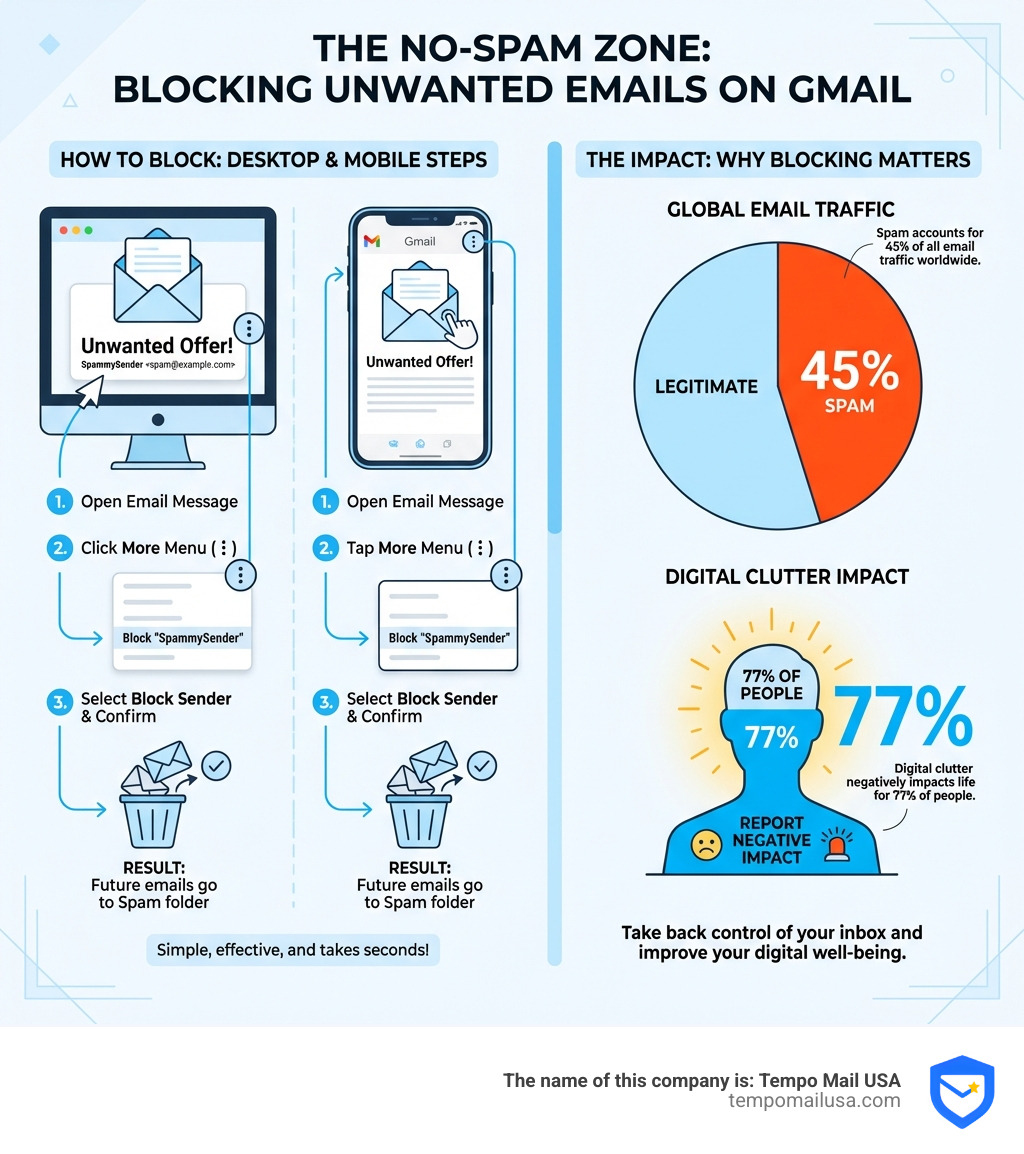
- Open the unwanted email in your Gmail inbox
- Click the three-dot "More" menu next to the reply button
- Select "Block [sender name]" and confirm
All future emails from that sender will automatically go to your Spam folder.
Unwanted emails aren't just annoying—they're a genuine threat to your privacy and peace of mind. According to Statista, spam accounts for more than 45% of all email traffic worldwide, ranging from harmless promotions to dangerous phishing scams. A study by All About Cookies found that 77% of people feel digital clutter negatively impacts their life.
Every time you hand out your email address to sign up for a service, subscribe to a newsletter, or make an online purchase, you're opening the door to potential data breaches, spam floods, and unwanted tracking. Your inbox becomes a target for marketers, scammers, and even sophisticated phishing operations designed to steal your personal information.
The good news? Gmail provides powerful built-in tools to take back control. Whether you're dealing with persistent marketers, suspicious emails from unknown senders, or just trying to reduce inbox noise, blocking and filtering unwanted messages takes only seconds once you know how.
In this guide, we'll walk you through the exact steps to block unwanted emails on both desktop and mobile, explain when to use blocking versus reporting spam, and share advanced strategies like domain-level filtering to keep your inbox clean and your personal information protected.
How to Block Unwanted Emails on Gmail: Desktop and Mobile Steps
Understanding how to block unwanted emails on gmail is the first line of defense in your digital security strategy. Whether you are using a high-powered workstation or checking your messages on the go, Gmail has integrated a "Block" feature that acts as a silent sentry for your inbox.
When you block a sender, you aren't just deleting a single message; you are telling Google’s servers that you no longer wish to interact with that specific address. According to a study by All About Cookies, the mental weight of digital clutter is significant, so taking these steps can actually improve your daily focus.
If you’ve been plagued by persistent newsletters that won't take "no" for an answer, or perhaps an individual who won't stop reaching out, the block feature is your best friend. For those who want to dive deeper into the nuances of silencing senders, you can check out our guide on block-annoying-emails-how-to-block-someone-on-gmail.
Blocking a Specific Sender on Desktop
The desktop version of Gmail offers the most granular control over your inbox. If you’re sitting at your computer and a suspicious or annoying email lands in your primary tab, follow these steps:
- Open the message: Click on the email from the sender you wish to block.
- Locate the "More" button: Look to the top right of the message pane, right next to the "Reply" arrow. It looks like three vertical dots.
- Select "Block [Sender Name]": A dropdown menu will appear. Click the block option.
- Confirm the action: A confirmation dialog box will pop up, explaining that future messages from this address will be marked as spam. Click "Block" again to finalize it.
Once confirmed, any future messages from that address will bypass your inbox entirely and go straight to the Spam folder. They will stay there for 30 days before Gmail automatically deletes them.
How to Block Unwanted Emails on Gmail Mobile App
We spend a huge portion of our lives on our phones, which means spam often follows us into our pockets. Blocking on mobile is just as effective as on desktop.
For iOS (iPhone) and Android users:
- Open the Gmail app and tap on the email from the unwanted sender.
- Find the three dots: Be careful here—there are often two sets of three dots. You want the ones inside the message header (next to the reply button), not the ones at the very top of the app screen.
- Tap "Block [Sender Name]": Just like on the desktop, this will immediately move the current email to spam and route all future emails there as well.
If you ever find yourself wondering where these messages went or if you accidentally blocked a friend, you can learn more about where-is-the-junk-locating-your-spam-folder-on-iphone to retrieve or review them.
Reporting Spam vs. Blocking: Which Should You Use?
One common point of confusion is the difference between "Blocking" and "Reporting Spam." While they both result in emails leaving your inbox, they serve different purposes in the ecosystem of mastering-gmail-spam-a-step-by-step-guide.
Blocking is a personal preference. It’s like putting up a "No Trespassing" sign for one specific person. Use this for:
- Ex-colleagues or acquaintances you don't want to hear from.
- Legitimate companies that keep sending you "updates" despite your lack of interest.
- Personalized harassment.
Reporting Spam is a community effort. When you Mark or unmark as spam in Gmail, you are sending a signal to Google’s machine-learning algorithms. You are saying, "This email is malicious or unsolicited junk." This helps Google protect everyone by identifying patterns used by scammers. Use this for:
- Phishing scams (emails pretending to be your bank or Netflix).
- Obvious bulk junk mail (pills, inheritance scams, etc.).
- Suspicious emails with weird attachments.
| Feature | Blocking | Reporting Spam |
|---|---|---|
| Primary Goal | Stop one specific person/address. | Train Gmail to catch similar junk. |
| Sender Awareness | No notification sent. | No notification sent. |
| Future Emails | Go directly to Spam folder. | Go directly to Spam folder. |
| Scope | Just that specific email address. | Helps block similar messages for all users. |
Managing Your Blocked List and Unblocking Senders
Sometimes we get a little "block happy" and realize we’ve silenced someone important. Or, perhaps you want to audit who you’ve blocked over the years to clean up your settings.
To manage your list:
- Click the Settings gear icon in the top right of Gmail (Desktop).
- Select "See all settings."
- Navigate to the "Filters and Blocked Addresses" tab.
- Scroll down to the bottom of the page. Here, you will see a list of every email address you have ever blocked.
- To restore a sender, simply click "Unblock" next to their name, or select multiple addresses and click "Unblock selected addresses."
Proactive Strategies to Prevent Inbox Clutter
Blocking is a reactive measure—it happens after the junk has already arrived. To truly master how to block unwanted emails on gmail, we need to talk about proactive strategies.
According to Statista, the sheer volume of spam means that even the best filters will occasionally let something through. One of the best ways to keep your inbox pristine is to use Gmail’s "Unsubscribe" feature. Look for the blue "Unsubscribe" link right next to the sender's name at the top of promotional emails. Gmail can often process these requests for you so you don't have to navigate a third-party website.
You can find more advanced tips on this in our guide on beat-spam-how-to-stop-unwanted-emails-on-gmail.
Using Filters: How to Block Unwanted Emails on Gmail by Domain
What if you want to block an entire company, not just one person? Or what if you want to block every email that contains the word "Lottery"? This is where Filters come in.
Filters allow you to create "If/Then" rules for your inbox. For example: "If an email comes from @annoyingcompany.com, then delete it immediately."
How to create a domain-level filter:
- Click the "Show search options" icon (the sliders) in the Gmail search bar.
- In the "From" field, type the domain you want to block (e.g.,
@spamsite.com). - Click "Create filter."
- Choose what you want Gmail to do. For a total block, check "Delete it."
- Click "Create filter" again.
This is a powerful way to handle "mailbombing" attacks—where a malicious actor signs you up for thousands of newsletters at once to hide a single important notification (like a bank transfer alert). By filtering for specific keywords or categories, you can clear the noise and find what matters.
Frequently Asked Questions about Gmail Blocking
Will the sender know if I block them in Gmail?
No. This is one of the most common concerns, but Gmail prioritizes your privacy. When you block a sender, they do not receive a notification, and their emails do not "bounce" back to them with a "Blocked" message. From their perspective, the email was sent successfully. It simply lands in your Spam folder where you never have to see it.
What happens to emails from blocked senders?
When you block someone, their future messages are automatically tagged with the "Spam" label. They will not appear in your Primary, Social, or Promotions tabs. They stay in the Spam folder for 30 days. This is a safety net—if you realize you blocked someone by mistake, you have a month to go into the Spam folder and rescue the message. After 30 days, Gmail permanently deletes them to save storage space.
Can I block an entire domain like @gmail.com?
While you can use filters to block a domain, we strongly advise against blocking massive domains like @gmail.com or @yahoo.com. Doing so would block every single person who uses those services, including friends, family, and legitimate businesses. Instead, use filters for specific, niche domains that only send junk, or stick to blocking individual email addresses.
Conclusion
Mastering how to block unwanted emails on gmail is an essential skill in the modern age. By using the block tool, reporting spam, and setting up smart filters, you can transform your inbox from a source of stress into a streamlined tool for productivity.
However, the best way to stop spam is to never let them have your real email address in the first place. This is where Tempo Mail USA comes in. We provide temporary email aliases that act as a secure identity proxy. Think of us as a privacy firewall for your digital life.
Instead of giving your primary Gmail address to a random website or a "one-time" discount pop-up, use a Tempo Mail USA alias. If that service starts sending you junk or sells your data to marketers, you can simply delete the alias. Your real Gmail address stays hidden, safe, and—most importantly—completely spam-free.
Ready to reclaim your inbox? Start by cleaning up your current clutter, and then head over to discover-where-is-the-spam-folder-in-gmail-easily to make sure you’re managing your junk mail like a pro!