


Why Finding the Spam Folder in Gmail App Matters
The spam folder in gmail app is surprisingly tricky to locate, yet checking it regularly can save you from missing important messages that Gmail's filters accidentally caught. Here's how to access it quickly:
Quick Access Steps:
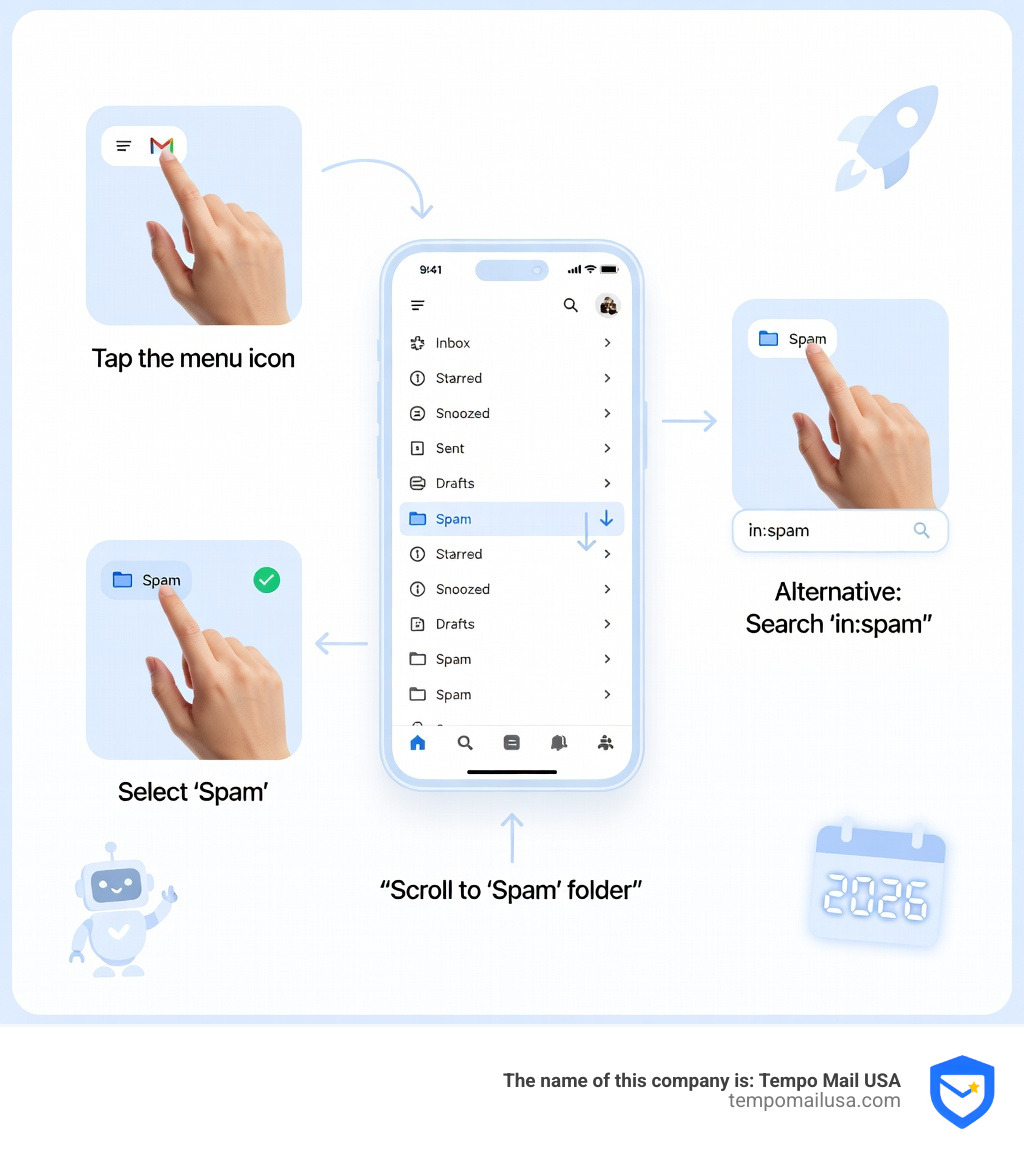
- Android/iOS: Tap the three-line menu (hamburger icon) in the top-left corner
- Scroll down through the folder list
- Tap Spam (you may need to scroll past other labels)
- Alternative: Use the search bar and type
in:spamto view all spam messages instantly
Gmail's spam filtering uses machine learning and global spam reports to automatically move unwanted messages to this folder. While the system is generally accurate, it's not perfect. Sometimes legitimate emails—like job offers, password resets, or messages from new contacts—end up hidden in spam alongside actual junk mail.
The challenge? Gmail automatically deletes everything in your spam folder after 30 days. If you don't check regularly, you could lose important emails forever.
This matters especially if you're privacy-conscious and use temporary email services to protect your real address. Understanding how Gmail handles spam helps you stay in control of what reaches your inbox and what gets filtered out. Whether you're dealing with false positives, trying to train Gmail's algorithm, or simply want to empty your spam folder to free up storage, knowing where to find and manage this folder is essential.
Where is the Spam Folder in Gmail App?
If you feel like you’re playing a game of digital hide-and-seek every time you need to find a missing email, you aren’t alone. The spam folder in gmail app doesn’t sit front and center like your Primary inbox. Instead, it is tucked away in the sidebar menu to keep your main workspace clean.
Finding it is the first step toward reclaiming those "lost" emails. Whether you are using an Android device or an iPhone, the process is nearly identical, though the visual layout might vary slightly depending on your screen size and OS version. If you've ever wondered Discover Where is the Spam Folder in Gmail Easily, the secret lies in knowing that Gmail treats "Spam" as a label rather than a separate account section.
Accessing the Folder on Android and iOS
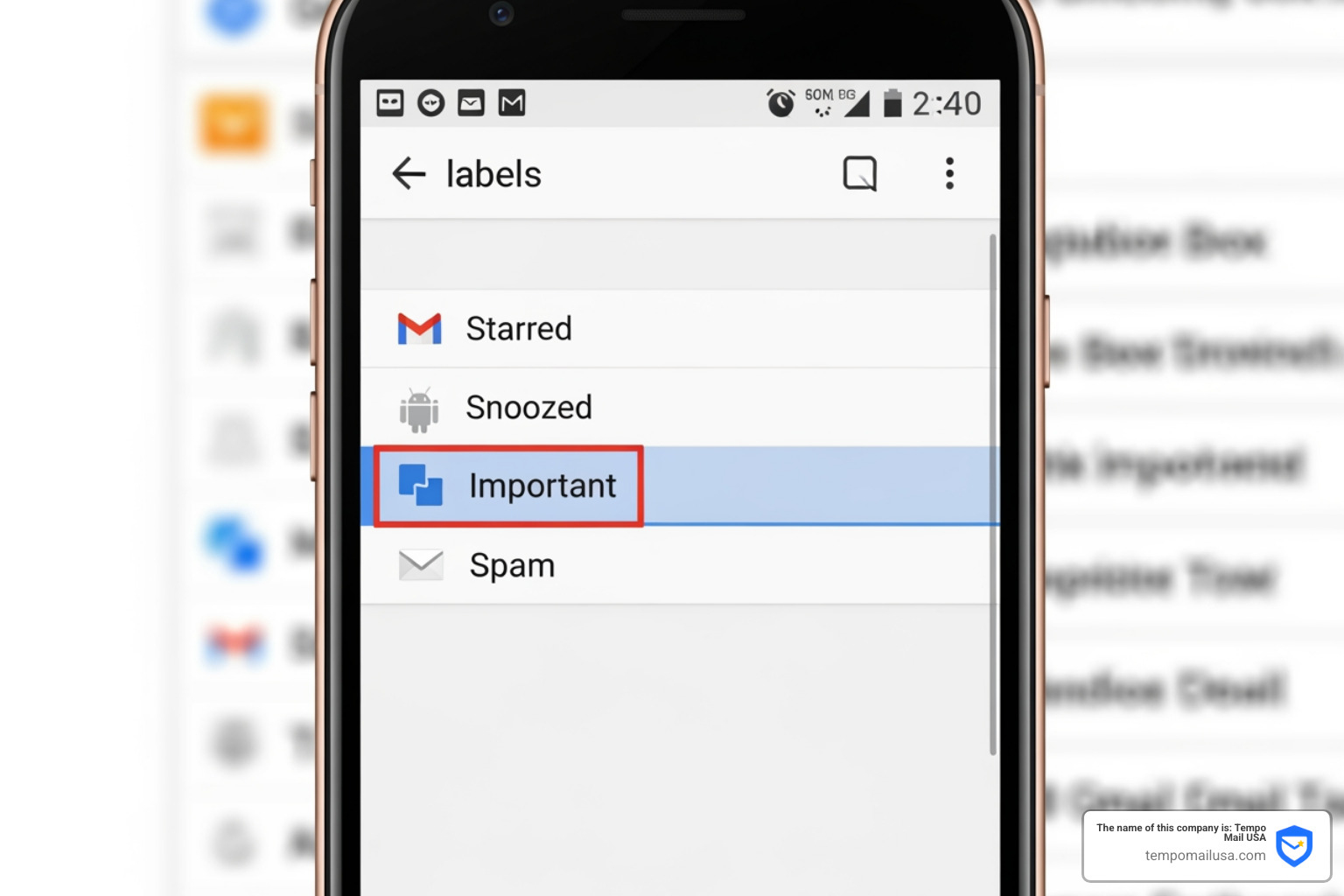
To open the folder on your mobile device, follow these steps:
- Open the Gmail App: Ensure you are logged into the correct Google account.
- Locate the Hamburger Menu: Look for the three horizontal lines in the top-left corner of your screen.
- Scroll Down: You will see a list of folders like "Inbox," "Starred," and "Sent." You may need to scroll past your custom labels to find the "Spam" option.
- Tap Spam: The icon looks like an exclamation point inside a stop sign (or a circle).
On iOS, some users struggle because the "Junk" folder in the native Apple Mail app is different from the Gmail app's Spam folder. If you are specifically using the Gmail app on your iPhone, stick to the three-line menu. For more specific tips on Apple devices, check out our guide on Where is the Junk: Locating Your Spam Folder on iPhone.
Using Search to Find the Spam Folder in Gmail App
If you are in a hurry and don't want to scroll through a long list of labels, there is a "pro" shortcut you can use. Gmail supports search operators that work perfectly on mobile.
- The Operator: Tap the search bar at the top of the app and type
in:spam. - The Result: This will filter your entire account to show only the messages currently sitting in the spam folder.
This is particularly useful if your sidebar is cluttered with dozens of custom labels or folders. It bypasses the navigation menu entirely and takes you straight to the "digital dumpster" to see if that important verification code accidentally landed there.
How to Manage and Empty Your Spam
Once you've found the spam folder in gmail app, the next step is managing the mess. Gmail is quite aggressive with its cleanup—any message that has been in the folder for more than 30 days is permanently deleted. While some users believe is excessive, this 30-day window is actually a safety net. It gives you enough time to realize a message is missing without letting the junk pile up and eat into your Google storage quota.
Reporting and Moving Emails
Managing spam isn't just about deleting; it's about teaching. Every time you Report spam in Gmail, you are contributing to a global database. Google’s machine learning uses these reports to identify similar patterns, protecting you and millions of other users.
- To report an email as spam: Open the email in your inbox, tap the three dots (More) in the top right, and select Report spam.
- To move a "False Positive" out of spam: If you find a legitimate email in the spam folder, open it and tap Report not spam. On mobile, this is often found under the three-dot menu as "Not spam."
Doing this is vital. It "trains" the algorithm that this specific sender is trustworthy. If you want to dive deeper into these mechanics, see our Mastering Gmail Spam: A Step-by-Step Guide.
Bulk Actions and Deletion
If your spam folder is overflowing, you don't have to delete emails one by one.
- Empty Spam Now: At the very top of the spam folder, there is usually a text link that says "Empty Spam now." Tapping this will clear the entire folder instantly.
- Select Multiple: If you only want to delete a few, tap and hold on the sender's profile icon (the circle with a letter or photo) for one email. Then, tap the icons for other emails you want to select. Once highlighted, tap the Trash icon.
Once you manually delete these or they hit the 30-day mark, they are gone forever. There is no "Trash" folder for the "Spam" folder!
How to Stop Important Emails from Going to Spam
Prevention is always better than a cure. If you find that a specific person's emails—like your boss, a client, or a newsletter you actually enjoy—keep ending up in the spam folder in gmail app, you need to take proactive steps.
Whitelisting and Filters
The most effective way to "whitelist" a sender is to add them to your Google Contacts. Gmail's default logic assumes that if someone is in your contact list, they aren't a stranger trying to sell you miracle cures.
If that doesn't work, you can create a filter. While full filter creation is easiest on a desktop, the effects sync to your mobile app immediately.
- Go to Gmail settings on a browser.
- Select "Filters and Blocked Addresses."
- Create a new filter for that sender's address.
- Check the box for "Never send it to Spam."
This is a foolproof way to ensure critical mail hits your Primary tab. For more advanced strategies, we have compiled Stop Emails from Going to Spam: Effective Prevention Tips.
| Action | What it Does | Best For |
|---|---|---|
| Block Sender | Sends all future emails from that address to Spam. | Persistent harassers or specific bots. |
| Report Spam | Moves email to Spam and notifies Google's AI. | General junk, newsletters you didn't join. |
| Create Filter | Automatically sorts mail based on rules. | Ensuring "Never send to Spam" for VIPs. |
Understanding the Spam Folder in Gmail App Warnings
When you open the spam folder in gmail app, you might notice colorful banners at the top of certain emails. These aren't just for decoration; they are security warnings.
- Phishing/Spoofing: Gmail might warn you that an email "looks suspicious." This often happens with SPF (Sender Policy Framework) failures, where the email claims to be from "Bank of America" but the server behind it is unknown.
- Unconfirmed Sender: This means the email lacks DKIM(DomainKeys IdentifiedMail) or DMARC authentication.
- Spoofed Addresses: Watch out for letters replaced by numbers (like an 'o' replaced with a '0').
If you see these warnings, do not click any links or download attachments. If you're worried about your account's integrity, perform a Google Security Checkup immediately.
Frequently Asked Questions about Gmail Spam
What happens to emails in the Gmail Spam folder after 30 days?
Gmail has a strict auto-deletion policy. Any message that has sat in the spam folder for 30 days is automatically and permanently deleted. You cannot recover these messages from the trash. This is why we recommend a quick weekly scan of the folder to ensure no legitimate mail was caught in the crossfire.
Can I block a sender directly from the Gmail app?
Yes! Open an email from the sender you want to silence. Tap the three dots next to the "Reply" button (not the three dots at the very top of the app). Select Block [Sender Name]. Any future emails from them will go straight to the spam folder in gmail app. If you change your mind later, you can find out more about Gmail Blocking: How to Silence Unwanted Senders.
Why might legitimate emails end up in the Gmail Spam folder?
Several factors can trigger a "false positive":
- Spammy Language: Using too many exclamation points or words like "FREE" or "URGENT."
- Lack of Authentication: The sender hasn't set up SPF or DKIM records.
- Shared IP Reputation: If the sender uses a cheap email service, they might be sharing an IP address with actual spammers.
- User Reports: If many other Gmail users reported that sender as spam, Google might start filtering them for everyone.
Conclusion
Navigating the spam folder in gmail app doesn't have to be a chore. By knowing where it's hidden and how to manage its contents, you can keep your inbox clean while ensuring you never miss a vital message.
At Tempo Mail USA, we believe the best way to manage spam is to prevent it from ever reaching your real inbox in the first place. We provide temporary email aliases that act as a secure identity proxy. Think of us as a secure firewall between you and the services you sign up for. By using our aliases, you shield your real personal information (PII) from marketers and potential data breaches. If an alias starts receiving too much junk, you can simply delete it—no "hide and seek" in the spam folder required.
Protect your privacy and take control of your digital life today with Tempo Mail USA.