



Why Microsoft Account Security Alerts Are a Major Phishing Target
A microsoft account security alert email can be a legitimate warning from Microsoft or a scammer trying to steal your credentials. Here's how to tell the difference:
Quick Verification Checklist:
- Legitimate sender: account-security-noreply@accountprotection.microsoft.com
- Never asks for: Your password, payment info, or security codes
- Always verify independently: Go to account.microsoft.com/security directly (don't click email links)
- Check sign-in activity: Review recent logins from your account dashboard
- If you didn't request a code: Don't share it—someone may be trying to access your account
An email says someone tried to access your Microsoft account from Russia. You panic and want to click the "Secure Your Account" button—but stop. This is exactly what scammers want you to do.
As of March 2024, Outlook handles about 4% of all email views worldwide, making Microsoft accounts a massive target for phishing attacks. The problem isn't just the volume of scams; it's how sophisticated they've become. Fake alerts mimic Microsoft's exact formatting and use legitimate-looking domains to trick you.
The stakes are high, as a compromised account can lead to data theft, financial fraud, and identity theft. This guide will show you how to verify security alerts, spot phishing red flags, and build a defense system to keep scammers out.
What is a Legitimate Microsoft Security Alert?
A legitimate microsoft account security alert email is a critical notification from Microsoft about potential security issues with your account. Its purpose is to inform you of unusual activity so you can take immediate action to prevent unauthorized access.
Common scenarios that trigger a legitimate microsoft account security alert email include:
- Unusual sign-in attempts: Microsoft's systems flag sign-ins from a new device, an unfamiliar location, or at an odd time.
- Password changes: If your password is changed, Microsoft sends an alert to ensure you initiated the change.
- Security info updates: Any modifications to your alternate contact methods (like a phone number or recovery email) will trigger an alert.
- New app or service connections: When a new application gains access to your Microsoft account, you'll often get a notification.
When these events occur, Microsoft protects you by sending an email or text message to all your alternate contact methods. This redundancy ensures you receive the alert. To confirm your identity, you'll usually need to provide a security code sent to one of these trusted contacts.
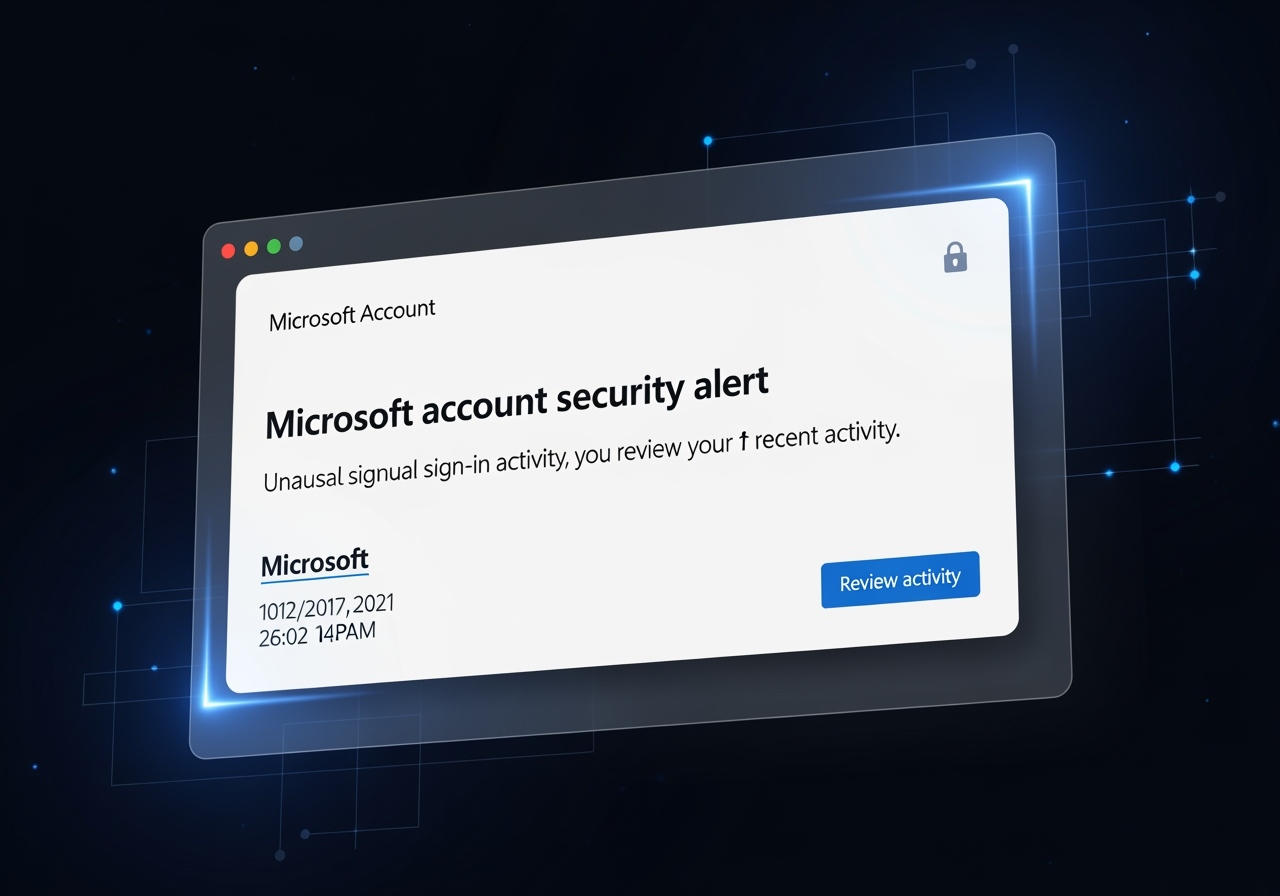
The Official Microsoft Sender Address
One of the most critical ways to verify a microsoft account security alert email is to check the sender address. This is your first line of defense against phishing.
A legitimate microsoft account security alert email will always come from the Microsoft account team at account-security-noreply@accountprotection.microsoft.com. Commit that specific domain, @accountprotection.microsoft.com, to memory. If the email comes from anything else—even something similar like @microsoft.com or @live.com—treat it with extreme suspicion. Scammers often use slightly misspelled domains like micr0soft.com or microsoft-support.net to trick you. Always double-check every character.
This official domain is a trust signal that the message originates from Microsoft's dedicated security infrastructure. For a deeper dive into how sender verification and email privacy work, you can explore More about email privacy.
How Microsoft Uses Security Codes for Verification
Microsoft uses security codes as part of its two-step verification or multi-factor authentication (MFA) system. When a sensitive action like a password change or an unusual sign-in occurs, Microsoft requires a security code to confirm your identity.
This unique, time-sensitive code is sent to your registered phone number or alternate email address. By entering the code, you prove you are the legitimate owner. This adds a crucial layer of protection, as a scammer would need both your password and access to your phone or alternate email.
Never share these codes. Microsoft will never ask you for them. If you receive an unrequested code, it means someone is trying to access your account. Ignore the code and secure your account.
For more comprehensive information on how Microsoft helps keep our accounts secure, we can always refer to their official guidance on How to help keep your Microsoft account secure.
Common Signs of a Fake Microsoft Account Security Alert Email
Fake microsoft account security alert emails are convincing phishing scams designed to trick you into revealing sensitive information (credential theft) or installing malware. Scammers use urgent language and create nearly identical fake login pages to steal your data. Understanding the common red flags is your best defense.
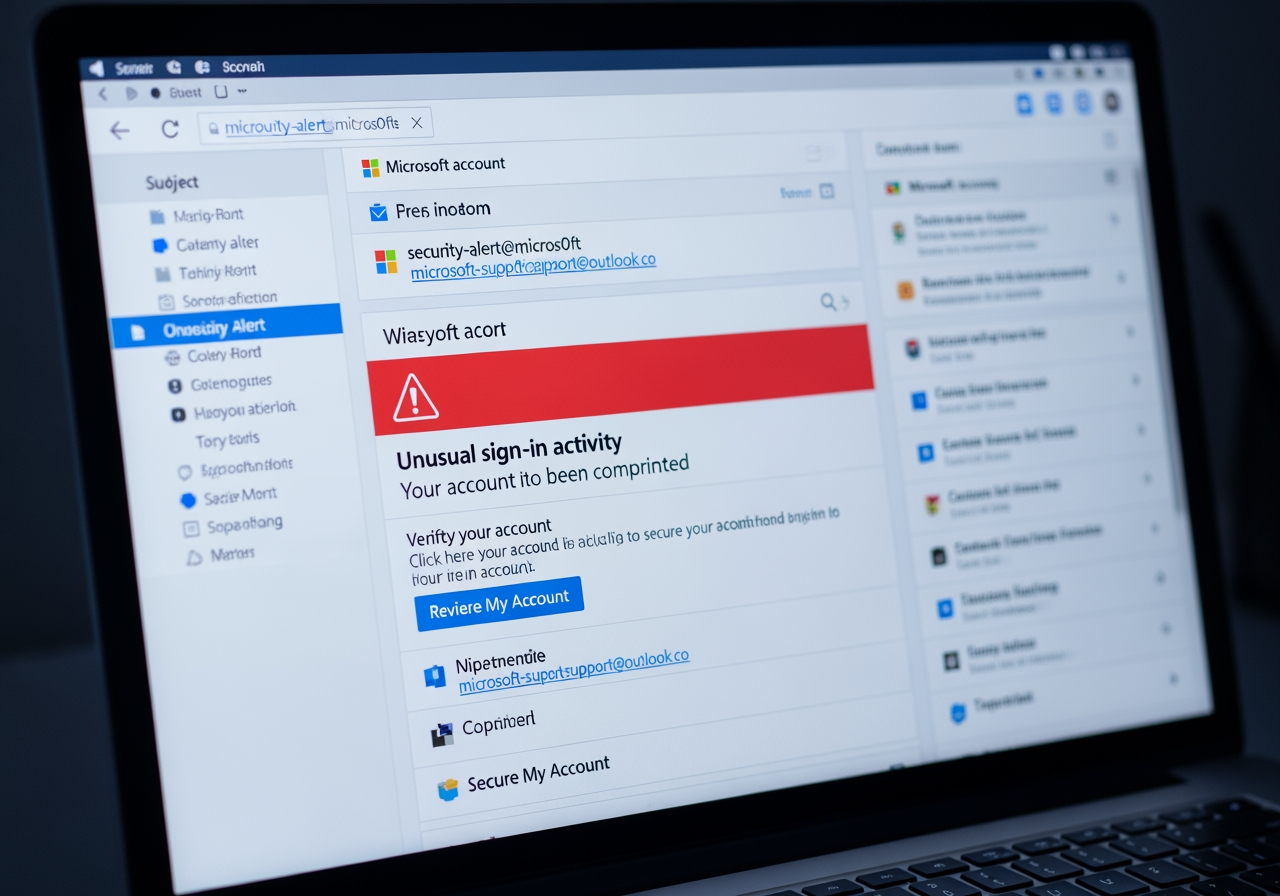
Red Flags in Phishing Emails
Spotting a fake microsoft account security alert email requires a keen eye. Here’s a list of common red flags to look for:
- Generic Greetings: A huge red flag is a generic greeting like “Dear User.” Legitimate alerts typically use your name.
- Spelling and Grammar Mistakes: Phishing emails often have noticeable spelling or grammar errors, unlike professional communications from Microsoft.
- Urgent or Threatening Language: Scammers use urgent or threatening language like “Your account will be suspended” to make you act without thinking.
- Mismatched URLs (Hover to Check!): Always hover over links before clicking. If the destination URL looks suspicious or doesn’t match the link text, it’s a scam. Be wary of shortened URLs or redirects through trusted services.
- Unexpected Attachments: Microsoft security alerts rarely have attachments. Never open unexpected files (
.zip,.exe, etc.), as they likely contain malware. - Requests for Personal Information: Microsoft will never ask for your password or other sensitive information via email. Any such request is a phishing attempt.
By familiarizing ourselves with these warning signs, we can significantly improve our ability to identify and avoid phishing emails. For a more comprehensive guide on how to recognize these deceptive messages, check out our article on How to Spot Phishing Emails.
Types of Microsoft Email Scams
Microsoft email scams generally fall into a few categories, each designed to exploit your trust and urgency.
- Fake Login Pages (Credential Theft): The most common scam uses a convincing fake alert email to direct you to a counterfeit login page. The page mimics Microsoft's official portal to steal your username and password.
- Malware Attachments: These scams trick you into downloading an attachment disguised as a “security update” or “invoice.” Opening the file installs malware, spyware, or ransomware on your device.
- Remote Access Requests: Attackers impersonate Microsoft support and claim there’s a critical issue, prompting you to call a fake number or grant them remote access to your computer. Once in, they can install malware or steal data.
- Fake Subscription Renewals/Billing Issues: These emails falsely claim there’s an issue with your Office 365 or Xbox Live subscription, like a billing error. The goal is to trick you into entering your payment information on a fake site.
Understanding these various tactics is crucial because the core objective remains the same: to trick us into compromising our security. For a broader understanding of how these deceptive practices work, we recommend our guide on What is a Phishing Scam? Protect Yourself.
Your 5-Step Action Plan for Suspicious Emails
Receiving a suspicious microsoft account security alert email can be unsettling, but panic is the scammer's best friend. Instead, follow this clear, calm, and decisive action plan.
Step 1: Do Not Click Anything
This is the golden rule: Do not click any links, open any attachments, or reply to the email.
The entire purpose of a phishing email is to get you to interact with malicious content. Clicking a link can lead to a fake login page, opening an attachment can install malware, and replying confirms your email address is active to scammers.
Resist the urge to click the "Secure Account" button out of concern. Take a deep breath and remember there is a safe, independent way to verify the alert.
Step 2: Verify the Alert Independently
Instead of trusting the email, go directly to the source to verify the alert.
- Open a new browser tab and type
account.microsoft.com/securityinto the address bar. Never use links from the email. - Sign in to your Microsoft account.
- Steer to the "Recent activity" section. This page shows all recent sign-ins, including locations and devices.
- Compare the activity on this page with the information in the email. If there's no matching suspicious activity listed on Microsoft's official page, the email is fake.
This process allows you to safely distinguish between a genuine warning and a phishing attempt on the official Microsoft Account Security Page.
Step 3: What to Do with an Unrequested Microsoft Verification Code
Receiving an unrequested Microsoft verification code usually means one of two things: a scammer has your password and is trying to log in, or someone mistyped their contact info.
In either case, the action is the same: Ignore the code and do not share it with anyone. Microsoft will never call or email you to ask for a verification code. If you receive multiple unrequested codes, it's a strong sign that someone is actively trying to access your account, and you should proceed to Step 5 to secure it.
Step 4: Report the Suspicious Microsoft Account Security Alert Email
Reporting phishing attempts helps Microsoft and email providers identify new scams and protect other users.
- Use Built-in Report Features: In email clients like Outlook, use the "Report Phishing" or "Junk" button. This moves the message to junk and sends a copy to Microsoft for analysis.
- Forward to Microsoft: If your client lacks a report button, forward the email as an attachment to
phish@office365.microsoft.com. This allows security teams to examine the full email headers. - Delete the Email: After reporting, delete the suspicious email from your inbox and junk folders.
Every reported phishing email helps make the internet a safer place.
Step 5: If You Suspect a Compromise
If you suspect your account is compromised, act immediately to minimize damage.
- Change Your Password Immediately: Go directly to account.microsoft.com and set a new, strong, unique password. Use account recovery options if you're locked out.
- Scan for Malware: Run a full system scan with an up-to-date antivirus program (like Windows Defender) to remove any malicious software that could capture your new password.
- Review Account Settings: Carefully check your Microsoft account for unauthorized changes. Pay close attention to:
- Security Info: Verify your recovery email and phone number.
- Email Forwarding/Automatic Replies: Check for and remove any rules you didn't create.
- Connected Accounts: Remove any unrecognized linked services.
- Revoke Sessions: On the "Recent activity" page, sign out of any unrecognized sessions.
- Enable MFA: If it's not already on, enable multi-factor authentication immediately for the best protection against future attacks.
For detailed recovery steps, follow Microsoft's official guide on How to recover a hacked or compromised Microsoft account.
How to Proactively Secure Your Microsoft Account
Being proactive is better than being reactive. Protecting your Microsoft account requires building a layered defense with long-term security hygiene. A strong primary email account is the cornerstone of your online identity. For comprehensive strategies, refer to Protecting your personal information online.
Enable Multi-Factor Authentication (MFA)
Multi-Factor Authentication (MFA) is the single most effective security measure you can take. It adds a second layer of defense, so even if a scammer steals your password, they can't get in without the second factor.
Microsoft's MFA options include:
- Authenticator App: The highly recommended Microsoft Authenticator app provides secure, one-tap approvals.
- Biometrics: Windows Hello uses your face, fingerprint, or a PIN.
- Physical Security Keys: Hardware keys like YubiKey offer top-tier security.
- SMS Codes: While less secure than other methods, SMS codes are still much better than no MFA.
Consider going passwordless by relying on the Authenticator app or a physical key. These methods are more secure than traditional passwords. To set up these options, visit the Microsoft account security options page.
Use Strong, Unique Passwords
A strong password is your first line of defense. Create passwords that are:
- Long: At least 12-16 characters.
- Complex: A mix of uppercase and lowercase letters, numbers, and symbols.
- Unique: Never reuse passwords across different accounts.
Consider using a passphrase (e.g., "SummerRoadTrip2025!") or a password manager to create and store strong, unique passwords for all your accounts.
Regularly Review Security Settings
Periodically review your Microsoft account's security settings.
- Sign-in Activity: Regularly check the "Recent activity" page (account.microsoft.com > Security > Sign-in activity) to spot unrecognized sign-ins.
- Security Info: Keep your recovery email and phone number up-to-date.
- App Permissions: Review which apps have access to your account and remove any you no longer use or recognize.
- Forwarding and Replies: Check for unauthorized email forwarding rules or automatic replies, especially if you suspect a past compromise. You can review these settings on the connected accounts page.
By making these reviews a routine part of your digital hygiene, you can catch potential issues early and maintain tight control over your account security.
Frequently Asked Questions about Microsoft Security Alerts
We've covered a lot, but some questions pop up frequently when dealing with microsoft account security alert emails. Let's tackle a few common ones.
What should I do if I accidentally clicked a link in a fake email?
Accidents happen! If you've accidentally clicked a link in a suspicious microsoft account security alert email, don't panic, but act quickly:
- Immediately Close the Browser Tab: Don't interact further with the page that loaded.
- Do Not Enter Any Information: If the page asks for your username, password, or any personal details, do not enter it.
- Change Your Microsoft Password: As a precaution, go directly to the official Microsoft website (account.microsoft.com), sign in, and change your Microsoft password immediately. Choose a strong, unique password.
- Run a Full Antivirus Scan: Perform a comprehensive scan of your computer using up-to-date antivirus software. This will help detect and remove any malware that might have been downloaded without your knowledge.
- Monitor Your Account: Keep a close eye on your Microsoft account's recent activity for any unusual sign-ins or changes.
Can I trust a phone call from someone claiming to be from Microsoft support?
No, you should be extremely cautious and assume it's a scam. Microsoft support will never make unsolicited phone calls to you about security alerts, to ask for your personal information, or to demand payment for "fixing" an issue.
These unsolicited calls are a very common scam tactic, often called "tech support scams." The caller might claim your computer has a virus, your account has been compromised, or that they need remote access to "help" you. Their goal is to gain remote control of your computer, install malware, steal your personal information, or trick you into paying for unnecessary services.
If you receive such a call, simply hang up. If you're concerned about your account, follow the independent verification steps we've outlined (go directly to account.microsoft.com/security) or initiate contact with official Microsoft support yourself.
Where can I get official help if I can't sign in?
If you're genuinely having trouble signing into your Microsoft account and suspect a legitimate issue (not a scam), you should always go through official Microsoft channels.
- Use the Sign-in Helper Tool: Microsoft provides a helpful tool specifically designed to diagnose and resolve common sign-in issues. You can access it here: Microsoft sign-in helper tool.
- Contact Microsoft Support: If the sign-in helper tool doesn't resolve your issue, you can directly contact Microsoft Support. Go to the official Contact Microsoft Support page, enter your problem, and select "Get Help." If you still need assistance, select "Contact Support" to be routed to the best support option. Always make sure you're on the official Microsoft website when seeking support.
Conclusion
Navigating the digital world means constant vigilance, especially when it comes to our primary accounts. A microsoft account security alert email can be a legitimate lifeline or a cunning trap. Our extensive guide has shown us that the key to staying safe lies in two fundamental principles: always verify independently and proactive security measures are our best defense.
We've learned how to identify the official sender, recognize the red flags of phishing, and follow a clear action plan when a suspicious email lands in our inbox. By enabling Multi-Factor Authentication, using strong, unique passwords, and regularly reviewing our security settings, we build a robust defense that keeps our digital identity secure.
Protecting your primary email is a critical step in overall digital security, as it's often the gateway to countless other accounts. Services like Tempo Mail USA understand this need, creating a firewall alias for your real inbox, adding another layer of protection for your Personally Identifiable Information (PII).
Stay sharp, stay skeptical, and keep your Microsoft account—and your digital life—secure. And if you ever need a second opinion on a suspicious email, remember you can always Use our AI Scam Checker to analyze suspicious emails.