
How Do You Send an Email Without Showing the Recipients? BCC, Done Right

How Do You Send an Email Without Showing the Recipients? BCC, Done Right
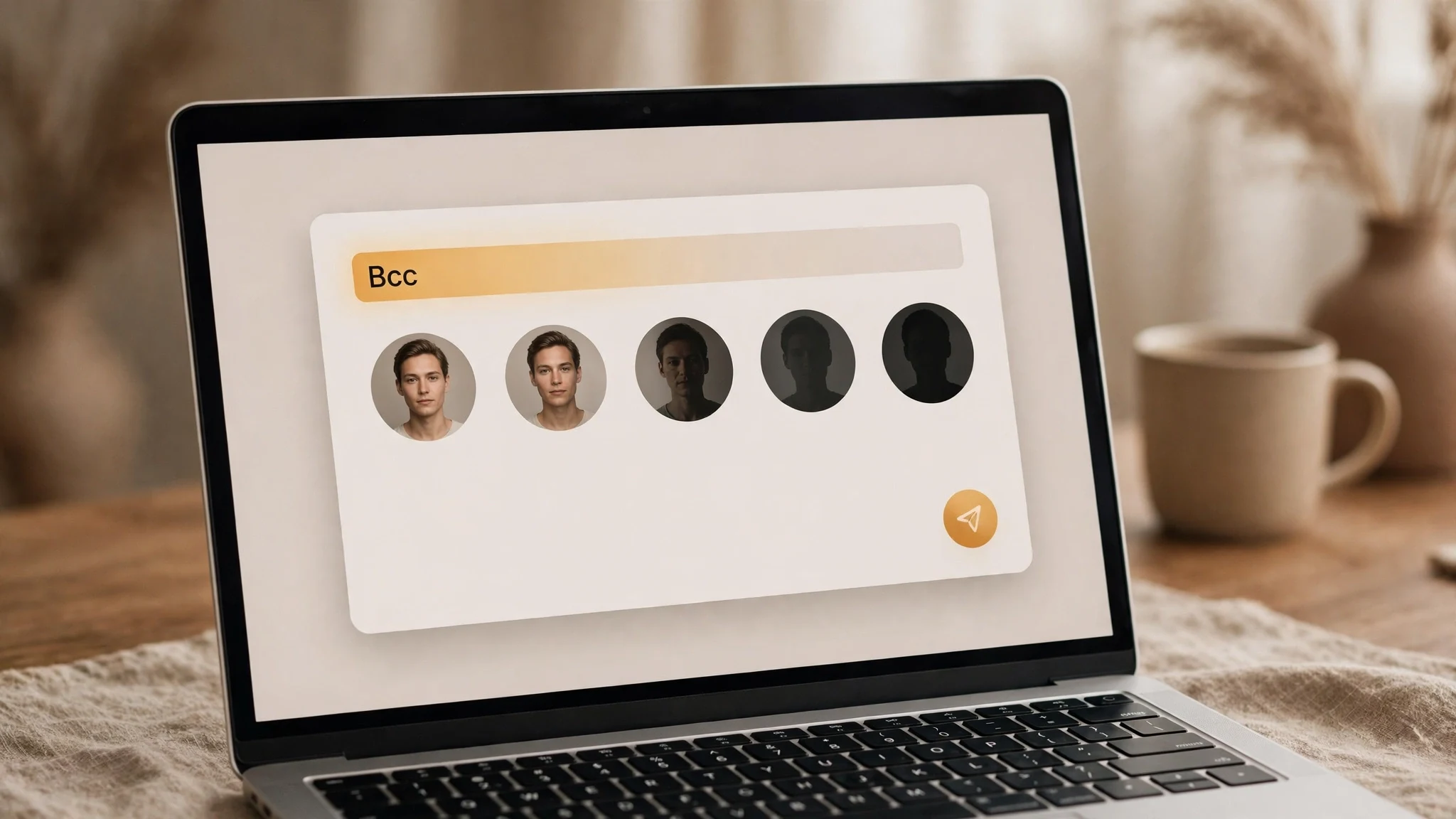
Put your own address in the To field and every real recipient in BCC — blind carbon copy. That is the whole trick, and it takes about thirty seconds. Each person who gets the email sees your address and nobody else's.
The reason this question keeps getting asked is that the trick is easy to describe and easy to get wrong in practice. The BCC field is hidden by default in most mail apps, the To field cannot be left empty without consequences, and one wrong click — Cc instead of Bcc — publishes your entire recipient list to everyone on it. This guide covers what each recipient actually sees, the exact steps in the four mail apps people actually use, the limits that decide whether BCC is even the right tool, and the four ways it goes wrong.
One honesty note up front: the steps below were checked against Google's and Microsoft's own help pages and cross-checked across the guides that currently rank for this question, on 23 November 2026. I did not perform a live click-through in a signed-in Gmail account for this article — Gmail was signed out in the test browser — so where a step rests on the provider's documentation rather than a click I performed myself, I say so. The TempMailUSA numbers at the end are from a live check of the homepage this afternoon.
What each recipient actually sees
An email has three address fields, and the difference between them is entirely about who can see whom.
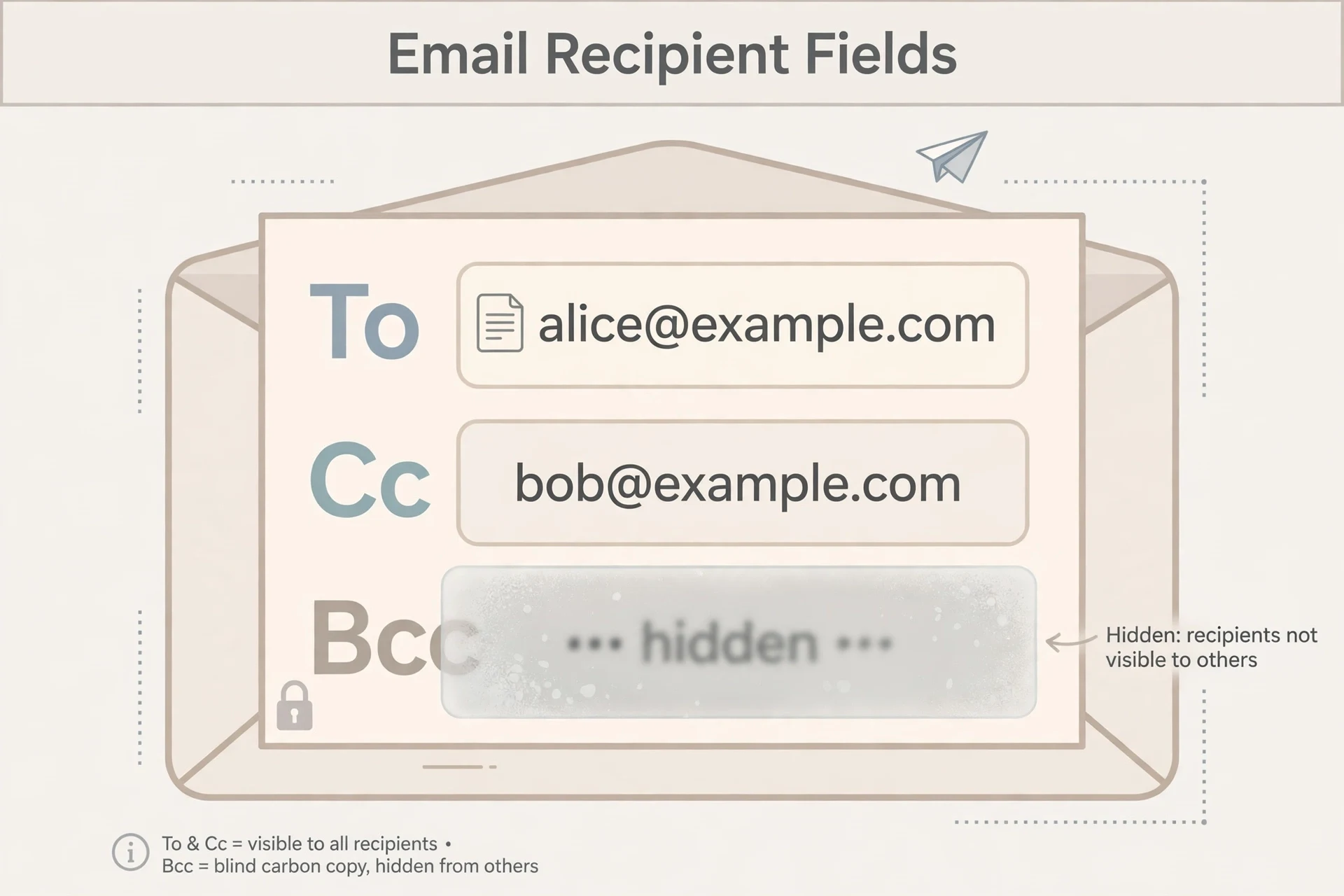
To is the public list. Everyone who receives the message can see every address in To. Cc — carbon copy — is the same: visible to all recipients, and its only real difference from To is social. It signals "you are copied in, this is not really for you." Bcc — blind carbon copy — is the private list. Addresses in Bcc receive the message, but the mail server strips them from the headers every other recipient sees.
Here is what that looks like from each seat at the table. Say you send a message with your own address in To and forty people in Bcc. Each of those forty opens the email and sees one name in To: yours. They see no list, no count, no hint that thirty-nine other people got the same message. Google's own help page states it plainly: people you add in Bcc cannot see the name or address of anyone else in Bcc, and other recipients do not know you added anyone there. One wrinkle worth knowing: in Gmail, each Bcc recipient can see that they themselves were added in Bcc. They cannot see anyone else there, but they know they were not the main recipient. If the message is sensitive enough that even that matters, Bcc is not the tool — send individually instead.
Replies behave the way the headers suggest. If a Bcc recipient hits reply-all, their reply goes to you and to whoever was in To and Cc. It does not reach the other Bcc recipients, because their addresses were never in the message the first recipient received. That is usually what you want. It also means a group conversation cannot happen over Bcc: forty people replying-all will each have a separate one-to-one thread with you, and none of them will ever see each other's answers. If you actually need the group to talk to each other, use a group address or a mailing list, not Bcc.
There is one more limit that no settings page will warn you about. Bcc hides addresses from recipients. It does not hide them from the mail servers involved, from your provider, or from anyone who can read the message after it arrives. A Bcc recipient can forward the email — headers and all — to anyone they like, and the forward will show your address and the subject, just not the other Bcc names. Hiding the list is not the same as making the message secret. If the contents themselves must stay private, that is a different problem, and our guide to how to send an encrypted email covers which methods actually encrypt the message rather than just hiding the address list.
Gmail: the field is one click away
Gmail on the web hides Bcc behind a single link, and once you know where it is you will never lose it again.
- Click Compose at the top left.
- To the right of the To field, click Bcc. The Bcc field appears below To and Cc.
- Put your own address in the To field. This is the step people skip, and the next section explains why it matters.
- Paste or type your recipients into Bcc, separated by commas. You can also click Bcc to pick from your contacts or a contact label.
- Write the subject and the message, then click Send.
The keyboard shortcut is Ctrl+Shift+B on Windows or Cmd+Shift+B on Mac, which toggles the Bcc field without touching the mouse. On the Gmail mobile app, tap Compose, then tap the small chevron at the right end of the To row to expand the Cc and Bcc fields, and fill in Bcc the same way.
Google's help page confirms the visibility rule quoted above, and adds one detail that trips people up: if your recipients do not use Gmail, they may not see that they were added in Bcc. The hiding still works — they cannot see each other either way — but the little "you were Bcc'd" indicator is a Gmail-to-Gmail courtesy, not a guarantee.
Outlook: the field is hidden twice
Outlook is the app that catches people out, because the Bcc field is hidden by default and the place to reveal it depends on which Outlook you have. Microsoft documents separate steps for each version, and they do not match.
New Outlook and Outlook on the web: click New mail, then click Bcc at the right-hand end of the To line, beside Cc. The Bcc field drops down. Put your own address in To and your recipients, or a contact list, in Bcc.
Classic Outlook on Windows: open a new message, go to the Options tab in the ribbon, and click Bcc. The field appears below Cc — and, usefully, it stays visible for future messages once you have switched it on. If your message opens in the reading pane rather than its own window, the Options tab is where the toggle lives.
Outlook mobile app: tap the down arrow or the Cc/Bcc toggle next to the To field to expand it, then fill in Bcc.
The recurring mistake with Outlook is assuming the field is missing when it is only collapsed. It is not missing. In the new Outlook it is a text link at the end of the To line; in classic Outlook it is a ribbon toggle. If you cannot see it in either place, check whether your message is opening in a new window or inline — the ribbon options only appear in the full compose window.
Apple Mail and Yahoo: same idea, different hiding place
Apple Mail on macOS: open a new message, then go to View in the menu bar and choose Bcc Address Field, or press Cmd+Option+B. The field appears and stays visible for future messages until you toggle it off. On iPhone and iPad: tap the Cc/Bcc/From line in a new message to expand it, then add recipients to Bcc.
Yahoo Mail: click Compose, then click the BCC link next to the To field. Add your recipients there, and put your own address in To, exactly as in Gmail.
The pattern is the same everywhere: the field exists, it is collapsed by default, and the toggle is always within a click or two of the To line. If you switch mail apps, spend ten seconds finding the toggle before you paste a list anywhere. Pasting forty addresses into the wrong field is the mistake this whole guide exists to prevent, and it happens most often in an unfamiliar app.
What to put in the To field
Bcc needs a To address, and the choice is yours. Three options work, and they are not equal.
Your own address. The simplest and the one I recommend. The message has a valid primary recipient, you get a copy for your records, and every recipient sees a real address in To. Nothing about it looks improvised.
A dedicated alias such as announcements@yourdomain.com. This looks intentional rather than improvised, which matters for anything semi-formal — a club newsletter, a team update, a customer notice. If you send these regularly, set the alias up once and reuse it.
Undisclosed recipients. You can create a contact named "Undisclosed Recipients" using your own email address, save it, and use that contact in To. The recipient sees the words "Undisclosed Recipients" instead of your address. It works, and it is a legacy convention from the days of mailing lists. My judgement: it reads as a mass mail to anyone who notices, and it buys you nothing your own address does not already give you. Use it only if you genuinely do not want your own address visible in To — and if that is the case, read the section near the end about hiding your own address, because there is a cleaner way.
What you should not do is leave To empty. Some mail servers reject a message with no primary recipient. Others deliver it but flag it, because an empty To line is a pattern spam filters recognise. An empty To also looks like a mistake to the recipient, which is the opposite of the professional impression you are presumably aiming for. One address in To, always.
Four ways this goes wrong
Bcc fails in predictable ways, and the damage ranges from embarrassing to career-affecting. Here they are, in order of how often they happen.
1. The Cc slip. You meant Bcc and clicked Cc. Your entire recipient list — names and addresses — is now visible to every person on it. This is the classic one, and it has ended up in news stories: a company emailing hundreds of customers, a school emailing parents, a clinic emailing patients. The fix is a habit, not a setting: before you hit Send, read the three field labels out loud. To, Cc, Bcc. If the long list is anywhere except Bcc, stop. Some people also type the list into Bcc first, before writing a single word of the message, so the dangerous step is over while they are still thinking clearly.
2. The reply-all pile-up. A Bcc recipient replies all expecting the group to see it. Only you see it — plus anyone in To or Cc. The recipient then assumes the group ignored them, or you assume the group agreed. Neither is true; the thread simply never existed. If replies matter, say so in the message itself: "Reply to me directly — the other recipients cannot see your reply." One sentence prevents a week of confusion.
3. The spam filter. A single message to hundreds of Bcc recipients, sent from a personal account, looks exactly like spam to the filters on the receiving end — because that is what most spam looks like. Large Bcc blasts land in junk folders, or bounce, or get your account temporarily throttled. Gmail and Outlook both publish limits, and the table in the next section gives the numbers, but the practical rule is simpler: past about fifty recipients, Bcc stops being a communication tool and starts being a deliverability gamble.
4. The forward leak. Bcc hides the list, not the message. A recipient who forwards your email hands the contents to someone you never intended to reach, and there is nothing you can do about it after the fact. Gmail's confidential mode can block forwarding for Gmail recipients, which helps with this specific risk — our Gmail encryption guide covers it — but it does not stop screenshots, and it is access control rather than encryption. If the message must not travel, do not send it to people you do not trust to keep it.
The limits that decide whether BCC is the right tool
Every provider caps how many recipients you can reach, and Bcc addresses count the same as any other address. One email to fifty people costs fifty against your daily total, whether they sit in To, Cc, or Bcc. The window is rolling, not calendar-based: send five hundred at 4pm on Monday and you are not clear until 4pm on Tuesday.
| Provider | Recipients per day | Recipients per message |
|---|---|---|
| Gmail (free @gmail.com) | 500 | 500 (To + Cc + Bcc combined) |
| Google Workspace (paid) | 2,000 | 2,000 (max 500 outside your organisation) |
| Microsoft 365 / Exchange Online | 10,000 | 500 (admin can raise to 1,000) |
| Outlook.com with Microsoft 365 subscription | 5,000 | 500 (max 1,000 recipients you have never emailed before, per day) |
| Outlook.com (free) | Lower, not published | Not published |
The figures are the providers' published limits as of November 2026, cross-checked against Google's Workspace sending-limits documentation and Microsoft's Exchange Online limits. Two caveats. First, sending through an external SMTP client lowers Gmail's per-message cap to 100. Second, these are ceilings, not targets: Google throttles far earlier when bounce rates, spam complaints, or sending velocity look abnormal, and new accounts get blocked at much lower volumes.
So here is the honest decision rule. Under fifty recipients, one identical message, no replies needed: Bcc is the right tool, and it takes thirty seconds. Past fifty, or when each person needs their name in the greeting, or when you need to know who opened it: stop using Bcc and switch to mail merge. Gmail's built-in multi-send, available on eligible Workspace plans, sends one real email per person with merge tags for names, and caps at about 1,500 recipients a day. Word can run a mail merge through Outlook the same way. A group alias or a contact list is the third option: recipients are hidden behind a single address such as team@company.com, the list is managed in one place, and nobody's address is exposed at all. For anything commercial or repeated, a proper sending platform is the fourth option — one email per recipient, real personalisation, real tracking, and an unsubscribe link, which Bcc can never give you.
When the address you need to hide is your own
Everything so far has been about hiding the recipients from each other. Sometimes the address you actually want to hide is yours. You are emailing a list of strangers, a seller, a forum, a signup form — and you do not want your real address in the To line, in the headers, or in anyone's address book afterwards.
That is a different job, and Bcc cannot do it: your address is the sender address, and it is visible by definition. The tool for it is a disposable address. If you need to receive replies, use an alias service such as Apple's Hide My Email or Firefox Relay, which forwards replies to your real inbox without revealing it. If you only need to receive — a verification code, a download link, a confirmation — a temporary inbox does the job with no signup at all.
I checked our own tool live this afternoon, 23 November 2026: TempoMailUSA generates an address the moment the page loads, with no registration, no phone number, and no card. The homepage counters at the time of checking read 488,756 emails created and 609,973 messages received, across 468+ domains, with one domain free — rover.info — and the rest on Pro. The free inbox lasts 30 days. That is the honest shape of the trade: a disposable address hides your real address completely, and in return it is receive-only. You cannot reply from it. For a signup code or a download link, that trade is free. For a conversation, use an alias or a burner account instead — our guide to what a burner email is maps the four tools that get called "burner" and which one fits each situation.
One more angle worth knowing: if the problem is that you do not want to hand over a phone number to create an address in the first place, the same no-signup property applies. Our guide to email without a phone number tested which providers genuinely skip the phone step and which ones only sometimes do — and the fastest route it found was the same one: an address that arrives with no form at all.
The consent line: BCC is not a mailing list
A short section, because it is the one people skip and the one that can cost money. Bcc hides addresses. It does not create consent. Emailing a hundred people who never asked to hear from you is bulk unsolicited mail whether you use Bcc or not, and the law treats it that way: CAN-SPAM in the US requires a working opt-out and your physical address on commercial mail, and GDPR in Europe requires a lawful basis — usually consent — before you email people at all. A Bcc blast to a purchased list is not a clever workaround. It is the same violation with the evidence hidden, which is worse, not better.
The rule I use: Bcc is for people who already have a relationship with you — your team, your customers, your club members, parents at a school — and who would not be surprised to hear from you. Everyone else gets an opt-in form, a proper mailing list, and an unsubscribe link. If the list is large enough that you are worrying about limits, it is large enough to deserve a real mailing tool.
Frequently asked questions
How do you send an email without showing the recipients in Gmail?
Click Compose, click Bcc to the right of the To field, put your own address in To, and add everyone else in Bcc. Each recipient sees only your address. The shortcut is Ctrl+Shift+B on Windows or Cmd+Shift+B on Mac, and on mobile you tap the chevron beside the To row to reveal the Bcc field.
How do you send an email without showing the sender?
You cannot hide the sender address from inside the same mailbox — the From line is visible by definition. What you can do is send from a different address: an alias, a second account, or a disposable address for receiving. Bcc hides recipients from each other; it never hides you. If anonymity is the goal, our guide to sending an anonymous email covers the sending side, including the reply-to header that quietly names your real address if you forget it.
Can BCC recipients see each other?
No. Addresses in Bcc are stripped from the headers other recipients see. Each Bcc recipient sees only the addresses in To and Cc. In Gmail, a Bcc recipient can see that they themselves were Bcc'd, but they cannot see anyone else in Bcc.
What happens if a BCC recipient replies all?
Their reply goes to you and to anyone in To or Cc. It does not reach the other Bcc recipients, because their addresses were never in the message they received. There is no way for Bcc recipients to have a group conversation with each other.
Is it better to use BCC or mail merge?
Under fifty recipients, one identical message, no personalisation needed: Bcc. Past fifty, or when each person needs their name in the greeting, or when you need tracking or an unsubscribe link: mail merge. Gmail's built-in multi-send handles up to about 1,500 recipients a day on eligible Workspace plans; Word mail merge through Outlook does the same for Microsoft users.
Can I use BCC for a newsletter?
You can, but you should not. A newsletter needs an unsubscribe link, per-recipient tracking, and a consent record — none of which Bcc provides. A Bcc newsletter also looks identical to spam to receiving filters, so a growing share of it lands in junk. Use a mailing list tool once the list is bigger than a small group.
Need a disposable temporary email?
Protect your real inbox from spam and promotional clutter instantly and free.
Received a suspicious email, text, or charge alert?
Verify whether the sender domain is disposable, spoofed, or unverified before clicking links.