How to Send an Encrypted Email: Pick the Right Method for Your Account (and Skip the Ones That Don't Encrypt)
Most guides to sending an encrypted email open with the same three clicks: new message, find the lock icon, send. They skip the part that decides whether any of those clicks exist for you, which is that encryption in email is not one feature. It is four different technologies, sold under one word, and your account probably supports exactly one of them — or none.
A personal Gmail account has no button that encrypts the message itself. A free Outlook.com account has no Encrypt button either. Apple Mail will encrypt, but only after you and your recipient both install certificates, which almost nobody outside an office IT department has done. And Gmail's Confidential Mode, the option most people reach for first, does not encrypt your message end to end at all — Google's own support page describes it as expiry dates, revoked access, and blocked forwarding, and never once calls it encryption.
So this guide is built the other way around. First, the thirty-second test that tells you what kind of protection you actually need. Then a chooser: pick your situation, take the matching method, skip the rest. The steps below were checked against the providers' own pages as they stand today — Google's Confidential Mode documentation, Proton Mail's pricing page, and Microsoft's licensing rules as documented in our Outlook guide — rather than copied from a three-year-old tutorial. Where I could not test something first-hand, I say so.
The 30-second test: what are you actually trying to protect?
Before you pick a method, answer one question honestly: who are you hiding this message from?
If the answer is "someone snooping on the Wi-Fi at a cafe," you are already covered. Every major provider encrypts mail in transit with TLS, which scrambles the message while it travels between servers. That protection is automatic, invisible, and free — and it is also the weakest kind, because once the message lands on your recipient's server, it sits there in readable form. Your provider can read it. Their provider can read it. Anyone with access to either server can read it.
If the answer is "the email provider itself, or anyone who gets into its servers," you need end-to-end encryption. The message is scrambled on your device and can only be unscrambled on the recipient's device. The provider holds scrambled text and nothing else. This is the only kind of email encryption that deserves the name without a qualifier, and it is the kind this guide is about.
If the answer is "the recipient forwarding it around after they read it," no encryption helps you. Encryption controls who can read a message, not what a reader does with it afterwards. A recipient can screenshot anything. Google says this plainly on its own Confidential Mode page: recipients can still take screenshots or photos, and malicious programs can still copy the message. Keep that limit in mind and the rest of this guide makes sense.
The chooser: which method fits your situation?
| Your situation | The method that actually works | What it costs you |
|---|---|---|
| You can send from a new address | An encrypted-by-default provider (Proton, Tuta) | A free account; your recipient needs nothing |
| Work Outlook or paid Microsoft 365 | Outlook's Encrypt button (Purview) | Nothing extra if your licence already qualifies |
| Personal Gmail, and the recipient uses Gmail too | Confidential Mode — with eyes open about what it is not | Nothing; but it is access control, not encryption |
| Any account, and you are willing to set it up once | PGP or S/MIME through an app or extension | An afternoon of setup; your recipient needs a key or certificate too |
| One sensitive file, not an ongoing conversation | Encrypt the attachment, send it normally | Five minutes; share the password another way |
If you only send one sensitive email a year, take the attachment route at the bottom of this page and stop reading. If you send sensitive mail weekly, the encrypted-provider route is the only one that stays painless. The middle rows exist for people who cannot change providers — a work account, a client who insists on Gmail — and they come with compromises you should know about before you rely on them.
Method 1: Send it from an encrypted-by-default provider
This is the shortest path to a genuinely encrypted email, and the reason is simple: providers like Proton Mail and Tuta encrypt by default, so there is nothing to configure and nothing to forget. You write the message, you send it, and the encryption happens in the background. Proton describes it exactly that way on its own site: when you send an end-to-end encrypted email with Proton Mail, the message is encrypted on your device and can only be decrypted by the recipient with the corresponding key, and "all the encryption and decryption happens in the background, meaning anyone can use encrypted email, regardless of technical ability."
The free tier is real, and I checked the numbers on Proton's pricing page today rather than repeating a review from 2023. Proton Free gives you 1 GB of storage (500 MB at signup, up to 1 GB after completing their getting-started checklist), 150 messages a day, one address, and — this is the part that matters — the same level of encryption as the paid plans. Proton says so directly: free accounts "offer the same level of encryption as any of our paid plans." Paid plans add storage, addresses, and custom domains; they do not add better encryption.
Two details make this method work even when your recipient is not on Proton. First, messages between two Proton users are encrypted automatically with no action from either side. Second, for everyone else, Proton lets you send a password-protected email: the recipient gets a link, opens it in a browser, and types the password you gave them. That password has to travel separately — say it on a call, or send it by text — because putting the password in the same email defeats the purpose. The same rule applies to every password-protected method on this page.
The honest trade-off is that you are adopting a second inbox. If your whole life runs through Gmail, a Proton address is one more place to check. My judgement: for the handful of messages a year that genuinely need encryption — a contract, medical records, a password reset for a shared account — a second inbox you open twice a month beats a setup you abandon after one afternoon. If the sensitive mail is your daily work, move the work, not just the message.
Tuta works the same way, with its own free tier and its own password-protected links to outside addresses. The choice between Proton and Tuta is mostly about which interface you prefer and whether you need Proton's wider ecosystem; the encryption model is the same. We compared the two providers against disposable mail in our Tuta guide, and the short version is that an encrypted provider and a temporary inbox solve opposite problems: one hides the contents of a message, the other hides your identity from a signup form.
Method 2: Outlook's Encrypt button (Purview Message Encryption)
If you send from a work Outlook account or a paid Microsoft 365 Personal or Family subscription, the easiest method is already in your compose window: new message, Options tab, Encrypt. The recipient needs no certificate and no special app. Microsoft holds the keys and handles the exchange, and recipients outside Microsoft open the message through a secure web page, signing in or using a passcode.
The catch, and it is a big one, is licensing. A free Outlook.com account does not get the Encrypt button. Neither does a Gmail account added to Outlook, and neither do several cheaper work plans — Business Basic, Business Standard, Office 365 E1, and Exchange Online Plan 1 or 2 need an add-on your IT admin has to assign. The button belongs to the mailbox, not the app, which is why the same person can see Encrypt on their work account and not on their personal account in the same install.
We published a full Outlook walkthrough earlier today that covers the thirty-second licence check, the exact steps for new Outlook, classic Outlook, Outlook on the web, and Outlook for Mac, and what to do when the button is missing — including the S/MIME fallback and the February 2026 bug fix that stopped some classic Outlook users from opening Encrypt-Only messages. If Outlook is your account, read that guide next: How to Send an Encrypted Email in Outlook — Even When the Encrypt Button Is Missing. The short version is that Purview is the right method when your licence qualifies and the wrong method to chase when it does not.
One Microsoft rule worth knowing before you use it: you cannot remove encryption from a message after it has been sent, so do not encrypt a message you might need to forward later. Prefer Encrypt-Only over Do Not Forward when you are unsure, and do not combine Purview encryption with S/MIME on the same message — Microsoft says not to, in either direction.
Method 3: Gmail — what actually works, and what Confidential Mode really is
Personal Gmail is the account most people ask about, and it is the one with the least to offer. A personal Gmail account does not support S/MIME. There is no encrypt button in the compose window, and no setting that adds one. Google reserves S/MIME for certain Google Workspace plans, and only when an administrator has enabled it — your IT department, not you.
What personal Gmail does offer is Confidential Mode, and it is worth understanding precisely, because it is routinely sold as encryption by people who have not read Google's page. Here is what Google's own support documentation says it does: set an expiration date, revoke access at any time, disable forwarding, copying, printing, and downloading, and optionally require the recipient to open the message with an SMS passcode. Here is what the same page does not say: that the message is encrypted end to end, that Google cannot read it, or that the contents are protected from anyone with access to Google's servers. It is an access-control feature — a self-destructing, hard-to-forward message — and it is genuinely useful for stopping a recipient from casually forwarding a contract to the wrong person. It is not encryption, and calling it encryption gives you confidence you have not earned.
If you want to use it anyway, the steps are short. Compose a message, click the lock-and-clock icon at the bottom of the compose window, pick an expiration date, and choose whether the recipient needs an SMS passcode. If you choose the passcode, Google texts it to the recipient's phone number — which means you need their number, and the passcode arrives by SMS, the least secure channel in this whole chain. Remember that an expired confidential message is gone for the recipient but not for you: you can revoke access from Sent at any time, and Google keeps its own copy under its own rules.
For a personal Gmail user who needs real encryption, the honest options are the ones above: send the message from an encrypted provider, or encrypt the attachment. Installing a browser extension that adds PGP to Gmail is the third option, and it is covered in the next section — but go in knowing that it is the fiddliest route on this page, and the one most likely to be abandoned after the first confusing error.
Method 4: PGP or S/MIME with the account you already have
PGP and S/MIME are the two standards that add real end-to-end encryption to an ordinary account. Both work the same way at a high level: you hold a private key, your recipient holds a public key (or a certificate), and the message is scrambled with the recipient's public key so only their private key can open it. The difference is mostly about how keys are managed — S/MIME uses certificates issued by a certificate authority, PGP uses keys you generate and exchange yourself.
On the desktop, the practical routes are Thunderbird, which has OpenPGP built in, and the Mailvelope browser extension, which adds PGP to webmail including Gmail. On iPhone and Mac, Apple Mail supports S/MIME natively: install the certificate, go to Settings, then Mail, then Accounts, open Advanced Settings, and switch S/MIME on for signing and encryption. On Android, the stock mail app needs a third-party tool; there is no built-in path.
The setup cost is real, and every honest guide should say so. You need your own key or certificate, and — this is the part people discover too late — you need your recipient's public key or certificate before you can encrypt a message to them. If they have never set up PGP or S/MIME, you cannot send them an encrypted message at all; the mail will either fail or go out unencrypted, depending on your settings. That is why PGP is the right answer for two people who exchange sensitive mail regularly, and the wrong answer for a one-off message to a stranger. Set it up with a colleague you email every week; do not try to set it up ten minutes before a deadline with someone you have never emailed.
One more warning that applies to S/MIME in particular: if your recipient's certificate expires or they lose their private key, old encrypted messages to them can become unreadable forever. Keep backups of your own keys somewhere safe, and treat a key like a house key — losing it locks you out of your own mail.
Method 5: Encrypt just the attachment
Sometimes the message itself is harmless — "here are the documents" — and the sensitivity lives entirely in the file. In that case, encrypt the attachment and send the email normally. It takes five minutes, it works with every provider on earth, and it sidesteps every licensing and certificate problem on this page.
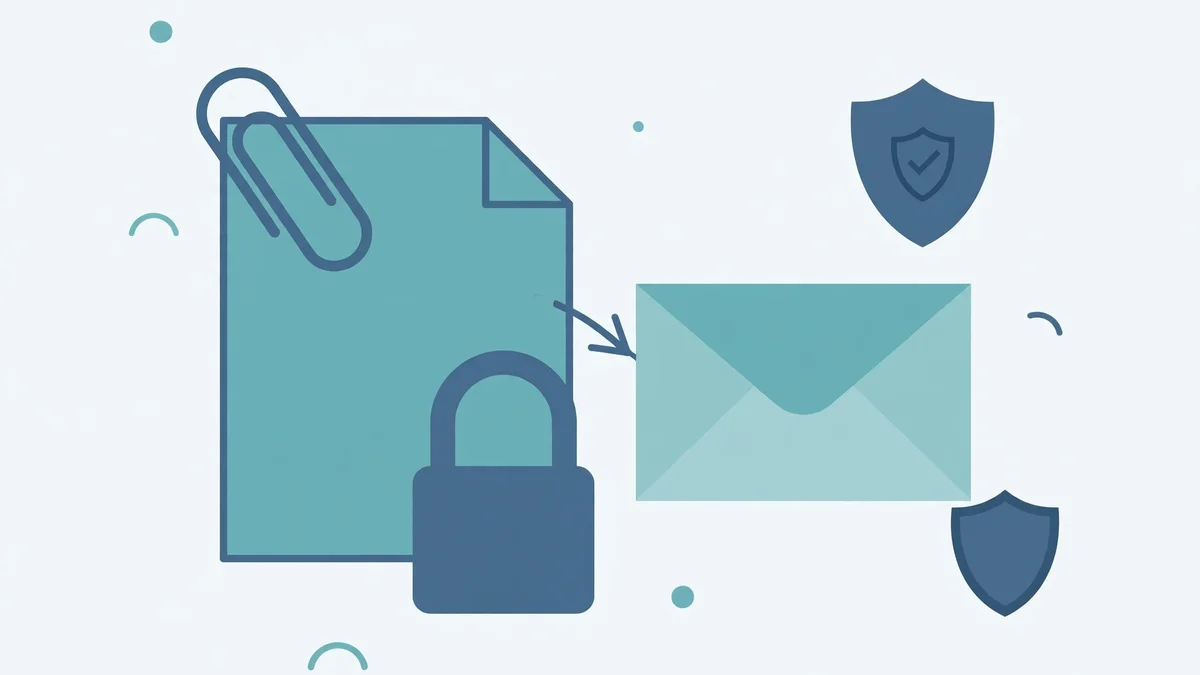
The simplest version is a password-protected PDF: most PDF tools, including the free ones built into Mac Preview and Microsoft Word's export, let you set a password that the recipient must enter to open the file. For anything else, a password-protected ZIP archive does the same job — on Windows, 7-Zip with AES-256 encryption; on Mac, the built-in Archive Utility does not encrypt, so use Keka or the command line. Whichever tool you use, pick AES-256 if it is offered and skip the older ZipCrypto option, which is trivially breakable.
Then share the password through a different channel. Call the recipient. Text them. Send it in a separate message on a different app. Never put the password in the same email as the file — that is like locking your front door and taping the key to it. And if the file contains a code the recipient needs to log in somewhere, remember that the code itself will expire; our guide to what a verification code is and what to do when it never arrives covers the expiry windows and the resend rules that trip people up most.
Five things encryption does not do
Encryption is a specific tool, and it is easy to over-trust it. These are the five limits that matter most.
It does not hide who you emailed, or when. Encryption scrambles the contents of a message. The headers — sender, recipient, subject line, time — travel in the open. Anyone watching the traffic can see that you emailed your lawyer at 2 a.m.; they just cannot read what you said. If the fact of the conversation is the secret, encryption is the wrong tool.
It does not stop screenshots. A recipient who can read a message can photograph it. Confidential Mode's blocked forwarding and downloading do nothing against a phone camera pointed at a screen. If you would not trust the recipient with a copy, do not send the message.
It does not protect a compromised device. If the recipient's phone has malware, or their laptop is logged into a shared account, the message is decrypted on that device and visible there. Encryption protects data in transit and at rest on the server; it cannot protect data on a device that is already compromised.
It does not verify the recipient's address. Encryption guarantees that only the holder of a key can read the message. It does not guarantee that the key belongs to the person you think it does, or that the address you typed is the right one. Before you send anything sensitive, check the address character by character — and if you are verifying that an address belongs to a real person, our guide to how to verify an email address walks through the five methods that actually work.
It does not make a throwaway inbox safe for secrets. A temporary email address is a good tool for keeping your real inbox out of a signup form, and you can create one in seconds from our homepage. But a temp inbox is designed to be disposable: it expires, anyone with the address can often read it, and it is the wrong place for anything you would regret losing. Encryption and temporary mail solve different problems. Use the encrypted provider for the message, and the temporary address for the signup.
What to do when the recipient cannot decrypt it
Sooner or later you will send an encrypted message to someone who cannot open it. They will reply, confused, and you will need a fallback that does not involve giving up on privacy entirely.
First, check the simplest explanation: they need a passcode or a password you have not shared yet. Proton's password-protected emails and Gmail's Confidential Mode both fail this way by design — the recipient gets a link and no way in until you send the second half of the secret. Send the password by text or call, and the message opens.
Second, if they have no certificate and no PGP key, do not spend an hour teaching them over email. Switch to the attachment method above, or move the conversation to a messaging app with end-to-end encryption built in. The goal is a message they can actually read, protected as well as the situation allows — not a perfect method nobody can use.
Third, if the encrypted message contains a login code or a link that expires, remember that the clock started when the message was sent, not when the recipient opens it. A six-digit code that lives for ten minutes is useless if the recipient spends nine of them figuring out a password. Send the code separately, in plain text, after the recipient confirms they can open encrypted mail — or use the attachment route for the document and the ordinary route for the code.
The short version
If you remember one thing from this guide, make it this: encryption is a property of the account you send from, not a button you press. Personal Gmail cannot encrypt a message, full stop. Outlook can, but only when your licence qualifies. Proton and Tuta can, for free, with no setup, and their password-protected links cover recipients on other providers. PGP and S/MIME can, with any account, if you and your recipient both do the setup. And when none of those fit, a password-protected attachment sent normally protects the one file that matters — as long as the password travels separately.
Pick the method that matches your account, not the one that sounds most impressive. The best encryption is the one you actually use.
FAQ
How do I send an encrypted email?
Pick the method your account supports: send from an encrypted-by-default provider like Proton Mail (free, no setup), use Outlook's Encrypt button if your Microsoft 365 licence qualifies, or set up PGP/S/MIME in an app like Thunderbird. Personal Gmail has no built-in encryption — Confidential Mode controls access, it does not encrypt the message end to end.
Can you send an encrypted email in Gmail?
Not with a personal Gmail account, no. Personal Gmail does not support S/MIME, and there is no encrypt button. Google Workspace accounts can use S/MIME if an administrator enables it. For a personal account, your options are Gmail's Confidential Mode (access control, not encryption), a PGP browser extension, or sending the sensitive content from an encrypted provider or as a password-protected attachment.
How do I send an encrypted email on iPhone?
In Apple Mail, install an S/MIME certificate, then go to Settings, Mail, Accounts, select your account, open Advanced Settings, and turn on S/MIME for signing and encryption. Both you and the recipient need certificates. The simpler route on iPhone is the Proton Mail app, which encrypts by default and needs no certificate.
What does an encrypted email look like to the recipient?
If both sides use the same encrypted provider, it looks like an ordinary email. If you use Outlook's Purview encryption, a recipient outside Microsoft gets a link to a secure web page where they sign in or enter a passcode. If you send a password-protected email from Proton, the recipient gets a link and enters the password you shared separately. A PGP message to someone without PGP looks like a block of scrambled text — which is why you confirm they can decrypt it before sending anything important.
Is encrypted email secure?
End-to-end encrypted email is secure against interception and against the provider reading your messages. It is not a guarantee: it does not hide who you emailed, it does not stop screenshots, and it does not help if the recipient's device is compromised. And not everything labelled "encrypted" is end-to-end — TLS encrypts only the journey between servers, and Confidential Mode is access control. The security of an encrypted email depends on which kind of encryption it actually is.
How do I send an encrypted email without the recipient needing anything?
Send it from Proton Mail (or Tuta) using a password-protected email. The recipient opens a link in their browser and types the password you give them by text or call — no account, no certificate, no app. Outlook's Purview encryption is the other option that asks nothing of the recipient beyond opening a secure link, but it requires a qualifying Microsoft licence on your side.
Can I send an encrypted email for free?
Yes. Proton Mail's free plan includes the same end-to-end encryption as its paid plans — 1 GB of storage and 150 messages a day. Tuta also offers a free encrypted tier. What costs money is not the encryption itself but the extras: more storage, custom domains, and extra addresses.
Need a disposable temporary email?
Protect your real inbox from spam and promotional clutter instantly and free.
Received a suspicious email, text, or charge alert?
Verify whether the sender domain is disposable, spoofed, or unverified before clicking links.