How Do I Open a Secure Email? First, Work Out Which Kind You Got
How Do I Open a Secure Email? First, Work Out Which Kind You Got
You open your inbox and instead of a message there's a locked door: a button that says "Read the message", a prompt for a passcode you never set, or a link to a portal you've never seen. The instinct is to click the button and hope. Half the time that works. The other half you end up signed into the wrong account, staring at an expired code, or — worst case — handing your password to a phishing page dressed up as a secure email.
The reason the guides disagree is that "secure email" isn't one thing. It's at least five different systems that all arrive looking vaguely locked, and each one opens a different way. Spend ten seconds identifying which kind you got before you click anything, and everything after that is just following the steps for that kind.
A note on evidence: I verified the temp-inbox behaviour in this article live on tempomailusa.com today, and the Microsoft and Gmail flows follow the providers' own documented steps, cross-checked against the guides currently ranking for this question. Where something is documented rather than clicked through myself, I say so.
First, work out which kind of secure email you got
Look at what actually arrived. The wording and the attachment name almost always give it away, and the right move depends entirely on the answer.
| What you see | What it is | What you need to open it |
|---|---|---|
| A normal-looking message with a lock icon or a "restricted permissions" banner | Microsoft 365 encrypted, opened inside Outlook | The Outlook account it was sent to |
| A short wrapper email with a "Read the message" button, sometimes with a message.html attachment | Microsoft 365 encrypted, sent outside Microsoft | Sign in with Google, Yahoo or Microsoft — or a one-time passcode |
| A message that says "View the email" and offers to send you a passcode | Gmail confidential mode | The passcode, sent to your email or phone |
| A notice with a link to a branded login page (Zix, Proofpoint, Virtru or similar) | A secure portal email | A portal account, usually created on your first visit |
| A message that won't display, or asks for a certificate or smart card | S/MIME | Your S/MIME certificate and its private key |
Text starting with -----BEGIN PGP MESSAGE-----, or an encrypted.asc attachment | PGP / OpenPGP | Your PGP private key and passphrase |
| An attachment that is itself a password-protected PDF, Office file or ZIP | An encrypted file, not an encrypted email | The password, sent separately by the sender |
If nothing in that table matches what you're looking at, stop and re-read the message. A "secure email" that matches none of these patterns — especially one that arrived unexpectedly and pushes you to sign in urgently — deserves the safety check in the next section before any click at all. If you want the background on what these systems do differently under the hood, our explainer on what an encrypted email is covers the five approaches side by side.
The 30-second check before you click anything
Secure email is one of the most effective phishing disguises in circulation, precisely because a real secure email trains you to click a link and sign in. Attackers copy that shape exactly: a plausible sender, a "Read the message" button, a login page that looks like Microsoft or Google. Before you open anything, run this check. It takes half a minute.
Did you expect this email? A secure message from your bank, your clinic, your lawyer or your employer usually follows a conversation you already had. If it arrives out of nowhere, that alone is a reason to pause — not proof it's fake, but enough to verify.
Verify through a different channel. Contact the sender using details you already trust — a number in your phone, a reply to an earlier thread, a walk to their desk. Never use the phone number or reply address inside the suspicious message itself; that just routes you back to the attacker. If the sender confirms they sent it, open it with confidence.
Read the address, not the display name. The display name can say anything. The actual sender domain is what matters, and on mobile you usually have to tap the name to see it. A message claiming to be from your bank but sent from a lookalike domain is done — delete it.
Never type a password the message itself asks for. A real secure-email portal asks you to sign in to an account or enter a one-time code. It never asks you to "confirm" your email password, bank PIN or card number inside the message. If you see that, close it. Opening the message itself is low-risk — the danger is in clicking links and entering credentials. Our walkthrough of what happens if you open a spam email covers the first sixty seconds and the thirty days after.
Microsoft 365 encrypted email: in Outlook it just opens; everywhere else there's a portal
This is the most common kind by a wide margin. When someone clicks Encrypt in Outlook at work, or uses a Microsoft 365 Personal or Family plan, the message goes out under Microsoft Purview Message Encryption — formerly Office 365 Message Encryption. What you do next depends on where you read your mail.
In Outlook with a Microsoft 365 or Outlook.com account, there is usually nothing to do. The message arrives like any other, with a small notice about restricted permissions near the header. If the reading pane stays blank, open the message in its own window. Encrypt-only messages open directly in new Outlook for Windows, Outlook on the web, Outlook for iOS and Android, and Outlook for Windows 2019 and later. Don't try to open the .rpmsg attachment yourself; Outlook handles it, and double-clicking it is the most common way people convince themselves the message is broken when it isn't.
In Gmail, Yahoo, Apple Mail or any other inbox, you get a wrapper instead of the message. The email that arrives contains a "Read the message" button and often a message.html attachment. Both lead to the same place: a Microsoft page in your browser. Open the attachment if the button is missing — it loads the identical page.
- Click Read the message (or open message.html).
- Pick a sign-in method. If the address the message went to is a Gmail, Yahoo or Microsoft address, choose Sign in with Google, Sign in with Yahoo or Sign in with Microsoft and use the account the message was sent to. This is the step most people get wrong: signing in with a different account — your work account when the message went to your personal Gmail, say — produces an error that looks like the message is broken. It isn't. It's the wrong identity.
- Or choose Sign in with a one-time passcode. Microsoft emails a code to the same address that received the encrypted message. The code expires after 15 minutes, so request it when you're ready to use it. Go back to your inbox, open the code email, enter the code, and the message opens.
- Read the message in the browser portal. Replies and attachments stay inside the portal; the message itself never lands in your inbox as plain text.
One honest limitation: I could not send myself a live Microsoft encrypted message for this article — that requires a Microsoft 365 account with encryption enabled. The steps above are Microsoft's documented flow, confirmed against the two most thorough guides ranking for this question, which agree on every step including the 15-minute passcode expiry. If the sender's side interests you, our guide to how to send an encrypted email in Outlook walks through the Encrypt button and the Do Not Forward option.
Gmail confidential mode: the passcode email is the key — and the temp-inbox trap
Gmail confidential mode is the other secure email most people actually receive, and it works differently from Microsoft's system in one important way: there is no portal account and no sign-in. The sender sets an expiry date and optionally an SMS passcode. You get a message that hides its body behind a "View the email" prompt.
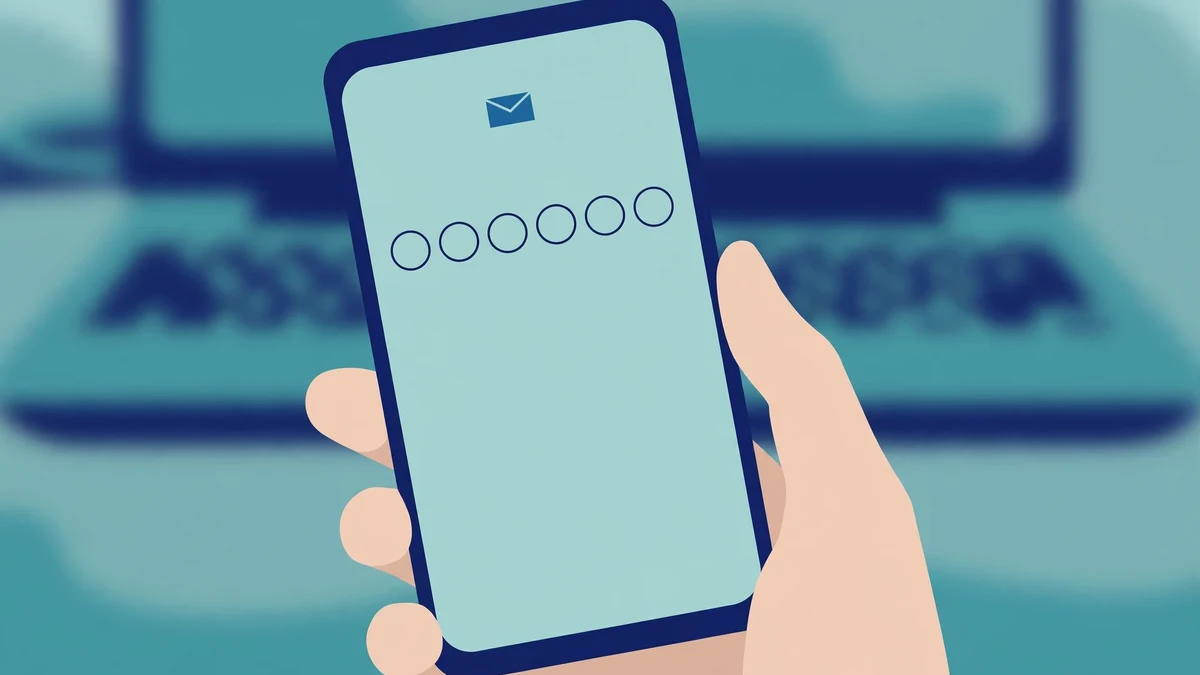
Without an SMS passcode, the flow is short. Open the message, click the link to view it, and Gmail asks you to request a passcode. The passcode arrives by email to the same address the confidential message went to. Enter it and the body opens. The message shows its expiry date, and once it expires — or the sender revokes access — the body is gone for good.
With an SMS passcode, the sender had to know your phone number, and the code arrives by text instead of email. If the sender chose SMS and you don't have access to that number any more, only the sender can fix it by resending without the SMS requirement.
The temp-inbox trap is the part nobody warns you about. Because the passcode arrives by email, people reasonably think they can have a confidential message sent to a temporary address and read it there. I checked what that actually looks like today on tempomailusa.com, and the result should make you think twice. The site generated a fresh address instantly with no account — olnjp77@rover.info — and the inbox loaded with a 30-day expiry countdown reading "Expires in 28d 13h 38m 48s". But that "fresh" inbox already contained two Dropbox messages from earlier the same morning, timestamped 05:59 and 06:09, addressed to someone called Test. The address had been used before, and its mail was still sitting there for whoever opened it next.
That is the whole warning in one observation: a temporary inbox is a shared, recycled space, not a private one. A confidential-mode passcode sent to a temp address lands in an inbox that other people can open, and the site itself tells you the deal up front — "your first message is free to read. Go Pro to read every message." So a passcode email might be readable free, or it might sit behind the paywall as the second message, depending on what arrived first. Either way, the passcode is only as private as the inbox it lands in. Use a temp address for throwaway signups, never as the destination for a secure message that matters. Our guide to sending encrypted email in Gmail explains the sender's side — including the important distinction that confidential mode is access control, not encryption.
Secure portal emails: Zix, Proofpoint, Virtru and the rest
Clinics, law firms, banks and insurers rarely use Microsoft's or Google's systems directly. They buy a secure-email gateway — Zix, Proofpoint, Virtru, Mimecast, Egress — and the email you receive is just a notice. The message lives on their portal, and the notice holds a link to it.
First visit: you register. Click the link and the portal asks you to create an account, usually with the email address the notice went to, a password of your choosing, and sometimes a security question. A verification email confirms the address. This is normal. The portal is a real account you now own, tied to that address.
Later visits: you sign in. The same link takes you to the portal login. Sign in with the account you created, and the message and its attachments are there. Some portals add a second factor — a code by email or text — on new devices.
The two mistakes people make here. First, registering with a different address than the notice went to. The portal matches your account to the recipient address; a mismatch means the message isn't listed, and the error rarely explains why. Second, treating the notice as the message. It isn't. Forwarding the notice forwards nothing useful, and replying to it replies to a no-reply address. Everything happens inside the portal.
Check the domain before you register. A real portal link points at the provider's domain or the sender organisation's domain — zixmail.net, proofpoint.com, virtru.com, or the clinic's own site. If the link points somewhere you don't recognise, run the safety check from the second section of this guide before creating any account.
S/MIME and PGP: the two that can genuinely refuse to open
Everything above is access control with a friendly front door. S/MIME and PGP are different: the message is mathematically locked to a key, and without that key no portal, passcode or sign-in will open it. These are also the two kinds where "it won't open" is a real outcome rather than a wrong turn.
S/MIME is the corporate standard. Your organisation issues you a certificate, your mail app holds the certificate and its private key, and a message encrypted to your address opens automatically in that app — no prompt at all. When it fails, it fails for a specific reason: you're reading mail on a device that doesn't have the certificate. The fix is to open the message on the device where the certificate lives, or install the certificate — with its private key — on the device you're using. A certificate without its private key is useless. If your organisation issued the certificate, your IT helpdesk is the only route when the key is lost; nobody can recover it for you.
PGP / OpenPGP is the enthusiast and journalist standard. You'll recognise it by the -----BEGIN PGP MESSAGE----- block or an encrypted.asc attachment. Opening it needs your PGP private key and its passphrase, inside an app that supports PGP — Thunderbird, a dedicated client, or a browser extension. If you don't have the private key on this machine, the message stays locked until you're at the machine that has it. If you never had a key at all, the message was almost certainly encrypted to the wrong key, and only the sender can re-send it.
Both systems share one honest truth: if the key is gone, the message is gone. That is the design, not a bug, and it's why these two systems are far less common than Microsoft's or Google's — most people prefer a system where a forgotten password is an inconvenience rather than a permanent loss. If you're choosing a system rather than opening a message, our roundup of the most secure email providers compares the options with this trade-off in mind.
When it still won't open: the fix order that actually works
Work through these in order. Most failures are the first two, and jumping ahead to reinstalling things wastes an afternoon.
- Wrong account. You signed in with an account that isn't the one the message was sent to. Sign out of the portal and sign back in with the exact recipient address. This covers the majority of Microsoft portal failures.
- Expired passcode. Microsoft's one-time passcode lasts 15 minutes; Gmail's confidential-mode passcode has a similarly short life. Request a fresh code and use it immediately. Don't request three codes and try the first — only the latest works.
- Expired message. Confidential-mode messages and some portal messages expire or get revoked by the sender. An expired message can't be reopened by any trick — only the sender can send a fresh copy. Check the expiry date shown on the prompt before assuming something is broken.
- Unsupported client. Older Outlook versions and some third-party mail apps can't render Microsoft's encrypted messages. Open the message.html attachment in a browser instead, or read it in Outlook on the web.
- Missing certificate or key. S/MIME prompts for a certificate you don't have, or PGP shows a locked block with no key to unlock it. Move to the device that holds the key, or contact the sender or your IT department. No browser setting fixes this one.
- The browser itself. If the portal page loads blank or loops back to sign-in, try a private window — stale cookies and over-eager password managers cause a surprising number of these loops — then clear the cache for that site and try once more. If it still fails, try a different browser before concluding the message is at fault.
If you've worked through all six and the message still won't open, the problem is almost certainly on the sender's side — the message was encrypted to the wrong address, the portal account was never provisioned, or the sender revoked it. Only the sender can fix those, and a message telling them exactly what you see on screen will get you a faster answer than "it doesn't work".
After it opens: what you can and can't do with it
Opening a secure email is not the same as owning it. Most of these systems keep control after you've read the message, and the limits surprise people who expect a normal email.
It can disappear. Confidential-mode messages expire on the date the sender set. Microsoft's encrypt-only messages can be revoked. Portal messages can be withdrawn. If the content matters, save what you need — a note, a screenshot, a downloaded attachment — while you can still see it.
You often can't forward, copy or print it. Microsoft's Do Not Forward restriction and Gmail's confidential-mode settings disable forwarding, copying, downloading and printing. This is deliberate. If you need to share it, ask the sender for a version without restrictions rather than fighting the controls.
Attachments stay inside the portal. In the Microsoft portal and most secure gateways, attachments open in the browser view, and downloading may be blocked for restricted messages. If the download button isn't there, that's the restriction working, not a bug.
Replying keeps the protection. Replies to a Microsoft encrypted message or a portal message stay encrypted in the same system. Don't copy the content into a fresh, unprotected email to reply — that defeats the entire purpose of the sender encrypting it.
FAQ
What is a secure email, exactly? An umbrella term, not one technology. Usually a Microsoft 365 encrypted message, a Gmail confidential-mode message, a message held on a secure portal like Zix or Proofpoint, an S/MIME message, or a PGP message. Each opens differently — which is why identifying yours first, using the table at the top, saves the most time.
Can I open a secure email on my phone? Yes, for the first four kinds: Microsoft's messages open in Outlook for iOS and Android and in the browser portal; Gmail confidential messages open in the Gmail app; portal messages open in any mobile browser. S/MIME and PGP depend on whether your mail app holds the certificate or key — often it doesn't, so read it on the device that does.
Do I need a password from the sender to open it? Usually not a password, but often a code. Microsoft's one-time passcode and Gmail's confidential-mode passcode both arrive by email to the address the message went to. Portal messages need an account you create on first visit. The exception is an encrypted file attachment, where the sender must share the password separately — never in the same email.
Why does it ask me to sign in when I already am? You're signed in as the wrong identity. The portal checks the account against the recipient address. Signing in with your work account when the message went to your personal Gmail — or the reverse — fails even though the sign-in itself succeeds. Sign out and use the exact address the message was sent to.
Can I open a secure email with a temporary email address? Technically sometimes, wisely almost never. The passcode email lands in the temp inbox like any other message — but I watched a fresh temp inbox on tempomailusa.com today that already contained two messages for a previous user of the same address. Temp inboxes are shared and recycled, so a passcode sitting in one is visible to whoever opens that address next. Keep secure mail on an address only you control — a temporary inbox is for throwaway signups, not for anything you wouldn't want a stranger reading.
What if the link in the email has expired? You can't reopen it. Confidential-mode messages, portal notices and one-time passcodes all have short lives by design. Ask the sender to send the message again — a company's support or portal helpdesk can usually reissue it faster than the original sender.
Is it safe to open a secure email from someone I don't know? Opening the message itself is low-risk; the risk is in what you click and type afterwards. Run the 30-second check: did you expect it, can you verify the sender through a different channel, and does the sender domain look right? If any answer is no, don't sign in through the link — contact the sender independently first.
Need a disposable temporary email?
Protect your real inbox from spam and promotional clutter instantly and free.
Received a suspicious email, text, or charge alert?
Verify whether the sender domain is disposable, spoofed, or unverified before clicking links.