How to Send an Encrypted Email in Outlook — Even When the Encrypt Button Is Missing
Most guides to sending an encrypted email in Outlook start with the same three clicks: new message, Options, Encrypt. They skip the part that matters most, which is that for a large share of Outlook users, the Encrypt button simply is not there. A free Outlook.com account does not get it. A Gmail account added to Outlook does not get it. Plenty of work accounts do not get it either, because encryption in Outlook is a licensing question before it is a how-to question — and no amount of clicking around the ribbon changes that.
So this guide is built the other way around. First, the thirty-second check that tells you whether you have encryption at all. Then the two routes that actually work — Microsoft Purview Message Encryption and S/MIME — with the exact steps for each version of Outlook, checked against Microsoft's own support pages as they stand today. Then the part nobody writes about: what your recipient actually sees, the five things encryption does not do, and what to do when the button is missing. One honesty note up front: I verified every step below against Microsoft's documentation and independent tests published this month, rather than pretending I clicked through a paid Microsoft 365 account I do not have. The steps are Microsoft's; the judgement about which route fits your situation is mine.
The 30-second check: do you even have encryption?
Before you open a compose window, answer two questions. The answers decide everything else.
Who owns the mailbox you are sending from? If it is a personal account, you need a Microsoft 365 Personal or Family subscription. A free Outlook.com account — the one ending in @outlook.com or @hotmail.com with no paid plan attached — does not include the Encrypt button, full stop. If it is a work or school account, your organisation's plan decides: Office 365 and Microsoft 365 Enterprise E3 and E5 include Purview Message Encryption, as do Microsoft 365 Business Premium and the education and government plans A1, A3, A5, G3 and G5. Business Basic, Business Standard, Office 365 E1, F3, and Exchange Online Plan 1 or 2 do not include it by default — they need the Azure Information Protection Plan 1 add-on, assigned to your account by your IT administrator.
Which Outlook are you using? New Outlook, classic Outlook for Windows, Outlook on the web, Outlook.com, and Outlook for Mac all put the Encrypt button in the same place — the Options tab of a new message — but only when the account qualifies. The button belongs to the mailbox, not the app. That is why the same person can see Encrypt on their work account and not on their personal account in the same install, and why switching the "From" address in a compose window can make the button appear or vanish.
If you pass both checks, skip ahead to the Purview steps. If you fail either one, you have three honest options: pay for the qualifying subscription, use S/MIME with a certificate instead, or accept that your mail travels with ordinary TLS — which protects it in transit between servers, but does not encrypt the stored message the way Purview or S/MIME does. What you should not do is install a random "encryption add-in" from a search result. The two legitimate routes are already built into Outlook.
Route one: the Encrypt button (Microsoft Purview Message Encryption)
Purview is the easy route, and for most people it is the right one. You click a button, pick a permission level, and send. The recipient needs no certificate, no special app, and no Microsoft account — Microsoft handles the key exchange, and non-Outlook recipients open the message through a secure web page. The trade-off is that Microsoft holds the keys, and your organisation's admin sets the permissions. If that bothers you, S/MIME is the alternative, covered below.
Open a new message. Select the Options tab in the ribbon. Select Encrypt. Choose Encrypt — the message stays encrypted and the recipient can read and reply — or Do Not Forward, which also blocks forwarding, printing, and copying. Then write your message and send it as usual. If you change your mind before sending, select Encrypt again and choose No permission set.
The version-specific details that actually trip people up: in new Outlook, Microsoft's own support page notes that Purview encryption works as long as your email server has an Office 365 Enterprise E3 licence — if it does not, use S/MIME instead. That one line is why so many work users see a greyed-out or missing button in new Outlook while classic Outlook works fine. In classic Outlook for Windows, the path is identical — but update first: Microsoft fixed a bug in February 2026 that stopped some classic Outlook users from opening Encrypt-Only messages, so an old build can fail on received encrypted mail. In Outlook on the web and Outlook.com, the same path applies, and the web version is the best fallback when the desktop app misbehaves — if the button shows up for your account in a browser but not in the app, the app is the problem, not your licence. The reverse is also possible: administrators can switch the Encrypt button off for Outlook on the web specifically, so a missing button in the browser can be an admin setting rather than a licence gap. Outlook for Mac supports the same Options, Encrypt flow for sending.
Two rules Microsoft states explicitly, and both are worth remembering. First, you cannot remove encryption from a message after it has been sent — so do not encrypt a message you might need to forward later, and prefer Encrypt-Only over Do Not Forward when you are unsure. Second, do not apply Purview encryption to a message already signed or encrypted with S/MIME. Microsoft says not to combine them, in either direction: remove the S/MIME protection first, or the message will fail in confusing ways.
Route two: S/MIME, the certificate route
S/MIME is the older, more independent route. Instead of Microsoft holding the keys, you hold a digital certificate — a digital ID — issued by a certificate authority or your organisation's IT department. The encryption is end-to-end in the strong sense: only the recipient's private key can open the message, and Microsoft never sees the content. The price is setup friction and one hard requirement that surprises everyone the first time: to send an S/MIME encrypted message, you need the recipient's public certificate installed on your machine. In practice that means you and the recipient must first exchange signed emails, so Outlook can pick up each other's certificates. You cannot encrypt a first message to a stranger with S/MIME. That single fact decides whether this route fits your situation.
Setting it up in classic Outlook: get a certificate from your IT department or a public certificate authority, then go to File, Options, Trust Center, Trust Center Settings, Email Security, and use Import/Export to install it. Back in Email Security, select the same certificate for both signing and encryption. In new Outlook, the path is Settings, Mail, S/MIME, where you can also switch on "Encrypt contents and attachments for all messages I send" to make every outgoing message encrypted by default — classic Outlook has the same always-on switch under Trust Center, Email Security.
To send one S/MIME message in new Outlook, open a new message, go to Options, More Options, and tick Encrypt this message (S/MIME) — and Digitally sign this message (S/MIME) if you also want the recipient to verify the message came from you. If Outlook cannot verify that all recipients can decrypt the message, it warns you and highlights the ones who might not be able to read it. Listen to that warning: an S/MIME message to someone whose certificate you do not have is unreadable, not merely inconvenient.
My opinion, after comparing the two routes honestly: use Purview unless you have a specific reason not to. S/MIME is the stronger privacy story, but its setup cost and the recipient-certificate requirement make it a poor fit for one-off sensitive emails to people outside your organisation. S/MIME earns its place when you email the same small group constantly — a legal team, a finance department, a regular client — and everyone has certificates installed. For everything else, the Encrypt button is the tool that actually gets used, and a tool that gets used beats a stronger tool that does not.
What your recipient actually sees
This is the section the ranking pages skip, and it is the one that causes the most confused replies. What happens on the other end depends entirely on what your recipient uses.
If they use Outlook — desktop, web, or mobile — the message opens normally. They may see a banner noting it is encrypted, and with Do Not Forward they will find forwarding, printing, and copying disabled. Otherwise it behaves like any other email.
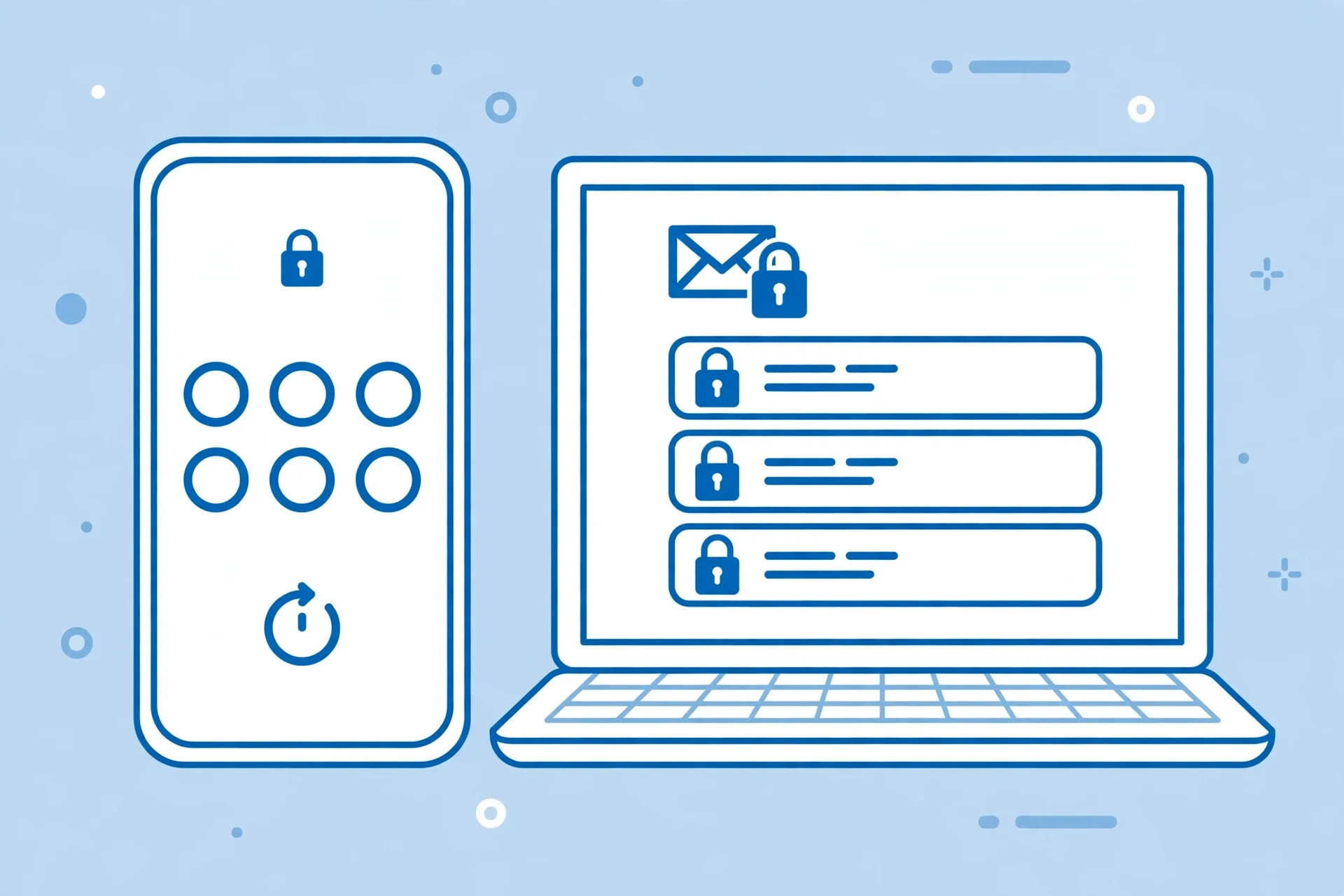
If they use Gmail, Yahoo, or any other non-Microsoft service, they cannot read a Purview-encrypted message inside their own inbox. Instead they get a message with a link to Microsoft's secure reading page, where they sign in with a Microsoft account or request a one-time passcode sent to their email address. They enter that code — a verification code, the same kind of six-digit gate you meet everywhere else — and the message opens in the browser. It works, but it is a hoop, and you should warn first-time recipients that the hoop is coming, or your encrypted email reads like a phishing attempt. That warning matters more than any step in this guide: an unexpected "click here and enter a code" email is exactly what security training tells people not to open.
S/MIME recipients have a different experience. If they have your certificate and a mail client that supports S/MIME, the message decrypts when they open it, invisibly. If they do not — a Gmail user with no certificate setup, for example — they get an unreadable attachment and no way in. There is no web portal fallback for S/MIME. That is the trade-off in one line: Purview is readable by anyone with a browser and a code; S/MIME is readable only by someone who prepared in advance.
Five things encryption does not do
Encryption is powerful and narrow, and the narrowness is where people get hurt. First, it does not hide the subject line — with both Purview and S/MIME, the subject travels unencrypted, so never put the sensitive detail there. Second, it does not hide who emailed whom, or when — sender, recipient, time, and the fact that a message exists are visible to the mail servers regardless. Third, it does not make you anonymous — an encrypted email still comes from your address, with your name on it. Encryption protects content, not identity. Fourth, it does not stop spoofing or phishing — a scammer can send an encrypted email too, and the padlock means the content is private, not that the sender is who they claim to be. Fifth, it does not protect a message after the recipient opens it — Do Not Forward blocks forwarding, printing, and copying inside Outlook, but it cannot stop a screenshot, a photo of the screen, or a recipient retyping what they read. Encryption protects data in transit and at rest; it cannot protect data from a human who has already read it.
When the Encrypt button is missing
This is the most common real-world problem with Outlook encryption, and the fixes run in order of likelihood. First, you may be looking in the wrong place: the button lives on the Options tab of a message you are composing, not in the main Outlook window. Open a new message first. Second, you may be sending from the wrong account: encryption belongs to the mailbox, so a free Outlook.com account, or a Gmail or Yahoo account added to Outlook, does not include it even inside a paid install — check the From field and switch it. Third, your subscription may not include it: personal accounts need Microsoft 365 Personal or Family; work accounts need a qualifying plan or the Azure Information Protection Plan 1 add-on. This is not a setting you can switch on yourself at work — your IT administrator assigns the licence, so send them specifics rather than "encryption doesn't work": your plan, the missing button, and that you need Purview Message Encryption enabled for your mailbox.
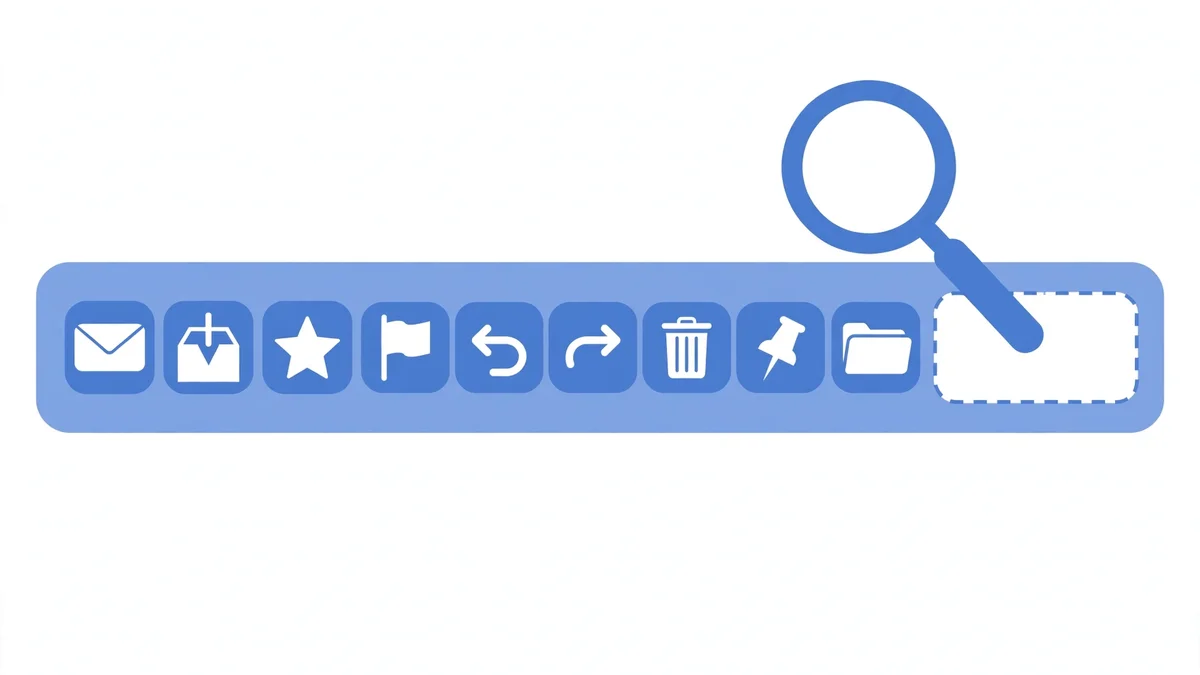
Fourth, your administrator may not have enabled it. Even with a qualifying plan, Purview has to be configured for your organisation, and the Outlook on the web button can be switched off independently. An independent test published this month found exactly this pattern: on their test PC, both classic Outlook and Outlook on the web opened new messages with no Encrypt button at all, while the certificate-based S/MIME settings were still in place. The button was not broken — the account simply did not qualify. Fifth, your Outlook may be out of date — older builds can be missing options or carrying known bugs, including the February 2026 classic Outlook bug. Sixth, you may be trying to combine Purview with S/MIME, which Microsoft explicitly forbids; remove the S/MIME protection first.
If none of these apply and the button is still missing, the blunt truth is that your account does not have encryption and nobody on your side can switch it on. At that point the realistic options are S/MIME with a certificate, a paid Microsoft 365 subscription, or a different secure channel for that one message — and for a genuinely one-off sensitive exchange, a different channel is often the right call rather than a subscription.
Encryption or a disposable inbox: different jobs
People land on this guide with two different problems that sound the same. One is "I need this email's content to stay private" — that is encryption, and this guide covers it. The other is "I need an address that cannot be traced back to me" — that is not encryption at all, and no Encrypt button will give it to you. An encrypted email still carries your name and address. A disposable inbox does the opposite job: the content is ordinary, but the address is temporary and disconnected from your identity.
The distinction matters because the tools get recommended interchangeably and they should not be. If you want a private inbox that nobody can read without your keys, an encrypted mail service is the answer — we looked at Tuta, the encrypted inbox that has been trending this month, and where a temporary inbox still wins. If you want to compare a privacy-first encrypted provider against the disposable approach head to head, our Proton Mail versus temp mail comparison lays out when each one is the right call. And if your actual problem is that a signup, a trial, or a download form wants your email address before it will give you anything, the answer is neither encryption nor a new permanent inbox — it is a temporary email that exists for ten minutes, takes the confirmation code, and then disappears so the marketing cannot follow you home. Use encryption to protect what you write. Use a disposable address to protect who you are. They are two tools, not two versions of the same tool.
Frequently asked questions
How do I send an encrypted email in Outlook?
Open a new message, select the Options tab, select Encrypt, and choose Encrypt or Do Not Forward, then send. That is the Purview route, and it needs a qualifying subscription — Microsoft 365 Personal or Family for personal accounts, or a work plan that includes Purview Message Encryption. Without that, use S/MIME with a digital certificate instead.
How do I send an encrypted email in Outlook without a subscription?
You cannot use the Encrypt button without a qualifying plan — a free Outlook.com account does not get it. Your options are S/MIME, which needs a digital certificate but no Microsoft 365 subscription, or sending the sensitive content through a different secure channel. Ordinary TLS still protects the message in transit between mail servers, but it is not the same as encrypting the stored message.
Why is there no Encrypt button in my Outlook?
The most common reasons, in order: you are looking at the main window instead of a compose window's Options tab; you are sending from an account that does not qualify, such as a free Outlook.com account or a Gmail account added to Outlook; your subscription does not include Purview Message Encryption; or your administrator has not enabled it for your organisation. At work, ask IT to confirm your licence and the Purview configuration — it is an account matter, not a setting you can toggle yourself.
Can I send an encrypted email in Outlook to a Gmail address?
Yes, with Purview encryption. The Gmail recipient gets a link to Microsoft's secure reading page and opens the message in a browser after signing in or entering a one-time passcode sent to their address. They cannot read it inside Gmail itself. Warn them first, or the message looks like phishing. With S/MIME, a Gmail recipient can only read the message if they have your certificate and a client that supports it — usually they do not.
What is the difference between Encrypt and Do Not Forward in Outlook?
Encrypt protects the message content; the recipient can read and reply, and can also forward it. Do Not Forward encrypts the message and additionally blocks forwarding, printing, and copying inside Outlook. Choose Encrypt when the reply chain matters, and Do Not Forward when the content must not travel further. Neither option can be removed after sending, and neither stops a screenshot.
Does Outlook encrypt all emails automatically?
No, not by default. Purview encryption applies per message, each time you click Encrypt. You can switch on always-on encryption with S/MIME instead — in new Outlook under Settings, Mail, S/MIME, or in classic Outlook under Trust Center, Email Security — but that requires a certificate, and it encrypts every outgoing message, including replies and forwards. For most people, encrypting only the messages that need it is the better default.
The bottom line
Sending an encrypted email in Outlook takes three clicks — once you have established that your account is allowed to make them. Check the account and the subscription first, because that check resolves most "missing button" mysteries in under a minute. Use the Encrypt button for ordinary sensitive mail, and S/MIME when you need end-to-end control and your recipients are prepared for it. Keep sensitive details out of the subject line, warn Gmail recipients about the passcode step before you send, and remember that encryption protects what you wrote, not who you are. If anonymity is the goal rather than privacy, the tool you want is not in Outlook at all — it is a temporary inbox that lets you receive what you need and then disappear.
Need a disposable temporary email?
Protect your real inbox from spam and promotional clutter instantly and free.
Received a suspicious email, text, or charge alert?
Verify whether the sender domain is disposable, spoofed, or unverified before clicking links.