Can You Send Encrypted Email in Gmail? Yes — But Probably Not the Way You Think
Can You Send Encrypted Email in Gmail? Yes — But Probably Not the Way You Think
Yes. But the honest answer is one sentence longer than the question, and that sentence decides everything: what "encrypted" means in Gmail depends entirely on which Gmail you have. A personal @gmail.com account and a work Google Workspace account run the same app, wear the same interface, and offer almost nothing in common when it comes to encryption. Most guides skip that distinction and hand you steps for an account you do not own. This one starts there, because every wrong answer to this question starts with the same mistake: assuming Gmail is one product.
I checked the claims below against the sources that actually decide them — Google's own support pages for confidential mode and hosted S/MIME, read on 23 November 2026 — and I tested the live side I could reach. One honesty note up front: the test browser had Gmail signed out, so the confidential-mode steps below are Google's own documented steps, verified against its support page, not a click-through I performed on a live compose window. I say that because the distinction matters for this exact topic, and because a guide about encryption that pretends to have tested what it has not is the wrong kind of confident. The TempMailUSA side I did test live, this morning, and the numbers are in the last section.
The short answer, by account type
If you have a personal Gmail account — an address ending in @gmail.com, no IT department, no admin console — you cannot send a truly end-to-end encrypted email from inside Gmail itself. There is no encrypt button in your compose window, and no setting that adds one. What you can do is send a confidential-mode message, which controls what the recipient can do with it but does not encrypt it end to end; add PGP through a browser extension, which does encrypt it but asks a lot of you and your recipient; or send the sensitive part as an encrypted file, or from an encrypted provider instead.
If you have a work or school Gmail account — an address on your organisation's domain, managed through Google Workspace — you may have real encryption built in. Hosted S/MIME encrypts the message itself, and client-side encryption goes further by keeping the keys outside Google entirely. Both depend on your edition and on your administrator having switched them on. Your IT department, not you, holds that switch.
That split is the whole article in miniature. Everything below is the detail: how to tell which Gmail you have, what Gmail already encrypts for everyone, the exact options for each account type, what your recipient actually sees, and the mistakes that undo all of it.
First, find out which Gmail you have
This takes ten seconds and it is the step the ranking pages never give you, which is why their steps fail for half their readers.
Look at your address. If it ends in @gmail.com, it is personal. If it ends in your company or school domain — @yourcompany.com, @yourschool.edu — it is a Workspace account. Then look for an administrator: if someone else manages your account, resets your password, or could disable your login, you are on Workspace and the encryption features available to you are decided in the Google Admin console, not in your Gmail settings. If you are the only person who can touch the account, it is personal.
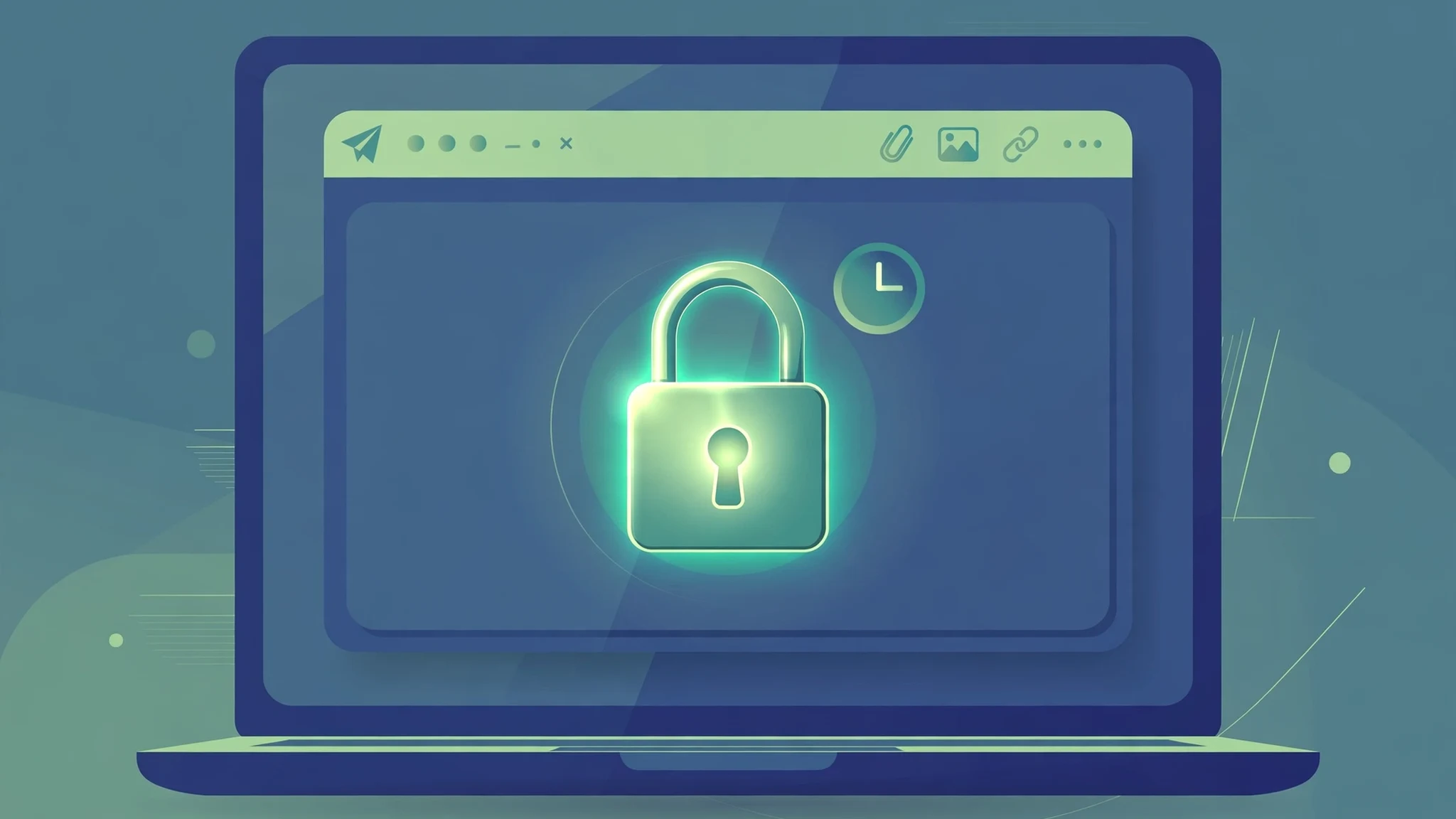
There is a second check worth doing before you read further. Open Gmail, click Compose, and look at the bottom of the compose window. On a personal account you will find the confidential-mode icon — a lock with a clock — and no encryption control of any other kind. On a Workspace account with S/MIME enabled, a lock icon appears in the subject line of messages, and the compose window offers a Message security option. If you see neither, your account has nothing beyond the default, and the rest of this guide tells you what to do about that.
The reason the account type matters this much is architectural, not cosmetic. Google built real message encryption into Workspace as a paid, admin-managed feature, and left personal Gmail with transport encryption plus access controls. That is a business decision, and no amount of clicking around your personal settings will reverse it. The sooner you accept that, the sooner you pick a method that actually works for the account you have. Our general guide to how to send an encrypted email covers the same fork across providers; this page stays inside Gmail.
What Gmail already encrypts for everyone
Before the options, the baseline, because it is the source of most of the confusion. Every Gmail message is encrypted in transit with TLS — Transport Layer Security — which scrambles the message while it travels between mail servers. That protection is automatic, invisible, and free, and it is genuinely good at the job it does: nobody sitting on the same cafe Wi-Fi can read your mail as it passes. But TLS encrypts the road, not the letter. Once the message arrives on Google's servers, it sits there in readable form. Google can read it. A court order can compel it. A breach at the provider can expose it. If you want the full distinction between the kinds of encryption, our plain-English explainer on what an encrypted email is takes it apart with live tests.
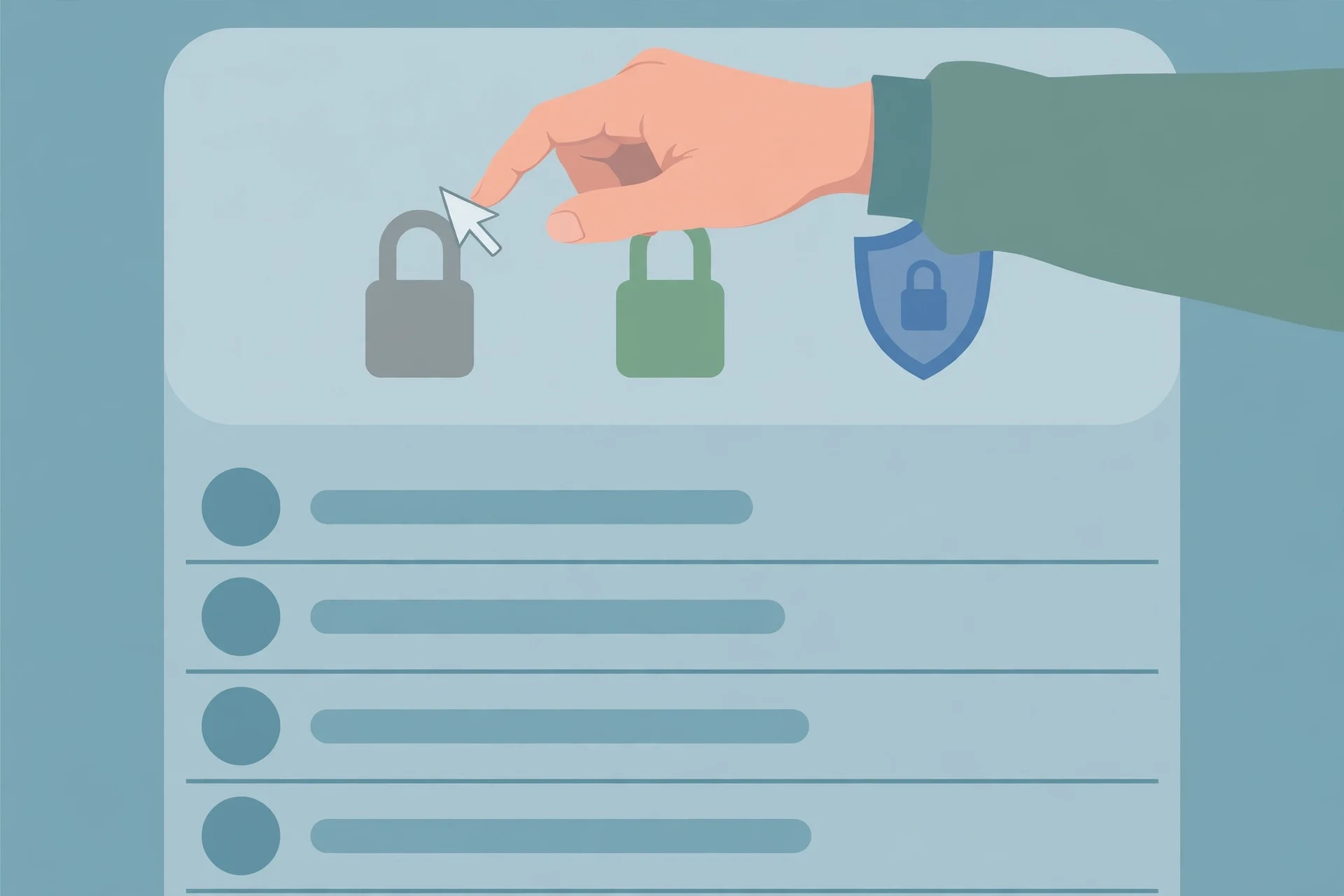
Gmail shows you the encryption level of each message with a small lock icon, and learning to read it takes thirty seconds and pays off forever. Here is the decoder, checked against Google's documentation and Canary Mail's 2026 guide, which tracks this closely:
- A grey lock means standard encryption — TLS, in transit only. This is what almost every message you send and receive carries. It is the default, and it is not end-to-end encryption.
- A green lock means enhanced encryption — hosted S/MIME, available on work and school accounts only. The message itself is encrypted, not just the connection. Google's own S/MIME page confirms the green lock appears when a message is encrypted with hosted S/MIME.
- A blue shield means additional encryption — client-side encryption, also work and school accounts only. The keys are held outside Google, so Google cannot read the message even on its own servers.
If you have never seen anything but a grey lock, that is normal. Most Gmail users never will see another colour, because the other two require a Workspace account, an administrator, and a certificate. But now you know what to look for, and — more usefully — you know that a message with a grey lock is not a private message. It is a message that travelled safely and then sat down in the open.
Personal Gmail: your three real options
You have a personal account. There is no encrypt button, and there never will be unless Google changes the product. Here are the three things that actually work, in the order I would try them.
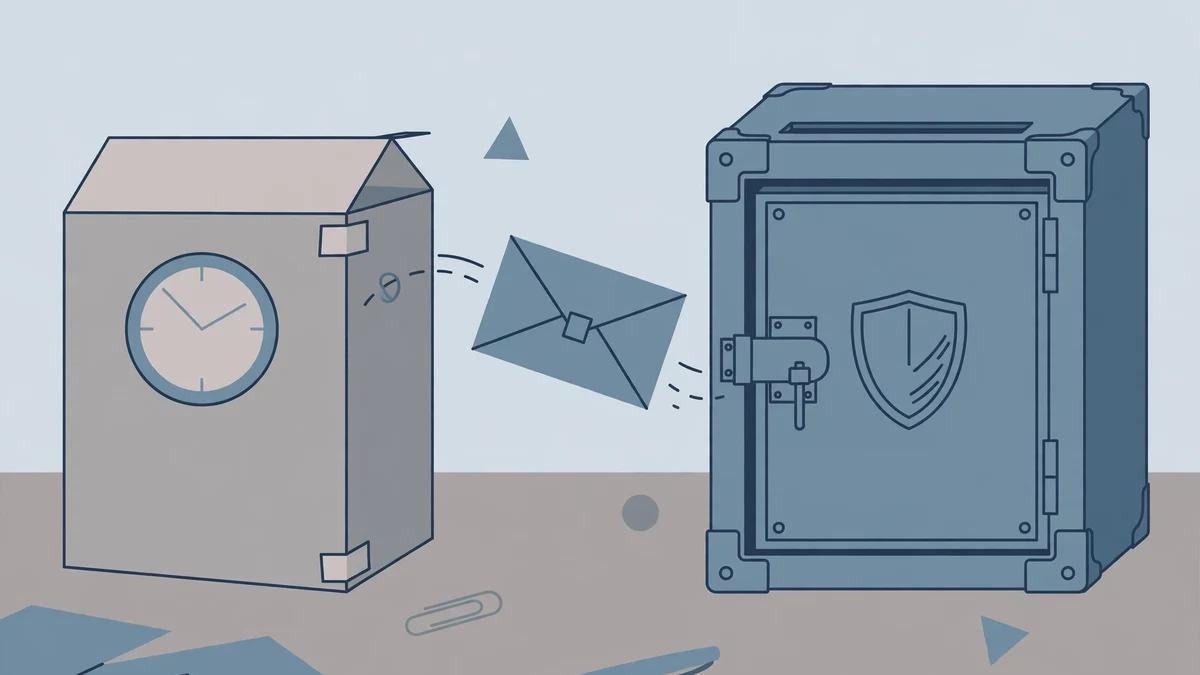
Option one: confidential mode — the one everyone reaches for first, and the one most misunderstood. Confidential mode is available on every Gmail account, personal included, and it is genuinely useful. It is also not encryption, and Google's own support page never calls it encryption. Here is what it does, in Google's own terms: it lets you set an expiration date for an email, revoke access at any time, disable forwarding, copying, printing, and downloading for recipients, and require recipients to open the email with an SMS passcode. Here is what it does not do: encrypt the message end to end, hide it from Google, or stop a recipient from screenshotting it. Google says that part plainly too — recipients can still take screenshots or photos, and malicious programs can still copy the message.
The steps, from Google's support page, verified 23 November 2026: open Gmail on a computer, click Compose, and at the bottom of the compose window click the confidential-mode icon — the lock with a clock. Pick an expiration date from the dropdown. Then choose how recipients open the email: No SMS passcode, where Gmail users open it directly and non-Gmail users get a passcode by email; or SMS passcode, where the recipient gets a code by text message — available for phone numbers in North America, South America, Europe, Australia, and in Asia only India, Korea, and Japan. Click Save, then send as usual. To take access back later, open Sent, open the message, and click Remove access.
My judgement: use confidential mode when your worry is the recipient, not the provider. A contract you do not want forwarded, a document that should stop existing next month, a message to someone whose inbox is shared — that is exactly what it is for. Do not use it when your worry is Google, a breach, or a government request, because against those it does nothing at all. And remember the SMS passcode's weak link: the code arrives by text message, the least secure channel in the whole chain, and you need the recipient's phone number to use it.
Option two: PGP through a browser extension — real encryption, real friction. If you want true end-to-end encryption from a personal Gmail account, the established route is PGP (Pretty Good Privacy) via an extension such as Mailvelope or FlowCrypt, which adds encryption to Gmail in the browser. The encryption is genuine: the message is scrambled on your device and only your recipient's key opens it. The price is setup and trust. You generate a key pair, your recipient needs one too, and you must exchange public keys before the first encrypted message — you cannot encrypt a first message to a stranger. The extensions also need broad browser permissions to read your mail, which is exactly the kind of access a privacy tool should make you pause over. Incogni's guide to Gmail encryption flags the same warning, and it is worth heeding: an extension that can read your inbox to encrypt it can read your inbox, full stop. Use a well-known extension, read its permissions, and set it up with a regular correspondent — a colleague, a lawyer, a family member — not ten minutes before a deadline with someone you have never emailed.
Option three: stop trying to encrypt inside Gmail. The most reliable answer for a personal account is often to step outside it. If the sensitive part is a file, encrypt the file and send the email normally: a password-protected PDF from Word or Mac Preview, or a password-protected ZIP with AES-256 via 7-Zip on Windows. Share the password through a different channel — a call, a text, a separate message on another app — never in the same email as the file. If the sensitive part is an ongoing conversation, send it from an encrypted-by-default provider instead: Proton Mail's free plan gives you 1 GB of storage and one address with the same zero-access encryption as the paid plans, and Tuta's free plan is comparable and encrypts subject lines too. We tested both free signups live on 21 November 2026 — no card, no phone number, no recovery email at any step — and the details are in our most secure email comparison. The honest trade-off is a second inbox to check. For the handful of messages a year that genuinely need encryption, that is a small price. For daily sensitive mail, move the work, not just the message.
Work or school Gmail: S/MIME and client-side encryption
If your address is on a Workspace domain, the conversation changes completely — but only if your administrator has done their part. Here is what exists, who gets it, and what has to happen before you can use it.
Hosted S/MIME is the standard route. Google's own admin documentation lists the supported editions as Frontline Plus, Enterprise Plus, and Education Fundamentals, Education Standard, and Education Plus. If your organisation is on one of those, your admin enables it in the Google Admin console — Apps, then Google Workspace, then Gmail, then User settings — by checking Enable S/MIME encryption for sending and receiving emails, and optionally Allow users to upload their own certificates. Changes can take up to 24 hours to apply, and messages sent during that window are not encrypted, which is worth knowing if your admin enables it on a Monday morning and you test it at lunch.
Then you, the user, add a certificate. Reload Gmail, go to Settings, then See all settings, then the Accounts tab, and next to Send mail as click Edit info, then Upload a personal certificate. The certificate is a .pfx or .p12 file from a certificate authority or your IT department, protected by a password that arrives separately. Google keeps the private key on its own servers in the hosted model — that is what "hosted" means, and it is the trade-off: easier to manage, but Google holds the keys.
Then comes the step everyone discovers too late: to send an S/MIME encrypted message, you need the recipient's public certificate first. In practice that means exchanging signed messages — you send a signed email, the recipient's client stores your public key, and from then on you can encrypt to each other. You cannot encrypt a first message to a stranger. S/MIME earns its place when you email the same small group constantly — a legal team, a finance department, a regular client — and everyone has certificates installed. For a one-off message to someone outside your organisation, it is the wrong tool.
Client-side encryption (CSE) is the stronger variant. It also uses S/MIME, but the private keys are managed by an external key service your organisation controls, so Google cannot access the message contents at all — the blue shield in the lock decoder above. It is available on a subset of the same Workspace editions; Canary Mail's 2026 guide lists Enterprise Plus, Education Plus, Education Standard, and Frontline Plus. Your admin sets it up in the same Admin console, and the per-user experience is the same lock icon and Message security control. If your organisation handles legal, medical, or financial mail and your admin has not looked at CSE, that is the conversation worth having — not with me, with them.
One more Workspace detail that causes confused replies: a message encrypted with S/MIME shows a green lock, but only when both sides are set up. If your recipient has no certificate, Gmail warns you, and the message either goes out unencrypted or fails, depending on your settings. Listen to that warning. An S/MIME message to someone without a certificate is unreadable, not merely inconvenient.
What your recipient actually sees
This is the section the ranking pages skip, and it is the one that causes the most confused replies after the fact. What happens on the other end depends entirely on what you sent and what your recipient uses.
If you sent a confidential-mode message to another Gmail user, they open it in Gmail and find forwarding, copying, printing, and downloading disabled, with an expiry date shown. If you required an SMS passcode, they get a text first. If they do not use Gmail, they get an email with a link to view the message, and a passcode by email or text. Either way, warn them before you send it: an unexpected "click here and enter a code" email is exactly what security training tells people not to open, and your encrypted message will read like a phishing attempt if it arrives without context.
If you sent an S/MIME message to someone whose client supports it and who holds your certificate, it decrypts invisibly when they open it. If they do not — a Gmail user with no certificate setup, for example — they get an unreadable attachment, typically named smime.p7m, and no way in. There is no web portal fallback for S/MIME. That is the trade-off in one line: confidential mode is readable by anyone with a browser and a code; S/MIME is readable only by someone who prepared in advance.
If you sent a PGP message, the recipient needs a PGP setup of their own, or they see a block of text starting with BEGIN PGP MESSAGE and nothing else. If you sent a password-protected file, the recipient needs the password, which you sent separately — and if you put the password in the same email as the file, you have locked the front door and taped the key to it.
The subject line deserves its own warning, because it surprises everyone: with S/MIME, the subject line is not encrypted. Anyone handling the message can read what it is about. Never put the sensitive detail in the subject. "Your HIV results" and "Offer: $180k" belong in the body, behind the encryption, not on the envelope.
Five mistakes that undo the encryption
Encryption is powerful and narrow, and the narrowness is where people get hurt. These five are the ones I see most often, and each of them has undone someone's careful setup.
First, treating confidential mode as encryption. It is access control. Google holds the keys and can read the content. If your threat is the provider, it protects you from nothing.
Second, trusting the grey lock. TLS protects the journey, not the destination. A grey lock means the message travelled safely and then sat down readable on a server. It is the baseline, not the goal.
Third, putting the secret in the subject line. S/MIME does not encrypt subjects. Neither does TLS. The envelope is always readable.
Fourth, sending the password with the file. A password-protected attachment with the password in the same email is theatre. Different channel, every time.
Fifth, encrypting the message and then handing the address away. Encryption protects content, not identity. An encrypted email still carries your name and your address, and if that address is the one you have used for fifty signups, all fifty accounts tie back to one identity. That is a different problem, and it is the one disposable addresses solve.
When the problem is the address, not the message
That fifth mistake is where this site earns its keep, and it is worth stating the distinction cleanly, because the tools get recommended interchangeably and they should not be. Encryption hides what you said. A disposable inbox hides who you are. If your actual problem is that a signup, a trial, or a download form wants your email address before it will give you anything, encryption is the wrong tool entirely — the message is worthless five minutes after it arrives, and the thing you are protecting is your real address, not the code inside it.
I tested that side live this morning, 23 November 2026, at about 08:28 IST. Opening TempMailUSA generated the disposable address pcxog57@rover.info — the same address the previous slot's test produced, which tells you the session persists across reloads. The domain picker listed 468 domains: exactly one free, rover.info, and 467 Pro. The countdown read "Expires in 28d 17h 35m 30s" and ticked down second by second while I watched — free inboxes last 30 days, Pro inboxes 365. The page counters read 488,032 emails created, rising to 488,033 within a minute, and 609,973 messages received. One nit worth printing, because it is the kind of thing a careful reader would catch: the top banner says "Try any of our 427 domains free" while the picker itself says 468 — a 41-domain gap between the banner and the picker, and the picker is the number that counts.
The inbox receives only; there is no compose button and no way to send mail from it. That is not a limitation for this job. A disposable address is for the messages you need to receive once and never think about again, and for those, the address that cannot be traced back to you is the protection that matters. If you also use Outlook, the same account-type trap applies there — a free Outlook.com account has no Encrypt button either — and our Outlook encrypted email guide walks through the licence check and the missing-button fixes.
FAQ
Can you send encrypted email in Gmail for free?
Yes, in two senses and no in a third. TLS encryption in transit is free and automatic for every Gmail account. Confidential mode is free and available on every account, but it is access control, not end-to-end encryption. True end-to-end encryption from a personal Gmail account costs setup, not money: PGP through a free extension, or a free account on an encrypted provider such as Proton or Tuta. Hosted S/MIME and client-side encryption are the paid Workspace features, and they are not available on a free personal account at any price.
Does Gmail confidential mode encrypt my email?
No. Confidential mode sets an expiry date, lets you revoke access, blocks forwarding, copying, printing, and downloading, and can require an SMS passcode — but Google still holds the keys and can read the content. It is the right tool when your worry is the recipient forwarding or keeping the message. It is the wrong tool when your worry is the provider, a breach, or a legal request.
How do I know if a Gmail message I received was encrypted?
Open the message, click the details arrow next to the sender, and look at the lock icon and the encryption line. A grey lock means standard TLS encryption in transit. A green lock means hosted S/MIME. A blue shield means client-side encryption. If you see no lock information at all, the message travelled without TLS, which is rare and worth treating with suspicion.
Can I send S/MIME encrypted email from a personal @gmail.com account?
No. S/MIME in Gmail requires a Google Workspace account on a supported edition — Frontline Plus, Enterprise Plus, or Education Fundamentals, Standard, or Plus — with an administrator who has enabled it and a certificate installed on your account. A personal account has no path to S/MIME, and no setting or extension adds Google's own S/MIME to it. The PGP extension route is the personal-account equivalent.
What happens if I send an encrypted email to someone who cannot open it?
It depends on the method. A confidential-mode message opens through Google's flow in a browser, with a passcode if you required one — readable by anyone, with a hoop. An S/MIME message to someone without your certificate arrives as an unreadable attachment with no fallback. A PGP message to someone without PGP arrives as a block of scrambled text. Warn your recipient before you send, whichever method you use, and test it with a harmless message first.
Is Gmail encrypted by default?
In transit, yes — Gmail encrypts every message with TLS when the other provider supports it, which is nearly always. At rest on Google's servers, no, not in the end-to-end sense: Google holds the keys and can read stored mail. The only Gmail messages Google cannot read are the ones encrypted with client-side encryption, which requires a Workspace account on a supported edition with CSE enabled. Everything else is encrypted on the road and readable at the destination.
Need a disposable temporary email?
Protect your real inbox from spam and promotional clutter instantly and free.
Received a suspicious email, text, or charge alert?
Verify whether the sender domain is disposable, spoofed, or unverified before clicking links.