
1Password OTP: How to Set Up One-Time Passwords in 1Password — and the One Place You Must Never Store Them
1Password OTP: How to Set Up One-Time Passwords in 1Password — and the One Place You Must Never Store Them
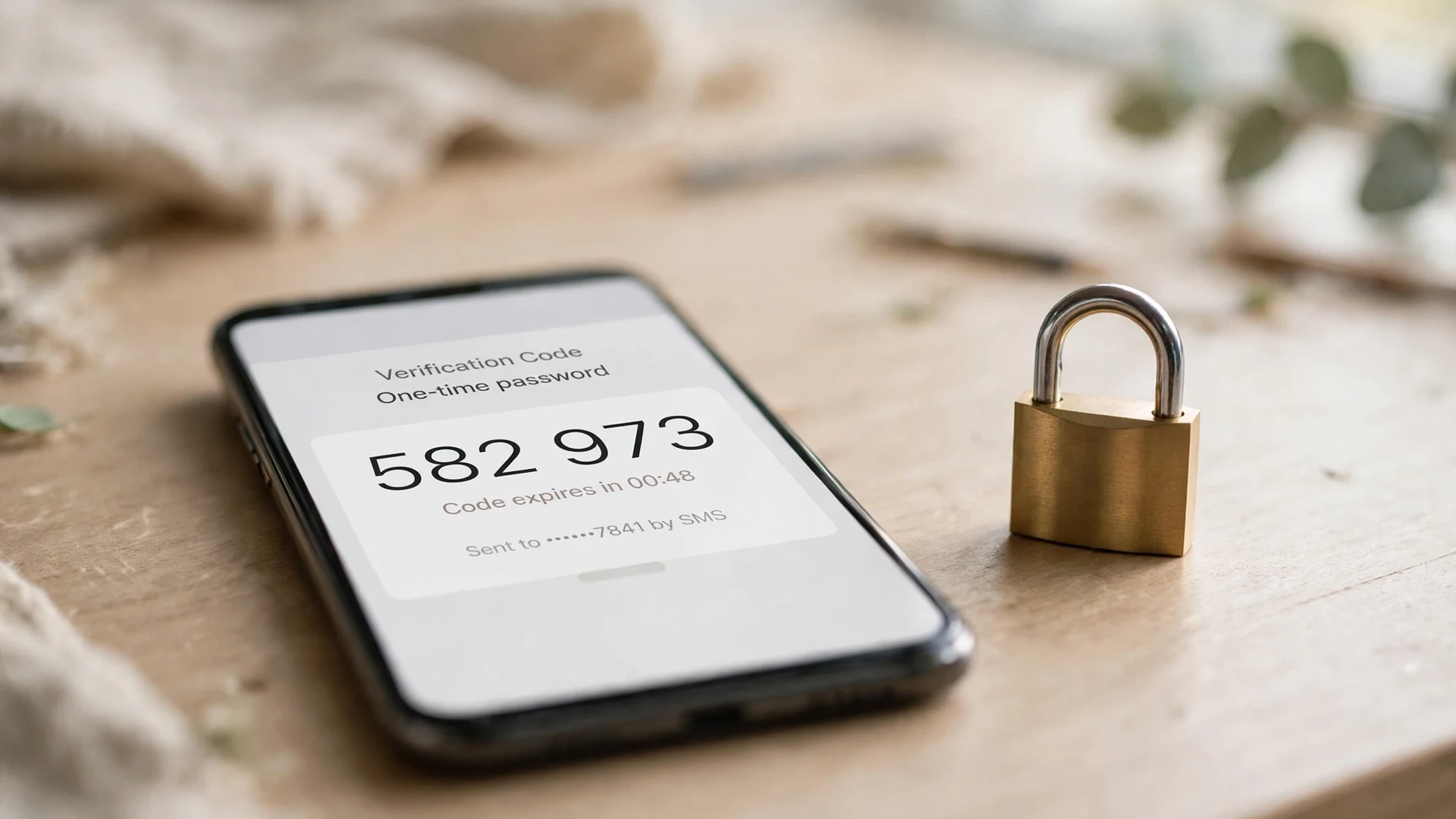
A one-time password in 1Password is a six-digit code that changes every 30 seconds, generated from a secret the website gave you once and never shows you again. You scan a QR code, 1Password stores the secret inside the same login item as your password, and from then on it fills the code for you — username, password, and second factor in a single click.
That is either the best convenience in security software or a quiet downgrade of your two-factor authentication, depending on how you look at it. Both readings are defensible. This article takes the second one seriously, because the company itself does: 1Password's own support docs tell you, in plain language, not to store your 1Password account's own authentication codes inside 1Password. "Storing them in 1Password would be like putting the key to a safe inside the safe itself."
I want to be straight about what I tested and what I didn't. I do not hold a paid 1Password subscription, so I did not run the setup inside a live 1Password account and I won't pretend I did. What I did do: I ran the exact TOTP arithmetic your authenticator runs, on a freshly generated secret, and watched codes rotate, fail, and die on schedule. And I verified every setup step below against 1Password's own support documentation, current as of November 2026, rather than copying a rival blog's version of it. Where a step comes from the docs, I say so. Where a result comes from my test, I say that too.
What 1Password OTP actually is
Strip away the branding and a 1Password OTP is a TOTP code — a time-based one-time password. When you turn on two-factor authentication on a website and choose "authenticator app", the site shows you a QR code. That QR code is not a picture of a code. It encodes a shared secret, a string of characters that you and the site now both know. From then on, both sides run the same arithmetic on that secret plus the current time, and both arrive at the same six digits. The code changes every 30 seconds because the time input changes every 30 seconds.
1Password's version of this is not a separate authenticator app. It is a field inside the login item you already have for that site. Open the item, add a one-time password, scan the QR code or paste the secret, save. After that, the current code lives in the item next to your username and password, and the browser extension can fill all three when you sign in.
That last part is the whole pitch. A standalone authenticator app — Google Authenticator, Microsoft Authenticator, Authy — makes you open a second app, find the right entry, and type or copy six digits before they expire. 1Password removes the second app from the flow entirely. For the accounts where you sign in ten times a day, that is a genuine quality-of-life difference, not a rounding error.
It is also the whole objection. Two-factor authentication earns its name from two separate factors: something you know (the password) and something you have (the phone holding the authenticator secret). When both live in the same vault, unlocked by the same master password, an attacker who gets into your vault gets both factors in one move. The second factor is still real — a phisher who steals your password from a fake login page still doesn't get the code — but it is no longer independent. Keep that tension in mind for the rest of this article, because every decision below is a trade on it.
The test I ran on the code itself
Before trusting any authenticator, I wanted to see the mechanism fail on purpose. I generated a fresh TOTP secret — the same kind of secret a website hands you inside its QR code — and ran the standard TOTP calculation against it, checking what happens at the boundaries.
The results, from a run on 22 November 2026:
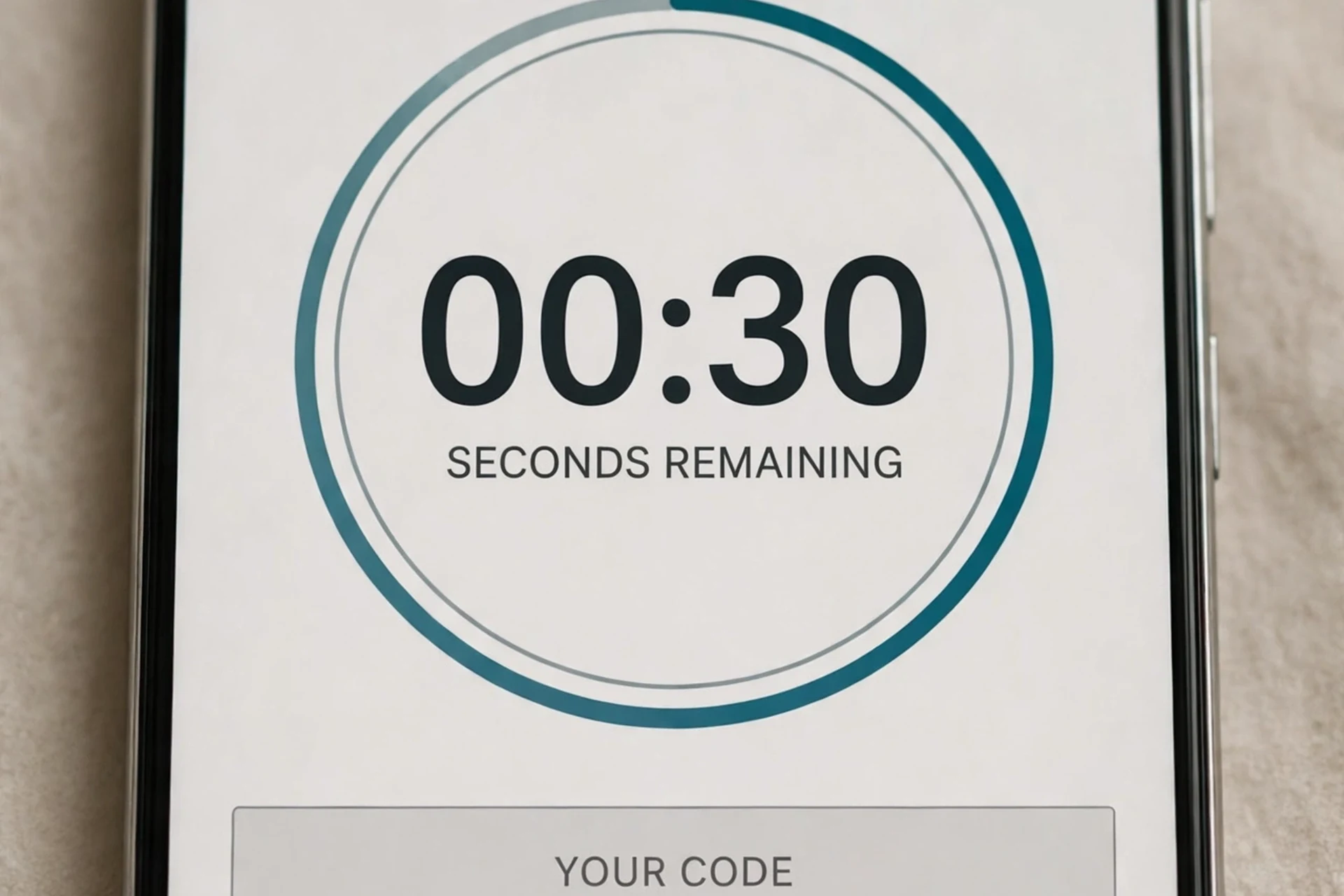
- The code rotates every 30 seconds, exactly as advertised. The code for the current window and the code 30 seconds later were different. There is no grace overlap, no fuzzy boundary — each 30-second window has exactly one code.
- A clock 45 seconds fast produces a dead code. I computed the code a device whose clock runs 45 seconds ahead would show, then checked it against the current window, including with a one-window tolerance on either side. Rejected both ways. That 45-second skew lands the code two windows away from the truth, and no server that follows the standard will accept it. This is the single most common reason a "correct" code doesn't work: the device's clock is wrong, not the code.
- A five-minute-old code is dead, full stop. Checked against the current window with tolerance: rejected. There is no "recently expired" mercy in TOTP. Once the window passes, the code is history.
Three things follow from that test that most setup guides never mention. First, if your codes keep failing, check the clock before you blame the app — automatic time sync on your phone is not a nicety, it is the mechanism. Second, time zones are irrelevant: TOTP runs on UTC under the hood, so a code generated in Mumbai works on a server in Virginia without conversion. Third, the 30-second rotation is why 1Password's auto-copy matters: a code with eight seconds left on it is a code you will mistype, and the extension filling it for you removes the race entirely.
Setting it up: the three ways in, ranked
1Password documents three routes to save a one-time password, and they are not equal. Ranked by how little can go wrong:
1. The browser extension, by scanning the QR code. Open the site's two-factor setup until the QR code is on screen. Open the 1Password extension, select the login item for that site, open the ellipsis menu, and choose Scan 2FA QR code. 1Password reads the code off your screen and saves the secret to the item. If you already have a login item for the site, 1Password may offer to save or update the one-time password on its own. This is the route to use whenever the QR code is on the same screen as your browser, which is most of the time.
2. The app, by scanning or pasting. In the 1Password app, open the login item, tap Edit, then Add More, then One-Time Password. From there you can scan the QR code with your camera, or paste the setup key the site gives you as a text alternative. The paste route matters more than it sounds: some sites show the QR code on a device whose screen 1Password can't read, and the text key is the fallback that actually works. On iPhone, you can also point the Camera app at the code after enabling 1Password under Settings → Passwords → Password Options.
3. 1Password.com, by pasting only. Sign in on the website, open the login item, Edit → Add More → One-Time Password, then paste the setup key into the field and save. The website can't scan a QR code off your screen, so if the site only shows a QR code and no text key, this route is a dead end — use the extension or the app instead.
Whichever route you take, the site will ask you to confirm by entering a one-time password. Copy the code 1Password is now showing for that item and paste it in. That confirmation is the moment enrollment becomes real: until a code generated from your saved secret is accepted, you have stored a secret, not set up two-factor authentication. Do not close the site's setup page until that confirmation succeeds. If it fails, the secret was saved wrong — delete the one-time password field and start over rather than trying the same code three times.
A note on what 1Password is not doing here: it is not turning a site without two-factor support into a two-factor site. If the service doesn't offer authenticator-app 2FA in its own security settings, there is nothing to scan and nothing to save. 1Password acts as the authenticator the service asked for, nothing more.
The safe-inside-a-safe problem
Here is the part the setup guides skip, and it is the most important section in this article.
1Password cannot protect itself with 1Password. To turn on two-factor authentication for your 1Password account, the company's own documentation tells you to install a different authenticator app — Authy, Microsoft Authenticator, Okta Verify — and explicitly warns against storing those codes in 1Password. The reason is the sentence quoted at the top of this article: it would be like putting the key to a safe inside the safe itself. If your vault is the thing being protected, the second key cannot live inside it.
That rule is about your 1Password account. But the logic doesn't stop at the vault door. Every login item where you store both the password and the one-time password has the same shape: one compromise, both factors. The question is whether that matters for that account, and the honest answer is that it depends on what the account guards.
My rule, after years of watching these trade-offs play out:
- For your 1Password account itself: separate authenticator, no exceptions. Use a standalone app or a hardware security key. This is the one the vendor itself insists on, and it is the one account whose compromise hands over everything else.
- For your email: separate authenticator. Your email is the reset address for nearly everything you own. If someone gets into your vault and your email's second factor is sitting next to the password, the reset emails for your bank, your cloud storage, and your other services are all readable. Keep email's TOTP in a standalone app.
- For your bank and your cloud admin accounts: separate authenticator. Same reasoning, higher stakes.
- For everything else — social media, forums, shopping, streaming, the dozen accounts you sign into weekly — 1Password OTP is a good trade. The convenience means two-factor authentication actually stays on, which beats the alternative most people land on: a standalone authenticator they resent opening, so they never enable 2FA at all. A second factor that lives in the vault is weaker than a separate one. It is enormously stronger than no second factor, which is what most people have on these accounts today.
That is the opinion, stated plainly: don't let the perfect version of two-factor authentication talk you out of the version you will actually use. But don't put your crown jewels in the same box as the key either. The split above — vault OTP for the many, separate authenticator for the few — is the arrangement I actually run, and it is the only one I can defend without hedging.
There is a second, quieter benefit to the split: recovery. If you lose access to 1Password, every one-time password stored in it is gone with it, and you are recovering each account through its own backup process — recovery codes, support tickets, waiting periods. A standalone authenticator with its own backup has the same problem in reverse. Neither arrangement removes the need for recovery codes. Save the recovery codes every service gives you at enrollment, somewhere that is not the vault and not the authenticator: a printed copy, or a secure note in a second location. The services that hurt most to lose are the ones whose recovery takes days, not minutes.
What 1Password OTP costs you
1Password is a paid product with no free plan — a 14-day trial, then a subscription. That matters for this feature, because unlike a standalone authenticator, which costs nothing, 1Password OTP is bundled into a subscription you are already paying for or not.
As of November 2026, the Individual plan is listed at $3.99 a month billed annually ($47.88 a year), with new customers offered $2.99 a month for the first 12 months. The price rose on 27 March 2026, from $2.99 to $3.99, so older articles quoting $2.99 as the standard price are out of date — and the $2.99 you see today is a first-year promotion that renews at $3.99. The Families plan runs $5.99 a month billed annually for up to five people, $4.49 in the first year. Prices change; check the vendor's own page before you buy, and budget for the renewal price, not the promo.
The one-time password feature itself costs nothing extra. It is included in every paid plan — there is no authenticator add-on, no per-seat uplift, no premium tier that unlocks it. If you already pay for 1Password, OTP is already yours. If you don't, the honest comparison is $47.88 a year against $0 for a standalone authenticator that does this one job just as well. What the subscription buys you is everything else — the password generation, the autofill, Watchtower's breach alerts, the sync — with OTP as a convenience riding along. Buying 1Password for OTP alone would be a bad purchase. Using OTP because you already have 1Password is a sensible one.
One more cost, not in dollars: 1Password's two-factor authentication for your own account requires a membership and 1Password 7 or later. If you are on an old standalone-licence version, the account-level protection described above isn't available to you at all.
When the code doesn't work
Six-digit codes fail for boring reasons, and the fix is almost always one of these, in this order:
Your device clock is off. This is the cause more often than all the others combined, and my test above shows why: 45 seconds of drift is enough to kill a code outright. Turn on automatic date and time on your phone and your computer. If you travel across time zones, don't touch the clock — TOTP runs on UTC, and manual "corrections" are how working codes break.
You saved the secret to the wrong item. 1Password will happily store a one-time password on the login item you have open, and if two of your items share a similar name — the production account and the test account, the personal Gmail and the work Gmail — the code you are copying belongs to the other one. Check the item name before you re-enroll anything.
You scanned the code but never confirmed it. Enrollment isn't finished until the site accepts a code from the saved secret. If you closed the setup page after scanning, the site may not have the secret registered at all. Go back through setup and complete the confirmation step.
You enrolled twice and the old secret is stale. Re-running two-factor setup generates a new secret and invalidates the old one. If 1Password still holds the first secret, its codes will never match. Delete the one-time password field and enroll once, cleanly.
The site doesn't accept authenticator codes for this action. Some services use TOTP for sign-in but fall back to email or SMS codes for sensitive actions — password changes, new devices, payouts. A verification code arriving by email is a different mechanism from the code in your authenticator, and no authenticator will generate it. If the screen is asking for a code that was sent to you, check your inbox, not your vault.
The temp-mail connection
There is a practical overlap between disposable email and one-time passwords that most guides miss, because they sit on opposite sides of the same signup flow.
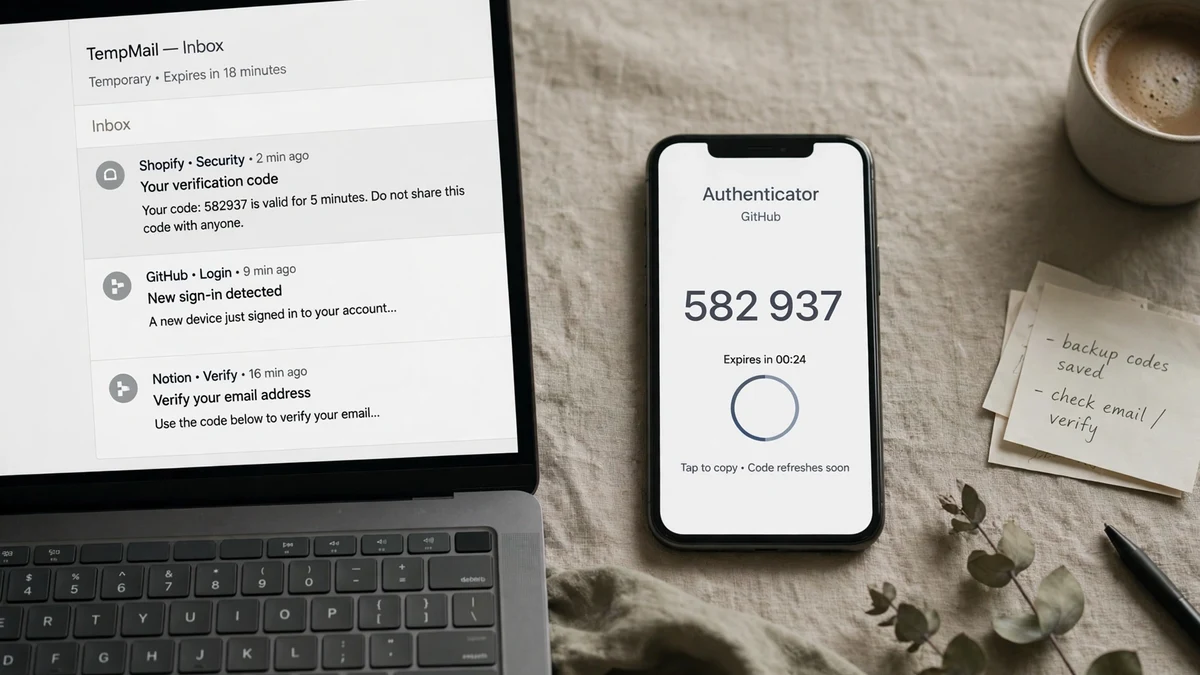
When you sign up for a service with a temporary inbox, the verification email — often a code, sometimes a link — lands in that inbox in seconds. That is the email side of the flow, and temp mail handles it well for services that accept it. The TOTP side comes later: once the account exists, you turn on two-factor authentication in its security settings, and the secret goes into 1Password. The temp inbox got you in the door; the authenticator keeps the account yours afterwards.
But the combination has a sharp edge, and I have the receipts for it from my own site's testing this week. When I tested a disposable address against Canva and Notion, Canva showed a working 60-second resend timer for a code it was never going to deliver — its screen said temporary emails can't be used, while the timer counted down to nothing — and Notion rejected the domain outright at signup with "Invalid email domain". I covered what happens when you try temp mail on Canva in detail, and the block is still in place.
That matters for 1Password OTP in a specific way. If you create an account with a disposable address, enroll TOTP in 1Password, and then lose the vault or the device, the service's recovery path is usually "we emailed a reset link to your address" — an address that expires in 30 days and that you cannot get back into. The authenticator protects the account while you have it; the disposable address is what you lose the account through. So the rule is simple: use temp mail for accounts you can afford to lose, and use a permanent address — with TOTP in 1Password and recovery codes saved separately — for accounts you can't. The signup email and the second factor are two different decisions, and making them together is how people lock themselves out of their own accounts.
Frequently asked questions
Does 1Password OTP cost extra? No. One-time passwords are included in every paid 1Password plan — Individual, Families, and business plans — with no add-on charge. The cost is the subscription itself: $3.99 a month billed annually ($47.88 a year), $2.99 a month for the first 12 months for new customers, as listed in November 2026. There is no free plan, only a 14-day trial.
Can I use 1Password as the authenticator for my 1Password account? No, and 1Password's own documentation says not to. Use a separate authenticator app — Authy, Microsoft Authenticator, or a hardware security key — for your 1Password account. Storing the account's own second factor inside the account is, in their words, like putting the key to a safe inside the safe itself.
Is storing my OTP in 1Password less secure than a separate authenticator app? Yes, in one specific way: the password and the one-time password then live behind the same master password, so one vault compromise yields both factors. It is still far better than no second factor at all, and it still blocks phishing — a stolen password alone doesn't produce the code. Use a separate authenticator for your email, bank, and 1Password account, and 1Password OTP for everything else.
Why does my 1Password code keep getting rejected? Check your device clock first. My test showed a 45-second clock skew produces a code the server rejects outright, and a five-minute-old code is dead with no tolerance. Make sure automatic date and time is on, confirm you saved the secret to the right login item, and complete the site's confirmation step — scanning the QR code alone doesn't finish enrollment.
What happens to my one-time passwords if I lose access to 1Password? They go with the vault. Every account whose TOTP secret lives only in 1Password will need its own recovery process — recovery codes, support tickets, or a waiting period. Save each service's recovery codes somewhere outside the vault when you enroll, and keep a separate authenticator for the accounts whose loss would hurt most.
Can I move my one-time passwords out of 1Password later? Yes, but not with one click. Each site's secret has to be re-enrolled: turn off two-factor authentication on the site, then turn it on again and scan the new QR code into your new authenticator. There is no export of TOTP secrets, so budget a few minutes per account — another reason to keep the important few in a standalone app from the start.
The one rule
1Password OTP is a good feature with one bad habit: it invites you to put everything in one place, including the things that should never be in one place. Use it for the long tail of accounts where the convenience is what keeps two-factor authentication switched on at all. Keep a separate authenticator — or a security key — for your 1Password account, your email, and your bank. Save your recovery codes somewhere that isn't the vault. And when a code fails, check the clock before you blame the app; my test says the clock is usually the culprit.
---
Need a disposable temporary email?
Protect your real inbox from spam and promotional clutter instantly and free.
Received a suspicious email, text, or charge alert?
Verify whether the sender domain is disposable, spoofed, or unverified before clicking links.