

OTP Test: How to Test a One-Time Code Three Ways — Email, SMS, and Authenticator
"OTP test" is three different jobs wearing one name, and most of the pages ranking for it only cover one of them. A developer testing a login flow means something different from a person wondering why the code never arrived, and both mean something different from someone checking whether their authenticator app is generating the right numbers. I ran all three tests myself for this guide — email delivery, SMS autofill, and TOTP generation — and one of them failed. The failure taught me more than the two that passed, so it is in here in full.
The Three Things "OTP Test" Can Mean
Before touching anything, sort out which test you actually need. Guessing wrong wastes an afternoon.
An email OTP test checks delivery: a service sends a six-digit code to an inbox, and you confirm it arrives, lands in the right folder, and stays readable until it expires. This is the test QA teams run against signup and login flows, and it is the one where a temporary inbox earns its keep — you can spin up a fresh address per test run instead of burning a real one.
An SMS OTP test checks the phone side: the code arrives by text, the phone offers it above the keyboard, tapping it fills the field, and wrong, expired, and resent codes behave the way the product team intended. This is the test mobile developers run, and it only really works on a real device with a live SIM.
A TOTP test checks generation: an authenticator app or hardware token computes a code from a shared secret and the current time, and you confirm it matches what the server expects. Nothing is delivered anywhere.
If you are a developer, you probably need the first two. If you are setting up two-factor authentication and want to know whether your app is working, you need the third. If you are a user whose code never arrived, you are not running a test at all — you are debugging, and the section near the end on reading failures is the one for you.
Test 1: Email OTP Delivery to a Temp Inbox
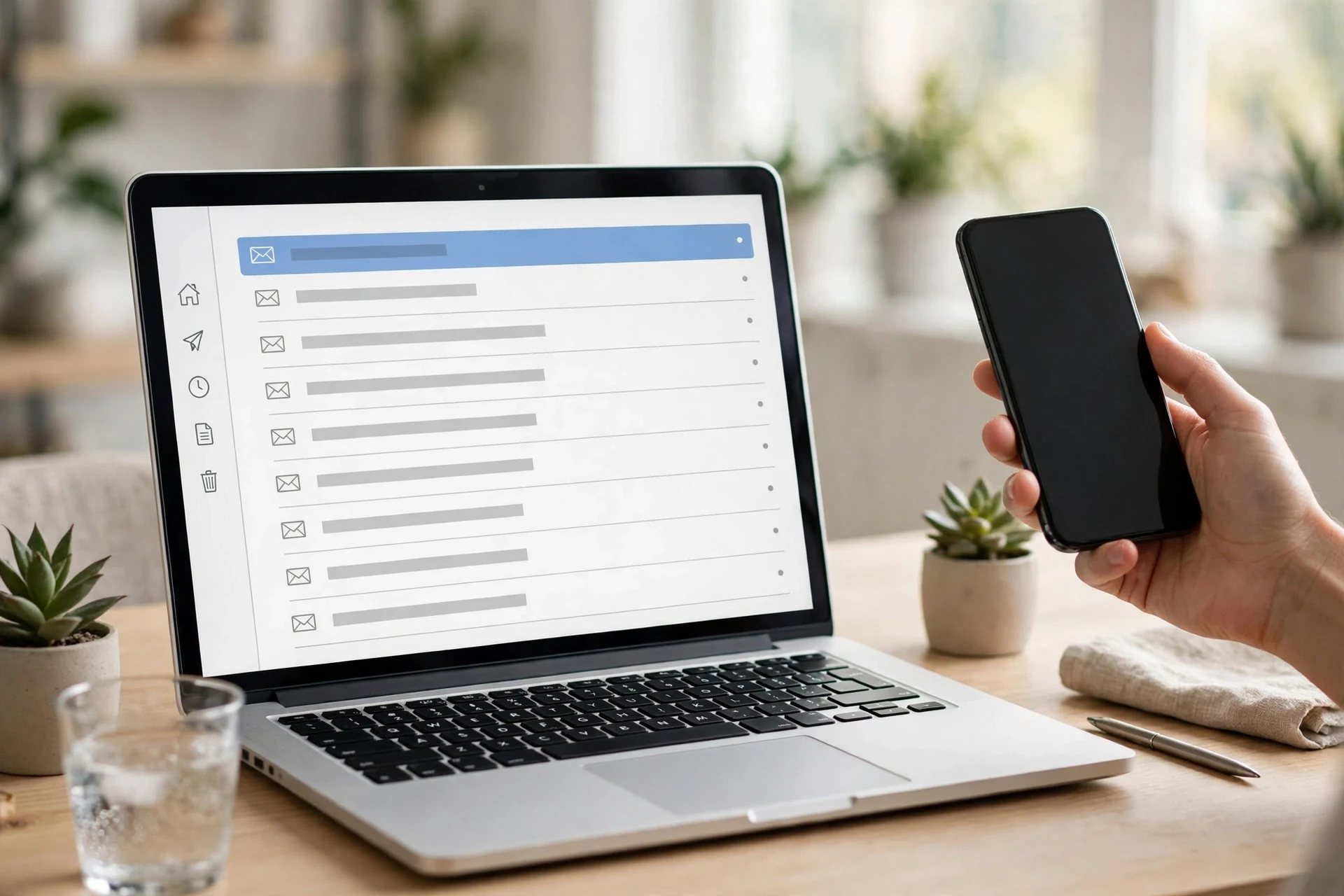
This is the test I ran first, because it is the one this site is built for. The plan was simple: generate a temporary address on the tempomailusa.com homepage, use it to register for an account that sends a verification code, and watch the code arrive in the temp inbox, timing the delivery.
The first half worked exactly as advertised. The homepage generated an address the moment it loaded — 6elv4m82dt@rover.info — and the inbox view opened empty, showing "Your inbox is empty" with zero messages, auto-refreshing, and the address set to expire in about 30 days. No signup, no verification hoop of its own. That part took seconds.
The second half failed, and the way it failed is worth describing precisely, because it is the kind of failure that gets misread. I went to the site's own registration page, which offers account creation with email verification and states on its login page that you must "Verify your email to activate your account." I entered the temp address as the account email with an obviously-test name and a throwaway password, and submitted. The page showed "Please wait...", then redirected to the login screen with a toast: "Error — We could not complete the process, please try again later." No verification screen appeared, and no code was shown.
I tried again a few minutes later with the then-current address, ltlhu51@rover.info — the homepage address had rotated after the first failed signup, and the first inbox no longer appeared in History or All Inboxes, so it could not be checked again. Same result: the same generic error, the same redirect. I watched the second inbox, auto-refreshing, for about two minutes after the retry. It stayed at zero messages.
So the honest result of this test is: not measurable. No verification email was ever sent, because registration never completed, so there was no delivery to time. The error message gives no reason — it does not say the address was rejected, the password was weak, or the service was down — so I am not going to guess which one it was. What I can say is what the failure proves and what it does not prove. It proves the registration flow was not completing at the time I ran the test, on 15 November 2026. It does not prove anything about the temp inbox's ability to receive mail, because no mail was ever sent to it. Conflating those two is the most common mistake in OTP testing: "the code never arrived" gets blamed on the inbox when the sender never sent it.
If you run this test yourself, separate the two halves. First, confirm the inbox receives mail at all — send it a message from any working address and watch it land. Only then trigger the real OTP, so that a missing code points at the sender, not the inbox. And keep the recovery token the site offers for a mailbox: after a failed signup rotated my address, the first inbox was gone from History, and only a recovery token would have brought it back. I never saw one displayed, which is a second small lesson — save the token before you need it.
Test 2: SMS OTP and the Autofill Check
I did not run this test on a real phone for this guide, and I am saying so rather than dressing up a description as a test. What follows is the checklist from the best published walkthrough of it I found — Mobot's guide to testing SMS and OTP codes on iOS and Android — because it is specific where most advice is vague, and its four checks are the right four.
First, request a code on a real number and confirm one SMS arrives, from the right sender, with the right code. The iOS Simulator cannot receive a carrier SMS at all, so simulator testing covers code entry and validation logic only; delivery and autofill have to be confirmed on a real device with an active SIM.
Second, tap the code suggestion above the keyboard. On iOS this works when the code field is marked as a one-time code field — the textContentType .oneTimeCode setting — and the suggestion fills the full code. On Android the equivalent is the SMS Retriever API, which reads one matching message automatically for up to five minutes.
Third, enter an expired code, then tap Resend, and confirm the behaviour is exactly what a user would expect: a clear error for the old code, and the new code working while the old one stays rejected.
Fourth, tap any link in the message, with the app installed and without it, and confirm each case opens the right screen or the right web page.
That third check is the one teams skip, and it is the one users hit most. A resend that leaves the old code valid is a security hole; a resend that silently invalidates the code the user is staring at is a support ticket. Testing both directions of that behaviour is the whole point.
Test 3: TOTP — Checking the Code Generator Itself
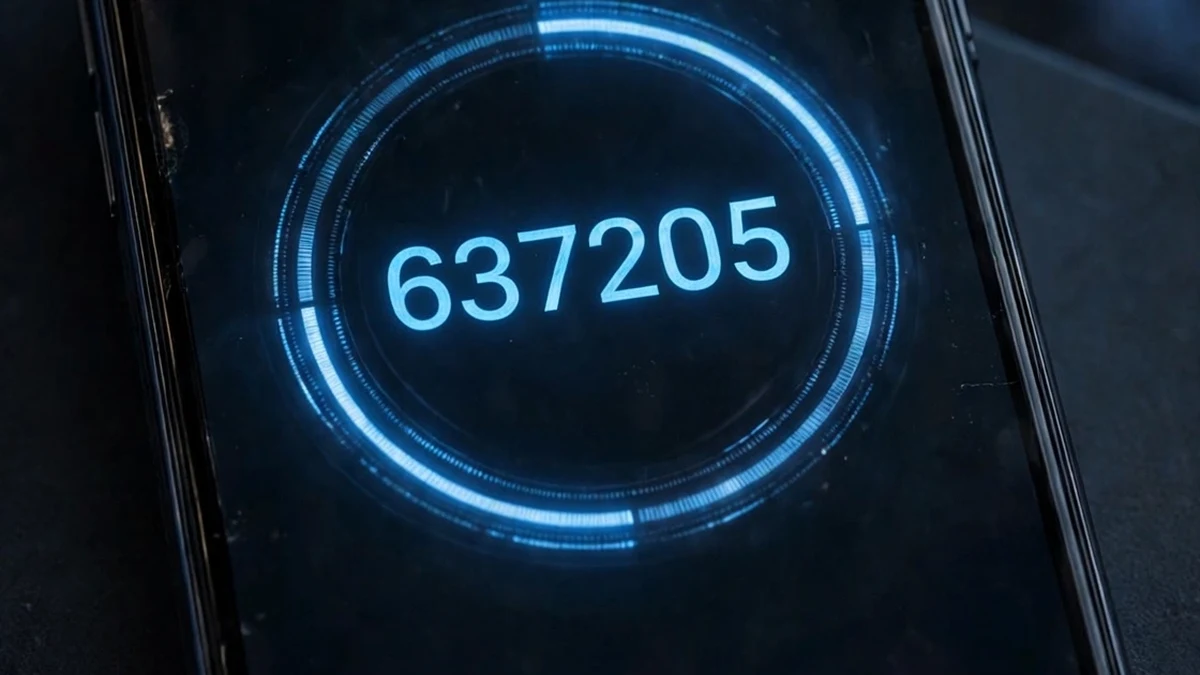
This is the test I could run completely, locally, with nothing to sign up for — and it is the most satisfying of the three, because the answer is a number and the number is either right or wrong.
A TOTP code is not delivered. It is computed, on your device and on the server, from two ingredients: a shared secret and the current time, cut into 30-second windows. The standard that defines it, RFC 6238, publishes test vectors: fixed secrets and timestamps with the exact codes they must produce. So I implemented the algorithm from scratch and checked it against those vectors.
With the RFC's test secret, "12345678901234567890", the code at 59 seconds past the epoch must be 94287082. Mine produced exactly 94287082. At 1,111,111,109 seconds it must be 07081804 — mine matched, leading zero included. At 1,111,111,111 it must be 14050471; at 1,234,567,890 it must be 89005924; at 2,000,000,000 it must be 69279037. All five matched. Then I generated codes from a fresh demo secret for two adjacent 30-second windows: 549464, then 817721. Same secret, same code inside one window, a completely different code the moment the window turned over. That is the entire trick: a shared secret, a clock, and a hash.
That gives you a practical test for any authenticator setup. When you scan the QR code for a new account, generate the code and check it against a second source — another authenticator app with the same secret, or an online TOTP generator — before you close the setup page. If the codes disagree, the usual culprit is the clock: the two sides must agree on the time, and most services accept the current window plus one on either side before they start rejecting you. If the QR code will not scan at all, the problem may be the scanner rather than the secret — OTP scanners are three different tools hiding behind one name. The same comparison is how you test a programmable hardware token: burn the seed onto the token, then compare its codes against an online generator, and if they do not match, check the token's clock drift before anything else. Our guide to TOTP cards covers the hardware side of this in detail, including the two-letter difference between TOTP and HOTP that decides whether a given card works with your service at all.
The 60-Second OTP Test Anyone Can Run
You do not need a test plan to check whether OTP works for you right now. Pick the flavour that matches your situation and run it once, deliberately.
For an email code, send yourself a code. Use the service's resend or login flow with an address you control, and watch for three things: it arrives, it arrives in the inbox rather than spam, and it is still valid when you type it. If it lands in spam, that is an answer too — it tells you the sender's reputation, not your inbox.
For an SMS code, request it on a real phone and watch the keyboard. If the suggestion appears above the keyboard and fills the field, autofill is working. If it does not, the field is probably not marked as a one-time code field, and that is a product bug worth reporting rather than a reason to type the code by hand forever.
For an authenticator code, compare two windows. Generate the code, wait for the countdown to roll over, and generate again. If the code changes and the new one works, the setup is sound. If the same code works in both windows, or a code that should be valid is rejected twice in a row, suspect the clock before suspecting the secret.
When the Test Fails, Read the Failure
Every OTP failure is one of four things, and each one points somewhere different. Learning to tell them apart saves most of the debugging time.
The code never arrives. This is a delivery problem or a sending problem, and the two are different — as my own failed test showed. Check whether anything was sent before blaming the inbox: ask for a resend, check spam, and confirm the address on the account is the address you are watching. If the service never sent it, no inbox in the world will show it.
The code arrives but is rejected. This is usually expiry or a window problem. Check the clock on an authenticator, or whether you are typing a code from an earlier message after requesting a resend. If a resend invalidates the previous code, the old one will fail by design. Most email and SMS codes expire after a few minutes on purpose — our guide to what a verification code is explains why, and what to do when one never arrives.
The code arrives and fills, but login still fails. This is usually not an OTP problem at all. It is the step after the code — a session, a redirect, or an account state — and the code did its job. Test the login without the OTP step, or with a known-good account, to separate the two.
The code works once and then stops working. This is a replay or reuse problem. Most systems accept a code exactly once, so testing the same code twice should fail the second time. If it succeeds twice, that is a finding, not a convenience.
What Not to Test With
A few lines that keep a test from becoming an incident. Never test OTP flows against a production account you care about — use a throwaway account, a sandbox, or a temp inbox, because a locked-out test can lock out the real thing. Never run load tests against a live OTP sender; rate limits exist and you will find them at the worst moment. And never test with someone else's phone number or email address, even once, because a code sent to the wrong person is a security event, not a test result.
If you are a developer, use your provider's sandbox — Socure's documentation publishes test personas for exactly this, a number and email that always succeed and a number that always fails delivery, so you can test both paths without touching a real phone. And do not use a public shared inbox for anything beyond a quick sanity check: every email sent to a public Mailinator inbox is visible to anyone on the internet, and their own guide says so. A private testing domain is the fix, and it is a paid feature for a reason.
Frequently Asked Questions
What is an OTP test? A check that a one-time passcode works end to end: for email and SMS, that the code is sent, arrives, and is accepted; for authenticator apps and hardware tokens, that the code generated on your side matches the code the server expects. The test you need depends on which kind of code you are dealing with.
Can I test OTP without a phone? Email OTP and TOTP, yes. Email codes arrive in any inbox, including a temporary one, and TOTP codes can be checked with an implementation of the RFC 6238 algorithm, as I did in this guide. SMS OTP cannot be fully tested without a real phone on a carrier network — the iOS Simulator cannot receive a carrier SMS.
How long is an OTP valid? Usually five to ten minutes for email and SMS codes, and 30 seconds per code for TOTP, with most services accepting the current window plus one on either side. Socure's published OTP documentation uses a ten-minute window and a five-attempt maximum; other services differ, so check the service's own documentation rather than assuming.
Why did my OTP test fail? Work through the four failures: never arrived, arrived but rejected, accepted but login still failed, or worked once then stopped. Each points at a different layer — sending, expiry, the step after the code, or replay protection. The most common misdiagnosis is blaming the inbox when the code was never sent.
Can I use a temp email to test OTP? Yes, for services that accept disposable addresses — that is the point of a temp inbox. Generate an address, trigger the code, and watch it arrive. If the service expects a Gmail address specifically, read our guide to temporary mail Gmail first — there is no disposable @gmail.com, but there are workarounds that actually receive mail. But two caveats from my own run: save the mailbox recovery token before you need it, because an address can rotate and the old inbox can drop out of History; and if registration itself fails, no code will ever be sent, so confirm the inbox receives mail at all before you blame it for a missing code.
Is it safe to test OTP with a temp inbox? For a throwaway signup or a QA run, yes. For anything you need to get back into — a bank account, a primary email, a password manager — no. A temporary inbox expires, and a code sent to an expired inbox is gone. Use the temp address where the email is plumbing, not identity.
Need a disposable temporary email?
Protect your real inbox from spam and promotional clutter instantly and free.
Received a suspicious email, text, or charge alert?
Verify whether the sender domain is disposable, spoofed, or unverified before clicking links.