
OTP Scanner: The Three Tools Hiding Behind One Name — and How to Tell Them Apart
Type "otp scanner" into a search box and the results argue with each other. The top hits are a password manager's QR-scan help page, an open-source Android app that pulls codes out of your notifications, a Chrome extension that autofills two-factor codes, and two Python libraries for developers. None of them is wrong. They are just different tools that happen to share a name — and if you install the wrong kind, you either hand a stranger the keys to your accounts or you download a developer library when all you wanted was to scan a square barcode.
This guide sorts out the three meanings, shows what actually happens inside the one most people mean, and names the versions worth avoiding. I tested the core mechanism myself rather than repeating the marketing copy: I generated a real authenticator secret, rendered its QR code, and verified the codes it produces — including the exact moment a code stops working.
Three tools, one search term
The confusion is honest, because all three kinds of "OTP scanner" deal with the same six digits. They just sit at different points in the code's life.
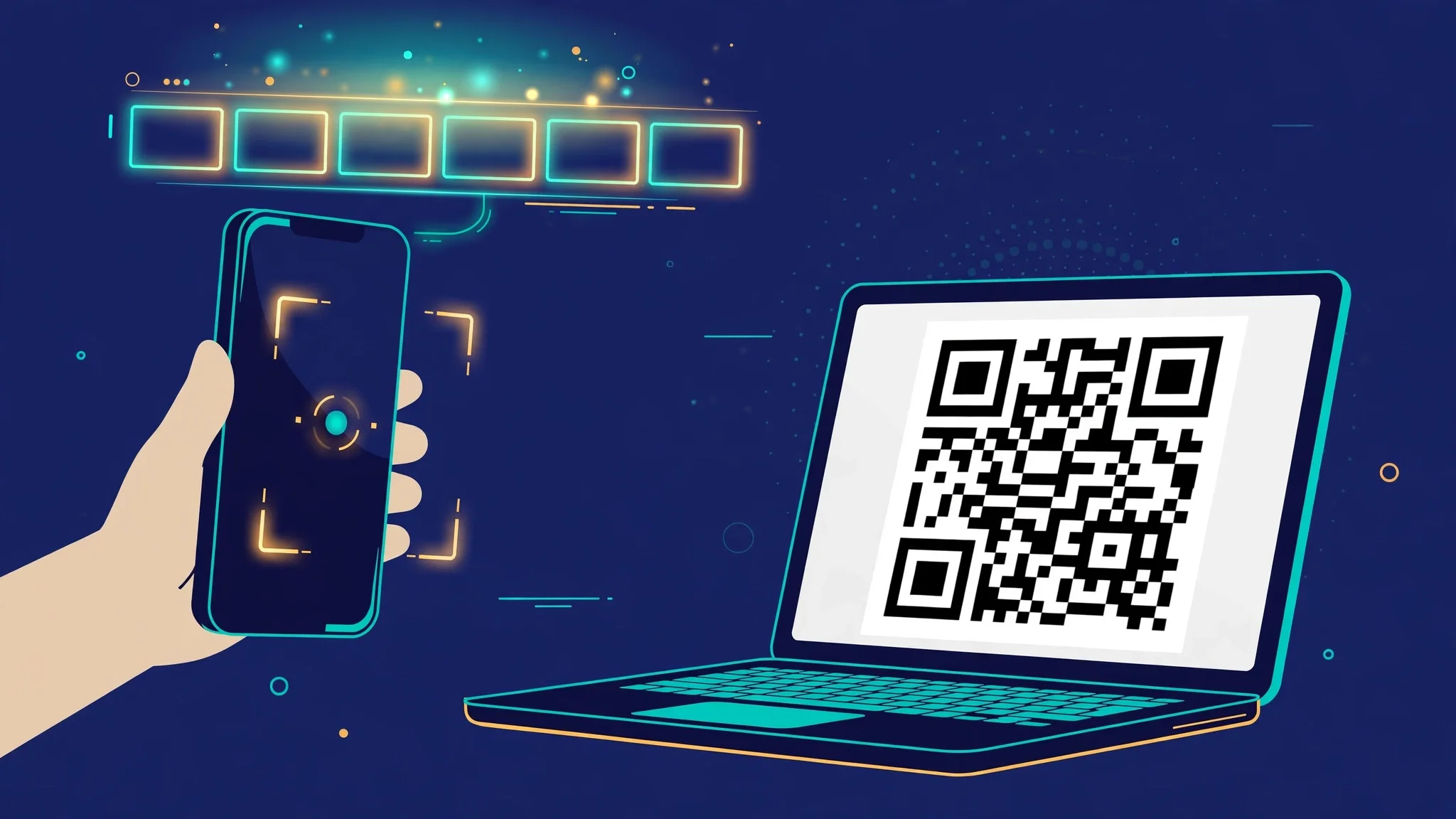
The QR scanner is what most people mean. You turn on two-factor authentication somewhere, the site shows a QR code, and you point your phone's authenticator app at it. Google Authenticator, Authy, Microsoft Authenticator, 1Password, Akeyless — all of them have a "scan QR code" flow, and the scanner is the camera feature inside the app. The QR code is not a picture of a code. It is a delivery mechanism for a secret.
The code extractor never touches a QR code. It watches your incoming messages — SMS, email, app notifications — spots the six digits, and copies them to your clipboard or fills them in for you. SecureOTP, an open-source Android app on F-Droid, does exactly this: it reads notifications, identifies 4-to-8-digit codes while filtering out phone numbers, dates and tracking numbers, and pastes the result. Android's own SMS Retriever API is the official version of the same idea: instead of asking an app for blanket permission to read all your texts, Play Services watches for a message containing your app's unique 11-character hash and hands only that message over. Same job, very different permission footprint.
The developer tool is the third meaning, and it is the one that clutters the search results. Libraries like PyOTP and imap-reader exist so programmers can generate and verify one-time passwords in their own apps, or pull codes out of an email inbox over IMAP. If you are not writing code, these are not for you — but they are useful evidence, because they expose the raw mechanics the friendly apps hide. PyOTP's documentation, for instance, states the whole system plainly: the phone and the server share a secret, and the code is derived from that secret plus the current time.
So before you download anything called an OTP scanner, ask which job you actually need done: adding an account to an authenticator, catching codes as they arrive, or building something. The rest of this guide takes them in that order.
What happens in the second you point your camera at the QR code
The QR code on a two-factor setup page encodes a short text string that starts with otpauth://. A typical one looks like this: otpauth://totp/Demo%20Service:mo@test.example?secret=BASE32SECRET&issuer=Demo%20Service. Everything the scanner needs is in that string: the type of code (TOTP, time-based), the account name, the issuer, and the shared secret — a base32 string both your phone and the server now know. Nothing else is transmitted. The scanner does not phone home, does not ask the server anything, and does not need the internet at all from this point on.
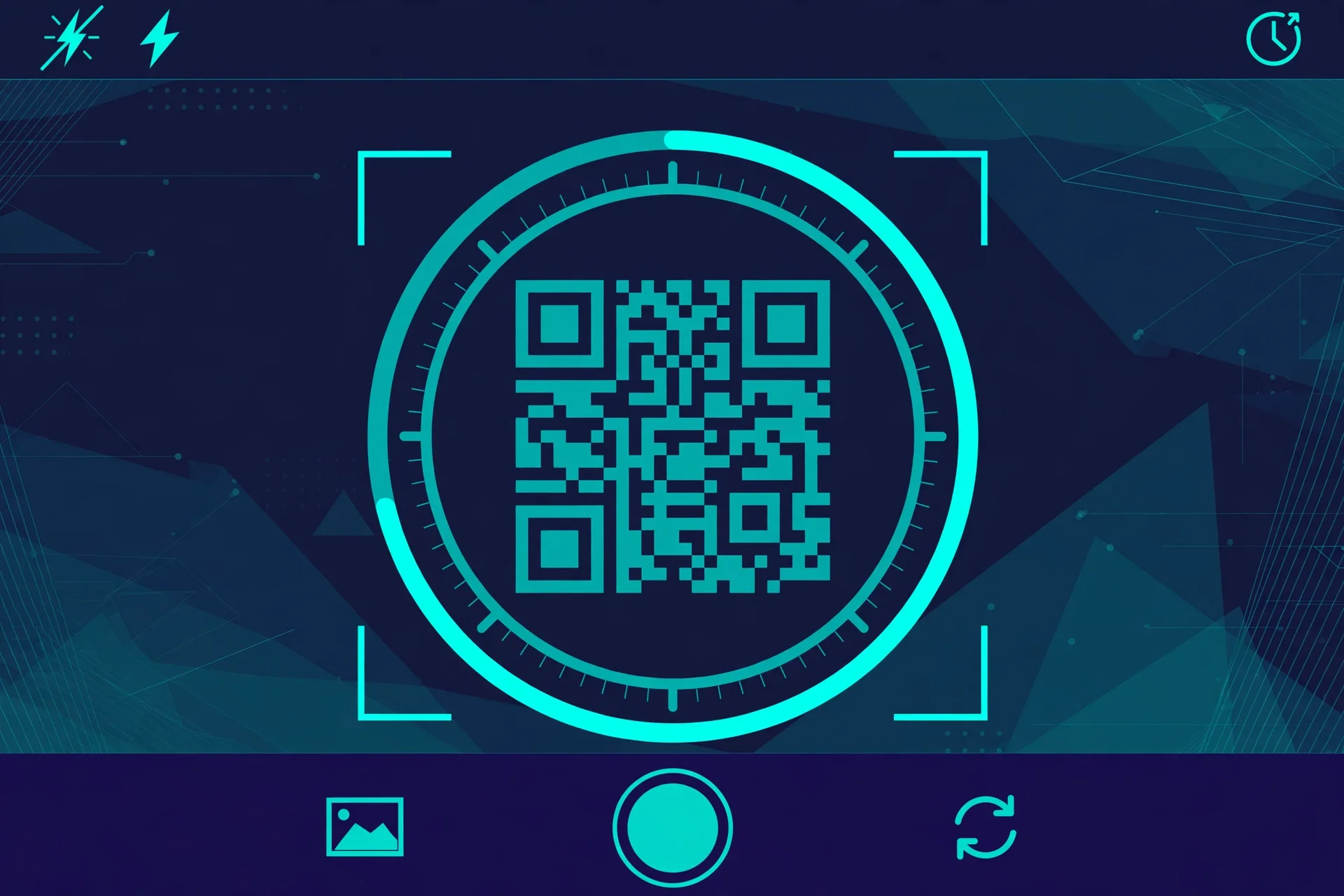
Once the secret is stored, your authenticator generates a fresh six-digit code every 30 seconds. The maths is defined in RFC 6238: take the current Unix time, divide it into 30-second steps, combine the step number with the secret using HMAC-SHA1, and squeeze the result down to six digits. The server does the identical calculation with the same secret and the same clock, and if the two six-digit answers match, you are in. That is the whole trick. The code is never sent to you; it is independently computed on both sides, which is why it works in airplane mode and why a screenshot of the QR code is as sensitive as a password — anyone holding it can generate your codes forever.
I ran this end to end on my own machine to check the claims rather than trust them. I generated a fresh base32 secret, built its otpauth:// URI, and rendered the QR code — a 490-by-490-pixel image that any authenticator camera would read. Then I computed the current code and verified it against the same secret: it checked out. The more interesting test was the expiry. I took the previous 30-second window's code and asked the verifier to accept it with no grace period (valid_window=0): rejected. I asked again allowing one window of grace (valid_window=1): accepted. And the code on one side of a 30-second boundary was different from the code on the other side, as it must be.
That small experiment explains three things people get wrong. First, a code that "just worked a second ago" genuinely stops working — it is not a bug, it is the design, and most servers allow one window of grace precisely because human beings are slow. Second, if your codes keep failing, the prime suspect is your phone's clock, not the app: a phone running more than a minute fast or slow computes codes for the wrong 30-second step, and no amount of rescanning fixes it. Third, the QR code is a one-time delivery of a permanent secret. Once scanned, the sensible move is to save the manual setup key or the backup codes somewhere safe and treat the QR image like a credential, not a picture.
One detail from the Akeyless documentation is worth repeating because it catches people out: their scanner only accepts authenticator QR codes — the kind whose content starts with otpauth://. Point it at a QR code that links to a web page and it ignores it. That is correct behaviour, not a broken scanner. A real OTP scanner reads secrets, not URLs.
The other kind: apps that read your codes for you
The extractor family solves a different annoyance: the code arrives by SMS or email, and you are tired of memorising six digits while switching apps. The good ones are narrow in what they touch. SecureOTP, the F-Droid app, processes everything on the device, needs no internet connection, collects no data, and uses only the notification-listener permission — it sees the notification text, finds the code, and copies it. The SMS Retriever API is narrower still: an app registers, Play Services matches only messages carrying that app's hash, and nothing else is exposed.
The difference between a trustworthy extractor and a risky one is almost entirely a permissions question. An app that asks to read all your SMS so it can find codes can also read your bank alerts, your password-reset messages and your two-factor codes for every service you use. That is not a hypothetical risk; it is the literal capability you just granted. The apps worth installing are the ones that ask for the least: notification access for one app's messages, or the Retriever API's hash matching, or — for email codes — IMAP access to a single disposable inbox rather than your real mailbox. If an extractor wants full SMS history, contacts and the ability to draw over other apps, it is not an OTP tool, it is a data-collection tool wearing an OTP costume.
There is also a browser-shaped version of this idea. The Brightery OTP Vault extension for Chrome scans QR codes from web page images, screenshots or your webcam, stores the accounts, and autofills codes into login forms. Extensions live in the browser, which is convenient and also the place where the stakes are highest: a malicious or compromised extension with autofill access sits between you and every login you perform. If you use one, pick an extension with a real developer, a visible update history and a narrow permission set — and keep your most important accounts (email, bank) in a separate authenticator on your phone rather than in the browser.
Developers get a fourth flavour. The imap-reader Python library, for example, connects to an inbox over IMAP, auto-detects the provider, and extracts 5-to-6-digit codes and verification links from message bodies — the same extraction job, but as a building block for test automation rather than a consumer app. It is the right answer when you are verifying that your own service sends codes correctly. It is the wrong answer when you just want to log in to your email.
The temp inbox in the middle of all this
Email OTPs create a specific problem that neither a QR scanner nor an SMS extractor solves: the code goes to an email address, and you do not want to hand your real address to a site you will visit once. This is where a temporary inbox earns its place. The flow is unglamorous and that is the point: generate an address, paste it into the signup form, and read the code from the temp inbox instead of your real one.
I checked the live behaviour on TempMailUSA rather than describing it from memory. Opening the homepage generated the address 8961ir32jy@rover.info immediately, no signup, no form. The inbox below it is headed "Live Disposable Inbox — Instant OTP & Email Refresh", shows "Auto-refreshing" with a message count of 0, and its empty state says plainly: "Waiting for incoming emails. Any message sent to your temporary address will appear here automatically." The page loaded fully styled with no errors.
One honest limit on that check: I did not send a test code to the address, because the Gmail account in this environment is not connected, so I am not going to quote you a delivery time I did not measure. What I did verify is the part that usually breaks: the address is generated on load, the inbox is live and auto-refreshing, and the empty state is unambiguous. If you need the mechanics of verification codes — how long they stay valid, why a code can arrive after you have already given up — that post covers it, and the verification methods comparison explains when email codes beat app codes and when they do not.
Two practical rules follow. First, a temp inbox is for receiving, not for recovering. If a service only ever sends codes to the address on file, and your temp address has expired, there is no password-reset path back in. Use temp addresses for accounts you can afford to lose, and your real address for anything that holds money, identity documents or years of photos. Second, if a signup form rejects your temp address, the rejection is almost always aimed at the domain, not at you. The fix is a different domain or a different service — our best temp email service comparison and the one-click create a temp email address guide both cover this — not retrying the same address and hoping.
Scanners I would not install
Most authenticator apps from recognisable developers are fine. The danger zone is the long tail of free "OTP scanner" apps in the app stores, and it has a consistent smell. The app is free, plastered with ads, and asks for SMS access, contacts and storage on first launch. Its listing promises to "scan any QR code" rather than authenticator codes specifically — which means it will happily scan a malicious QR that points at a phishing page. Its privacy policy, if one exists, mentions analytics and third-party SDKs. And it offers to "back up" your codes to its own cloud, which means your authenticator secrets — the keys to every account you scanned — now live on somebody else's server.
My rule is blunt: the only thing an authenticator scanner needs is the camera, once, at scan time. The only thing an extractor needs is the narrowest possible view of incoming codes. Anything that wants your contacts, your location, your full message history or an account on its own cloud is charging you in the currency of your security, and the price is not printed anywhere. Google Authenticator, Microsoft Authenticator, Authy, 1Password and the open-source Aegis and Ente Auth cover every legitimate use case between them; there is no feature in a random free scanner that justifies leaving that list.
When the scan fails, it is almost never the camera
The support threads for every authenticator app are full of the same five failures, and four of them have nothing to do with scanning.
First, the clock. If your phone's time is off by more than about a minute, your codes are computed for the wrong time step and the server rejects them. Turn on automatic date and time in your phone's settings and try again before doing anything else.
Second, the wrong code. People with several accounts in one authenticator app regularly type the code for the wrong service — usually the one alphabetically adjacent to the one they want. Slow down and read the account label, not just the digits.
Third, the setup key instead of the QR code. Some sites show both, and typing the base32 secret by hand invites transcription errors; the QR scan exists precisely to avoid that. If the scan keeps failing, check whether you are pointing the camera at a login QR code (for signing in) rather than the setup QR code (for enrolling) — they look identical and do the opposite things.
Fourth, the code changed while you were typing. You have 30 seconds, and a code generated at second 29 gives you one second of validity. Wait for the next code to appear and type that one instead.
Fifth, the genuinely broken scan: glare on the screen, a QR code rendered too small, or a camera that cannot focus at close range. Zoom the setup page, dim the room lights, or use the app's "enter setup key manually" option — the secret is the same either way, and a manual entry done carefully beats a scan done repeatedly in bad light.
Frequently asked questions
What is an OTP scanner?
It is any tool that handles one-time passwords by scanning or reading them. In practice it means one of three things: an authenticator app's camera feature that scans a QR code to add an account, an app that extracts codes from your SMS, email or notifications, or a developer library that generates and verifies codes. Ask which job you need before choosing one.
Is an OTP scanner the same as Google Authenticator?
Not exactly. Google Authenticator contains an OTP scanner — the camera feature you use once, when enrolling. The app itself is the ongoing code generator. "OTP scanner" is the generic name for that feature and for the extractor apps that do a different job entirely.
Can an OTP scanner read any QR code?
A good one refuses to. Authenticator scanners only accept QR codes whose content starts with otpauth://, because that is the format that carries a secret. A scanner that opens arbitrary QR links is a general QR reader, not an authenticator, and following its links is how phishing QR codes work.
Are OTP scanner apps safe?
The well-known authenticators are. The risk is the free, ad-supported end of the app stores: apps that demand full SMS access, upload your secrets to their own cloud, or bundle analytics SDKs. Judge an OTP app by its permissions, not its star rating — it needs the camera, and nothing else, to scan.
Why does my scanned code keep failing?
Usually your phone's clock. TOTP codes are derived from the current time in 30-second steps, so a clock that is a minute out produces codes for the wrong step. Enable automatic date and time, then check you are reading the code for the right account and that it has not just rolled over to a new one.
Can I receive an OTP in a temporary email inbox?
Yes, for email codes: generate a temp address, use it at signup, and read the code from the temp inbox. It works well for one-off accounts. Do not use it for anything you might need to recover later, because once the address expires there is no reset path back in.
The verdict
An OTP scanner is a small, precise tool, and the confusion around the name is the only complicated part. If you are setting up two-factor authentication, you want an authenticator's QR scanner — point, scan, done, and the secret never travels again. If you are tired of retyping codes, you want the narrowest extractor you can find, one that sees only the messages it needs to see. And if the code is coming by email to an address you would rather not share, a temporary inbox is the right destination — generated in one click, auto-refreshing, and gone when you are done with it. The test I ran says the underlying system is exactly as simple as its designers claim: a shared secret, a clock, and six digits that expire in half a minute. Keep the secret private, keep the clock right, and the scanner is the least of your worries.
Need a disposable temporary email?
Protect your real inbox from spam and promotional clutter instantly and free.
Received a suspicious email, text, or charge alert?
Verify whether the sender domain is disposable, spoofed, or unverified before clicking links.