


Is That iCloud Storage Email a Scam?
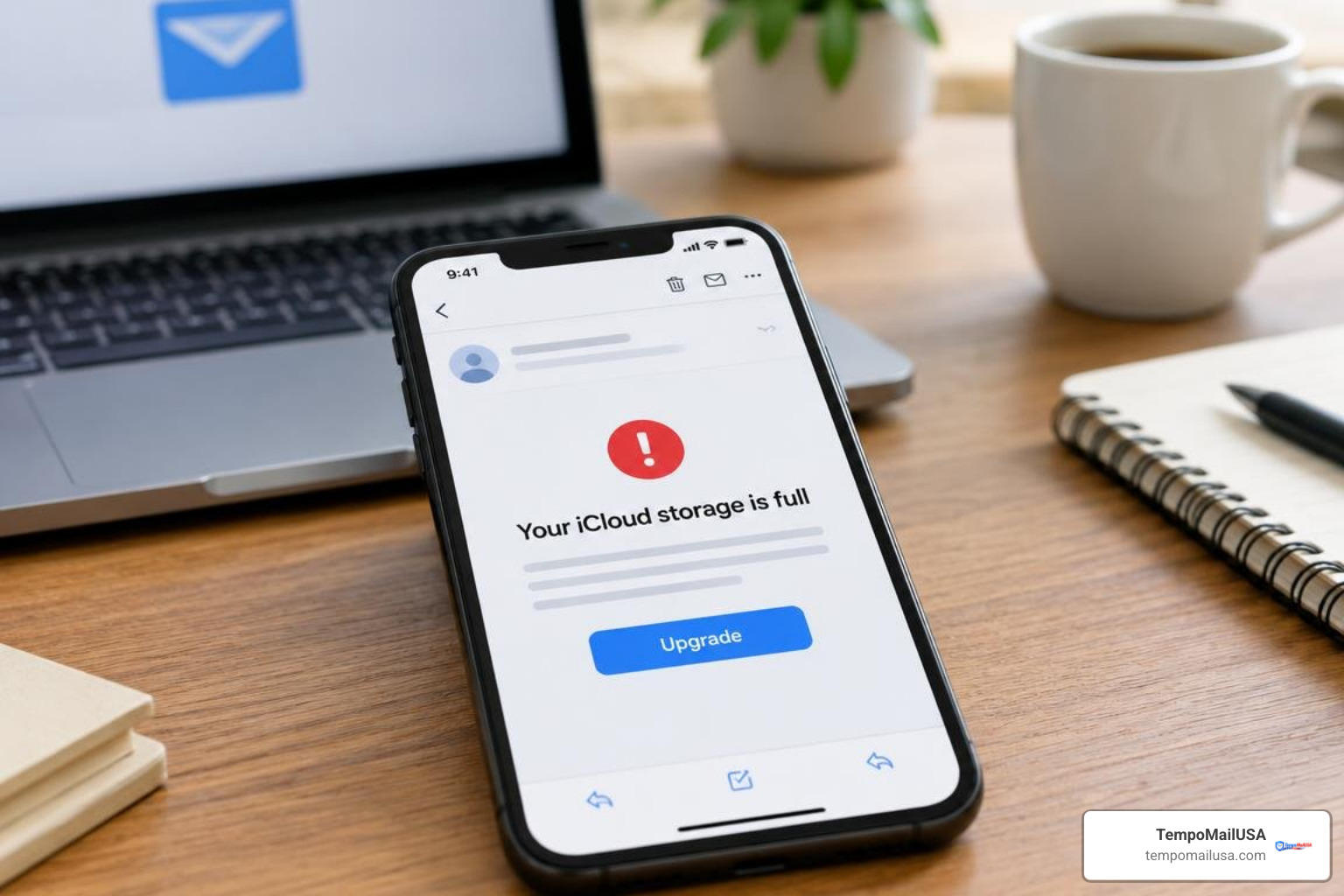
An iCloud storage email scam is a phishing message that claims your storage is full and warns that your photos or videos may be deleted unless you act fast. Treat unexpected emails with payment buttons, login links, or short deadlines as suspicious.
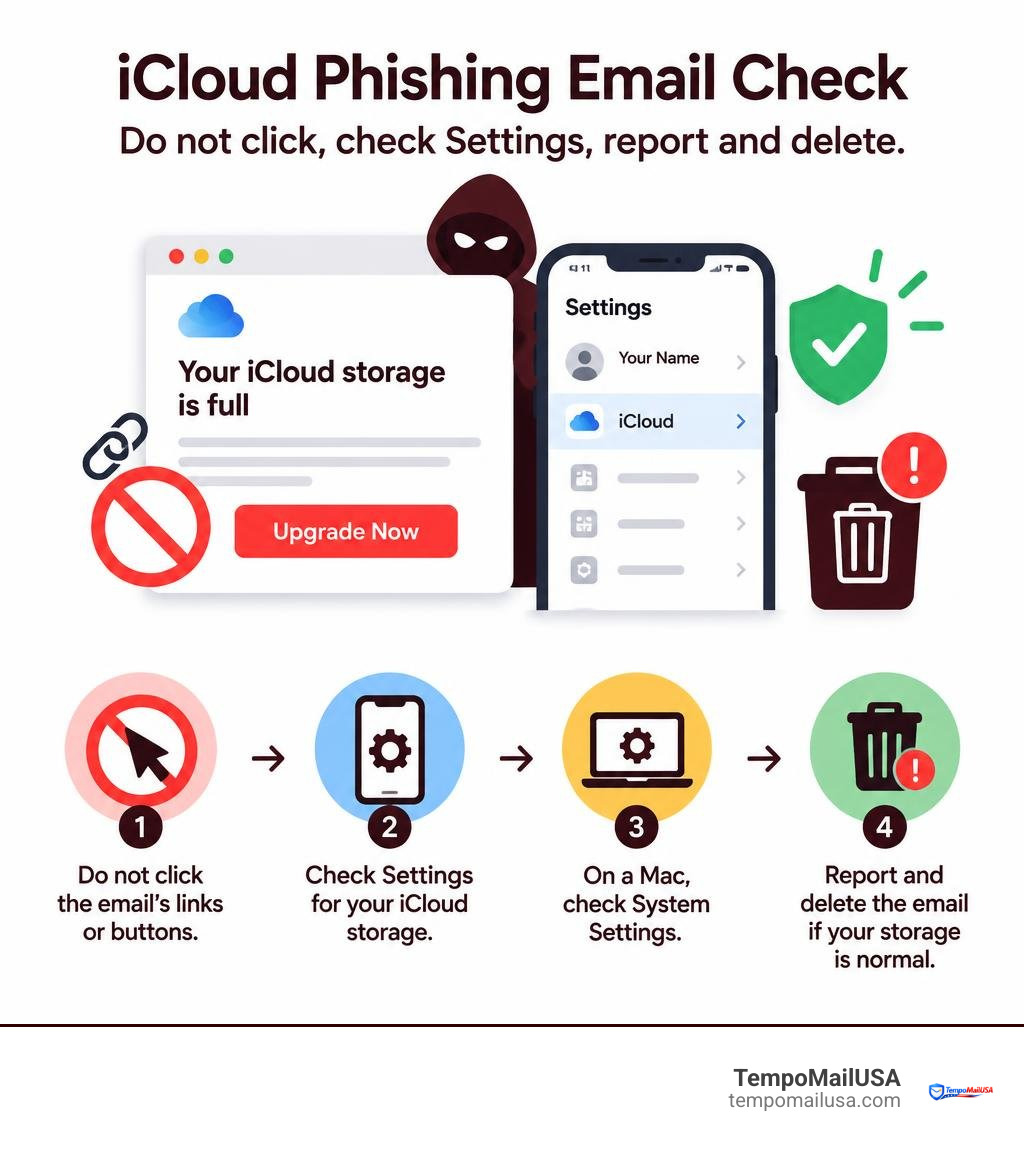
To check safely:
- Do not click the email's links or buttons.
- On iPhone or iPad, open Settings > [your name] > iCloud to view storage.
- On a Mac, open System Settings > [your name] > iCloud.
- If your storage looks normal, mark the email as junk and delete it.
These scams work because losing personal photos feels urgent. A fake "upgrade" link may lead to a copycat Apple sign-in page designed to steal your Apple Account password, two-factor authentication code, or card details. Small payment requests, such as 99 cents, can be bait rather than a real storage charge.
Real account issues can be checked directly in your device settings or by typing Apple's official website into your browser yourself. Never let an alarming email choose the route you use to sign in.
Anatomy of the iCloud Storage Email Scam and How It Works
Understanding the underlying mechanics of modern phishing operations is critical for keeping your personal data secure. The core structure mirrors the broader patterns seen across modern cloud storage email scam mechanics, where social engineering blends seamlessly with deceptive web infrastructure.
When attackers deploy an iCloud storage phishing campaign, they bypass common spam filters by spinning up lookalike domain names, exploiting misconfigured mail routing records, and using high-resolution copies of Apple’s corporate typography and iconography.
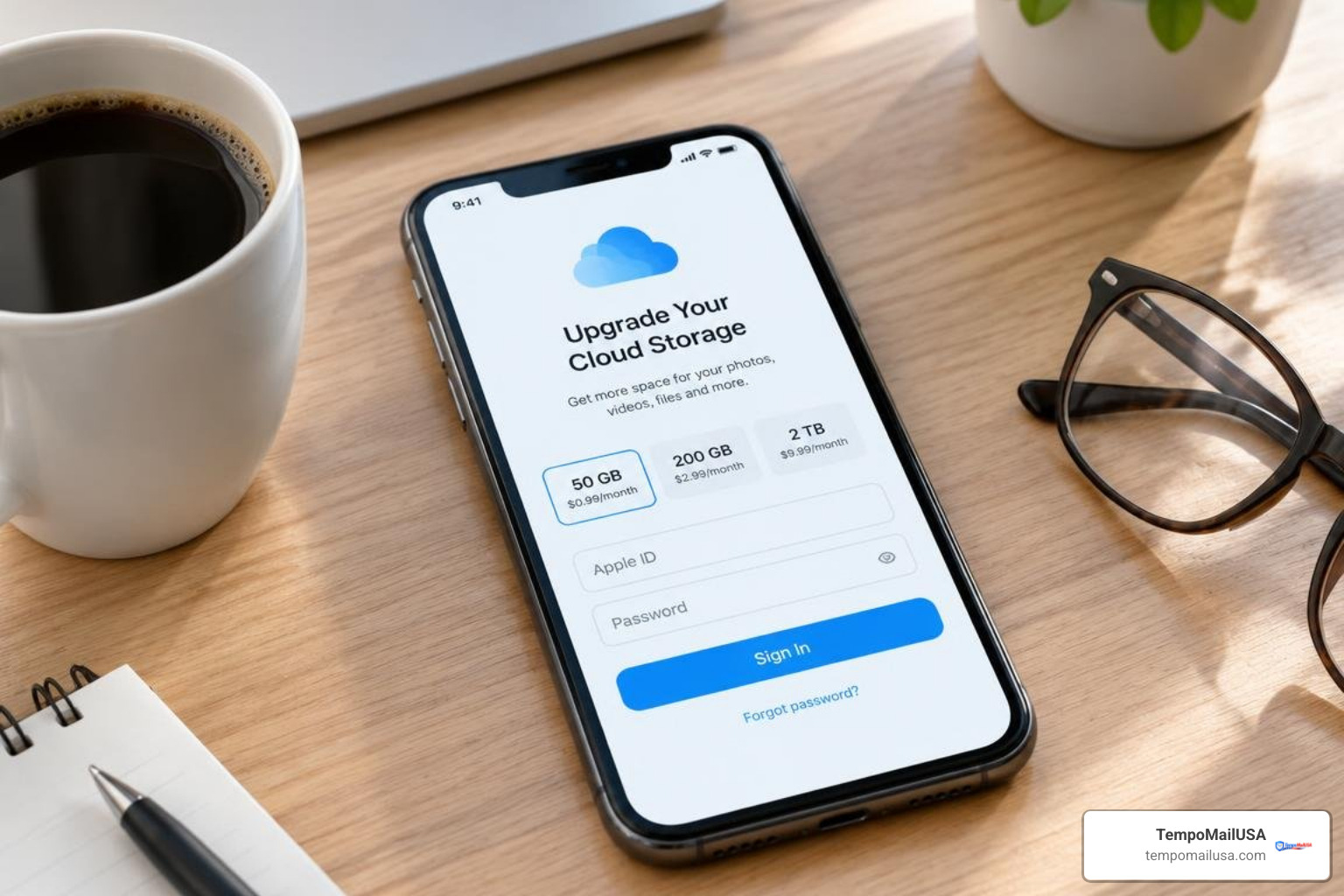
Once an email lands in your inbox, the attack sequence unfolds through several coordinated steps:
- Initial Bait Delivery: The attacker sends an automated message disguised as an urgent alert from Apple billing or iCloud support.
- The Lure Button: The body of the message features a high-contrast button—often reading "Upgrade Storage," "Manage Account," or "Update Payment Method."
- The Multi-Hop Redirect Chain: Clicking the button routes your browser through multiple intermediate tracking servers and disposable landing pages before settling on a credential-harvesting interface.
- Data Interception: The victim lands on a pixel-perfect replica of an Apple ID login screen. When the user inputs their username, password, or security answers, the fake portal captures the data in real time and relays it to private command-and-control servers.
Psychology Behind the iCloud Storage Email Scam Photo Threat
Why do these campaigns achieve such high click-through rates? The answer lies entirely in emotional manipulation. Rather than relying on technical exploits, cybercriminals target a user's instinct to protect irreplaceable memories.
As reported when Apple users were warned over a 'nasty' iCloud storage scam, scammers deliberately leverage severe threats, warning that personal photo libraries and video backups face permanent deletion within 24 to 48 hours. When people fear losing pictures of family gatherings, vacations, or milestones, logical evaluation takes a back seat to emotional urgency. Panic pushes users into bypassing standard security precautions and clicking malicious links without verifying the sender.
Deceptive Payment Funnels and 99-Cent Micro-Billing Traps
A shift in these campaigns involves micro-billing requests. Rather than immediately demanding hundreds of dollars, many fraudulent emails ask for a trivial sum—such as $0.99, 99p, or €0.99—to "clear a billing block" or "maintain storage continuity."
Security researchers analyzing these campaigns have pointed out that this pricing acts as a psychological trap. In a detailed warning on iCloud storage payment traps, experts revealed that the requested 99-cent fee is merely bait. Scammers do not care about the single dollar; they want the full credit card number, expiration date, CVV security code, and billing address submitted on the fraudulent checkout page.
Once harvested, these payment credentials are sold on illicit dark-web marketplaces or enrolled in unauthorized, recurring automated charges that quietly drain bank accounts over time.
Spotting the Red Flags: Legitimate Apple Alerts vs. Phishing Traps
Distinguishing genuine ecosystem messages from sophisticated phishing attempts requires a clear eye for detail. By understanding phishing tactics, you can quickly pick up on the subtle structural flaws that give these deceptive messages away.
| Feature / Indicator | Genuine Apple Notification | Phishing Scam Email |
|---|---|---|
| Delivery Channel | Direct on-device system modals or Settings app badges | Unsolicited external emails arriving in inbox |
| Sender Address Domain | Strictly @apple.com or @email.apple.com | Random subdomains, lookalike strings (e.g., apple-support.biz.ua) |
| Greeting & Personalization | Addressed to your real name or Apple ID registered name | "Dear Customer," "Valued Client," or unaddressed |
| Urgency Level | Neutral billing notices; no threats of instant deletion | Extreme panic; "Photos deleted in 24 hours," "Account blocked" |
| Resolution Pathway | Guides you to manage storage natively in device settings | Demands you click an inline button or visit an external link |
| Payment Requests | Managed exclusively through your on-file App Store/Apple ID balance | Direct inputs requesting credit card numbers on generic web forms |
Sender Domain Analysis and Email Header Indicators
Mastering email authentication details is an effective line of defense. When evaluating a questionable message, spotting general phishing attempts begins with inspecting the complete sender string, not just the display name shown in your email client.
- Examine the "From" Header: Attackers often set the display name to "Apple Support" while the true underlying email originates from unrelated servers like
support@chillray.xyzorbilling@icloud-storage-alert.com. - Sender Policy Framework (SPF) and DKIM: Legitimate Apple communications pass strict SPF, DKIM, and DMARC validations tied directly to the
apple.comdomain. If an email fails SPF validation or references an unrelated sender IP, your email server will often flag it, but checking headers manually provides definitive proof. - Inspect the Destination URL: Hover your mouse cursor over any provided link (without clicking) or long-press on mobile to preview the URL. If the domain does not end explicitly in
.apple.com/before the first single forward slash, the destination is completely fake.
System Notifications vs. Unsolicited Email Requests
Apple’s native architecture relies heavily on localized operating system prompts rather than panic-inducing emails. When your iCloud storage reaches its capacity limit, your iPhone or iPad presents an integrated modal directly within the operating system interface. It will also show an alert badge inside the primary Settings app.
Unlike fake Apple security alerts that flood inboxes with alarming subject lines, genuine system dialogues never force you onto arbitrary third-party web forms to enter payment details.
How to Safely Verify Your Real iCloud Storage Status
Whenever you encounter an alert regarding account storage or service suspensions, adopt a zero-trust mindset: never use the pathways provided in the message itself. Instead, navigate directly to official settings menus on your personal hardware.
Checking Storage on iPhone, iPad, and Mac Settings
Checking your genuine storage balance takes only a few seconds through native system settings:
- On iPhone and iPad:
- Open the Settings app.
- Tap your Name / Apple ID Banner at the very top.
- Select iCloud.
- View the storage breakdown bar at the top of the screen to see your exact used space versus total capacity (e.g., 2.5 GB of 50 GB used).
- On Mac (macOS):
- Click the Apple Menu ($\apple$) in the top-left corner and choose System Settings.
- Click your Name at the top of the sidebar.
- Select iCloud to view your real-time storage metrics, active backup sizes, and Family Sharing allocations.
If your device settings display plenty of remaining space, any email claiming your account is full or facing imminent deletion is completely fraudulent.
Direct Web Verification via Official Apple Portals
If you are away from your primary devices, you can verify your account status using a standard web browser:
- Open your browser and manually type
www.icloud.comoraccount.apple.cominto the navigation bar. - Sign in using your Apple credentials and complete the two-factor authentication challenge on your trusted device.
- Once logged in, click on your profile menu and select iCloud Storage or Account Settings to review your true quota and subscription records.
What to Do If You Receive or Interact with a Fake iCloud Alert
Finding a convincing scam email in your inbox can be unsettling, but taking quick, methodical action ensures your personal identity and finances remain protected.
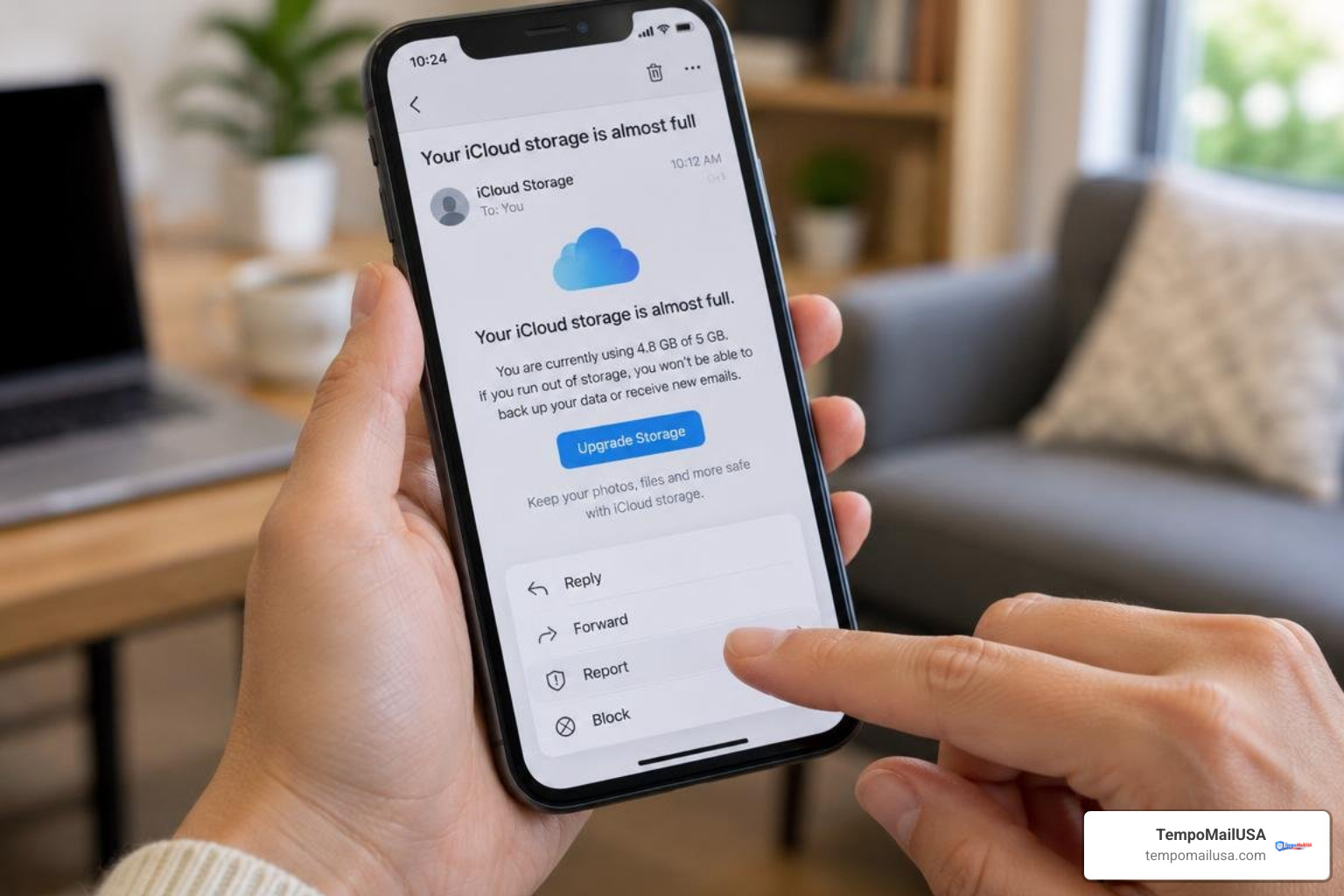
Safe Reporting Procedures for Apple and Law Enforcement
Do not reply to the scammer or attempt to unsubscribe through links in the message, as doing so simply confirms to the attacker that your email address is active. Follow these reporting channels instead:
- Forward to Apple: Forward the complete, unedited phishing email as an attachment to
reportphishing@apple.com. If the message originated within an iCloud email account, forward the spam toabuse@icloud.com. - Report to the FTC: United States residents can file an official consumer fraud report at
reportfraud.ftc.gov. - Submit to the FBI IC3: For sophisticated financial scams, file an incident report with the Federal Bureau of Investigation’s Internet Crime Complaint Center at
ic3.gov. - Mark as Junk: Use your email provider's native "Report Phishing" or "Mark as Junk" button so global spam filters learn to block the sender's network.
Emergency Remediation if You Fell for an iCloud Storage Email Scam
If you accidentally clicked a malicious link or submitted your personal information, follow this step-by-step containment protocol immediately:
- Change Your Apple Password: Go directly to
account.apple.comand update your password to a strong, unique passkey or passphrase. - Review Trusted Devices: While in your account settings, review the "Devices" list. Remove any unfamiliar computers, tablets, or phones associated with your account.
- Execute Apple ID recovery steps: Follow standard procedures to rotate recovery keys, re-verify trusted phone numbers, and ensure unauthorized account changes are reversed.
- Enforce Two-Factor Authentication (2FA): Ensure that hardware-level 2FA is active across your Apple profile to block future login attempts even if a password is leaked.
- Freeze Compromised Payment Cards: If you entered credit or debit card information on a fake checkout screen, call your card issuer's fraud division immediately to cancel the card, dispute pending charges, and request a replacement.
- Run Anti-Malware Diagnostics: If your browser downloaded any unexpected files during the redirect sequence, run a full system scan using trusted endpoint security tools to ensure no malicious scripts remain in your local cache.
Frequently Asked Questions About iCloud Storage Phishing
Does Apple ever email you directly about running out of iCloud storage?
Apple does occasionally send transactional billing notifications and receipts when an automated monthly iCloud+ subscription renews or fails to process. However, legitimate Apple emails will always address you by your formal, registered account name and will never use threatening language claiming that your personal photo library or videos will be purged within 24 hours. Furthermore, authentic Apple notifications guide you to resolve storage issues through device settings rather than routing you to third-party web forms.
What happens if I clicked an iCloud phishing link without entering my password?
If you merely clicked the link and closed the browser tab immediately without entering credentials or personal information, your account has not been compromised. However, clicking the link may confirm to the scammer's tracking scripts that your email address is active and monitored. To stay safe:
- Clear your browser's history, cookies, and local cache.
- Ensure your device operating system and web browser are updated to the latest security patches.
- Check your browser settings to verify that no unauthorized site notifications or unexpected extensions were granted permissions.
How can I stop fake iCloud storage warning emails from flooding my inbox?
Phishing campaigns thrive on harvested email lists compiled from commercial data breaches, public forums, and marketing registries. To reduce spam volume:
- Use Disposable Aliases: When registering for newsletters, forums, or temporary trial services, use a privacy-first disposable inbox instead of your primary Apple ID email address.
- Configure Server-Side Filters: Set up custom inbox rules that automatically flag incoming messages containing keywords like "iCloud Quota Exceeded" from non-Apple domains.
- Keep Your Core Email Private: Limit the exposure of your primary Apple ID address exclusively to critical personal contacts, banking institutions, and official services.
Conclusion
The iCloud storage phishing scam succeeds by weaponizing our natural fear of losing precious personal memories. Fortunately, once you understand how these micro-billing funnels, lookalike domains, and urgency triggers operate, spotting a fraudulent alert becomes straightforward.
Maintaining a secure online footprint requires healthy skepticism, multi-factor authentication, and smart inbox hygiene. By keeping your primary email out of public databases and using disposable inboxes for routine web registrations, you cut off the attack surface that cybercriminals rely on.
To keep your personal inbox clean and out of reach of automated phishing rings, take control of inbox spam with structured filtering rules and disposable email strategies today.