


Why Protecting Your Home Computer Matters More Than Ever
How can you protect your home computer? The most effective way to secure your PC is through a multi-layered defense: install antivirus software, use a password manager with Multi-Factor Authentication (MFA), secure your Wi-Fi router, and automate software updates.
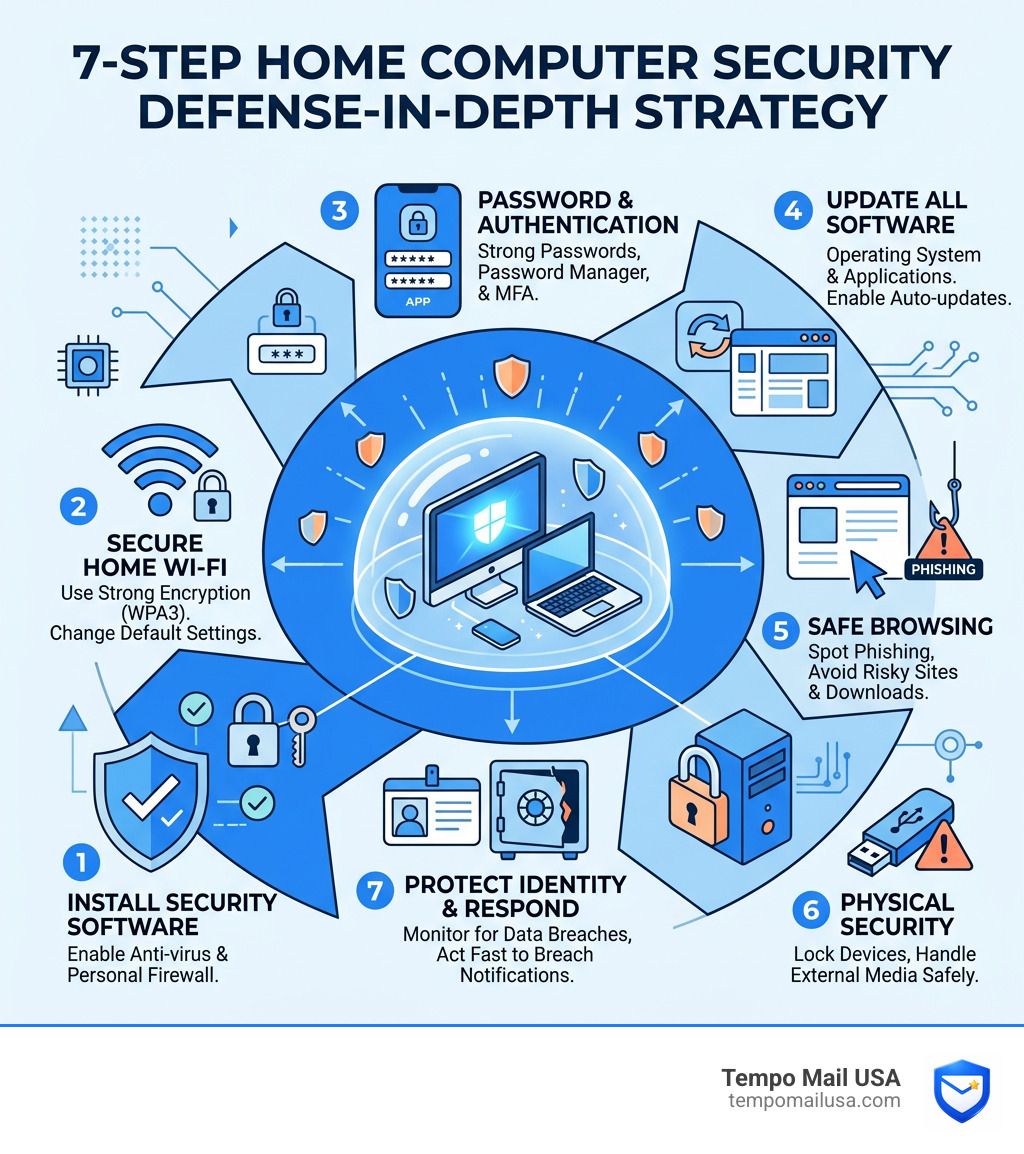
Here are the 7 core steps to protect your home computer in 2026:
- Install antivirus software and enable your firewall
- Secure your home Wi-Fi router with strong encryption
- Use strong passwords, a password manager, and multi-factor authentication
- Keep all software and your operating system up to date
- Practice safe browsing and learn to spot phishing attempts
- Apply physical security measures and handle external devices safely
- Protect your identity and respond quickly to data breaches
According to Verizon's 2025 Data Breach Investigations Report, stolen credentials are behind a huge share of breaches. Your home computer is a target whether you think so or not. Most of what protects you is simple, free, and takes under an hour to set up.
1. Deploy Essential Security Software and Firewalls
To protect your home computer from malware, you must use antivirus software to block malicious code and a firewall to monitor network traffic. Think of security software as a digital bouncer for your PC.
Antivirus and Malware Detection
Understanding Anti-Virus Software is critical because these programs use "signatures" and "heuristic" scanning to recognize known threats and suspicious behavior, such as ransomware attempting to encrypt your files.
The Role of Firewalls
A firewall acts as a gatekeeper between your computer and the internet, blocking unauthorized "pings" from hackers.
| Feature | Software Firewall (On your PC) | Hardware Firewall (In your Router) |
|---|---|---|
| Location | Installed on the operating system | Built into the Wi-Fi router |
| Protection | Protects the specific device | Protects all devices on the network |
| Control | Can block specific apps from the web | Blocks external traffic from entering |
| Ease of Use | Usually pre-configured (Windows/Mac) | Requires manual setup in router settings |
Is Windows Defender sufficient for home use?
For most users, the built-in Windows Security is robust. It includes Microsoft Defender Offline, which can catch "rootkits"—malware that hides deep within system files before the OS even loads.
2. Secure Your Home Wi-Fi Router and Network
To secure your home Wi-Fi, you should enable WPA3 encryption, change default administrator credentials, and isolate smart devices on a guest network. Your router is the front door to your digital life.
Strong Encryption and WPA3
The most important step in Securing Your Home Network is choosing the right encryption. Always use WPA3 if supported; otherwise, use WPA2-AES. Avoid WEP or WPA, as they are easily cracked.
SSID and Guest Networks
Change your SSID (network name) from the default to something unique but not personal. A better move is to set up a Guest Network for:
- Visitors: They get internet access without reaching your shared folders.
- IoT Devices: Smart devices often have weak security. Putting them on a guest network isolates them from your main computer.
3. Master Password Hygiene and Multi-Factor Authentication
The best way to protect your home computer from account takeovers is to use 15-character passphrases, a password manager, and Multi-Factor Authentication (MFA). Stolen credentials fuel the majority of modern data breaches.
The 15-Character Rule
Use a passphrase of at least 15 characters. A string of random words like Correct-Horse-Battery-Staple-2025 is harder for computers to crack but easier for humans to remember.
Use a Password Manager
Password managers act as an encrypted vault, allowing you to use unique, complex passwords for every site without needing to memorize them. This prevents "password reuse" risks.
How can you protect your home computer using Multi-Factor Authentication?
MFA is the single most effective way to stop an account takeover. Even with your password, hackers cannot enter without the second factor:
- Authenticator Apps: Safer than SMS codes.
- Security Keys: Physical USB keys (like YubiKeys) offer the highest security.
- Biometrics: Fingerprint or Face ID for local device access.
Check out our guide on Email Hacking Prevention: Safeguard Valuable Asset for more details.
The role of user accounts: How can you protect your home computer from malware?
Don't use an Administrator account for daily work. By using a Standard User Account, you create a safety barrier. If malware tries to install itself, the system will prompt for an Admin password, allowing you to block the attack.
4. Automate Software Updates and Data Backups
You can protect your home computer from security holes by enabling automatic software updates and following the 3-2-1 backup rule. Updates often contain critical security "patches" that fix vulnerabilities.
Patch Management and Automatic Updates
Understanding Patches and Software Updates is vital for closing security holes. Enable Automatic Updates for your OS, web browsers, and common apps like Zoom or Office.
How to properly back up your data
A solid backup is your "get out of jail free" card against ransomware. Use the 3-2-1 Backup Rule:
- 3 copies of your data (original + two backups).
- 2 different types of media (e.g., external drive and cloud).
- 1 copy stored off-site.
5. Practice Safe Browsing and Phishing Defense
To protect yourself from phishing, always verify the sender's identity and hover over links to check the destination URL before clicking. Even the best security software can be bypassed if you manually invite a threat in.
Spotting Phishing and Social Engineering
To Protect Yourself: How to Avoid Phishing, look for urgent language, generic greetings, and mismatched URLs. Be especially careful with compressed URLs (like bit.ly), which can mask malicious sites.
For a deeper dive, read What Is a Phishing Scam? Protect Yourself.
6. Physical Security and External Device Safety
Physical security for your home computer involves using full disk encryption and avoiding untrusted USB devices. If someone can physically touch your computer, they can often bypass software protections.
Full Disk Encryption
Encryption scrambles your data so it is unreadable without your login password:
- Windows: Use BitLocker or Device Encryption.
- Mac: Ensure FileVault is turned on.
External Devices and "Juice Jacking"
Never plug in a "found" USB drive. Also, use a USB data blocker when using public charging ports to prevent "juice jacking," where modified ports steal data while charging.
Check our guide on Beyond the Basics: Essential Online Privacy Software for more tools.
7. How can you protect your home computer from evolving cyber threats?
To protect your home computer from future threats, you should monitor for identity theft and consider privacy-focused tools. Identity theft is now a higher risk for many than standard viruses.
Identity Theft Protection
If your data is leaked, use IdentityTheft.gov to create a recovery plan. We also recommend a Credit Freeze to prevent unauthorized accounts from being opened in your name.
Privacy-Focused Operating Systems
Power users may consider:
- Linux: Generally more secure and less targeted than Windows.
- Qubes OS: Uses "compartmentalization" to isolate every app in its own virtual machine.
Frequently Asked Questions about Home Computer Security
What are the signs that my computer is infected with malware?
Watch for these red flags: sudden performance drops, unwanted pop-up ads, browser redirects to strange search engines, and unauthorized account activity.
Should I use a VPN for my home computer?
A VPN is essential for public Wi-Fi and useful at home to mask your IP address from advertisers. However, it does not replace antivirus software.
Is it safe to use public USB charging ports?
No, unless you use a USB data blocker. It is always safer to use your own wall plug and a standard outlet.
Conclusion
Protecting your home computer doesn't have to be an overwhelming chore. By following this defense-in-depth strategy—layering software, hardware, and smart habits—you can make yourself a very difficult target for hackers.
At Tempo Mail USA, we believe that privacy is a right, not a luxury. Our service provides secure email alias generation, acting as a firewall between your personal identity and the services you sign up for. By using an alias, you shield your real PII (Personally Identifiable Information) from data breaches and trackers.
Start by locking down your hardware today, and then take your privacy to the next level with Privacy Shield Pro: The Ultimate Protection. For more tips on staying safe in a digital world, visit us at https://tempomailusa.com. Stay safe out there!