Encrypted Email Portal: What It Is, How to Open the Message, and How to Tell the Real One from a Fake
Encrypted Email Portal: What It Is, How to Open the Message, and How to Tell the Real One from a Fake
You open your inbox and find a message that contains no message. It says something like "You have received a secure message" or "Read the message," with a button and almost nothing else. No body text, no attachment you can read, no sender's words at all. Your first instinct — that something went wrong — is understandable. Your second instinct — that it might be a scam — is worth listening to. Both instincts are wrong about what this email is, though, and right about what to do next: slow down, check the door before you walk through it.
That email is a notice, not the message. The message lives somewhere else, on a web page the sender controls, and the notice is only the key to the room it sits in. That web page is the encrypted email portal. This guide is about the room, not the key: what it is, why your inbox can't show you the message itself, the three doors into it, what to do when none of them open, and — the part most guides skip — how to tell the real portal from a fake one built to steal your password.
The email in your inbox is a notice, not the message
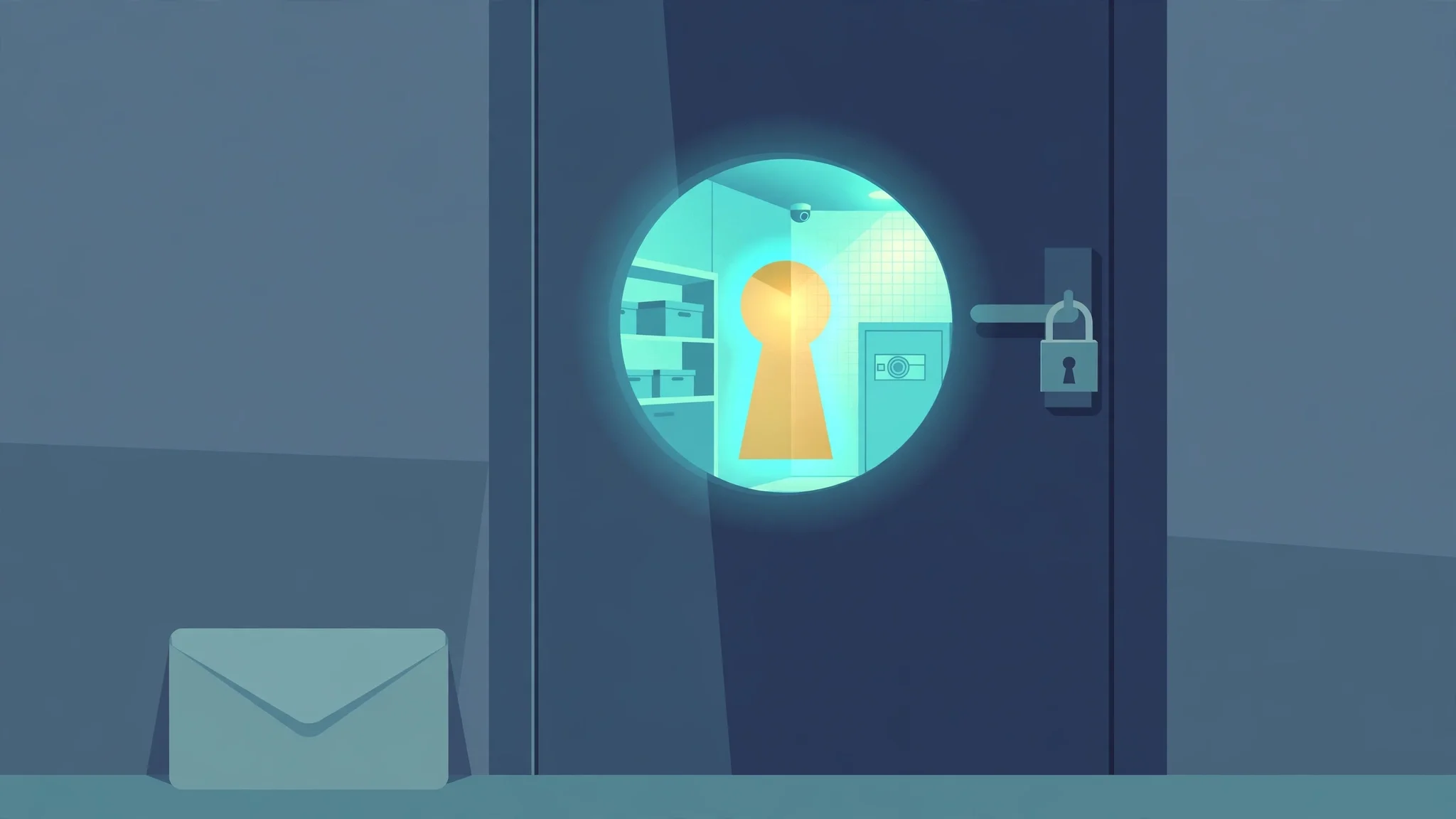
Here is the fact that makes everything else in this guide click: with portal-based encryption, the email that arrives in your inbox was never meant to carry the message. It carries an invitation. The sender's system encrypted the real message, stored it on its own server, and sent you a short notification with a link. When you click the link, your browser opens the portal, you prove you are the intended recipient, and the portal shows you the message — and any attachments — inside that browser session. The message never enters your inbox as readable text at all.
That is a deliberate design choice, and it solves a problem the other kinds of encryption cannot. S/MIME and PGP encrypt the message itself and hand the scrambled result to your inbox, which means your mail app needs your certificate or your private key to open it. That works beautifully when both sides have set everything up in advance, and it fails completely when they have not — which is most of the time, for most people. A portal needs nothing installed on your side. No certificate, no key exchange, no special app. The sender's server does the decrypting, and your browser does the displaying. The price is that the message sits on the sender's server, readable by the sender's system, until you open it — which is why the question of whether the portal is trustworthy is not a footnote. It is the whole question.
If you want the definitions behind the methods — what S/MIME, PGP, and TLS each actually encrypt — our guide to what an encrypted email actually is lays them out without the marketing fog. This guide stays on the portal: the page you land on, the doors it offers, and the ways it breaks.
Two emails, one message
Most people meet a portal through Microsoft 365, because it is the portal most workplaces use, and its flow has a detail that confuses everyone the first time: it arrives as two emails, not one. Understanding that pair is the difference between opening the message in thirty seconds and spending an hour convinced the system is broken.
The first email is the notification. It comes from the sender, usually with a subject like "You have a secure message from…" or "Encrypted message from…", and its body is short: a line saying a secure message is waiting, and a button or link that says "Read the message." In some inboxes you will also see an attachment called message.html — opening it loads the same portal page in your browser. There is no message content in this email. If you open it in a mail app that blocks remote content, it may look almost empty. That is normal.
The second email is the passcode, and it only arrives if you choose the one-time-passcode door — which is the door most people outside Microsoft's world end up using, and the one this guide spends the most time on. When you click "Read the message" and pick "Sign in with a one-time passcode," the portal sends a second email to the same address, from msgsecure@microsoft.com, containing a numeric code. You type that code into the portal page, and the message opens. The code expires after 15 minutes. If it expires, you go back to the first email, click "Read the message" again, and request a fresh one. Nothing is lost; the message is still sitting in the portal, waiting.
Two practical consequences follow from the pair. First, both emails go to the same address — the one the sender addressed the message to. If that address is one you rarely check, the passcode may expire before you ever see the notification. Second, the passcode email is a separate message from a separate sender, so a spam filter can catch one and not the other. If you clicked "Read the message," chose the passcode, and nothing arrived, check the spam folder for a message from msgsecure@microsoft.com before you assume the portal is broken.
The three doors into the Microsoft portal
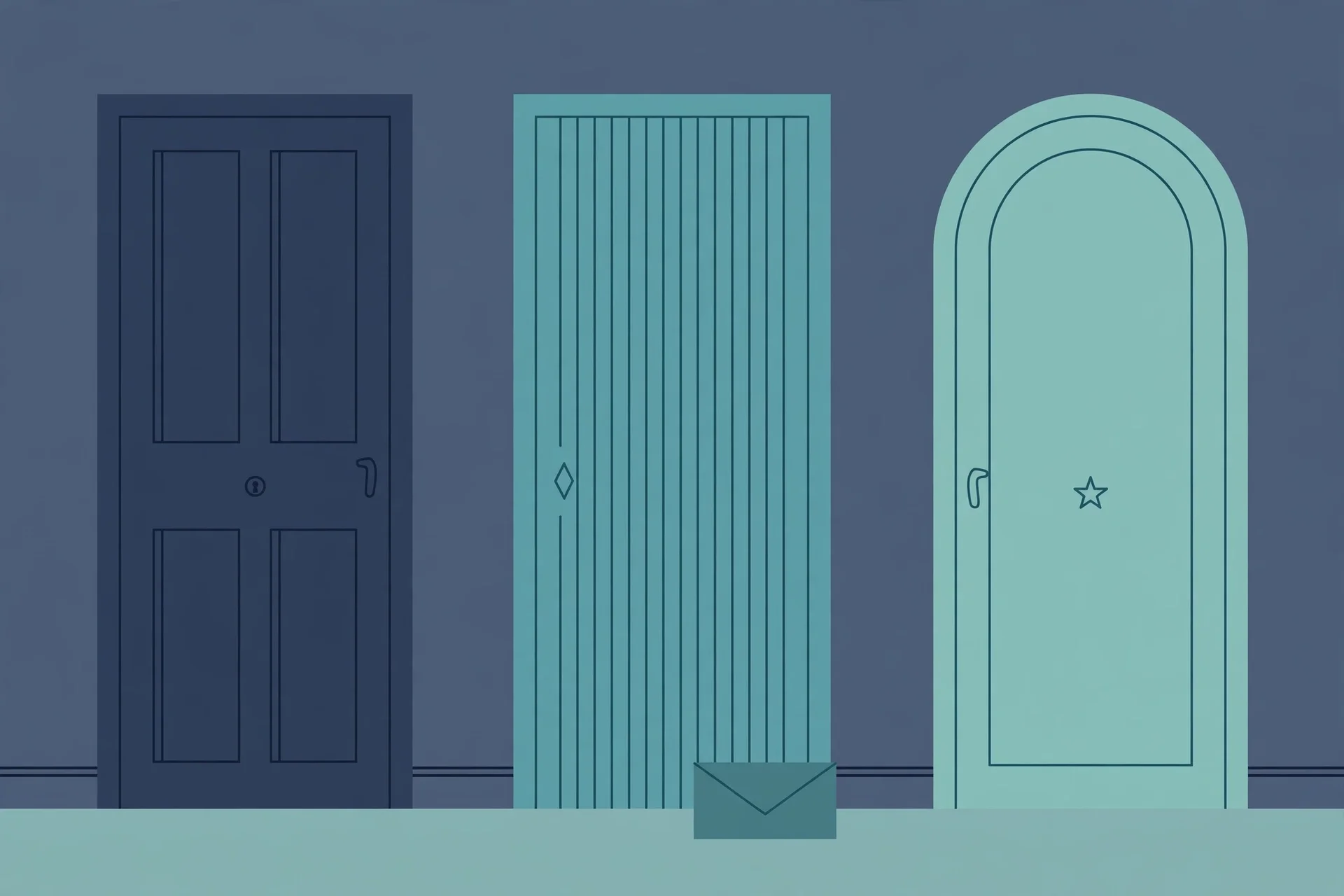
When the portal page opens, it offers three ways in. Which ones you see depends on what kind of address received the message. They are not three versions of the same check; they are three different identity proofs, and knowing which one you are using explains most of the failures below.
Door one: sign in with a Microsoft account. If the message went to an Outlook.com, Hotmail, Live, or Microsoft 365 address, the portal asks you to sign in with that account. If you are already signed in to that account in your browser, there may be nothing to do at all — the portal recognises the session and shows the message. This is also why a message sent to a work Outlook account often opens inside Outlook itself, with a banner about restricted permissions near the header and no browser involved: Outlook and the portal are the same system, and your account is already authenticated. If the message does not display in Outlook's reading pane, open it in its own window; that is the fix Microsoft's own guidance gives, and it works because the decryption pane needs the full window.
Door two: sign in with Google. If the message went to a Gmail address, the portal offers a Google sign-in. You sign in with the Google account that owns that Gmail address, and the portal trusts Google's word that you are you. This is the door that surprises people most, because it feels wrong — signing in to Google to read a Microsoft message — but it is the designed path, and it exists precisely so a Gmail recipient needs no Microsoft account at all.
Door three: a one-time passcode by email. If your address belongs to neither Microsoft nor Google — Yahoo, a corporate domain, a small provider, a temporary inbox — the portal offers a passcode sent to that address. You click the option, the code arrives from msgsecure@microsoft.com, you type it in, the message opens. The code lasts 15 minutes. The portal session that follows lasts longer, but not forever: providers typically set the session to expire after fifteen minutes to an hour of inactivity, and when it does, you start over from the notification email. Replying works from inside the portal, and a reply sent there stays inside the encrypted thread — do not copy the message out into a new plain email, because that strips the protection the sender paid for.
One rule covers all three doors: use the address the message was sent to. Signing in with a different Microsoft account, or a different Google account, will not open a message addressed to another address. The portal checks the recipient, not the browser. If you have two Gmail accounts and you sign in with the wrong one, the portal will not tell you which one is right — it will simply refuse, and the refusal looks identical to a broken portal.
Which portal is it? The five you will actually meet
Microsoft's portal is the most common, but it is not the only one. Different senders use different portal systems, and they all look slightly different — different branding, different button text, different sign-in flows. The table below is the identification chart: match what arrived in your inbox to a row, and you will know which system you are dealing with and what it will ask of you.
| What arrived | The portal behind it | What it asks you for |
|---|---|---|
| "Read the message" button, or a message.html attachment, from a work or Microsoft 365 sender | Microsoft Purview Message Encryption (Microsoft 365) | A Microsoft or Google sign-in, or a one-time passcode from msgsecure@microsoft.com, expiring in 15 minutes |
| A branded "secure message" page from a hospital, clinic, or insurer, often asking you to create a portal password | Zix, Paubox, or another HIPAA secure-messaging vendor | A portal account you create on first visit, or a passcode sent to your email; the message and attachments open in the browser |
| A "view secure message" link from a bank or large company, sometimes with a "register to view" step | Proofpoint or a similar enterprise encryption gateway | Registration with the receiving address, then a password or a one-time code |
| A link that opens a clean reading page with no sign-in at all, just a password field | Proton Mail or Tuta password-protected email | The password the sender gave you through a different channel — a call, a text, another app |
| "View the email" with an SMS passcode option, sent from a Gmail account | Gmail Confidential Mode | A passcode texted to your phone, or a link that expires on the sender's chosen date |
Two things worth noting in that table. First, the Proton and Tuta row is the only one where the password travels outside email entirely — the sender is supposed to tell you the password by phone or in person, never in the same email as the link. If a "password-protected" message arrives with the password printed in the same email, the protection is theatre. Second, Gmail Confidential Mode is not portal encryption in the strict sense, and Google does not call it encryption at all: it is access control — an expiry date, a blocked forward, a passcode — applied to a message Google still holds in readable form. It solves a different problem, and our sender-side guide to how to send an encrypted email explains the difference in full. Do not confuse the two, because the guarantees are not the same.
What I checked, and what I could not check
Most guides to this topic describe the portal flow from documentation alone, and I have done the same for the steps above — Microsoft's and the vendors' own instructions are the source, and I say so plainly. But there are two things I checked myself this morning, Saturday 28 November 2026, because they are the two things that decide whether a portal link is safe to click at all.
First, I checked the certificate on the domain the real Microsoft portal lives on. A live TLS handshake to outlook.office365.com returns a certificate issued to Microsoft Corporation, signed by DigiCert, with verification passing cleanly. That is the anchor for the phishing test below: the genuine portal presents a Microsoft certificate on a Microsoft domain, and a fake one cannot do both. I also confirmed, from the live tempomailusa.com homepage fetched the same morning, that the site's own counters read 493,392 emails created and 609,973 messages received, and that the inbox generates an address instantly with no account — the reason that matters is in the temp-inbox section below.
Second, I am telling you what I did not check, because the honest version of this guide needs it. I did not receive a live encrypted message this morning — there is no sender in this test, and I will not fabricate a receipt. The step-by-step above is checked against the providers' own published instructions (Microsoft's portal guidance and the vendor help pages that document the same flow), not against a message I opened myself. The 15-minute passcode expiry, the msgsecure@microsoft.com sender, and the office365.com domain are all stated in those published instructions, and they agree with each other across independent sources. What I could verify first-hand — the certificate, the domain, the portal's public face — I verified. What I could not, I am labelling as documentation, not as a test I ran.
When it won't open: six failures, six fixes
Almost every "the portal won't open" story is one of these six. Match the symptom before you try anything, because the fixes contradict each other — requesting a new passcode fixes one failure and causes another.
The passcode expired. You requested the code, got distracted, and came back twenty minutes later. The portal says the code is invalid. It is not wrong; it is fifteen minutes old. Go back to the notification email, click "Read the message" again, request a fresh code, and enter it immediately. Do not keep retrying the old one — each new request replaces the old code, so entering the first code after requesting a second will fail even inside the window.
You signed in with the wrong account. The portal refuses, or shows a message about permissions, and nothing is visibly wrong. Check which account is signed in to the browser. If the message went to your Gmail address and you are signed in to Google with a different Gmail account, sign out and sign in with the right one — or open the link in a private window and sign in fresh. The portal checks the recipient address, not your intentions.
The message.html attachment won't open, or the button does nothing. Some mail apps strip the link or block the attachment's scripts. Open the message in a different mail app — the web version of your inbox rather than a desktop client is the most reliable — and click the link there. If only the attachment is present, download message.html and open it in your browser directly; it is the same portal page the button loads.
The portal loads but the message never appears. Corporate networks and aggressive content blockers sometimes break the portal's scripts. Try a different network — your phone's data connection instead of the office Wi-Fi — or a different browser with extensions disabled. If it opens on mobile data and not on the office network, the network is the problem, not the portal.
The session expired mid-read. You opened the message, walked away, and came back to a sign-in screen. The portal session timed out after inactivity — typically fifteen minutes to an hour depending on the sender's policy. Start over from the notification email. The message is still there; only your session ended.
The sender revoked it. The message opens to an error saying it is no longer available, or the link reports the message cannot be found. Microsoft lets senders revoke access, and Gmail Confidential Mode lets the sender revoke a message at any time. There is no fix on your side. Contact the sender through a channel you already trust and ask them to resend it.
The fake-portal test: is this link real?
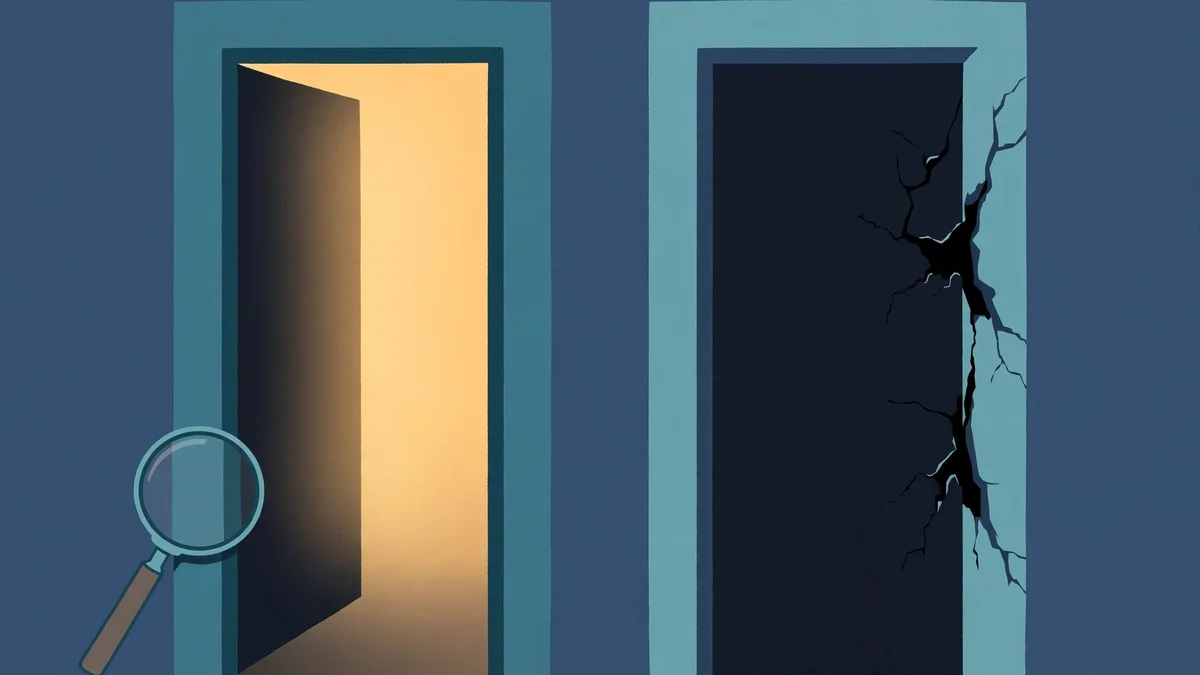
Here is the part that matters most, because the portal flow is also one of the most phished flows in email. A fake portal looks almost exactly like a real one: the same "You have a secure message" wording, the same button, the same sign-in page. The difference is the destination, and there are four checks that take under a minute.
Check the domain before you click. Hover over the "Read the message" link and read the address in full. A genuine Microsoft portal link points to outlook.office365.com or office365.com — Microsoft domains, full stop. A link pointing anywhere else, however official the email looks, is not Microsoft's portal. The same rule applies to every vendor: the link should point to the vendor's own domain, not to a lookalike with an extra word or a different ending.
Check the certificate after you click. Once the portal page loads, click the padlock in your browser's address bar and read the certificate. A genuine Microsoft portal shows a certificate issued to Microsoft Corporation, signed by a public authority like DigiCert. A fake page either has no padlock at all, or a certificate issued to some other name. This is the check I ran live this morning on outlook.office365.com — the certificate verified cleanly, and that is what a real one looks like.
Check whether you expected the message. A portal notification you did not expect, from a sender you do not know, about a subject you cannot place, is suspicious even if the domain looks right — because a real portal notification is also exactly what a phisher imitates. Contact the sender through a channel you already have — a phone number you know, an address you have used before — and ask whether they sent it. Do not reply to the notification email to ask; if it is fake, the reply goes to the attacker.
Never enter a password the portal did not ask for yesterday. A portal asks for a sign-in or a one-time passcode, never for your bank details, your full card number, or a code that someone on the phone is asking you to read out. Anyone who calls or messages you asking for the passcode from your inbox is running the takeover in real time: the code is genuine, sent by the genuine service, and the person asking for it is the attacker. Our guide to how to identify AI-generated phishing emails covers the tells in detail, including the urgency and authority tricks that make a fake portal feel real.
One more habit, and it is the cheapest of the four: if the message matters, type the portal's address yourself instead of clicking the link. For Microsoft, that means going to your inbox on the web, opening the notification there, and following the link from inside your own mail — not from a forwarded copy, not from a screenshot, not from a message someone pasted into a chat. The link you follow should come from the mailbox that received it.
Portals and temporary inboxes: what actually works
This is the question that brings portal readers to a temp-mail site, so here is the straight answer. A portal notification is an ordinary email, and a one-time passcode is an ordinary email. Both go to whatever address the sender typed. If the sender typed a temporary address, both emails land in that temporary inbox, and the portal opens exactly as it would for a Gmail address — through the one-time-passcode door, because a temp address belongs to neither Microsoft nor Google.
Two limits decide whether that works in practice. The first is the 15-minute passcode window. A temp inbox you open, use, and abandon inside that window is fine; a temp inbox you generate in the morning and check after lunch is not, because the code will have died and the notification email alone cannot reopen the message. The second limit is the inbox's own lifetime. The portal session expires, the message stays on the sender's server, and if you need to open it again tomorrow, you need the notification email again — which means you need the same inbox, still alive. A temporary address that expired overnight cannot receive a fresh passcode, and the sender would have to send the message again.
So the rule is simple: a temporary inbox is the right tool for reading a portal message once, right now, when the message is low-stakes — a verification link, a one-off document, a signup confirmation that happened to be encrypted. It is the wrong tool for anything you must re-open later, or anything you cannot afford to lose access to. For that, use a permanent address, and if you want the address itself to stay private, generate the temporary address on tempomailusa.com for the signup and give the sender your permanent address for the secure mail — the two jobs belong to two different inboxes. And remember what the portal does not do: it protects the message in transit and on the sender's server, but once you download an attachment from inside it, that file is an ordinary file on your machine. Our guide to encrypted email attachments explains where the protection ends, and the answer is sooner than most people expect.
Frequently asked questions
What is an encrypted email portal? It is the secure web page where you read an encrypted message that your inbox cannot display itself. The sender's system stores the message on its server and emails you a notification with a link. You click the link, prove you are the recipient — with a Microsoft or Google sign-in, or a one-time passcode sent to your email — and the portal shows you the message in your browser. The email in your inbox is the invitation; the portal is the room.
How do I open an encrypted email portal? Open the notification email in the inbox that received it, click "Read the message" (or open the message.html attachment), and choose your sign-in method: a Microsoft account, a Google account, or a one-time passcode. The passcode arrives in a second email from msgsecure@microsoft.com and expires after 15 minutes, so enter it promptly. If you are already signed in to the right account in your browser, the message may open with no further step.
Why does my encrypted email have no message in it? Because it is not the message — it is the notification. Portal-based encryption keeps the message on the sender's server and sends you a link instead of the content. This is by design: it means the message never travels as readable text through your inbox, and it means the sender can revoke access later. Click the link to read it in the portal.
How long does an encrypted email portal passcode last? Fifteen minutes, for Microsoft's one-time passcode. If it expires, return to the original notification email, click "Read the message" again, and request a fresh code. Requesting a new code invalidates the old one, so always enter the newest code you received. The reading session after you sign in lasts longer — typically fifteen minutes to an hour of inactivity, depending on the sender's policy — before you have to start over.
Is an encrypted email portal safe? The genuine portal is safe to use; the fake one is the danger. Check the link's domain before clicking — Microsoft's portal lives on outlook.office365.com and office365.com — and check the certificate's owner once the page loads. Never enter credentials into a portal page reached from a message you did not expect, and never share a one-time passcode with anyone who asks for it. Whether the encryption itself protects you depends on the method, and our guide to whether encrypted email is secure maps the answer by threat: secure against interception, not against the provider, and never against the recipient forwarding it.
Can I open an encrypted email portal with a temporary email? Yes, through the one-time-passcode door: both the notification and the passcode are ordinary emails that land in any inbox, including a temporary one. The constraints are time — the code expires in 15 minutes, and the temp inbox must still be alive when you need it — and repeat access: if you need to open the message again later, you need the same inbox and a fresh passcode, so use a permanent address for anything that matters twice.
The one rule that covers every portal
If this guide leaves you with one habit, make it this: check the door before you walk through it, and know which address the message was sent to.
Everything else follows from those two facts. The domain tells you whether the portal is real. The recipient address tells you which sign-in to use, which inbox the passcode went to, and whether a refusal means a wrong account rather than a broken system. The 15-minute clock tells you to move promptly and to request one fresh code rather than retrying a dead one. And the fact that the email in your inbox is only a notice tells you not to panic when it contains no message — the message is in the room, and the room is one careful click away.
---
Need a disposable temporary email?
Protect your real inbox from spam and promotional clutter instantly and free.
Received a suspicious email, text, or charge alert?
Verify whether the sender domain is disposable, spoofed, or unverified before clicking links.