Dropbox Verify Email: The 3-Minute Test, the Traps, and What Verification Actually Protects
I verified a Dropbox account tonight, and the whole thing took about three minutes from the signup button to the confirmation dialog. The verification email arrived in under a minute. One click, done. That is the good news, and it is also the reason this post exists: the verification step is so quick and so frictionless that people treat it as a formality, and then discover — weeks or months later, usually at the worst possible moment — that it was the one setting holding their account together.
Dropbox's own help page says the quiet part out loud: if you don't verify your email address, Dropbox won't be able to help you if you ever need to regain access to your account. That is the whole story in one sentence. Everything below is the detail around it — the exact steps as they work right now, the email itself, the five ways people get stuck, and the honest verdict on verifying with a disposable address, which I tested with a live temp inbox so I don't have to guess.
What verification actually does for you
Strip away the jargon and Dropbox is checking one thing: that you can open the inbox attached to the account. That check buys you three concrete things, and it is worth naming them before the steps, because the steps make more sense once you know what they are protecting.
First, recovery. Your email address is the channel Dropbox uses for password resets, security alerts, and new-device notices. If you forget your password and your email is unverified, the reset has nowhere trustworthy to go. Dropbox is blunt about this: no verified email, no help regaining access.
Second, it unlocks changing your email later. This is the one people trip over. In Settings, under the General tab, your email has an Edit button — but only if the current address is already verified. If it isn't, you see "Verify email" where Edit should be. Dropbox makes you prove you control the old address before it lets you swap in a new one. Sensible, and infuriating if you are the person staring at a typo you made at signup.
Third, it is the foundation for everything else security-related on the account, including the recovery email — a second address that can receive a 6-digit code to help you get back in. The recovery email is separate from your primary address, and adding one also requires verification of that second address. Verification is the bottom layer; everything else stacks on it.
What it does not do: it does not prove who you are, it does not check your identity, and it does not make your account unhackable. It proves control of an inbox, nothing more. If the general mechanics of that check feel fuzzy — what a verification email actually proves and what it cannot — the explainer on what email verification is is worth five minutes. Dropbox's version is one specific implementation of the same idea.
The test: signup to verified in about three minutes
Here is exactly what happened when I ran this tonight, November 24, 2026, so you can compare it against your own screen.
I started on tempomailusa.com and took the temporary address it generated: olnjp77@rover.info. Then I went to dropbox.com, clicked Sign up, and entered that address. The form asked for a first and last name and a password — no phone number, no CAPTCHA, no checkbox puzzle. I clicked "Agree and sign up" and the button spun for about twenty seconds. That pause is normal; the page is creating the account, not stalling.
Then came the detour worth warning you about, because it looks like a trap and it isn't. Dropbox redirected me to an upsell page offering a Dropbox Business trial, and then a modal offering three months of Dropbox Plus for free. Both screens have a small "Continue with 2 GB Dropbox Basic plan" / "Continue with Basic" option. Take it. No payment details are asked for at any point in the free signup — if a screen asks for a card, you have clicked the wrong button.
By the time I switched back to the temp inbox tab, its title had already changed to "New Message Received!" — the verification email had arrived within roughly a minute of submitting the signup. One small snag: a Google vignette ad overlay covered the message link in the inbox and refused three clicks. I opened the message through its direct link instead, and it loaded fine. That was an ad overlay on the inbox page, not a Dropbox problem, but if your clicks seem to do nothing, check for an overlay before assuming the inbox is broken.
The email is short. Sender: no-reply@dropbox.com. Subject: "Hi Test, please verify your email address". Body: "Hi Test, We just need to verify your email address before your sign up is complete!" — then a blue button reading "Verify your email", then "Happy Dropboxing!" That is the entire message. No code to copy, no second link, nothing to type.
I clicked the button at 11:02 PM IST. It opened a new tab at dropbox.com/home with ?email_just_verified=1 in the address bar, signed in as Test User, with a dialog reading: "Your email address is now verified — Thanks for verifying your email address: olnjp77@rover.info." I clicked Done, and that was it. Signup to verified: about three minutes, and the only waiting was the twenty-second spinner and the minute for the email to land.
One detail from the aftermath: after verifying, I checked Settings, then the General tab. It shows "Personal account", the name, and "Personal email olnjp77@rover.info" — but there is no "Verified" badge or label next to the email on that page. The proof of verification is the dialog and the email_just_verified=1 in the URL, not a label in Settings. So if you are checking whether an account is verified, don't look for a badge. Look for the absence of the "Verify email" button: if Settings shows Edit next to your email, you are verified. If it shows "Verify email" instead, you are not.
The steps, for an account that already exists
Most people searching this are not signing up fresh — they already have an account and Dropbox is nagging them to verify. The path is the same one Dropbox documents, and I checked it against their current help page today:
- Log in at dropbox.com. If you cannot log in at all, stop here and recover the password first — verification happens from inside the account, not from the login screen.
- Send yourself a verification email. Dropbox sends one the first time you take an action that requires verification, and the Settings route is: click your avatar, then Settings, then the General tab, then "Verify email" next to your address. A prompt appears directing you to send the verifying email to your address.
- Open your inbox and find the message from no-reply@dropbox.com. If it is not in the inbox, work through the ladder in the next section before assuming anything is broken.
- Click the "Verify your email" button in the message. A confirmation message appears in your browser. That click is the verification.
How do you know if you are already verified? Dropbox's own answer is simple: if you have ever clicked a link in an email they sent you, you have already verified and don't need to do anything else. The Settings check above confirms it — Edit means verified, "Verify email" means not.
The email itself: what the real one looks like
Verification emails are one of the most impersonated message types on the internet, and Dropbox is a favourite brand for it — our dissection of real cloud storage scam emails from this month includes Dropbox impersonations. So before you click anything, check the message against the real one I received tonight:
- Sender: no-reply@dropbox.com. Not dropbox-support, not a lookalike domain, not a free-mail address.
- Subject: "Hi [your first name], please verify your email address". It uses the first name you entered at signup.
- Body: one line saying Dropbox needs to verify your email before signup is complete, a single blue "Verify your email" button, and a "Happy Dropboxing!" sign-off.
- What it never contains: no password request, no request to reply with information, no attachment, no threat that your account will be deleted in 24 hours, no link to a page asking for payment details.
The click itself should land you on dropbox.com — check the address bar before entering anything. If the button opens a page on any other domain, close it. And if the message arrived but you never asked Dropbox for anything, don't click: that is either someone else typing your address by mistake or a phish. The general pattern for messages you didn't ask for is covered in our guide to verification codes you didn't request.
The email never arrives: fix it in this order
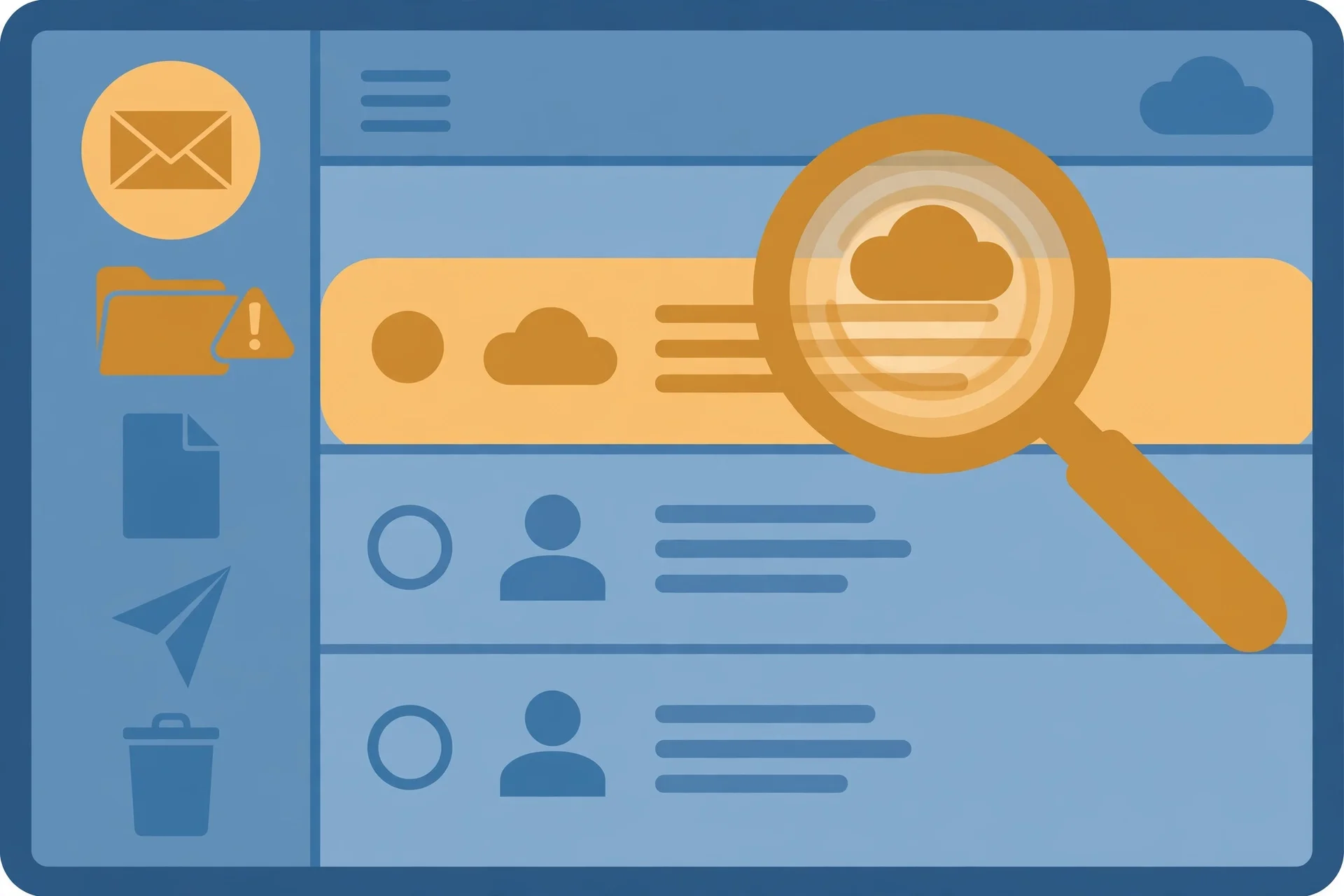
This is where most people actually land, and where most guides wave their hands. Dropbox's own troubleshooting is short, so here is the order that works, from the most common cause to the least.
Wait a few minutes first. In my test the email landed in under a minute, but automated mail is not instant, and a minute of patience fixes more of these than any other step. Give it five before doing anything else.
Check Spam or Junk. This is the single most common hiding place. Automated verification mail gets filtered aggressively, especially the first time a sender writes to you. If it is there, mark it as not spam before clicking — that teaches your provider the sender is wanted, which helps the next time Dropbox writes to you.
Search for the sender. In your inbox, search for no-reply@dropbox.com rather than scrolling. The message may be sitting in Promotions, Updates, or a quarantine folder your provider never shows you in the main view.
Add Dropbox to your contacts, then request a fresh email. Dropbox's published advice is to add no-reply@dropbox.com to your address book, then send the verification email again from Settings. The allowlist matters because it tells your provider to deliver the next attempt to the inbox instead of filtering it again. Resending without allowlisting is the loop people get stuck in: the same filter catches the same message, again and again.
Check the address itself for a typo. One wrong letter and the verification email went to a stranger's inbox or into the void, and no amount of resending will fix it. This is the trap with a specific escape hatch: from the General tab, click the verify email button and choose the "update email address" option in the prompt. Enter the correct address and your Dropbox password, and Dropbox sends a verification email to the corrected inbox. Community threads confirm this is the supported route when a typo locks you out of the verify-then-edit gate.
Check with your provider or IT administrator. School and work mail systems often hold automated messages in a quarantine you cannot see. If you are on a managed domain, ask the admin whether no-reply@dropbox.com is being held.
Still nothing? Use a different address, or contact support. Dropbox's own last step is to try a different email address, and if you still cannot verify and cannot change the address, to contact support — they say they may be able to manually verify your email if they can confirm your identity through a questionnaire or email exchange. That is a slow path, not a quick one, which is why the typo check above is worth doing first.
One honest limitation: Dropbox's current help page does not state a time limit or expiry for the verification link, and I will not invent one. If a link you clicked does nothing, or you get an error, request a fresh verification email from Settings rather than trusting a guide that quotes an expiry window. The same goes for resend limits — Dropbox doesn't publish one, so don't trust a number you read elsewhere.
What happens if you never verify
Nothing dramatic happens on day one, which is exactly why people put it off. Dropbox does not lock you out the moment you skip verification — you can still use the account. What you lose is quieter and harder to undo later:
- You can't change your email. The Edit button stays replaced by "Verify email" until the current address is verified. If you made a typo at signup, you are stuck in that gate until you verify the wrong address — which you can't, because you don't own it — unless you use the update-address option in the verify prompt.
- You can't get help regaining access. Dropbox's own line, quoted above: without a verified email, they won't be able to help you if you ever need to regain access. That is the whole account, gone, over one unclicked link.
- Recovery options stay half-built. A recovery email is a second address that can receive a 6-digit code to help you back in, but adding one means verifying that second address too, and the primary address is the anchor for the whole chain.
The pattern is the same one this blog returns to: the cost of verification is three minutes now; the cost of skipping it is a support conversation later, and support's first question will be about the email you never verified.
It works with a temp inbox — and that is the problem
Here is the part this site exists to warn you about, and I will be blunt, because my own test tonight proves the first half of it: Dropbox accepted a temp address, olnjp77@rover.info, and verified the account on the first click. No CAPTCHA, no phone check, no domain rejection. If all you want is to see what Dropbox feels like for an afternoon, a disposable address works, and the verification email is the least of your worries.
The problem is everything the verification ties to that address. The moment you clicked that button, the account's recovery channel, its sharing invitations, its device-change notices, and its password resets all started going to an inbox with an expiry date. Our Dropbox signup guide spells out the long version of this — the filing cabinet on a foundation with an expiry date — but the short version is: verification makes the address load-bearing, and a temp address is built to stop bearing loads.
That does not mean throwaway addresses are useless — far from it. They are exactly right for the signups you do not want to keep: testing a service, grabbing a download, getting past a form that demands an email before showing you anything. The four ways to create a throwaway email cover that job properly. The mistake is using the throwaway for the one job that needs permanence. Two accounts, two inboxes: a disposable one for the trial, a permanent one for the account you keep. A Dropbox account with files in it is the second kind.
There is also a practical wrinkle my test can't rule out for every domain: Dropbox blocks disposable domains per-domain rather than platform-wide, so the domain I used tonight passing says nothing about the next one. If the verification email never arrives and you used a disposable address, the address itself is a likely suspect — work through the ladder above, then switch to a permanent address rather than fighting the filter.
The handover: move to a real address while the temp inbox is alive
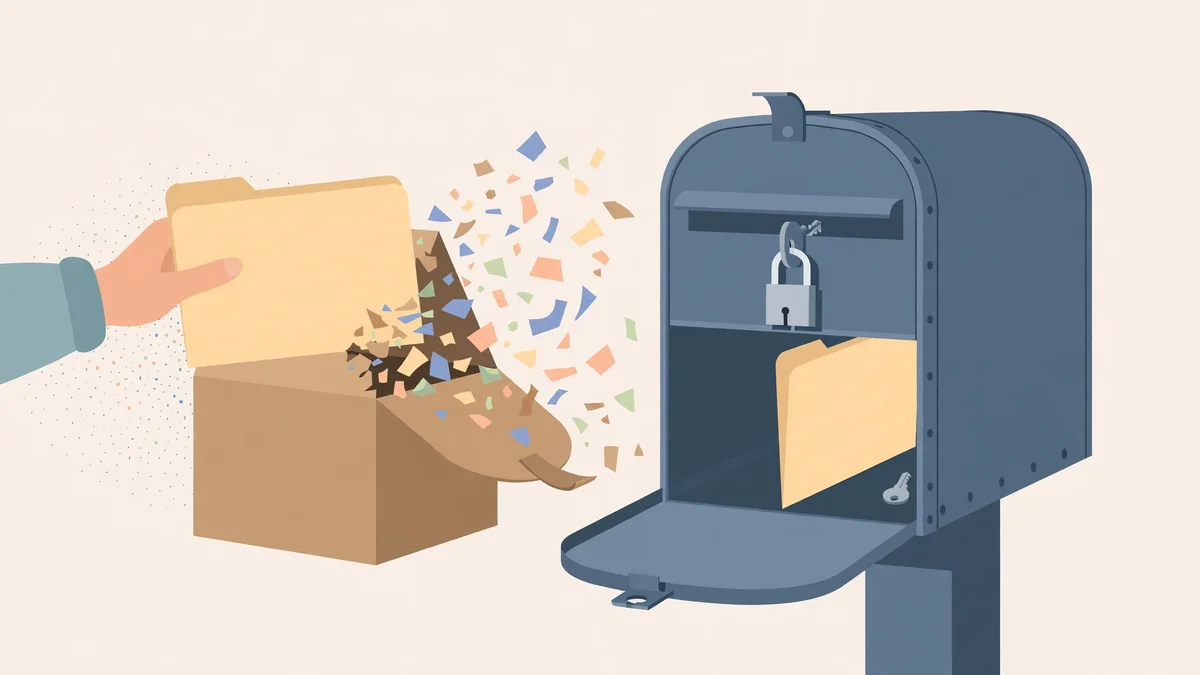
If you already verified a Dropbox account with a temp address and the account has turned into something you want to keep — files in it, a folder someone shares with you, a second device connected — move it now, while the temp inbox still works. The handover only works while the old inbox is alive, which is why it has to happen the day you notice, not the day the inbox expires.
- Download anything that matters first. The handover changes the account's address, not its contents, but if anything about the change goes wrong, the downloaded copy is the difference between an inconvenience and a loss.
- Change the email in Settings. Avatar, Settings, General tab, Edit next to your email. Enter the new address, confirm it, enter your Dropbox password, click Update email. Dropbox sends a verification email to the new address — click "Verify your email" in it, same as before.
- Add a recovery email while you are there. Settings, Security tab, next to Recovery email address, click Add a recovery email. Enter your password, enter a second address you control, then enter the 6-digit code Dropbox sends to that address. This is your second channel: if the primary address ever fails you, the recovery email can receive the code that gets you back in. Changing your primary email does not automatically update your recovery email, so check it after any change.
- Tell anyone who shared a folder with the old address. Changing your own account email fixes your own access, but a folder owner invited that old address, and the folder's membership list follows addresses, not people. Tell the sharer directly to re-share to the new address. Do not assume the folder will follow you.
That is a ten-minute job on day one and a support conversation on day thirty, and the difference between those two days is entirely the inbox's expiry date.
Frequently asked questions
How do I verify my email on Dropbox?
Log in at dropbox.com, open your avatar, then Settings, then the General tab, and click "Verify email" next to your address. Dropbox sends a message from no-reply@dropbox.com — open it and click the "Verify your email" button. A confirmation message appears in your browser. If you signed up fresh, Dropbox sends the same email automatically right after signup; in my test tonight it arrived in under a minute.
How do I know if my Dropbox email is already verified?
If you have ever clicked a link in an email Dropbox sent you, you are already verified. In Settings, under the General tab, a verified address shows an Edit button next to it. If you see "Verify email" instead of Edit, the address is not verified yet. There is no "Verified" badge on the General tab — the Edit button is the tell.
Why is my Dropbox verification email not arriving?
Work the ladder: wait five minutes, check Spam or Junk, search your inbox for no-reply@dropbox.com, add that address to your contacts and request a fresh verification email from Settings, then check the address for a typo. School and work mail systems may quarantine automated mail — ask your IT administrator. If nothing works, try a different email address, or contact Dropbox support, who may manually verify you after confirming your identity.
What is the Dropbox verification email address?
Verification emails come from no-reply@dropbox.com. Add that address to your contacts before requesting a fresh verification email — it tells your provider to deliver the message to your inbox instead of filtering it. Any verification message from a different sender claiming to be Dropbox should be treated as suspicious.
Can I verify Dropbox with a temp email?
Yes — I did exactly that tonight with a temp address, and the account verified on the first click in about three minutes. But verification ties the account's recovery, sharing, and password resets to that inbox, so a temp address is only honest for a one-afternoon test drive. If the account holds anything you want to keep, change the email to a permanent address while the temp inbox is still alive, and add a recovery email as a second channel.
I made a typo in my email — how do I fix it?
From Settings, General tab, click the verify email button and choose the "update email address" option in the prompt. Enter the correct address and your Dropbox password, and Dropbox sends a verification email to the corrected inbox. You cannot use the Edit button until the current address is verified, so this prompt option is the way out of the typo trap.
Does the Dropbox verification link expire?
Dropbox's current help page does not state an expiry time for the verification link, and no reliable figure is published. If a link fails or does nothing, request a fresh verification email from Settings rather than trusting a number from a third-party guide.
Can I change my Dropbox email after verifying?
Yes. In Settings, General tab, click Edit next to your email, enter the new address, confirm it, enter your password, and click Update email. Dropbox sends a verification email to the new address — click the button in it to complete the change. Remember that changing your primary email does not update your recovery email; review that separately in the Security tab.
The bottom line
Verifying your Dropbox email is a three-minute job with a one-line payoff: it is the difference between Dropbox being able to hand your account back to you and not being able to. The steps are simple — Settings, General, "Verify email", click the button in the message from no-reply@dropbox.com — and the email itself is short enough to recognise at a glance. The traps are all on the edges: the typo that locks you behind the verify-then-edit gate, the spam filter that eats the message, the upsell screens that make a free signup look like a trial, and the temp address that verifies beautifully and then expires under an account full of files.
Do it tonight, while you are thinking about it. And do it with an address you will still own in two years — because the day you need the recovery email is the day you find out whether the inbox behind your account still exists.
Need a disposable temporary email?
Protect your real inbox from spam and promotional clutter instantly and free.
Received a suspicious email, text, or charge alert?
Verify whether the sender domain is disposable, spoofed, or unverified before clicking links.