

How to Create a Throwaway Email: Four Ways, From 30 Seconds to Permanent

How to Create a Throwaway Email: Four Ways, From 30 Seconds to Permanent
The fastest honest answer first: open tempomailusa.com, and an address already exists. No form, no signup, no phone number. Copy it, paste it into the form that asked for one, and the code lands in the inbox on the same page. That is the whole process for the most common version of this job, and it takes about thirty seconds.
But that is only one of four ways to create a throwaway email, and picking the wrong one is how people end up locked out of accounts they needed. A temp inbox is perfect for a one-off code and useless for a conversation. An alias lasts for years and still routes everything to your real inbox. Gmail's plus-address trick takes ten seconds and hides nothing at all. This guide gives you all four as steps, tested where I could test them, so you can pick the one that fits the job in front of you — and then, at the end, the step every other guide skips: closing the address down properly once it has done its work.
Start with the job, not the tool
Before you create anything, answer two questions. The answers pick the method for you, and getting them wrong is the only real way to mess this up.
First: how long do you need the address? If the job ends when a code arrives — a download, a trial, a newsletter you want to read once — take the shortest-lived option and let it die. If you might need a second message next week, take something that survives the week. If the account will still matter in a year, do not use a throwaway address at all; use an alias or your real inbox. The rule I use, and the one our own testing keeps confirming, is to assume the account outlives the signup unless you can name the exact moment the job ends.
Second: do you need to reply? Most throwaway methods are receive-only. If a human is waiting for your answer, or the signup expects you to confirm something by replying, a temp inbox leaves you silent and the job fails. Only a second real account or an alias that supports replies will do.
Two questions, thirty seconds of thought, and the rest of this guide is just following the steps for the method those answers point to.
Method 1: a temp inbox, in four clicks
This is the method for a one-off code, a download gate, a trial you will cancel, or any form on a site you will never visit again. I ran it live on 23 November 2026, on TempMailUSA, and here is exactly what happened.
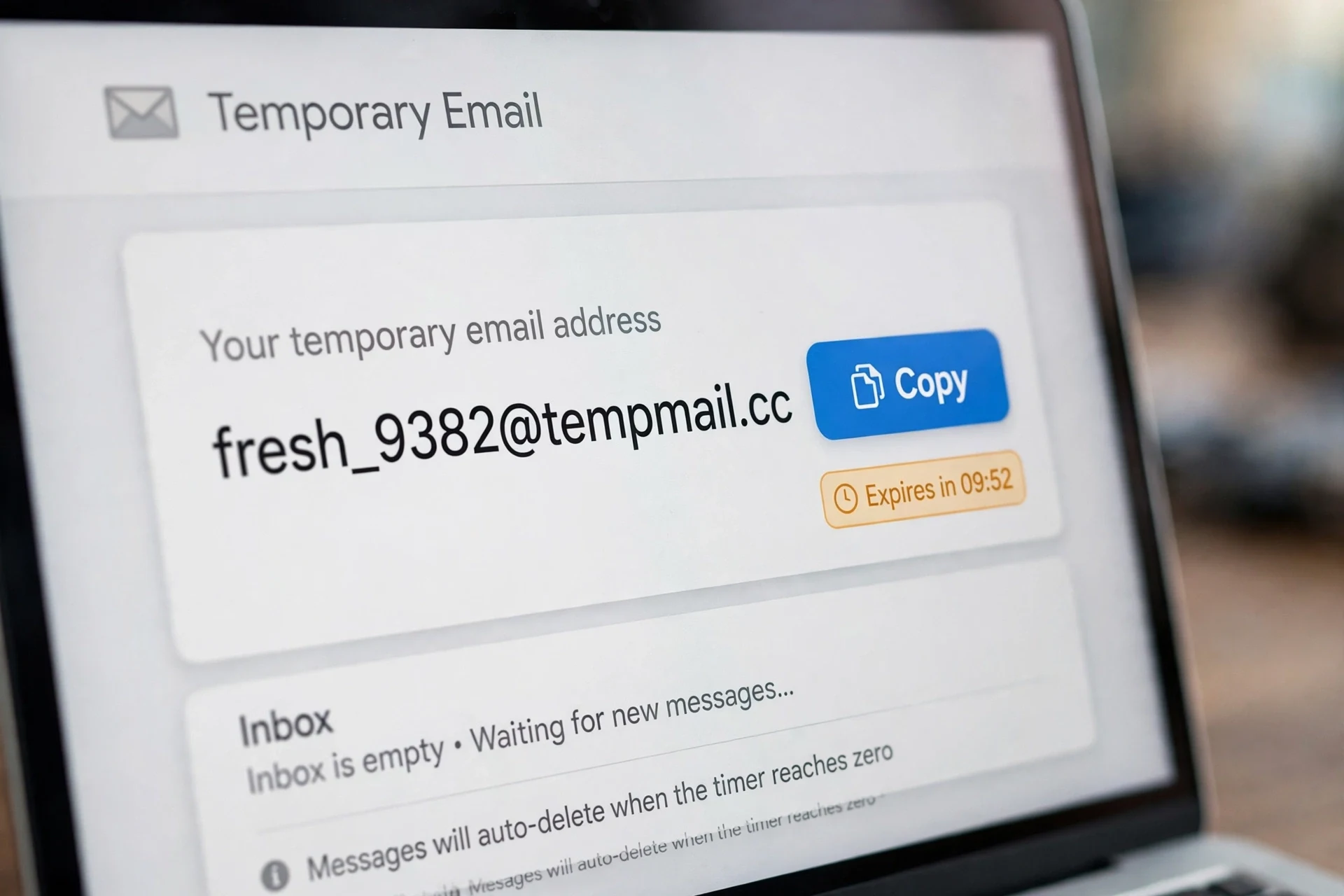
- Open tempomailusa.com. The address is already there on page load — mine was olnjp77@rover.info. Nothing asked for my name, my email, or a card.
- Look at the countdown next to it. Mine read "Expires in 29d 21h 9m 10s" and ticked down live while I watched — 29 days, 21 hours, 8 minutes a couple of minutes later. Free inboxes last 30 days; Pro inboxes last 365. That is a long fuse by the standards of this category, and it means a code that arrives late, or a second message next week, still finds a live inbox.
- Click Copy next to the address. Do not type it by hand — one wrong character sends your verification code to a stranger's inbox or to no inbox at all.
- Paste it into the form, submit, and keep the inbox tab open. The inbox labels itself "Live Disposable Inbox — Instant OTP & Email Refresh", shows "Auto-refreshing", and waits. Mine was empty, as expected: "Your inbox is empty — waiting for incoming emails."
Two details from that test are worth knowing before you rely on it. First, the domain picker shows 468 domains, but the free plan gets exactly one of them — rover.info. The other 467 sit under a "Pro — premium domains" heading. For a one-code signup that is no obstacle at all; the free domain works the same way. Second, the banner at the top of the page still says "try any of our 427 domains free" while the picker and the pricing section both say 468. The picker is right and the banner is stale — a small thing, but the kind of thing you only catch by actually opening the page.
Two more honest limits. Your first message is free to read; reading every message after that is a Pro feature. For a single verification code, that is no obstacle. And the free plan allows one inbox at a time — generating a new one discards the old one, so do not click "New Inbox" while a code you still need is sitting in the old one. The page's own counters, for scale: 488,884 emails created and 609,973 messages received at the time I checked.
If you want the longer version of this method — the custom-name creator, the Change dialog, the recovery key that lets you get an address back after closing the tab — our step-by-step guide to create a temp email address walks through all of it, including the one choice in the process that costs money.
Method 2: an alias that forwards to your real inbox
Use this one when the signup is for a service you will actually keep using, but you do not want it to know your real address. An alias is a second address that delivers to the inbox you already read. You never log in to it. When it starts attracting spam, you switch it off and nothing else changes.
The services worth knowing, with the free limits as they stand in late 2026: Apple's Hide My Email comes with any paid iCloud+ plan, from $0.99 a month. Firefox Relay gives you 5 free masks (Mozilla's own pages disagree on whether free users get 5 or 50 — plan around 5 and treat anything more as a bonus). DuckDuckGo Email Protection is free with unlimited private addresses. SimpleLogin gives you 10 free aliases, unlimited for $36 a year. Proton Pass gives you up to 10 free aliases. Those limits come from the services' own pricing and help pages, as compared in Merlin's 2026 throwaway-email guide — and they are the numbers to check again before you commit, because free tiers move.
Hide My Email, on iPhone or Mac. Open Settings, tap your name, tap iCloud, then Hide My Email. Tap Create New Address and follow the prompts. Copy the address and use it on the sign-up form. You can reply from it in Apple Mail, and each alias can be labelled and deactivated on its own. The catch is the iCloud+ subscription — it is not free the way the other options here are.
Firefox Relay. Go to relay.firefox.com and sign in with a Mozilla account. Select Generate new mask, click the copy icon next to it, and paste it into the form. Mail to the mask lands in your real inbox. The free tier's masks are the ones to use for shops and newsletters; the paid tier adds unlimited masks and the ability to reply from them.
DuckDuckGo Email Protection. If you already use the DuckDuckGo browser or extension, this is the zero-cost version: generate a private address, use it anywhere, and switch it off when you are done. No subscription, no cap on addresses.
The trade-off against Method 1 is simple: an alias needs an account with the alias service, which is the opposite of a temp inbox's no-signup appeal — and your real inbox is still the destination, so this is a mask, not a wall. What you gain is permanence and replies. Our full alias guide, how to create an email alias, covers Gmail, Outlook, iCloud and work accounts in detail, including the limits the setup screens do not print — Outlook.com, for instance, caps you at 10 active aliases and two new ones a week, so a typo costs you a week, not a minute.
Method 3: Gmail's plus-address trick
This one takes ten seconds, costs nothing, and hides nothing. Know that before you use it.
Take your Gmail address and add a plus sign and any word before the @. If you are priya.sharma@gmail.com, then priya.sharma+shopping@gmail.com and priya.sharma+newsletters@gmail.com both land in the same inbox. No settings to change, no service to sign up for. Pair it with a filter — Settings, then Filters and Blocked Addresses, then Create a new filter — and every +shopping message can skip the inbox, get a label, and archive itself before you ever see it.
It works as an organising tool. It fails as a privacy tool, because anyone who receives a plus-addressed email can see your real address sitting right there in front of the plus sign, and stripping the tag off takes less effort than reading the message. Some sites also reject the + character outright in their signup forms — banks, airlines and older e-commerce checkouts are the usual offenders.
Use it when you want to sort your own mail and trace which sender leaked your address: give each signup its own tag, and when spam arrives at +thatstore, you know exactly who sold the list. Do not use it when the point is keeping your real address secret, because it does the opposite — it prints your real address on the envelope. If that distinction matters for your job, go back to Method 1 or 2.
Method 4: a second real account, for the jobs that need replies
Sometimes the right throwaway is not disposable at all — it is a second real account you run for weeks and then abandon. Use this one when the relationship lasts: a job hunt, a side project, a signup that will need password resets, or any conversation where someone is waiting for your reply.
The cheapest version is Outlook.com. A personal Microsoft account lets you create additional @outlook.com addresses that are real aliases: mail to them arrives in your primary inbox, and you can send from them by picking the alias in the From field. Sign in at Outlook.com, open Settings, go to Account, then Mail — or on the Microsoft account page, Your info, then Manage how you sign in to Microsoft — and choose Add email, then "Create a new email address and add it as an alias". The limits: 10 active aliases, two new ones per week.
The other version is a fresh Gmail or Outlook account used only for signups. No expiry, no blocklist problem in most cases, full control of password resets, and you can send mail from it like any account. The cost is maintenance — a second inbox to check, a second password to keep safe — and one honest warning: creating it usually requires a phone number, which links the "anonymous" account back to you. A second account is disposable. You are not, and the address does not change that.
If you are still deciding between these four, our definition piece — what is a burner email — draws the line between a burner account, a temp inbox and an alias, including the traceability question most guides dodge: the address itself reveals almost nothing, but the IP, the phone number and the recovery email around it do.
The part everyone skips: closing the address down
Creating the address is half the job. Every guide ends at "paste it into the form", and that is where the problems start — because an address you forget to close is a door you left open.

Do these three things, in this order, once the code has arrived and the signup is confirmed.
First, save anything you need from the inbox before it goes. The code is used; the confirmation link is clicked. If the signup sent a receipt or a backup code, forward it to your real inbox now, while the temp inbox still exists.
Second, if the account matters — money, files, a history you would miss — move it to a permanent address you control, and confirm the change from the new inbox while both are still open. A disposable address is a door you walk through once, not a home. This is the step that separates a throwaway used well from an account lost six months later when the password reset goes to an inbox that no longer exists.
Third, close the address itself. On a temp inbox, hit Delete, or just let the countdown run out — the address dies on its own, and that is the point. On an alias, deactivate that one mask; the sender's route to you dies with it, and nothing else changes. On a second account, delete it or stop checking it, and remove the phone number and recovery email first if you want the break to be clean.
One more thing to do before you close it: if the service gave you a recovery key or a restore code, save it before you use the address, not after. TempMailUSA shows a recovery key with a Restore dialog for exactly this reason. Thirty seconds spent saving it is the difference between "I can get back in" and "the account is gone".
When the new address fails on arrival
A fresh throwaway can fail in three ways, and two of them look identical from your side of the screen.
The first is the blocklist. Many sites check incoming addresses against lists of disposable domains and reject them at the form. In our own five-signup test, Notion refused a temp address outright with "Invalid email domain", while Substack failed with a generic "Something went wrong" and no reason at all. The full log — which sites accepted, which rejected, and the exact wording each one gave back — is in our throwaway emails test. When it happens to you, the fix is a different domain from the same service first, then an alias, then a second account — in that order, cheapest first.
The second is the new-inbox trap. On TempMailUSA's free plan you get one inbox at a time, and generating a new one discards the old one. If the old address was holding a verification code you had not used yet, it is gone with it. Generate a new address only when you are done with the old one.
The third is the closed tab. Your address lives in the browser session. Close the tab before the code arrives and the code goes to an inbox you can no longer open. History and Restore are the safety net, but the real fix is discipline: one tab for the inbox, kept open until the signup is finished.
FAQ
How long does a throwaway email last?
It depends on the kind. A temp inbox lasts minutes to 30 days — TempMailUSA's free inboxes last 30 days, Pro inboxes 365. An alias lasts until you switch it off. A second account lasts until you delete it or the provider kills it for inactivity. And the messages do not always expire with the address: on some services the messages are deleted hours after arrival while the address itself lives on. Ask both questions — how long the address lives, and how long the messages live — before you rely on either.
Can I send email from a throwaway email address?
Almost never from a temp inbox — those are receive-only by design. You can reply from some aliases (Hide My Email in Apple Mail, Relay Premium, SimpleLogin) and you can send normally from a second real account. If the task needs two-way email, pick Method 2 or 4, not Method 1.
Is creating a throwaway email legal?
Yes. Creating a temporary email address is legal in itself. What you do with it is what matters — using it to deceive someone, evade a ban or commit fraud is illegal for the same reasons it would be illegal with your real address. The tool is neutral; the use is not.
Can I use the same throwaway address twice?
You can, but you should not. Reusing one address across five signups turns it into a profile: a breach at any one of them exposes an address that now unlocks the other four. One address, one job. Generating a fresh one costs thirty seconds; cleaning up a reused one costs far more.
What if the site rejects my throwaway email?
Try a different domain first — a blocklist is a list of domains, and a fresh domain from the same service is often not on the one the site checked. If that fails, switch to an alias, which comes from a mainstream domain the site is far less likely to block. If the site needs a phone number instead of an email code, no email address of any kind will satisfy that step.
Do I need an app to create a throwaway email?
No. All four methods work in a browser. A temp inbox needs nothing but the website; an alias needs the service's site or your phone's settings; Gmail's plus trick needs nothing but your existing address. An app adds convenience, not capability.
Need a disposable temporary email?
Protect your real inbox from spam and promotional clutter instantly and free.
Received a suspicious email, text, or charge alert?
Verify whether the sender domain is disposable, spoofed, or unverified before clicking links.