
Private Email IMAP Settings: The Exact Servers, Ports, and the 6 Setup Errors That Actually Happen
The settings themselves are six lines. Server, port, encryption, username, password, done. And yet setting up a private email account in a mail app is one of those jobs that eats an afternoon, because the six lines are only half the story. The other half is the six ways the setup fails — and every guide that only lists the ports leaves you to discover those on your own, one cryptic error message at a time.
This guide does both jobs. First the settings, for Namecheap Private Email and for the big providers, exactly as each one publishes them. Then the setup in the four clients people actually use. Then the six errors, each with its symptom and its fix. And finally the honest exception: the one kind of inbox that has no IMAP settings at all, which I checked live this morning.
The 30-second answer
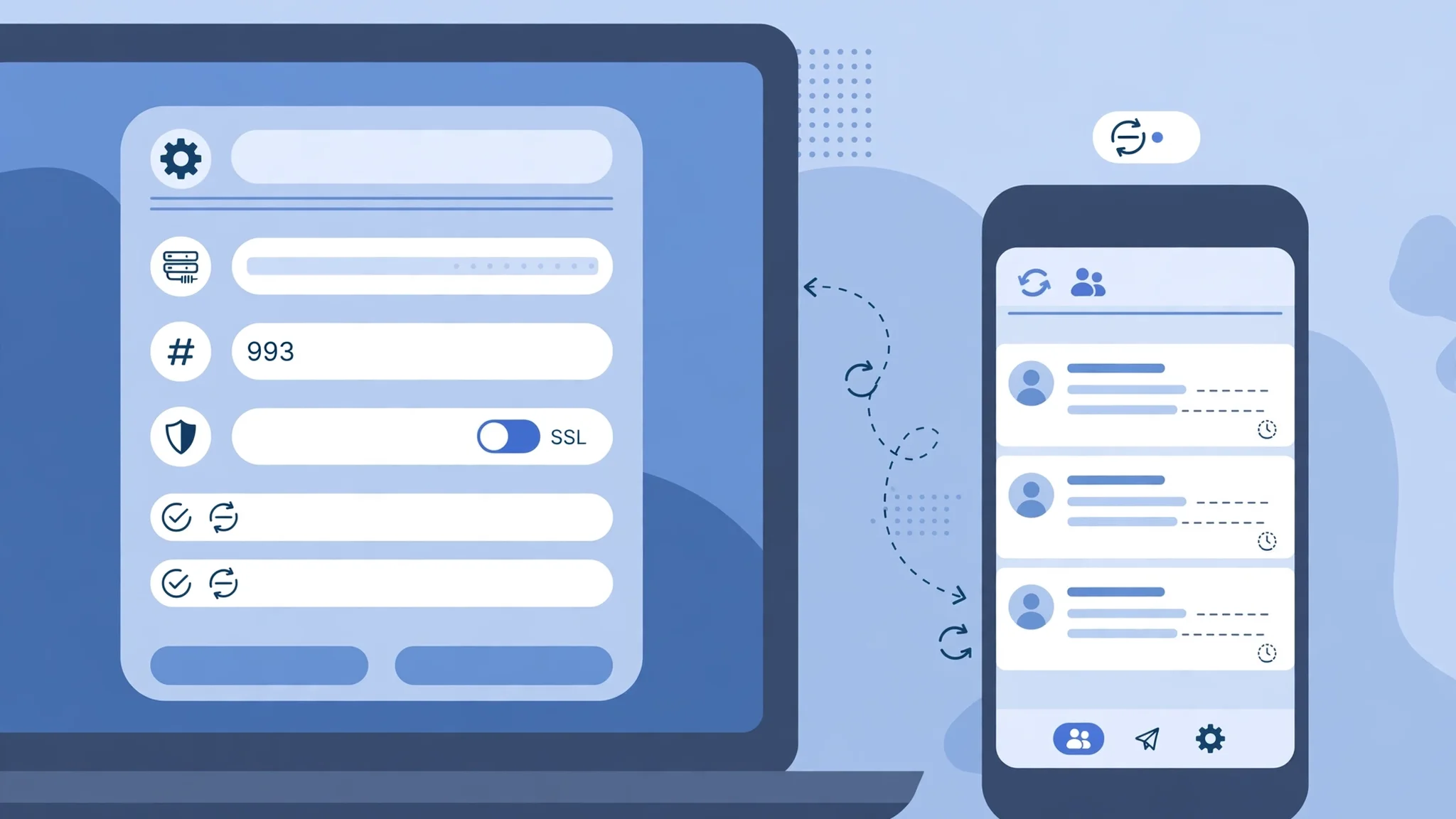
If you are in a hurry, here is the whole thing. Private email on your own domain almost always follows the same shape: one server name for incoming and outgoing, IMAP on port 993 with SSL, SMTP on port 465 with SSL or 587 with STARTTLS, your full email address as the username, and outgoing authentication turned on.
| Setting | Value |
|---|---|
| Incoming (IMAP) | Your provider's IMAP host, port 993, SSL/TLS |
| Incoming fallback | Same host, port 143, STARTTLS |
| Outgoing (SMTP) | Same host (or your provider's SMTP host), port 465 SSL/TLS or 587 STARTTLS |
| Username | Your full email address, not just the part before the @ |
| Password | Your mailbox password — or an app password if two-factor is on |
| Outgoing authentication | On, same login as incoming |
| Secure Password Authentication (SPA) | Off |
That table covers most private email setups. The catch is the first row: "your provider's IMAP host" is the one value that changes, and getting it wrong is the most common failure in this whole process. The rest of this guide pins it down provider by provider, starting with the one this search is usually about.
What IMAP actually does — and the two things it never does
Before the settings, a minute on what you are actually configuring, because half the confusion in this area comes from treating IMAP as "email" when it is only one of three jobs.
IMAP — Internet Message Access Protocol — is the incoming half. It lets your mail app read the mail stored in your mailbox and keeps everything in sync: read a message on your phone and it shows as read on your laptop; delete it on your laptop and it disappears from your phone; create a folder on one device and it exists on all of them. The mail stays on the server. That is the whole point of IMAP, and it is why it is the right choice for anyone who reads mail on more than one device.
The older alternative, POP3, does the opposite: it downloads messages to one device and, depending on the settings, deletes them from the server. It made sense when people had one computer and dial-up. Today it mostly creates the mystery of the email that exists on your phone but not your laptop. Unless you have a specific reason to want mail on exactly one device, choose IMAP. POP3's ports, for reference, are 995 with SSL and 110 without — you will not need them.
The second thing IMAP never does is send. Sending is SMTP's job, a separate protocol with a separate server, a separate port, and a separate login step — which is why every setup screen asks you to fill in the outgoing server separately even when it has the same name as the incoming one. When sending fails but receiving works, the problem is almost never IMAP. It is the SMTP half, and the fixes for it are in the errors section below.
And the third thing worth knowing: IMAP is not webmail. Webmail is reading your mail in a browser on the provider's own site. IMAP is reading the same mailbox from an app — Outlook, Apple Mail, Thunderbird, your phone's mail app. The settings in this guide are for the app. If you only ever use the browser, you do not need any of them.
Namecheap Private Email settings, field by field
Most searches for "private email IMAP settings" are really searches for one product: Namecheap's Private Email, the hosted mailbox that comes with a domain bought on Namecheap. So here are its settings exactly as Namecheap publishes them in its own knowledge base — cross-checked against two independent roundups that re-verified them in the last few weeks (one checked October 10, 2026, the other November 1, 2026). Both agree, and both agree with Namecheap's own page.
| Setting | Value |
|---|---|
| Incoming server (IMAP) | mail.privateemail.com, port 993, SSL/TLS (or port 143, STARTTLS) |
| Incoming server (POP3) | mail.privateemail.com, port 995, SSL/TLS |
| Outgoing server (SMTP) | mail.privateemail.com, port 465, SSL/TLS (or port 587, STARTTLS) |
| Username | Your full email address, e.g. jane@example.org |
| Password | Your mailbox master password, or an app password |
| Outgoing authentication | On, same login as incoming |
| Secure Password Authentication (SPA) | Off |
Three details in that table do more work than they look like they do.
First, the server name is mail.privateemail.com for everything — incoming and outgoing — and Namecheap says explicitly that it should not be changed. Do not replace it with mail plus your own domain. That is the single most common mistake with this product: your address is on your domain, but the server is on Namecheap's. The server name is the name on the TLS certificate, and changing it breaks the encrypted connection.
Second, only encrypted connections are accepted. Namecheap's servers refuse unencrypted logins outright, so a client set to "None" for encryption fails even with the right password on the right port. Port 993 with SSL is the recommended incoming choice; 143 with STARTTLS is the fallback for networks that block 993.
Third, the password. If you have two-factor authentication on the mailbox, your regular password will not work in a mail app — you need an app password (Namecheap calls it the Application password), generated in the Private Email settings. If setup fails with a password error and you are sure the password is right, this is the first thing to check. The same rule applies to Gmail, Outlook, and iCloud below, and it is the single most frequent cause of "correct password rejected" in 2026.
The same settings for Gmail, Outlook, Yahoo, iCloud, Proton, and Zoho
If your private email is not Namecheap's, the shape is identical and only the hostnames change. These are each provider's published settings:
| Provider | IMAP (incoming) | SMTP (outgoing) | Notes |
|---|---|---|---|
| Gmail | imap.gmail.com, 993, SSL/TLS | smtp.gmail.com, 465 SSL or 587 STARTTLS | App password required if 2FA is on; "less secure app" access no longer exists |
| Outlook.com / Microsoft 365 | outlook.office365.com, 993, SSL/TLS | smtp.office365.com, 587, STARTTLS | Modern authentication; app password if 2FA is on and the client asks |
| Yahoo Mail | imap.mail.yahoo.com, 993, SSL/TLS | smtp.mail.yahoo.com, 465 SSL or 587 STARTTLS | App password required if 2FA is on |
| iCloud Mail | imap.mail.me.com, 993, SSL/TLS | smtp.mail.me.com, 587, STARTTLS | App-specific password required, always |
| Zoho Mail (personal) | imap.zoho.com, 993, SSL/TLS | smtp.zoho.com, 465 SSL or 587 TLS | Domain users: imappro.zoho.com for IMAP |
| Proton Mail | No direct IMAP | No direct SMTP | Requires the Proton Mail Bridge app on desktop; the Bridge gives you local IMAP/SMTP settings |
| GoDaddy (Microsoft 365) | outlook.office365.com, 993, SSL/TLS | smtp.office365.com, 587, STARTTLS | Same as Microsoft 365; older GoDaddy mail used imap.secureserver.net |
Two rows in that table deserve a warning each. Proton Mail has no IMAP settings to enter because it does not offer direct IMAP at all — its encryption model means your mail client talks to the Bridge app on your computer, and the Bridge talks to Proton. If you searched for Proton's IMAP server and found nothing, that is why, and no port number will fix it. And Gmail's "less secure apps" switch, which older guides tell you to flip, no longer exists; the only route for a mail app now is an app password.
The pattern to remember: 993 for IMAP, 465 or 587 for SMTP, full address as username, app password when two-factor is on. If you remember that, you can set up almost any mailbox from the provider's hostname alone.
Adding it in Outlook, Apple Mail, Thunderbird, and on your phone
The settings are the same everywhere; the screens are not. Each client hides the manual settings behind a different number of clicks, and each one tries to guess the settings first — which is where most setups go wrong, because the guess is usually right about the server and wrong about the port or the encryption.
Outlook (desktop). Add account, enter your address, and when Outlook offers to finish automatically, do not let it if the account is on a private host — choose the manual or advanced option and select IMAP. Incoming: your IMAP host, 993, SSL/TLS. Outgoing: your SMTP host, 465 (SSL/TLS) or 587 (STARTTLS). Turn on authentication for the outgoing server with the same login, and leave "Require logon using Secure Password Authentication (SPA)" unchecked. Outlook's SPA checkbox is the one that silently breaks Namecheap setups: it is off by default, but if it ever gets turned on, authentication fails with a generic error.
Apple Mail (Mac and iPhone). Add account, choose "Other" / "Add Mail Account" rather than the branded Google or Microsoft options, and enter the address and password. Apple Mail will try to verify and usually fail on the first attempt for a private host — that is expected, not a sign the settings are wrong. When it offers manual fields, enter the incoming and outgoing servers with the ports above. On iPhone the port and encryption live one screen deeper, under the account's Advanced settings; the default it fills in is often port 143 with no encryption, which Namecheap and most private hosts reject.
Thunderbird. Add a mail account, enter your name, address, and password, and let Thunderbird look up the settings — then click "Manual config" and correct whatever it guessed. Thunderbird is the most honest of the four: it shows you the server, port, encryption, and authentication method for both halves on one screen, and it tells you plainly when a setting is wrong. Use SSL/TLS on 993 and 465, and set authentication to "Normal password" for both servers.
Android (Gmail app or Samsung Email). Add account, choose "Other" / "Personal (IMAP)", and enter the manual settings when prompted. The Gmail app defaults to trying its own automatic setup; for a private host it needs the manual path. Same values: 993 SSL incoming, 465 or 587 outgoing, full address as username.
In every client, the step people skip is the outgoing server test. Most clients verify incoming first and only test outgoing when you send your first message. Send yourself a test email immediately after setup — from the new account, to the new account — and confirm it arrives. A setup that can receive but not send will sit broken for weeks until the first reply you actually need to send.
The six errors that actually break setup
These are the failures I see described over and over, in support threads and in the comments under every settings page. Each one has a specific symptom and a specific fix — and none of them is fixed by retyping the password harder.
1. "The server rejected your login" with the right password. The most likely cause in 2026 is two-factor authentication. Gmail, Outlook, Yahoo, iCloud, and Namecheap all require an app password — not your account password — in a mail app once 2FA is on. Generate one in the provider's security settings (Google calls it an App Password, Apple calls it an app-specific password, Namecheap calls it an Application password), paste that in place of your password, and setup completes. If you do not have 2FA on, the next suspect is the username: it must be the full address, not the part before the @.
2. "Cannot connect to server" or a timeout on port 993. Two possibilities. Either the server name is wrong — the classic case is typing mail.yourdomain.com for a Namecheap mailbox instead of mail.privateemail.com — or the network is blocking the port. Some office and hotel networks block 993 and 465. Try the fallbacks: IMAP on 143 with STARTTLS, SMTP on 587 with STARTTLS. If 143 works and 993 does not, the network is the problem, not your settings.
3. Receiving works, sending fails. The outgoing half is misconfigured. Check three things in order: outgoing authentication is turned on (the checkbox Outlook labels "My outgoing server requires authentication"), the outgoing username and password match the incoming ones, and the port is 465 with SSL or 587 with STARTTLS — not 25. Port 25 is for servers talking to each other, not for your laptop, and most home ISPs and mobile networks block outbound port 25 outright. A client set to port 25 will fail to send everywhere.
4. "Certificate error" or "the server's identity cannot be verified." The server name you entered does not match the name on the server's TLS certificate. This is the mail.yourdomain.com mistake again: your domain is on the address, but the certificate belongs to the provider's host. Enter the provider's hostname exactly as published — mail.privateemail.com, imap.gmail.com, and so on — and the error goes away. Never click through a certificate warning to make it go away; that warning is the one thing standing between your password and anyone listening on the network.
5. Setup worked yesterday; today it asks for the password again. The password did not change — the token did. App passwords and OAuth tokens expire or get revoked when you change your account password, turn 2FA on or off, or sign out of devices. Generate a fresh app password and enter it. If it keeps happening, check whether the provider has a session or device limit, and whether another device is still signed in with an old password and locking the account with repeated failures.
6. "SPA" or "Secure Password Authentication" errors. Some clients, Outlook most famously, offer a Secure Password Authentication checkbox in the outgoing server settings. For Namecheap and most private hosts it must be off. If it is on, authentication fails even with the right password, and the error message will not tell you why. Uncheck it, save, and try again.
One general rule covers all six: change one thing at a time, and test after each change. The settings interact — port and encryption travel together, and changing both at once hides which one was wrong.
The temp-mail exception: disposable inboxes have no IMAP
There is one kind of inbox for which none of this applies, and it matters on this site because it is the inbox most of our readers use first: a temporary, disposable inbox. It has no IMAP settings. There is no server to enter, no port, no password — because there is no mailbox on a mail server in the usual sense. The inbox lives in your browser session.
I checked this directly on TempoMailUSA this morning. The homepage generates an address the moment it loads — no form, no account, no card — and the inbox appears in the page itself, auto-refreshing as messages arrive. The page offers copy, refresh, delete, change, history, a QR code, a recovery key, and a custom-address builder across 468 domains. What it does not offer, anywhere on the page, is a server name, a port, or any way to add the inbox to Outlook or Apple Mail. The counters on the page — 481,029 emails created and 609,972 messages received when I looked — describe a live web service, not a mailbox you connect to.
That is by design, and it is the right design for the job. A disposable address is meant to be used and discarded; giving it IMAP access would mean giving it a permanent login, which defeats the point. The recovery key is the substitute: save it, and you can restore a closed mailbox later, even after clearing your cache. But the mailbox itself never leaves the browser.
So the rule is simple. If the job is a signup, a verification code, or a download gate — something where you want the message without giving away your real address — use a disposable inbox in the browser, and our create a temp email address walkthrough shows the two-minute version, including the one mistake that turns a working address into a dead one. If the job is an address you will keep, answer from, and read on three devices — a business address, a private address on your own domain — set it up over IMAP with the settings above, and keep the disposable inbox for everything else. The two tools are complements, not competitors: one is private because it disappears, the other is private because it is yours. Confusing them is how people end up trying to add a ten-minute address to Outlook — and, on the other side, how people end up giving their permanent address to a signup form that only needed a code. Our what is a burner email guide draws the same line from the other direction, and if you want an address that sits between the two — a permanent address that forwards without exposing your real one — our how to create an email alias guide covers that, including the fact that an alias still needs a real mailbox behind it, which is exactly what IMAP is for.
One more practical note, because it decides which tool fits: a disposable inbox is receive-only. You can read the code; you cannot reply from the address. Our can you send email from temp mail guide tested that limit in full. If the flow needs you to send anything back — a reply, a confirmation, a support ticket — you need a real mailbox, and that means IMAP and SMTP, not a temp inbox.
FAQ
What are private email IMAP settings?
The server, port, encryption, and login your mail app needs to read a private mailbox: an IMAP host (usually mail.privateemail.com for Namecheap, imap.gmail.com for Gmail), port 993 with SSL/TLS, your full email address as the username, and your mailbox or app password. Outgoing mail uses SMTP on port 465 or 587 with the same login.
What is the IMAP server for Namecheap Private Email?
mail.privateemail.com, port 993 with SSL/TLS (or port 143 with STARTTLS). The outgoing server is the same host, mail.privateemail.com, on port 465 with SSL/TLS or 587 with STARTTLS. Use your full email address as the username, turn on outgoing authentication, and leave Secure Password Authentication off.
Should I use IMAP or POP3 for private email?
IMAP, in almost every case. IMAP keeps mail on the server and syncs read status, folders, and deletions across all your devices. POP3 downloads mail to one device and can delete it from the server, which is why messages go missing between phone and laptop. Choose POP3 only if you deliberately want mail on exactly one device.
Why does my mail app reject my correct password?
Almost always because two-factor authentication is on and the app needs an app password instead of your account password. Generate one in your provider's security settings — Google App Password, Apple app-specific password, Namecheap Application password — and enter that. If 2FA is off, check that the username is your full email address.
What port should I use for IMAP and SMTP?
IMAP: port 993 with SSL/TLS, or 143 with STARTTLS as a fallback. SMTP: port 465 with SSL/TLS, or 587 with STARTTLS as a fallback. Port 25 is for server-to-server delivery and is blocked by most ISPs; do not use it in a mail app.
Can I add a temp mail address to Outlook or Apple Mail with IMAP?
No. Disposable inboxes have no IMAP settings — no server, no port, no login. They live in the browser session, and on TempoMailUSA the recovery key is how you get a closed mailbox back. Use a temp inbox in the browser for signups and codes, and a real private mailbox over IMAP for anything you need to keep, send from, or read on multiple devices.
Do I need different settings on my phone?
No — the server, port, and encryption are the same. What changes is where they live: on iPhone they sit under the account's Advanced settings, and on Android you need to choose the manual or "Other (IMAP)" path instead of the automatic setup. The most common phone mistake is accepting the client's guessed port 143 with no encryption.
The short version
Private email IMAP setup is six lines, and five of them never change: port 993 with SSL for incoming, 465 or 587 for outgoing, your full address as the username, an app password when two-factor is on, and outgoing authentication turned on. The one line that changes is the server name, and the one rule that matters is to use the provider's published hostname exactly as written — never your own domain in its place. Get those right, send yourself a test message, and the setup is done. And if the inbox you are trying to add has no server name at all, that is not a settings problem. It is a disposable inbox, and it belongs in the browser.
Need a disposable temporary email?
Protect your real inbox from spam and promotional clutter instantly and free.
Received a suspicious email, text, or charge alert?
Verify whether the sender domain is disposable, spoofed, or unverified before clicking links.