
How to Create an Email Alias in Gmail, Outlook, and at Work — Without Opening a Second Inbox

You sign up for one newsletter and suddenly your inbox belongs to twelve companies you never met. The fix most people reach for is a second email account, which is also the fix most people abandon within a week, because now they have two inboxes to check, two passwords to lose, and twice the unread badges staring at them.
An email alias is the quieter answer. It is a second address that delivers to the inbox you already have. Mail sent to the alias lands beside everything else. You never log in to it, because there is nothing to log in to. One mailbox, several front doors — and you decide which door each sender gets to use.
The catch is that "create an email alias" means four different things depending on where your mail lives. Gmail cannot really mint a new address at all. Outlook.com can. iCloud hides the whole idea behind a privacy feature. And at work, your admin holds the keys. This guide walks through each one the way it actually works in 2026, including the limits the setup screens do not print and the mistakes that quietly hand your real address to the very people you were hiding it from.
The 30-second version: an alias is a second front door, not a second house
Before the steps, three mix-ups worth clearing up, because every bad alias decision I have seen traces back to one of them.
An alias is not a forwarder. A forwarder takes mail sent to address A and passes it to address B, which may live somewhere else entirely. An alias is an alternate name for a mailbox you already own — there is no second destination.
An alias is not a shared mailbox. A shared mailbox is a separate inbox a team opens together, like support@ or info@. An alias is personal: it lands in your inbox and nobody else's.
And an alias is not a temporary email. A temporary address is a whole disposable inbox with its own login-free life, built to be abandoned. An alias is permanent infrastructure attached to your real account. The two solve different problems, and the honest comparison between them matters more than most guides admit — I have written it up separately as temp mail vs email aliasing, and the short version is this: aliases protect your inbox from spam; temporary addresses protect your identity from the sender.
With that settled, here is the practical part.
Gmail: you already own two kinds of alias (and one of them leaks)
Free Gmail does not let you invent a brand-new @gmail.com address. Google has never offered that, and any guide promising it is selling you a workaround and calling it a feature. What Gmail does offer is two built-in tricks that behave like aliases for most purposes — and one of them has a hole in it that matters.
Plus addressing is instant and requires zero setup. Take your address, add a + and any word before the @, and mail to that version still reaches you. If you are priya.sharma@gmail.com, then priya.sharma+shopping@gmail.com, priya.sharma+newsletters@gmail.com, and priya.sharma+anything@gmail.com all land in the same inbox. It works on every Gmail account right now, no settings to change. Pair it with a filter — Settings, then Filters and Blocked Addresses, then Create a new filter — and every +shopping message can skip the inbox, get a label, and archive itself before you ever see it. That is genuinely useful.
It also leaks. Anyone who receives a plus-addressed email can see your real address sitting right there in front of the +, and stripping the tag off takes less effort than reading the message. Some sites reject the + character outright in their signup forms — banks, airlines, and older e-commerce checkouts are the usual offenders. So treat plus addressing as an organising tool, not a privacy tool. It sorts your mail; it does not hide you.
The dot trick is even simpler and even weaker. Gmail ignores dots in the username, so priya.sharma@gmail.com, priyasharma@gmail.com, and p.r.i.y.a.sharma@gmail.com are the same mailbox. It is a handy way to vary the address you hand out, but like plus addressing it exposes the real address to anyone who looks. Use it for sorting, never for secrecy.
"Send mail as" is Gmail's real alias feature. This one lets you send from a different address you own — an old account, or a domain address that forwards to your Gmail — from inside Gmail itself. Go to Settings, then See all settings, then Accounts and Import. Under "Send mail as", click "Add another email address", enter the address, and complete the verification: Google sends a confirmation code to that address, and if it belongs to an outside provider you will need its SMTP details too. Once verified, the address appears in the From dropdown when you compose. You can even set it as your default sending address. The important limit: the address has to already exist somewhere. Gmail will not create it for you.
If you want a genuinely new address that hides your real one and still lands in your Gmail, that is not an alias problem any more — that is a job for a forwarding service or a disposable inbox, which I come back to below.
Outlook.com: the only free inbox that mints a genuinely new address
If the Gmail section left you underwhelmed, Outlook.com is the reason this guide exists. A personal Microsoft account lets you create additional @outlook.com addresses that are real aliases: mail to them arrives in your primary inbox, and you can send from them by picking the alias in the From field when you compose.
The path: sign in at Outlook.com, open Settings, then go to Account, then Mail, then Forwarding and IMAP — or, on the Microsoft account page, Your info, then Manage how you sign in to Microsoft, where the alias list lives. Choose "Add email", then "Create a new email address and add it as an alias" (or add an existing address you own as an alias instead). Pick the name, confirm, and it is live.
The limits are where people get tripped up, because Microsoft enforces them quietly:
- You can have up to 10 aliases active on one account.
- You can only add two new aliases per week. Delete one and the slot does not come back instantly — the creation cap is about new additions, not the current count, so a burst of experimenting can lock you out of changes for days.
- Aliases can only contain letters, numbers, dots, underscores, and hyphens.
- Existing Hotmail, Live, Outlook.com, and MSN addresses cannot be added as someone else's alias, and Microsoft no longer lets you create new aliases on the @hotmail.com, @live.com, or @msn.com domains. New aliases are @outlook.com.
That two-per-week limit is the single most common complaint about Outlook aliases, and it is worth planning around: choose the alias you actually want the first time, because a typo costs you a week, not a minute.
iCloud's Hide My Email: the alias for people who hate being tracked
Apple took a different approach entirely. Instead of letting you invent addresses, iCloud's Hide My Email generates a random, unique @icloud.com address for each signup and forwards its mail to your real inbox. You never choose the address — Apple does — and that is the point. The sender gets an address that reveals nothing about you, and if it starts getting spam you burn it and generate a fresh one, without touching your real address at all.
You create them in Settings on an iPhone or iPad under your Apple ID, then iCloud, then Hide My Email; or on iCloud.com under Mail settings. Each alias can be labelled ("newsletter signup", "that one store") and deactivated individually. It requires an iCloud+ subscription, which is the catch — it is not free the way Gmail's plus addressing or Outlook's aliases are. But for signups specifically, it is the closest thing to a proper privacy alias any major provider ships, because the generated address contains no trace of your name.
The honest limitation: Hide My Email is built for receiving. You can reply from a Hide My Email address in Apple Mail, but it is not a general-purpose second identity the way an Outlook alias is. Think of it as a disposable mask per signup, not as an alternate professional address.
At work: Workspace gives you 30, Microsoft 365 gives you 400
Personal accounts are the small end of aliasing. The moment a business is involved, aliases become infrastructure: info@, sales@, support@, a departing employee's address kept alive so their contacts still reach someone. Here the admin creates them, and the numbers are generous.
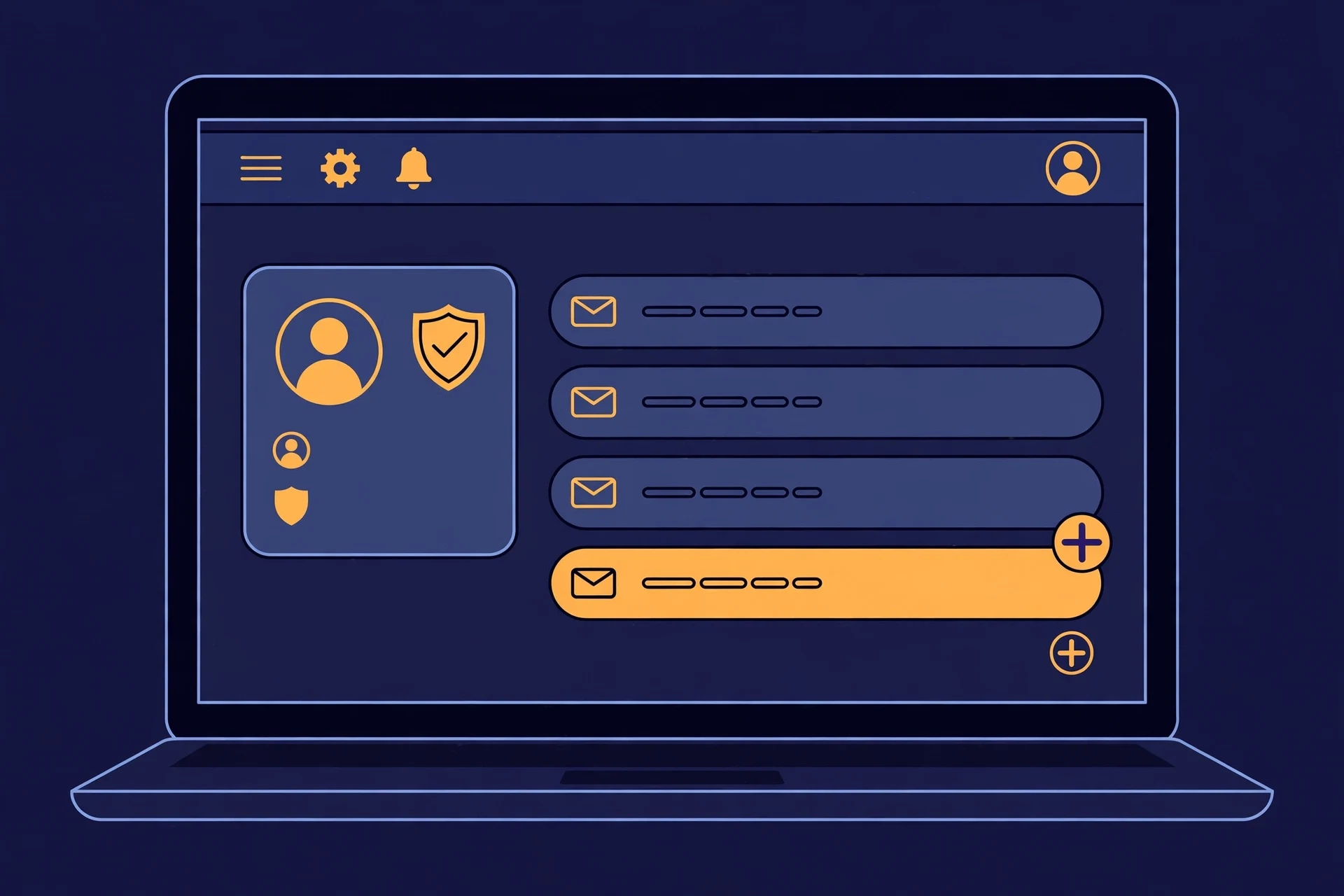
Google Workspace: an admin signs in at admin.google.com, opens Directory, then Users, picks the person, and selects "Add alternate emails" — Google's term for aliases. Each user can have up to 30 alias addresses, free, with no extra licences. The user then adds the alias under Settings, then Accounts, then "Send mail as" in their own Gmail if they want to reply from it; same-domain aliases need no SMTP setup, because Workspace already treats them as the user's own.
Microsoft 365: an admin opens the Microsoft 365 admin center, goes to Users, then Active users, selects the user, and under Username and email clicks "Manage email aliases". A mailbox can carry up to 400 aliases. Incoming alias mail arrives in the user's mailbox, and sending from an alias works from Outlook once it is set up.
For a small business, this is the correct answer to the "we need a sales@ address" question far more often than a shared mailbox is. An alias costs nothing, needs no licence, and lands in a real person's inbox where it will actually be read. A shared mailbox, by contrast, is a separate inbox nobody owns — and unowned inboxes are where customer mail goes to die.
The one the other guides skip: Active Directory aliases
Here is the section the top-ranking guides do not write, and the reason is simple: their audience is consumers, and Active Directory is not a consumer product. But the search data says otherwise — a meaningful slice of people looking up how to create an email alias are IT staff, and they need the on-premises answer.
In an Active Directory environment with Exchange (on-premises or hybrid), an alias is a proxy address on the user object. The standard route is the Exchange Admin Center: Recipients, then Mailboxes, pick the user, then Email address, then Add, and type the new address. The older route is Active Directory Users and Computers: open the user's properties, go to the Attribute Editor tab, find proxyAddresses, and add a line in the form smtp:alias@yourdomain.com.
One detail matters and it bites everyone once: the case of the prefix decides which address is primary. Uppercase SMTP:address@domain.com marks the primary reply address — a mailbox can only have one. Lowercase smtp:address@domain.com marks an alias. Type the new address with a capital SMTP by accident and you have just changed the user's reply-from address for the whole company.
You need admin rights for either route, and in a hybrid setup the change has to sync from on-premises AD to Microsoft 365 before it takes effect — usually minutes, but worth knowing before you tell a user it is done. This is also the answer to the "how do I add an email alias in Active Directory" phrasing that shows up in the search data: it is a proxy address, it lives on the user object, and it is an admin job, not a user setting.
The limits table, in one place
Every guide lists one provider's limits. Nobody puts them side by side, which is exactly why people pick the wrong provider for the job and only discover the cap when they hit it. Here they are:
| Provider | Real new address? | Cap | Cost |
|---|---|---|---|
| Gmail (plus addressing) | No — tag on your real address | Unlimited | Free |
| Gmail (Send mail as) | No — must already exist | No published cap; one verification each | Free |
| Outlook.com | Yes — new @outlook.com address | 10 active; 2 new per week | Free |
| iCloud Hide My Email | Yes — random @icloud.com address | No published cap; one per signup | iCloud+ required |
| Google Workspace | Yes — same-domain aliases | 30 per user | Included in Workspace |
| Microsoft 365 | Yes — same-domain aliases | 400 per mailbox | Included in 365 |
| Active Directory / Exchange | Yes — proxy addresses | No hard cap; admin-controlled | Licence + admin time |
Read the table as a decision: if you need a genuinely new address that hides your real one and costs nothing, Outlook.com is the only free consumer option. If you need unlimited throwaway variants for sorting, Gmail's plus addressing wins. If you need a business alias, your admin already has the tool and it costs nothing extra.
When an alias is the wrong tool
Aliases assume the sender is someone you are willing to be reachable by, just under a different name. Sometimes that assumption is wrong. A one-off download, a form on a site you will never visit again, a free trial that demands an email before it shows you the price — handing those your alias still hands them a live route to your real inbox, forever. That is the moment for a disposable address instead of an alias.
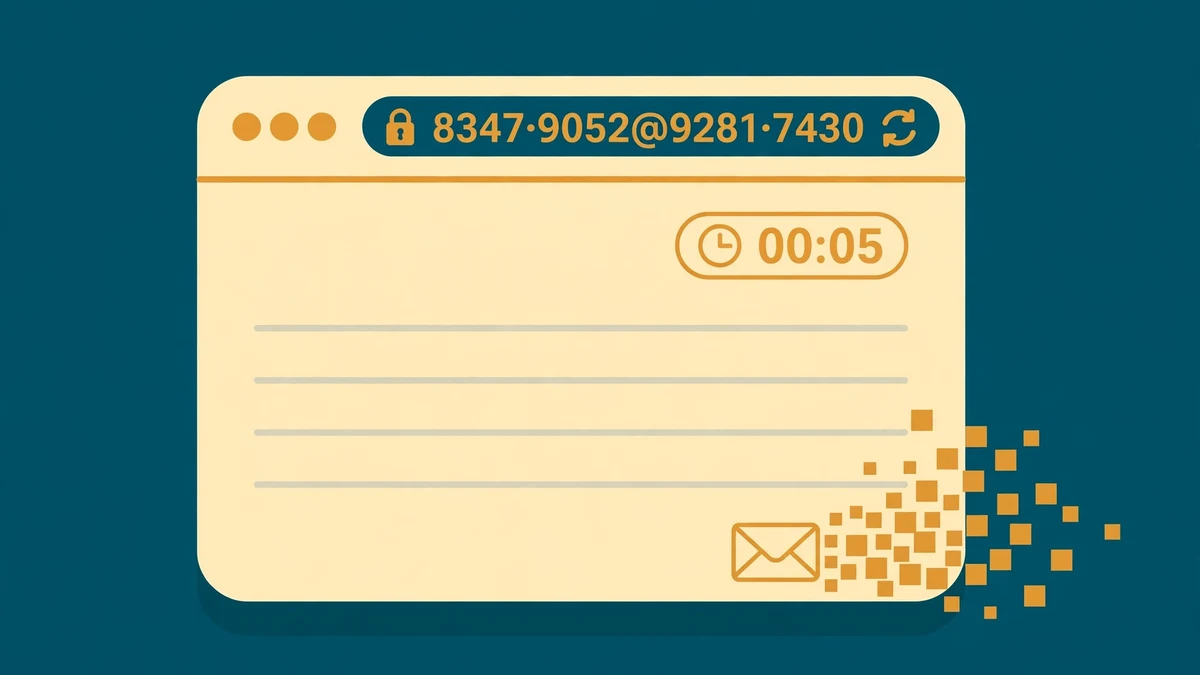
I tested the difference on TempoMailUSA while writing this, because "just trust me" is not a test. The homepage generated an address automatically within seconds of loading — no signup, no form, no password — something like a short random string at a rotating domain, with Copy, Refresh, Delete, and Change buttons beside it and an inbox underneath marked auto-refreshing. The first message is free to read; the page says free inboxes last 30 days, and there is a Pro tier at $4.19 a month for unlimited reading. It is a different creature from an alias: nothing forwards to your real inbox, because there is no real inbox involved. When the address has served its purpose you delete it, and the sender's route to you dies with it.
That is also the trade-off, and it is worth stating plainly. A disposable inbox cannot receive password resets months later, because it may not exist months later — which is why my earlier guide on juggling temporary accounts keeps coming back to the same rule: aliases for anything you might need to recover, disposable addresses for anything you never want to hear from again. If the signup is a service you will keep, use an alias. If it is a door you are walking through once, use the disposable address and close it behind you.
Three ways people leak their real address through their alias
Setting the alias up is the easy half. Keeping it useful is the hard half, and these are the three leaks I see most often.
Replying from the primary address. You receive mail at the alias, hit reply, and your mail client sends from your real address because that is the default. In Gmail this means checking "Send mail as" is actually configured for the alias and set as the default for replies to it; in Outlook it means picking the alias in the From field. If you only ever receive on the alias and reply from the primary, the alias was theatre.
Using plus addressing as privacy. Said above, worth repeating because it is the single most common mistake in this whole topic: yourname+shopping@gmail.com contains your real address in plain sight. Anyone can remove the +shopping and have your actual inbox. It is a sorting label, not a mask.
Putting the alias on password recovery for anything critical. An alias forwards to your inbox, so recovery mail does reach you — that part works. The problem is the other direction: if the alias is ever removed, or the provider retires it, or you change jobs and the Workspace admin deletes it, the recovery route dies silently and you discover it the day you are locked out. For banking, your primary email, and anything tied to money, use your real address and protect that instead. And if a service asks you to verify an address before you trust it, run the check properly — here is what "valid" actually means when you verify an email online.
Frequently asked questions
How do I create an email alias in Gmail?
Free Gmail cannot mint a brand-new @gmail.com address. Use plus addressing (yourname+tag@gmail.com, works instantly) for sorting, or go to Settings, then See all settings, then Accounts and Import, then "Send mail as", then "Add another email address" to send from an address you already own. For a genuinely new address, Outlook.com or iCloud's Hide My Email are the free and paid options.
How do I create an email alias in Outlook?
Sign in at Outlook.com, open Settings, then Account, then Mail, then Forwarding and IMAP, and choose "Manage or choose a primary alias". Click "Add email", then "Create a new email address and add it as an alias". You can have up to 10 aliases, and you can only add two new ones per week.
How do I add an email alias in Active Directory?
In the Exchange Admin Center, go to Recipients, then Mailboxes, pick the user, then Email address, then Add. Or in Active Directory Users and Computers, open the user's properties, go to the Attribute Editor, and add smtp:alias@yourdomain.com to proxyAddresses — lowercase smtp for an alias, uppercase SMTP only for the primary address. You need admin rights.
What is a Google email alias?
In Google Workspace, an alias (Google calls it an "alternate email") is an extra address attached to a user, like sales@yourcompany.com delivering to one employee's inbox. Admins add up to 30 per user free at admin.google.com under Directory, then Users, then "Add alternate emails".
Can I send email from an alias?
Yes, on every provider covered here, but it is never automatic. Gmail needs the address added under "Send mail as"; Outlook needs the alias picked in the From field; Workspace and Microsoft 365 aliases can be chosen the same way once the admin has created them. If you do not set this, replies go out from your primary address and the alias has leaked.
Is an email alias the same as a temporary email?
No. An alias is a permanent alternate name for your real mailbox — mail to it lands in your inbox forever. A temporary email is a separate disposable inbox that exists for a short time and then disappears. Use an alias for senders you trust enough to stay reachable by, and a disposable address for one-off signups you never want to hear from again.
Do aliases hide my real email address?
Only some of them. A real Outlook alias or a Hide My Email address hides it. Gmail plus addressing and dot variations do not — your real address is visible inside them. If hiding is the goal, choose the provider by that criterion, not by convenience.
An alias is a small piece of infrastructure, and like most small infrastructure it pays off quietly for years once it is set up right — one inbox, the doors labelled, and the senders you never wanted to meet again knocking on a door you can simply remove.
Need a disposable temporary email?
Protect your real inbox from spam and promotional clutter instantly and free.
Received a suspicious email, text, or charge alert?
Verify whether the sender domain is disposable, spoofed, or unverified before clicking links.