How to Forward Email Without Opening It: Gmail's Hidden Route, Outlook's Shortcut, and the Temp Inbox That Can't

How to Forward Email Without Opening It: Gmail's Hidden Route, Outlook's Shortcut, and the Temp Inbox That Can't
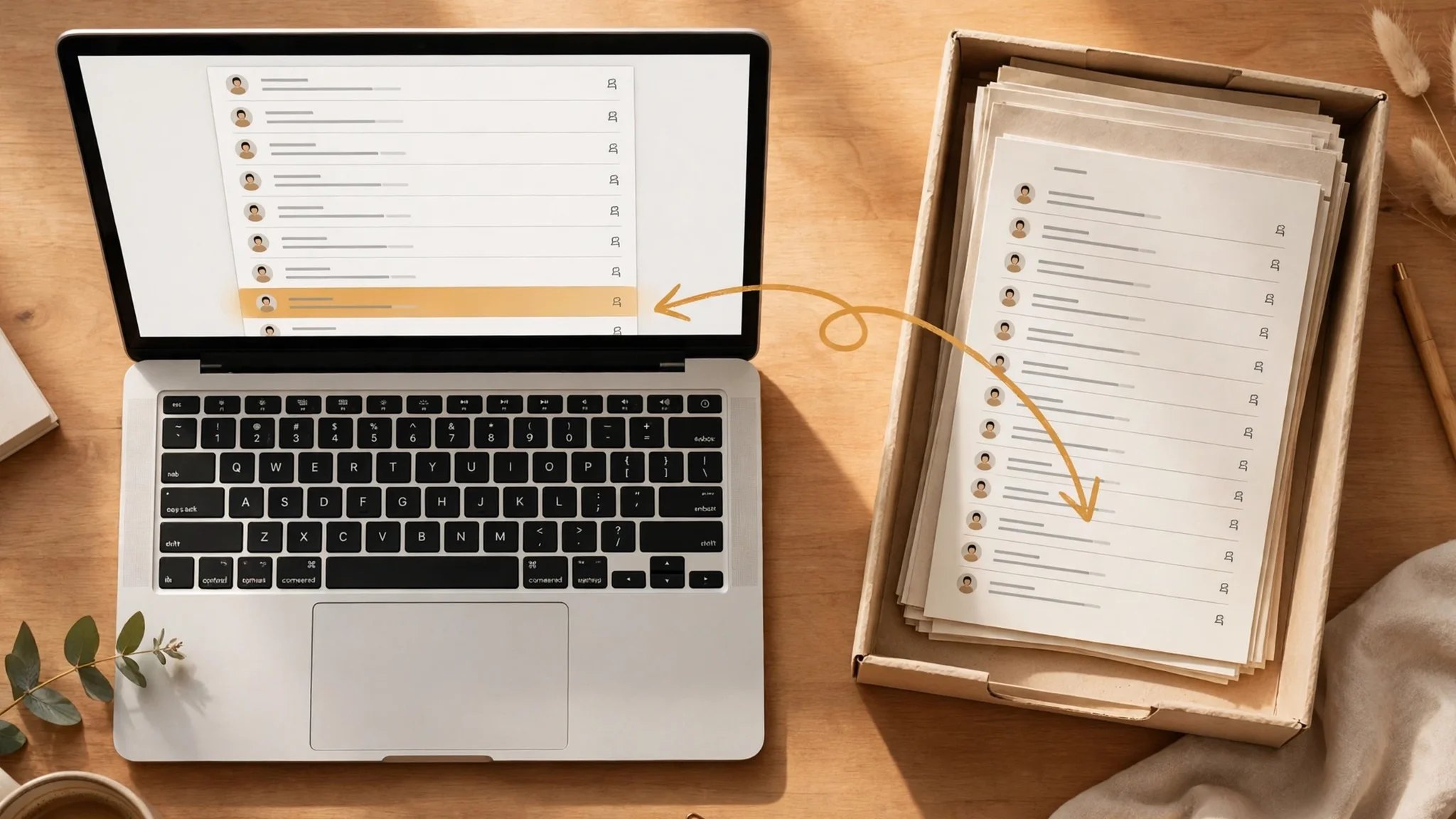
Type "how to forward email without opening it" into a search box and you will get the wrong answer. Every top result explains how to set up automatic forwarding — rules and filters that copy future mail to another address. That is a real thing, and it is useful, but it is not what most people mean when they type the question. They mean the email sitting in their inbox right now: this one, the one they have not opened, the one they want to send onward without clicking into it. Maybe it looks suspicious and they do not want to touch it. Maybe there are forty of them and opening each one is the whole problem. Maybe opening it would mark it read, or load its tracking pixel, or just waste a morning.
So this post answers the question as asked, then answers the question the search results think you asked, and keeps the two apart. Because the honest answer depends entirely on which inbox you are in, and on what you mean by "opening".
The 30-second answer
| Inbox | Forward one message without opening it? | How |
|---|---|---|
| Gmail (web) | Not as a normal forward — but yes as an attachment | Right-click the message, choose Forward as attachment |
| Outlook (web / desktop) | Yes, mostly | Select the message, then Forward; right-click works in some versions |
| Apple Mail | Yes, from the list | Select the message, then Message → Forward |
| TempMailUSA inbox | No — there is no forward control at all | Save the message, or read it on your phone via QR code |
| Any inbox, every future message | Yes, automatically | A forwarding rule — set it once, never open anything again |
If you only came for the one-line answer, there it is. The rest of this post is the part the one-liners skip: the catches. Gmail's route sends the message as a file, not as a readable forward. Outlook's route depends on which Outlook you have. And "without opening it" turns out to mean three different things, and which one you mean decides whether any of this works.
First, what "opening it" actually means
Nobody agrees on what counts as opening an email, including the people who write email software. There are three distinct things hiding inside that one word, and the answer changes with each.
Opening in a window. You double-click and the message fills the screen, or pops out into its own window. This is what most people picture. Nothing in this post requires it.
Selecting it in the list. You click once and the message appears in the reading pane beside the list. You have not opened a window, but you have read the message — and the message knows. This is where most "forward without opening" advice quietly cheats: Outlook's forward-from-the-list works exactly this way. You select the message, it shows in the pane, you hit Forward. You never opened a window. You did read it.
Loading its remote content. The moment a message renders, it can fetch images from the sender's server — including the one-pixel tracking image that tells the sender you opened it, when, and roughly where. This is the version that matters for suspicious mail, and it is the one almost nobody warns you about: a reading pane is not a safe room. If your mail client loads remote images automatically, selecting the message is enough to ping the sender.
Hold those three apart and the rest of the post reads cleanly. If your goal is speed, the reading pane is fine and Outlook is your friend. If your goal is not letting a suspicious sender know you exist, the reading pane is already too late, and only Gmail's attachment route — or a rule set up in advance — keeps you invisible.
Gmail: no forward button in the list — except one
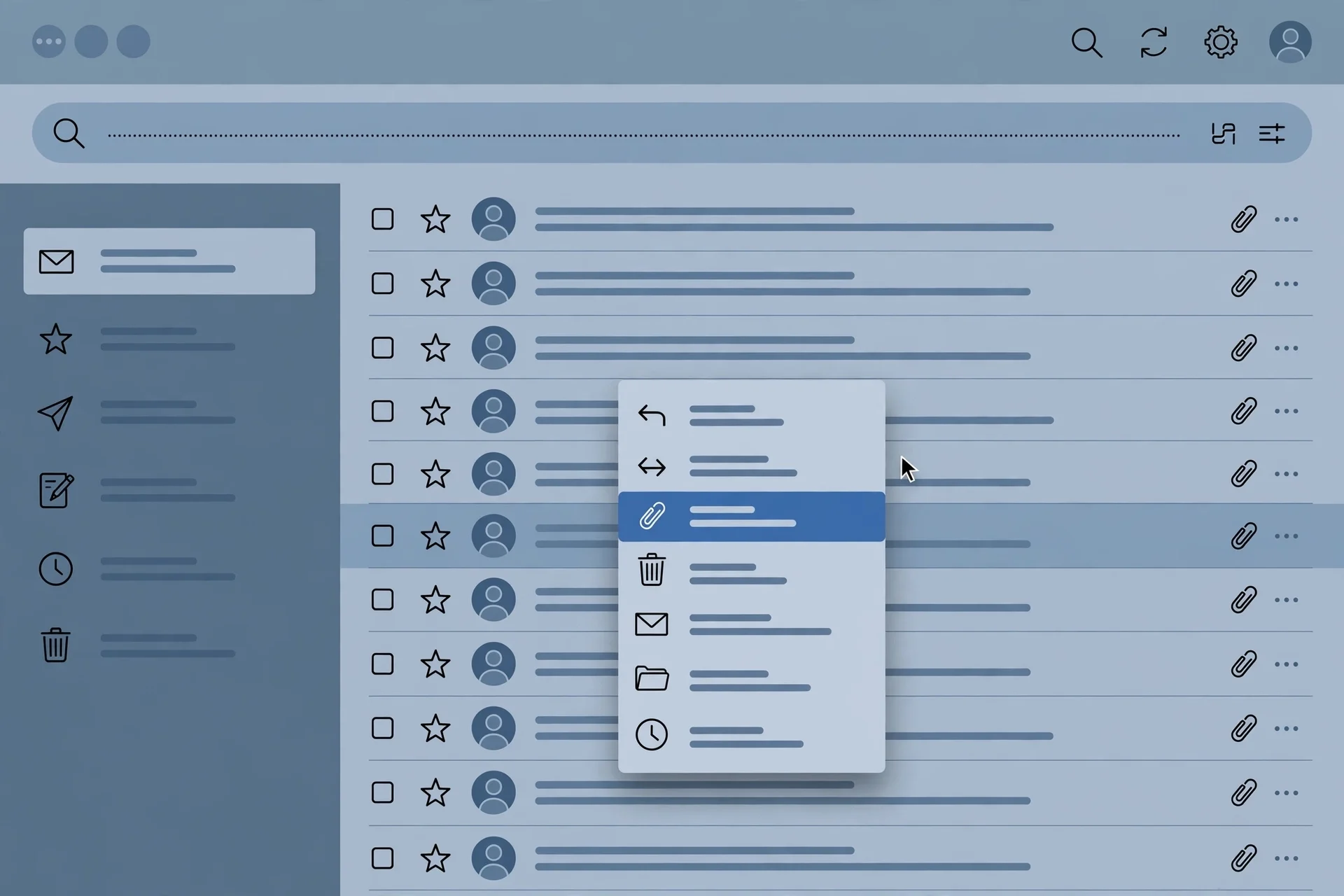
Here is the blunt version: on Gmail's website, there is no Forward button in the message list. Hover over a message and you get Archive, Report spam, Delete, Mark as unread, and Snooze. Right-click and you get Move to, Label as, Mark as unread, Archive, Delete, and a few more. Forward is not among them. Open the message and Forward appears at the bottom, or behind the three-dot menu at the top. Google's own help page describes it the same way: open the email, click Forward at the bottom, add recipients, send. The list is not part of the path.
But there is one exception, and it is the whole reason this section exists: Forward as attachment. Right-click a message in the Gmail list and the menu offers it. Or tick the checkbox beside one or more messages, click More at the top, and choose Forward as attachment. The message goes out as a .eml file attached to a new email, without you ever opening it. I did not test this live in a signed-in Gmail account during this run — the browser session could not load Gmail at all — so I am reporting what Google's documentation and the guides that reproduce it say, and I am saying so rather than dressing it up as a test. The steps are consistent across every current guide I checked, and the feature is old enough that its behaviour is stable.
The catch is the format. The recipient does not get a readable forwarded email. They get an email with a file attached, and they have to open the file to read the message. Some recipients will not bother. Some corporate filters strip .eml attachments entirely. And if you forward several messages at once, Gmail bundles each one as its own .eml file, which is thorough and almost unreadable. So the honest grading is: Gmail lets you forward without opening, but only in a format that asks the recipient to do extra work. For sending a suspicious message to an IT desk or an abuse address — the people who expect .eml files and know how to open them — it is exactly right. For forwarding a boarding pass to your partner, open the message and forward it properly.
Two more Gmail details worth knowing. First, the keyboard shortcut Shift+F forwards the open message, which is fast but still requires opening it — it is a speed trick, not an unopened-forward trick, and guides that list it under this heading are padding. Second, if you find yourself doing this often, stop forwarding messages one at a time and set up a filter instead: tick the checkbox, More, "Filter messages like these", create the filter, tick "Forward it to", pick the verified address. That is the automatic route, and it is covered properly a few sections down.
Outlook: the client that actually lets you
Outlook is the one mainstream client where forwarding from the list is a designed feature rather than a loophole. Microsoft's own support page for Outlook on the web says it plainly: in your message list, choose the message you want to forward, then at the top right of the message pane select Forward. One message at a time — Outlook on the web will not forward a batch.
There is also the right-click route. On Outlook.com, right-clicking a message in the list offers Forward directly. On other Outlook versions the right-click menu has shuffled over the years — one Microsoft community thread from a few years back notes the reply and forward options vanished from the right-click menu in Outlook on the web at one point, and that the actions still live under the "More actions" ellipsis. So treat the right-click as version-dependent: if it is there, it works without opening anything; if it is not, select the message and use the Forward button in the pane. Either way, remember the distinction from the earlier section: selecting the message shows it in the reading pane. You have not opened a window. You have read it, and any tracking pixel in it has fired. For ordinary mail that is a non-issue. For mail you suspect, it is the whole ballgame, and you should use the attachment route below instead.
On desktop Outlook the story is the same shape with different keys: select the message, press Ctrl+F, and the forward opens. On a Mac it is Command+J. Multiple messages at once become a single forward with each one attached as a .eml file — the same attachment trade-off as Gmail, arrived at from the opposite direction.
My judgement, after reading Microsoft's documentation against Gmail's: if forwarding without opening is a daily habit for you, Outlook is the better tool for it, and it is not close. Gmail treats the forward as something you do to an open message, with the attachment route as a side door. Outlook treats it as something you do to a selected message. That is a design difference, not a settings difference, and no Gmail setting closes it.
The reason you'd actually want this: the suspicious email
Most people who search this question are not trying to save clicks. They are looking at a message they do not trust — a "your account is suspended" email, a delivery notice for a parcel they never ordered, an invoice from a company they have never heard of — and they want to pass it to someone who can judge it without touching it themselves. That instinct is correct, and the mechanics deserve more care than the forwarding guides give them.
Here is the sequence that actually keeps you safe. Do not open the message. Do not select it in a reading pane that loads remote images, because the one-pixel tracker inside it fires the moment it renders, and that tells the sender the address is live and monitored. Instead, forward it as an attachment — Gmail's right-click route, or Outlook's Forward as attachment — to the address that needs it: your IT desk, or the abuse address of the company being impersonated (abuse@ for most large senders, or the address on the company's own security page). An attachment preserves the original headers, which is what the recipient needs to trace the sender; a normal inline forward strips or rewrites them, which is why security teams ask for .eml files in the first place.
Then report it. In Gmail, the hover action in the list is Report spam, and the three-dot menu on an open message has Report phishing — use the list action if you have not opened it. In Outlook, the Report button in the list does the same job. Reporting matters more than most people think: it trains the filter for everyone, not just you, and it is the single action that reduces the next wave. The wider routine — what spam is, how your address ends up on the lists, and the twenty-minute triage that finds the cause — is in the guide to spam emails and the routine that actually stops them, and the tells that separate a real AI-written phish from a sloppy one are in the 90-second check for AI-generated phishing emails.
One more thing the guides skip: check whether images load automatically before you trust any of this. In Gmail, Settings → See all settings → General → Images → "Ask before displaying external images" is the control. In Outlook, it is under Settings → Mail → Layout, or your admin's policy. With that set to ask first, selecting a message in the reading pane stops being a tracker tripwire, and the whole "without opening" question gets much less scary. Without it, you are relying on the sender's politeness, which is not a security control.
The automatic answer: forward everything without opening anything
If the message you want to forward has not arrived yet, stop thinking about individual messages and set up a rule. This is the answer the search results give, and for future mail it is the right one: a rule fires on arrival, before you ever see the message, so "without opening it" is satisfied completely rather than approximately.
In Gmail, the setup lives on a computer, not in the mobile app. Settings → See all settings → Forwarding and POP/IMAP → Add a forwarding address. Gmail sends a verification message to that address and refuses to forward anything until someone clicks the link — a deliberate anti-abuse step, and the one people most often skip and then wonder why nothing arrives. Once verified, select "Forward a copy of incoming mail to", choose what happens to Gmail's copy (keep it, archive it, or delete it), and save. For a narrower rule — only invoices to finance, only mail from one client — build a filter instead: search for the sender or subject, click the filter icon, create the filter, tick "Forward it to", pick the verified address. The filter route needs the forwarding address verified first, which is the same step in a different order.
In Outlook, the same job is a rule: Settings → Mail → Rules → Add new rule, condition optional, action "Forward to". Or the blunt version, Settings → Mail → Forwarding → Enable forwarding, which sends everything. Outlook on the web does this at the mailbox level, so it works whether or not the desktop app is open — a real advantage over classic Outlook desktop rules, which historically needed the app running to fire.
Two warnings, both earned. First, work and school accounts often block external forwarding outright, or your admin has set it to system-controlled only. If the forwarding option is greyed out or the rule saves and nothing arrives, that is usually the admin, not a bug — ask them before assuming the feature is broken. Second, forwarding copies; it does not move. Unless you tell the rule to archive or delete the original, the message stays in the source mailbox too, so a forwarding rule never reduces clutter in the inbox it came from. If your real problem is signup mail drowning your personal inbox, the fix is not a rule but separation: keep signup emails out of your personal inbox entirely, with a second address for the noisy stuff, rather than piping the noise into the inbox you actually read.
The temp inbox test: TempMailUSA has no forward button at all
This is the niche half of the question, and it is the one I tested live, on the morning of 27 November 2026, in a real browser session. I opened TempMailUSA and it generated a fresh temporary address — 6yszqy026j@rover.info, the same address the previous slot's run had generated on the same browser profile, which tells you the address is stable per profile rather than random per visit. The countdown read "Expires in 28d 2h 49m 54s" and ticked down live; the page notes free inboxes last 30 days and Pro inboxes last 365. The domain picker shows 468 domains, though the site's own banner says 427 elsewhere on the same page — the picker's count is the one to trust, and the mismatch is worth noting because it is the kind of small inconsistency a careful reader spots.
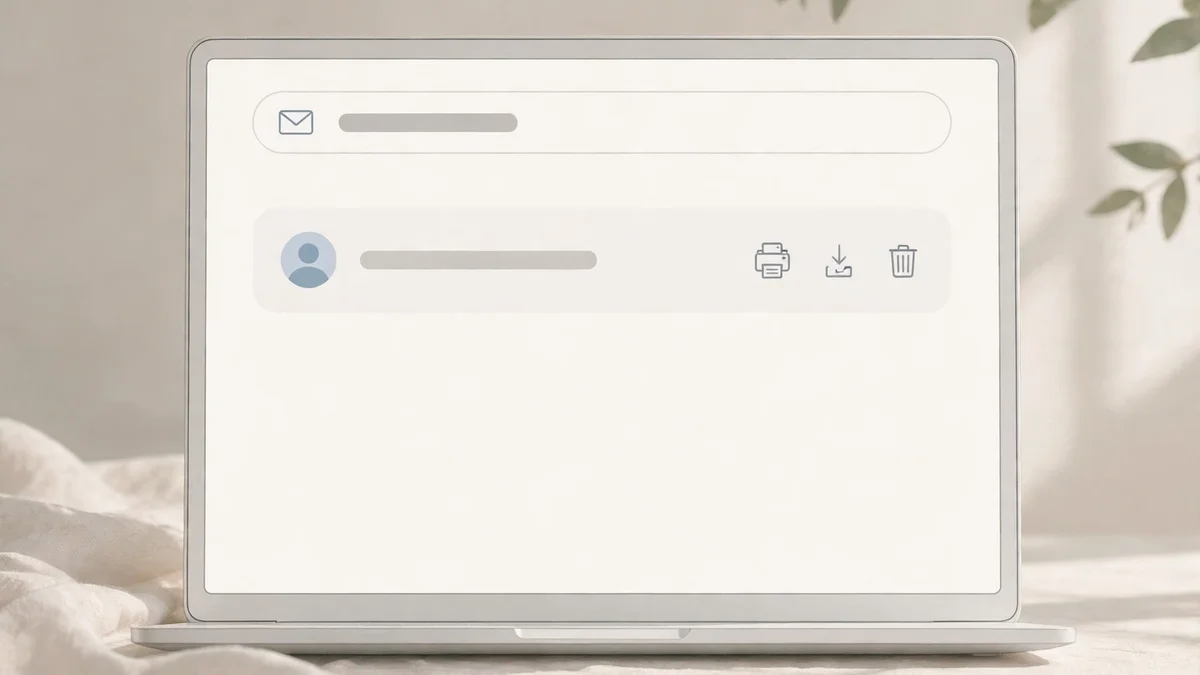
Then I looked for a forward control, everywhere it could plausibly live. The inbox controls are: Copy email address, Refresh, Delete, Change, History, QR Code, Restore, New Inbox, All Inboxes, and Create Custom. No forward, no share, no export, no "send to another address". The inbox started empty, and by later in the morning a message had arrived on its own — a signup email from support@platformer.news, which I did not send and did not request; the address evidently circulates, and mail for it arrives whether or not you asked for it. Hovering over that message row revealed no per-message action buttons at all. Opening it showed exactly three icon buttons: Print / Save PDF, Save message, and Delete Message. Still no forward.
That is a complete answer for this inbox: you cannot forward email out of a TempMailUSA inbox, not from the list, not from the open message, not on any plan. A previous post on this site tested the same question from the forwarding-service angle and reached the same conclusion — temporary mail forwarding, and what TempMailUSA does instead — and my test this morning agrees with it, down to the same missing button.
What you can do instead depends on what you needed the forward for. If you need the message on your phone, scan the inbox's QR code — "Open this inbox on another device" — and the same inbox opens there, which solves the "I need to see this somewhere else" problem without forwarding anything. If you need to keep the message, Save message or Print / Save PDF does it, on your device, with no address attached. If you need the inbox to survive, History lists your past addresses and Restore offers session recovery through a recovery token — save the token somewhere you control, because clearing the browser data that holds the history closes the way back. And if the real problem is that the code you need expires before you check the tab, an open tab beats forwarding anyway: there is no five-minute forwarding cycle between the sender and your eyes. Generate the address on the homepage, keep the tab open, and read the code where it lands.
What doesn't work
A few ideas that sound plausible and fail on contact. Dragging a message from the list into a compose window does not forward it in Gmail on the web — it does nothing, or moves the message if you drag it to a label. Forwarding from a phone notification is not a thing: the notification lets you archive, delete, or reply, and replying to a suspicious message is the opposite of what you want. And the apps and browser extensions that promise to add a forward button to Gmail's list are solving a problem Google deliberately did not create; they want access to your mailbox to do it, which is a steep price for a button, and the .eml route already does the job for free. Skip them.
FAQ
Can you forward an email without opening it in Gmail? Not as a normal inline forward — that needs the message open. But you can right-click the message and choose Forward as attachment, which sends it as a .eml file without opening it. Or select several messages with their checkboxes and use More → Forward as attachment.
Can you forward an email without opening it in Outlook? Yes. Select the message in the list and choose Forward, or right-click it and choose Forward where your version offers it. Outlook on the web forwards one message at a time.
Does forwarding an email mark it as read? Forwarding from the list without opening it does not mark it read in Gmail's attachment route. In Outlook, selecting the message to forward it shows it in the reading pane, which marks it read — turn off the reading pane, or mark it unread afterwards, if that matters.
Does opening an email to forward it let the sender know? It can. If your client loads remote images automatically, the tracking pixel fires when the message renders. Set images to ask-first, or forward as an attachment without opening the message, and the sender learns nothing.
Can I forward email from a temporary inbox? On TempMailUSA, no — I tested it this morning and there is no forward control on the inbox or on any message. Some forwarding services do offer it for disposable addresses, but that reconnects the throwaway address to your real inbox, which is the separation the temp address exists to provide.
Can I forward all future emails automatically without opening any of them? Yes. Gmail: verify a forwarding address in Settings → Forwarding and POP/IMAP, then enable it, or build a filter with "Forward it to". Outlook: a rule, or Settings → Mail → Forwarding. Note that work and school accounts often block external forwarding.
The bottom line
Forwarding without opening is possible in exactly the places it was designed for, and impossible in exactly the places it was designed against. Gmail lets you do it only as an attachment, because Google's model is that forwarding is something you do to an open message. Outlook lets you do it from the list, because Microsoft's model is that forwarding is something you do to a selected message. A temporary inbox lets you do it nowhere, because its whole design is that mail stays in the temp inbox and never touches your real address. Pick the tool that matches the job — attachment for the suspicious message, Outlook's list for the daily habit, a rule for everything still to come, and an open tab for the temp inbox code — and stop fighting the inbox you have.
Need a disposable temporary email?
Protect your real inbox from spam and promotional clutter instantly and free.
Received a suspicious email, text, or charge alert?
Verify whether the sender domain is disposable, spoofed, or unverified before clicking links.