



When Instagram Won't Load: What's Actually Going On
If you're trying to figure out how to fix Instagram not loading, here's the fastest path to a solution:
Quick fixes ranked by how often they work:
- Check Instagram's servers — Visit Downdetector.com to see if others are affected
- Force-close and reopen the app — Solves the problem about 30% of the time
- Toggle Airplane Mode for 10 seconds, then turn it off
- Switch networks — Swap between Wi-Fi and mobile data
- Clear the app cache (Android) or offload the app (iPhone)
- Update Instagram via the App Store or Google Play
- Restart your device completely
- Reinstall Instagram if nothing else works
Most Instagram loading problems are solved in under 5 minutes using one of the first three steps above.
Here's the frustrating reality: Instagram is one of the most-used apps on the planet, and it still breaks — often at the worst possible moment. You open the app and get a blank screen, an endless spinning wheel, or that dreaded "Couldn't refresh feed" message.
The good news? Around 90% of loading issues come down to a handful of common causes — a shaky internet connection, a server hiccup, a bloated app cache, or an outdated app version. These are all fixable, usually in minutes.
The trickier cases involve account-specific problems — like a temporary restriction, a corrupted authentication token, or interference from a VPN. Those take a few more steps, but they're still very solvable.
This guide walks you through everything, from the 30-second fixes to the advanced ones.
How to Fix Instagram Not Loading: The 5-Minute Checklist
When we encounter a blank screen, our first instinct is often to panic and assume our account has been deleted. Before we dive into complex settings, we need to rule out the simplest culprits. Statistics show that a simple app restart fixes Instagram loading issues about 30% of the time.
Step 1: The Connection Pulse Check
The most common reason for how to fix instagram not loading is a "zombie" internet connection. Your phone might show Wi-Fi bars, but the data isn't actually moving.
- Toggle Airplane Mode: Swipe down your control center, turn on Airplane Mode for 10 seconds, and turn it back off. This forces your device to reconnect to the nearest cell tower or router.
- The Switcheroo: If you are on Wi-Fi, switch to mobile data (or vice versa). Institutional Wi-Fi (like at a university or office) often blocks social media traffic, which can be bypassed by switching to your cellular plan.
- Router Reboot: If the problem persists on multiple devices in your home, it’s time to unplug your router for 30 seconds.
Step 2: Is it Me or Is it Meta?
Before you start digging into your phone's storage, check if the problem is global. In April 2026, Instagram outages are still a reality. Most outages resolve within 1–2 hours, though major ones can last up to 4 hours.
- DownDetector: Visit the site to see if there is a spike in reports.
- Social Confirmation: Check other platforms like X (formerly Twitter) using the hashtag #InstagramDown.
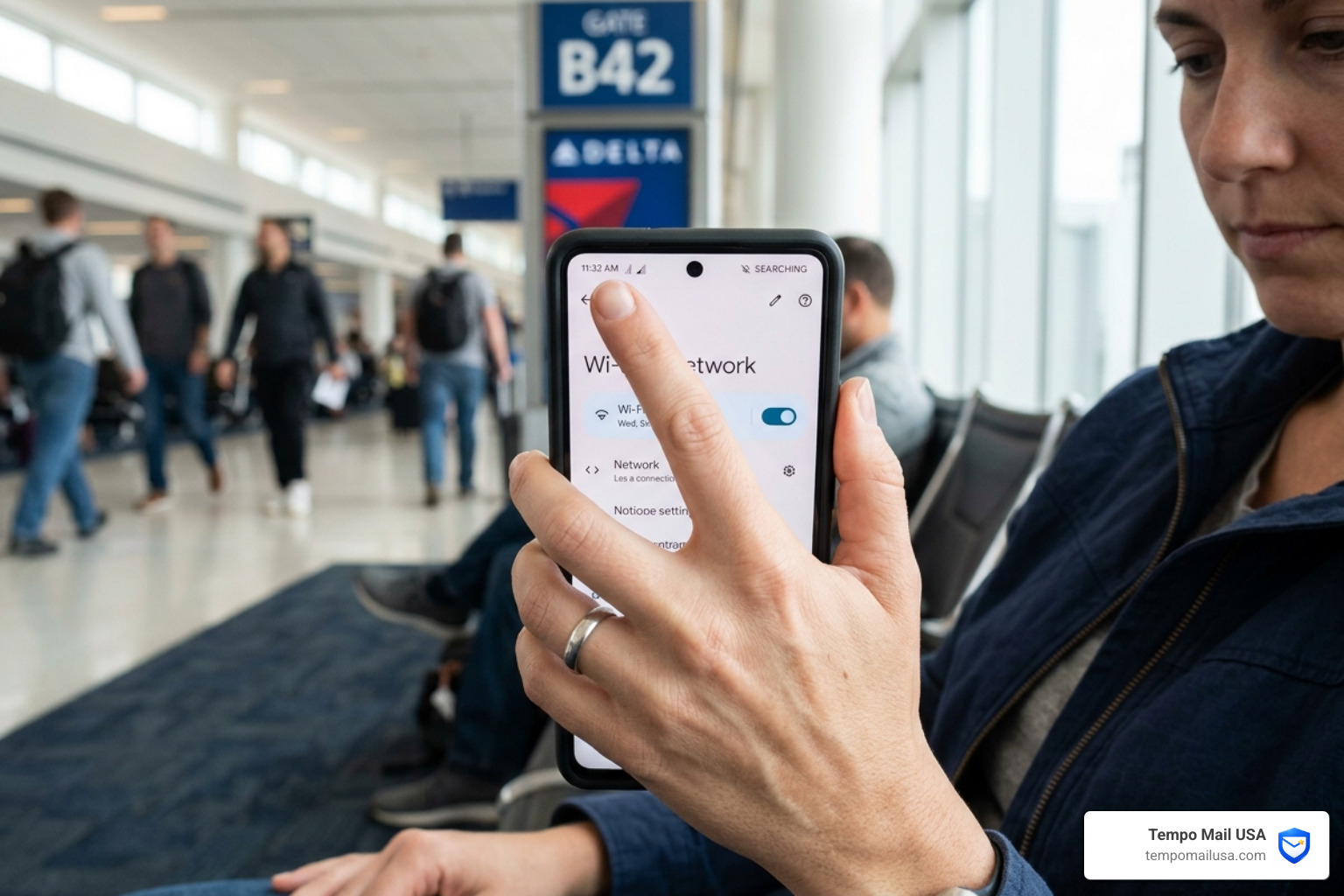
If the servers are fine and your internet is fast, the issue is likely local to your device or account. For those creating new accounts to test if their main one is "shadowbanned," we recommend using a Reliable Temp Mail For Instagram to avoid cluttering your primary inbox with verification codes during the troubleshooting process. For more detailed steps, check out Instagram Not Loading? 14 Proven Ways to Fix It in 2026.
How to Fix Instagram Not Loading on Android vs. iOS
The way Instagram stores temporary data differs significantly between operating systems. This "cache" is designed to make the app load faster by saving images locally, but when that data becomes corrupted, it prevents the app from fetching new content.
For Android Users (The Direct Approach): Android allows you to wipe the "junk drawer" without deleting the whole app.
- Go to Settings > Apps.
- Find Instagram.
- Tap Storage & Cache.
- Select Clear Cache. (Note: "Clear Data" will log you out, so have your password ready!)
For iOS Users (The "Offload" Trick): Apple doesn't give us a "Clear Cache" button, but we have a better alternative called "Offloading."
- Go to Settings > General > iPhone Storage.
- Find Instagram.
- Tap Offload App. This deletes the app's binary files but keeps your documents and data.
- Tap Reinstall App. This refreshes the app's core files and often clears the loading glitch.
If you find yourself needing to reinstall the app frequently or want to test a fresh installation without linking it to your permanent identity, using a Burner Mail For Instagram is a smart way to keep your digital footprint small while you debug.
How to Fix Instagram Not Loading by Verifying App Permissions
Sometimes the app is working fine, but your phone's security settings are "suffocating" it. If Instagram doesn't have the right permissions, it may fail to load your gallery, stories, or even the main feed.
- Background Data: Ensure Instagram is allowed to use data in the background. On Android, check App Info > Mobile Data > Background Data. On iOS, check Settings > General > Background App Refresh.
- Battery Optimization: "Low Power Mode" or "Battery Saver" can throttle app performance. If your battery is below 20%, your phone might be preventing Instagram from refreshing to save juice.
- Storage Space: Instagram needs breathing room. If your phone has less than 1GB of free space, the app will struggle to cache new posts. We recommend maintaining at least 15% free storage for optimal performance.
- Date and Time: This is a "hidden" fix. Instagram’s security certificates rely on your phone’s clock being accurate. If your date/time is manual and slightly off, the app won't connect to the servers. Set your time to Automatic in your system settings.
For a deeper dive into crashing issues specifically, you can refer to this guide on How to Fix Instagram App Crashing or Not Loading.
Advanced Fixes: DNS Settings and VPN Interference
If you've tried the basics and you're still staring at a blank screen, we need to look at how your phone "talks" to the internet.
The DNS Solution
DNS (Domain Name System) is like the internet's phonebook. Sometimes, your Internet Service Provider's (ISP) phonebook is slow or out of date. Changing your DNS to a faster provider like Google or Cloudflare can instantly solve how to fix instagram not loading issues.
How to change DNS on Mobile:
- Go to your Wi-Fi Settings.
- Tap the "i" or gear icon next to your network.
- Look for Configure DNS.
- Change it from Automatic to Manual and add:
- Google: 8.8.8.8 and 8.8.4.4
- Cloudflare: 1.1.1.1
VPN and Proxy Interference
Instagram is highly sensitive to security. Because many people use VPNs to automate accounts or bypass regional restrictions, Instagram often "flags" or blocks known VPN IP addresses. If you have a VPN active, turn it off and try loading the app again.
However, if you are in a region where you must use a VPN, ensure you are using a high-quality, secure service. We recommend NordVPN because it offers obfuscated servers that are less likely to be detected and blocked by social media platforms.
When setting up new accounts or managing your privacy during these technical transitions, your email is your primary identifier. Using a 10 Minute Mail Alternative Fast can help you test connectivity without exposing your real PII (Personally Identifiable Information) to data brokers who scrape social media data.
Why Your Account Might Be Restricted (The "Couldn't Refresh Feed" Error)
Sometimes, the app is perfectly healthy, but the account is the problem. If you can log in on a friend's phone but not your own—or if one of your accounts works while the other doesn't—you're likely dealing with an account-side glitch.
| Error Type | Likely Cause | Solution |
|---|---|---|
| Server-Side | Global outage or maintenance | Wait 1-4 hours |
| Device-Side | Corrupt cache or old app version | Clear cache or update app |
| Account-Side | Automation penalty or token error | Log out/in or wait 24 hours |
| Network-Side | ISP block or weak signal | Switch to Mobile Data/Change DNS |
The "Couldn't Refresh Feed" Trap
This specific error often affects users who have utilized third-party apps for analytics, "who unfollowed me" trackers, or automation. Instagram's security systems may place a temporary 24-hour "soft block" on your feed refresh capabilities if they detect suspicious API activity.
If this happens:
- Disconnect Third-Party Apps: Go to your Instagram settings > Website Permissions > Apps and Websites and remove anything you don't recognize.
- The Logout/Login Cycle: This forces the app to generate a new "Authentication Token." Sometimes the old token gets stuck in a loop.
- Wait it Out: If you've been "action blocked," the only real cure is patience. Avoid liking or commenting for 24 hours to let the restriction lift.
Digital Hygiene: Protecting Your PII from App Glitches
In our experience as tech journalists, we've seen how "app glitches" can sometimes be a precursor to something more serious, like a credential stuffing attack or a data leak. When Instagram isn't loading, users often start clicking "forgot password" or trying to link their accounts to other platforms to "fix" the problem.
This is where your Digital Hygiene becomes critical. Every time you enter your primary email into a troubleshooting tool or a third-party "fix-it" app, you're expanding your attack surface.
At Tempo Mail USA, we advocate for a "PII Firewall" approach. Think of your real email address like your home address—you shouldn't give it to everyone who asks. By using secure, temporary email aliases, you create a proxy layer between your real identity and the services you use.
- Identity Theft Protection: If a social media platform experiences a data breach (or a "loading glitch" that exposes data), your primary email remains hidden.
- Enterprise-Grade Privacy: Using tools like Fast Temp Mail For Facebook ensures that if you're forced to create a "test" account to debug a loading issue, you aren't feeding the data brokering machine with your real PII.
Maintaining a clean digital footprint is just as important as keeping your app cache clear. It prevents your data from being harvested and sold to advertisers or, worse, used by bad actors to compromise your financial security.
Frequently Asked Questions about Instagram Loading Issues
Why does Instagram load on one account but not my other one?
This is almost always due to a corrupted authentication token or a temporary account restriction. Instagram treats every login session uniquely. If one account is loading, it proves your internet and the app itself are fine. Try logging out of the broken account, clearing your device's cache, and logging back in. If that fails, the account might be under a "soft block" for 24 hours due to high activity or third-party app usage.
How do I know if Instagram is down for everyone?
The most reliable way is to check Downdetector or the hashtag #InstagramDown on X. Instagram's official communication channel, @InstagramComms, usually posts updates during major outages. If you see a massive spike in reports within the last 10 minutes, the problem is on Meta's end, and no amount of troubleshooting on your phone will fix it.
Will deleting and reinstalling Instagram delete my photos and reels?
No. Your photos, reels, and messages are stored on Instagram's cloud servers, not on your physical phone. When you delete the app, you are only deleting the interface and the local cache. Once you reinstall and log back in with your username and password, everything will be exactly where you left it. Just make sure you know your login credentials before you hit delete!
Conclusion
Figuring out how to fix instagram not loading doesn't have to be a multi-hour ordeal. By following our 5-minute checklist—starting with a server check and moving through network toggles and cache clearing—you can resolve 90% of issues instantly.
Digital health is a two-way street. While you keep your apps running smoothly with regular updates and cache clearing, keep your identity running safely by using privacy tools. Whether you're setting up a secondary account for business or just trying to debug a login loop, using a Secure Email For Facebook or Instagram is the best way to keep your personal data off the open market.
Stay updated, stay secure, and keep scrolling. For more tips on maintaining your digital privacy while navigating social media, visit Tempo Mail USA.