


Why Is My Apple Pay Not Working? (Quick Answer)
Why is my apple pay not working is one of the most searched iPhone frustrations — and you're not alone. Over 20,000 users have reported similar issues in Apple's own community forums.
Before diving deep, here are the most common reasons Apple Pay stops working and what to try first:
| Reason | Quick Fix |
|---|---|
| Apple service outage | Check Apple System Status |
| Outdated iOS or watchOS | Update via Settings > General > Software Update |
| Card expired or not verified | Remove and re-add card in Wallet app |
| Wrong default card selected | Manually select your card at checkout |
| Low Battery Mode active | Charge device above 20% and retry |
| Store doesn't support Apple Pay | Look for the contactless payment logo |
| NFC blocked by phone case | Remove case and try again |
Most Apple Pay problems come down to one of these seven causes. The good news? Almost all of them are fixable in under five minutes.
Picture this: you're at the front of a long checkout line, phone ready, and Apple Pay refuses to work. It's frustrating, a little embarrassing, and totally avoidable once you know what to look for.
This guide walks you through exactly what to check — step by step — so you can get back to paying quickly and securely.
Initial Checks: System Status and Compatibility
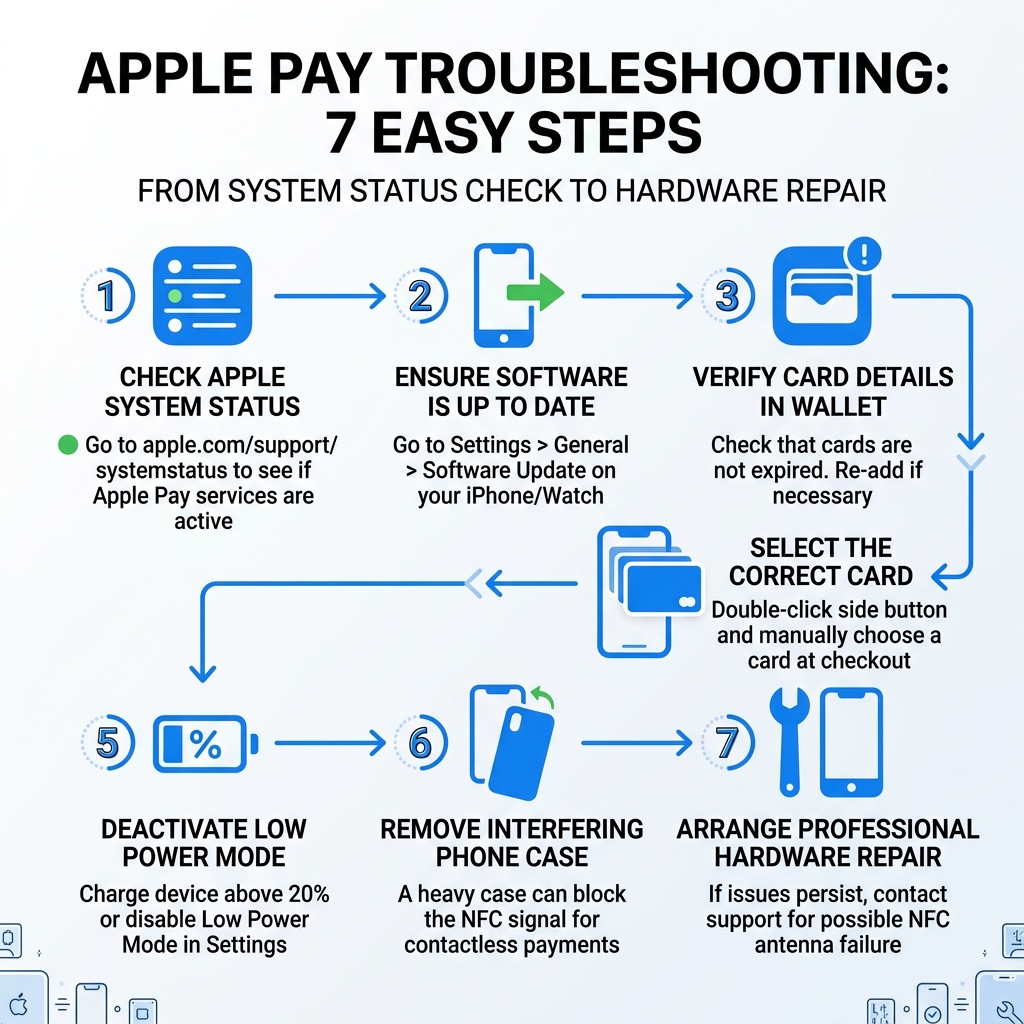
When we find ourselves tapping our phones frantically against a card reader, our first instinct is often to blame the device. However, sometimes the problem isn't you—it's Apple. Before you start digging into your settings, the very first thing we recommend is to check the Apple System Status page.
Apple services are incredibly reliable, but they aren't invincible. If "Apple Pay & Wallet" doesn't have a green circle next to it, there is a service outage. In this case, no amount of restarting will help; you'll simply have to wait for Apple's engineers to work their magic.
Beyond outages, we need to look at device compatibility. While it feels like Apple Pay has been around forever, it requires specific hardware. To use Apple Pay in stores, you need an iPhone 6 or later or an Apple Watch. If you're trying to pay within an app or on the web, you can use compatible iPads and Macs with Touch ID or Face ID.
Another frequent culprit involves Region Settings. Apple Pay isn't available in every single country. If your Apple ID is set to a region where Apple Pay hasn't launched yet, the option simply won't appear or will stop functioning. You can view Apple Pay countries and regions to ensure your current location is supported.
Lastly, check your security basics. Apple Pay requires you to have a passcode, Face ID, or Touch ID enabled. Furthermore, your Apple ID must be signed into iCloud, and for many newer features, two-factor authentication must be turned on. If you've recently signed out of your Apple ID, your cards may have been removed for security reasons.
Software Fixes: Updates and Restarts
We’ve all heard the IT joke: "Have you tried turning it off and on again?" Well, it's a cliché for a reason—it works! A simple restart can clear minor software glitches that prevent the Wallet app from communicating with the NFC (Near Field Communication) chip.
If a standard restart doesn't do the trick, a force restart might be necessary. For iPhone 8 and later, quickly press and release the Volume Up button, then the Volume Down button, and then hold the Side button until the Apple logo appears. For an Apple Watch, hold both the side button and the Digital Crown for at least 10 seconds.
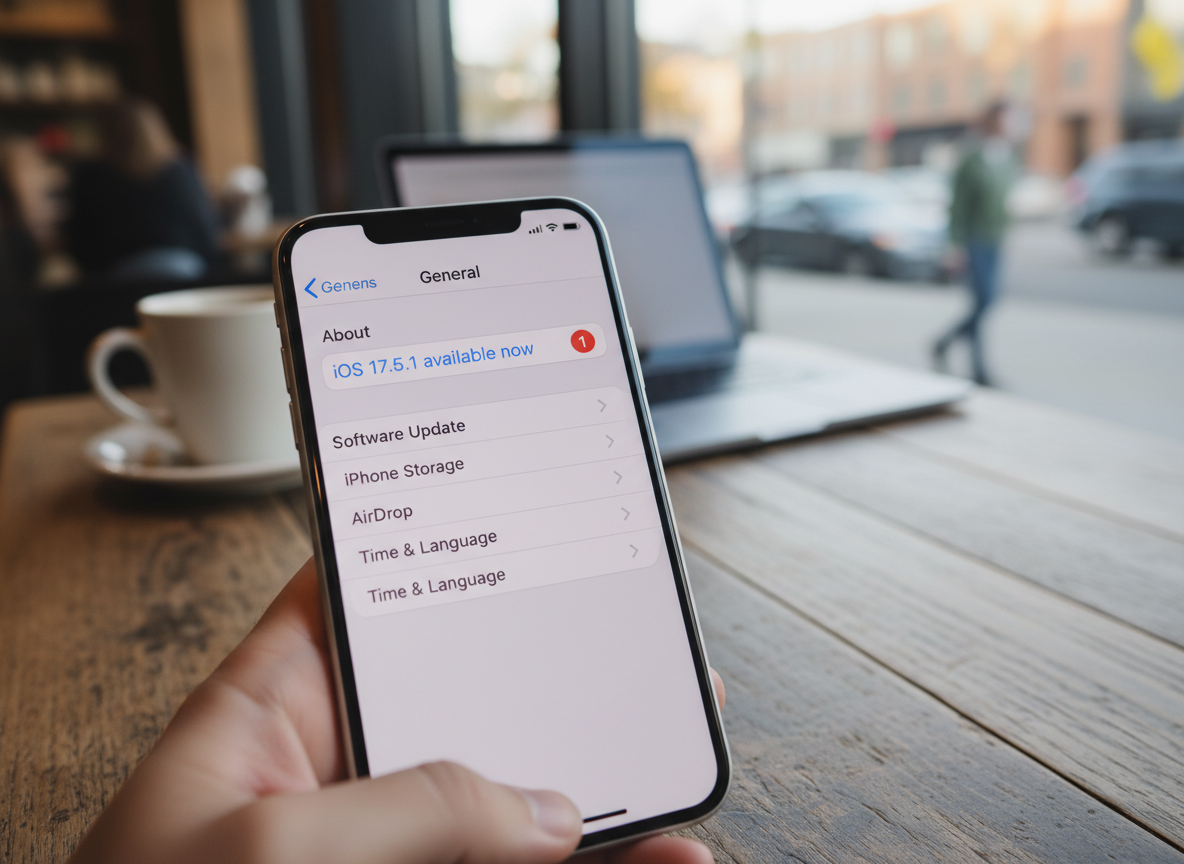
Keep your software updated. Apple frequently releases patches for the Wallet app and security protocols. If you're running an older version of iOS or watchOS, your bank's security servers might reject the connection. Go to Settings > General > Software Update to ensure you're on the latest version.
Troubleshooting why is my apple pay not working after an update
Ironically, sometimes the very update meant to fix things causes a temporary hiccup. If you find why is my apple pay not working specifically after an iOS update, it could be a "cached" settings error.
Some users have reported that their Apple Pay settings were toggled off or that they received strange security prompts. Be wary of any suspicious pop-ups; if you see a message that looks off, check our guide on the Apple Security Alert Scam to ensure you aren't being targeted by phishing while trying to fix your wallet.
If an update broke your connection, try toggling your Apple ID. Sign out of your Apple Account in Settings, restart the phone, and sign back in. This "refreshes" your digital certificates and often resolves post-update handshake issues between your phone and the bank.
Wallet Management: Verifying and Re-adding Cards
Sometimes the issue is with the digital card itself. Digital "tokens" (the secure versions of your card stored on the phone) can expire or become de-authorized by your bank.
If you see a "Could Not Add Card" or "Invalid Card" error, the problem usually lies with the card issuer. Remember: Apple doesn't approve or decline cards; your bank does. If your card has been replaced recently, the old digital version in your Wallet won't work, even if the physical card number is the same.
The most effective fix here is to remove and re-add the card:
- Open the Wallet app.
- Tap the card that isn't working.
- Tap the More (...) button and select Card Details.
- Scroll down and tap Remove Card.
- Tap the + icon in the Wallet app to add it back from scratch.
This process forces the bank to issue a brand-new security token to your device. If you can't add a card to Apple Wallet after removing it, you likely need to call your bank's fraud department to "whitelist" the device.
Common reasons why is my apple pay not working online
Using Apple Pay on websites via Safari can be slightly different from using it in a store. If Apple Pay fails online, check these three things:
- Browser Compatibility: Apple Pay online only works in Safari. If you are using Chrome or Firefox on a Mac, Apple Pay won't be an option.
- Billing Address Mismatch: If you’ve recently moved, ensure the billing address in your Apple Pay settings matches exactly what the bank has on file. Even a typo in the zip code can trigger a "Payment Not Completed" error.
- Mac Settings: If you’re using a Mac without Touch ID, make sure "Allow Payments on Mac" is enabled in your iPhone's Wallet settings.
Why is my apple pay not working at the store?
If your phone works fine for online purchases but fails at the register, we are likely looking at a physical or environmental issue.
The NFC Chip Location: On an iPhone, the NFC antenna is located at the very top edge of the device (near the camera). Many people try to tap the middle or bottom of the phone against the reader, which results in a failed connection. Aim the top of your phone directly at the contactless symbol on the terminal.
Phone Cases: We love a sturdy case, but if yours is extra thick, contains metal, or has a magnetic car mount attachment, it can block the NFC signal. If Apple Pay fails, try removing the case for one transaction to see if that's the culprit.
Battery Life: Did you know that Low Power Mode can sometimes interfere with non-essential wireless "handshakes"? If your battery is below 20%, your phone might be throttling the NFC power to save energy. Charge your device or disable Low Power Mode before trying to pay.
| Feature | NFC (Apple Pay) | QR Codes (Other Apps) |
|---|---|---|
| Speed | Instant tap | Requires opening app/camera |
| Internet | Not required for stores | Usually required |
| Security | Tokenized (Real info hidden) | Varies by provider |
| Hardware | Requires NFC chip | Requires working camera |
Advanced Troubleshooting and Support
If you've tried the basics and are still stuck wondering why is my apple pay not working, it’s time to move to advanced territory.
Reset Network Settings: This is a powerful fix for connectivity issues. Go to Settings > General > Transfer or Reset iPhone > Reset > Reset Network Settings. Note: This will wipe your saved Wi-Fi passwords, so have them handy!
Apple Cash Issues: If you are specifically having trouble with Apple Cash (sending money through iMessage), Apple Cash is provided by Green Dot Bank. If you can't send or receive money, you may need to verify your identity by providing your Social Security Number or a photo of your ID. Also, check the Apple Cash Terms and Conditions as there are strict limits on transaction amounts for unverified accounts.
Hardware Damage: If you've recently dropped your phone and Apple Pay stopped working immediately after, the internal NFC antenna might be loose or damaged. This is a hardware issue that no software reset can fix. In this case, you’ll need to visit an Apple Store.
If you’re feeling overwhelmed, don't hesitate to reach out to the pros. You can find the Apple Support Phone Number You Need to speak with a technician who can run remote diagnostics on your NFC chip.
Frequently Asked Questions about Apple Pay Failures
Does Apple Pay require an internet connection to work in stores?
No! This is a common misconception. Your iPhone uses the NFC chip to talk directly to the store's payment terminal. You can use Apple Pay in a basement grocery store with zero bars of signal or in Airplane Mode. However, you do need an internet connection to add new cards to your Wallet or to use Apple Cash.
Why is my card declined even though I have sufficient funds?
This is usually a security measure by your bank. If you are traveling or making a unusually large purchase, the bank might flag the "digital" version of your card for fraud, even if your physical card still works. A quick call to your bank's customer service can usually clear this up in minutes.
How can I tell if my iPhone's NFC hardware is damaged?
If your phone doesn't even react (no "Hold Near Reader" prompt appears) when you double-click the side button and bring it close to a terminal, the NFC chip might be dead. You can test this by trying to use a different NFC feature, like scanning an "NFC Tag" in a shortcut or using a different contactless reader. If the phone is completely silent at every terminal, it’s likely hardware damage.
Conclusion: Securing Your Digital Payments
Apple Pay is one of the most secure ways to shop because it never shares your actual credit card number with merchants. Instead, it uses a unique "token" for every transaction. This layer of privacy is exactly what we value here at Tempo Mail USA.
Just as Apple Pay acts as a shield for your financial data, we believe your personal information deserves the same protection. When you sign up for new services or apps to use with Apple Pay, you're often forced to give away your real email address, which can lead to data breaches and endless spam.
At Tempo Mail USA, we provide a "digital firewall" for your identity. By using our temporary email aliases, you can protect your real inbox from being sold to third parties or exposed in leaks. Whether you're troubleshooting your tech or just browsing the web, keeping your data behind a secure proxy is the smartest way to navigate the modern world.
Next time you're at the register and Apple Pay works flawlessly, take a second to think about the rest of your digital footprint. Stay secure, stay private, and keep your tech running smoothly!