


Understanding aka s recoverykeyfaq and BitLocker Triggers
To quickly find your BitLocker recovery key, open a web browser on a secondary device and visit the official Microsoft shortcut at aka.ms/recoverykeyfaq or sign directly into your Microsoft account device portal. Once signed in, compare the Key ID shown on your blue BitLocker recovery screen with your listed devices to retrieve your 48-digit numeric unlock key.
Windows BitLocker full-disk encryption locks your drive when unexpected hardware or firmware changes occur. Understanding your recovery resources helps clarify why the encryption tripped and where your backup keys reside across various Microsoft endpoints.
What Is the aka s recoverykeyfaq Shortcut?
The query aka s recoverykeyfaq refers to the official shortcut aka.ms/recoverykeyfaq, maintained by Microsoft to redirect users to authoritative recovery instructions. Visiting the official resource to find your BitLocker recovery key - Microsoft Support outlines the necessary steps to locate the 48-digit numeric key required to unlock an encrypted volume.
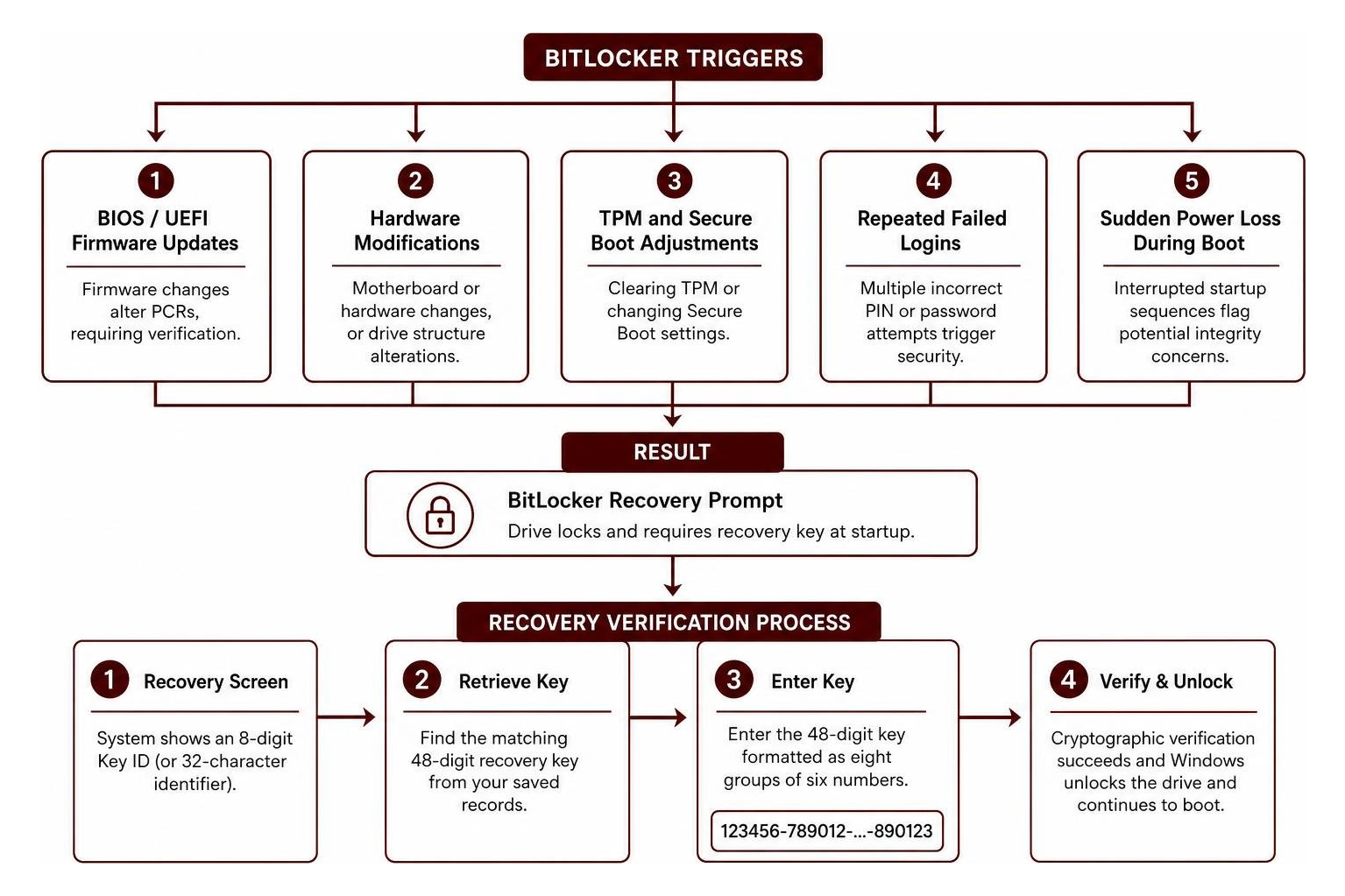
A BitLocker key is distinct from your Windows user password or PIN. It is formatted into eight groups of six numbers (such as 123456-789012-...). To help you find the correct string when multiple machines or storage drives are linked to your profile, the system displays an 8-digit Key ID (or a 32-character identifier) on your recovery screen. Matching this ID against your stored records ensures you enter the correct code.
To explore further setup guides, you can also consult aka.ms/recoverykeyfaq – How to Recover Your Windows System for additional background on operating system recovery pathways.
Common Triggers for BitLocker Recovery Prompts
BitLocker typically unlocks automatically using the Trusted Platform Module (TPM) chip embedded on your motherboard. If the cryptographic handshake between the TPM and the operating system changes, the drive locks down. Common triggers include:
- BIOS or UEFI Firmware Updates: Flashing your motherboard firmware alters Platform Configuration Registers (PCRs), prompting BitLocker to verify user authorization.
- Hardware Modifications: Replacing a motherboard, adding new internal hardware, or altering the primary drive structure.
- TPM and Secure Boot Adjustments: Clearing the TPM or modifying Secure Boot states in firmware settings.
- Repeated Failed Logins: Security mechanisms tripping after multiple incorrect PIN or password entries.
- Sudden Power Loss During Boot: Interrupted startup sequences that flag potential drive integrity concerns.
How BitLocker Recovery Works in Practice
When BitLocker enters recovery mode, the operating system halts the normal boot sequence and asks for the 48-digit recovery key before it will decrypt the system drive. This process is designed to confirm that an authorized user is present, rather than someone who has physically removed the drive or altered the hardware. The recovery key itself is generated during the initial encryption setup and is never stored in plain text on the protected volume.
For most consumer devices, the key is automatically backed up to the Microsoft account used during Windows setup. For business or school machines, the key is typically escrowed in Azure Active Directory or Microsoft Entra ID. In either case, the recovery screen shows a Key ID that helps you match the correct key from your stored records. If you have multiple devices or drives, comparing the Key ID is essential to avoid entering the wrong string and prolonging the lockout.
Understanding these triggers and storage locations helps you respond quickly when the blue recovery screen appears, rather than guessing which account or backup contains the correct key.
Step-by-Step Guide: How to Find Your BitLocker Recovery Key

If your machine is stuck on the recovery prompt, access another device—such as a smartphone, tablet, or secondary PC—to retrieve your stored keys.
Retrieving Keys via Personal Microsoft Accounts with aka s recoverykeyfaq
For consumer devices running Windows 10 or Windows 11 Home and Pro, device encryption automatically saves your recovery key to the personal Microsoft account tied to initial setup.
- Open a browser on a secondary device and head to How to Find Your BitLocker Recovery Key at aka.ms/myrecoverykey or directly access the personal portal at Aka.ms/myrecoverykey: Your Essential Guide to Data Security – NewsNove.
- Sign in using the exact Microsoft account credentials associated with your locked machine.
- Navigate through your registered hardware list under the Devices tab and select Manage recovery keys.
- Compare the Recovery Key ID displayed on your locked computer screen with the IDs listed in your cloud profile.
- Type the corresponding 48-digit recovery key using the number row or numeric keypad on your locked computer.
If you are unsure which Microsoft account was used during setup, check the recovery screen for an account hint. Starting in Windows 11 version 24H2, the BitLocker recovery interface may display part of the linked email address, which helps narrow down the correct login. You can also try signing in to multiple Microsoft accounts on a secondary device and checking each one for a matching Key ID.
Accessing Work or School Keys via Azure Active Directory
If your computer belongs to a corporate network, educational institution, or enterprise tenant:
- Visit the Azure-hosted portal directly at
https://aka.ms/aadrecoverykey. - Sign in with your organization-issued work or school email address.
- Locate your managed device from the device inventory and click Get BitLocker keys.
- If the portal restricts end-user access, contact your internal IT helpdesk or system administrator. System admins can pull the recovery string directly from Microsoft Intune or the Microsoft Entra admin center.
For enterprise environments, the recovery key may be tied to the device record rather than the user profile. If you recently changed roles, departments, or devices, your IT administrator may need to search by device name or serial number instead of your user account. Keep the Key ID from the recovery screen handy when contacting support, as it speeds up the lookup process.
Checking Offline Backups: USB Drives and Printouts
If your device was encrypted manually via the classic Control Panel, the setup wizard prompted you to choose a manual backup method rather than automatic cloud synchronization:
- USB Flash Drives: Insert your backup flash drives into another working computer and search for a
.txtdocument containing the words "BitLocker Recovery Key" alongside the Key ID. - Printed Documents: Check physical file folders, desk drawers, or home safes for a printed copy created during the initial drive encryption setup.
- External Drives and Network Shares: Search secondary external hard drives or local network folders for exported key files.
When searching offline backups, look for files named BitLocker Recovery Key followed by a string of characters. The text file typically contains the full 48-digit key along with the corresponding Key ID, making it easy to match against the recovery screen. If you find multiple key files, compare the Key ID on each one to the identifier displayed on your locked device before entering any code.
What to Do If Your Recovery Key Is Missing or Unlisted
When a search through personal and institutional portals yields no results, evaluating your storage history helps identify where the key may have been routed.
| Storage Location | Target Environment | Access Speed | Requirements |
|---|---|---|---|
| Personal Microsoft Account | Home & Personal PCs | Instant | Access to linked Microsoft login |
| Azure AD / Microsoft Entra | Work & School Laptops | Fast | Organization credentials / IT Admin |
| USB Flash Drive | Custom Encryptions | Immediate | Physical possession of drive & 2nd PC |
| Printed Physical Record | Manual Setup Backups | Moderate | Access to home or office filing systems |
Hardware manufacturers, including Dell and HP, do not keep copies of customer BitLocker keys on file. Furthermore, Microsoft Support cannot retrieve, view, or recreate a lost BitLocker recovery key.
For general business contact directories related to technical indexing, platforms such as aka ms recoverykeyfaq | FreeListingUSA exist, but direct cryptographic recovery remains tied solely to the user's authenticated accounts.
If you are managing software deployments or interactive media scripts, our team developed TempoPlay at https://tempomailusa.com/shop/tempoplay as our dedicated script solution for streamlined workflow operations.
Identifying Matching Key IDs on Windows 11
Starting in Windows 11, version 24H2, the BitLocker recovery interface includes an account hint on the recovery screen. This feature displays part of the linked Microsoft email address, helping you verify which account holds the decryption key.
Always cross-reference the first 8 characters of the Recovery Key ID shown on screen with the Key ID in your Microsoft portal. If they do not match, the key corresponds to a different drive partition or a previous configuration.
If you have multiple Microsoft accounts, sign in to each one on a secondary device and check the Manage recovery keys page for a matching Key ID. The account hint on the recovery screen can save time by indicating which email address is associated with the encrypted drive. For work or school devices, the Key ID may also appear in the Microsoft Intune admin center under the device's recovery keys section, allowing your IT department to locate the correct string even if you cannot access the self-service portal.
Device Reset and Factory Reinstallation Options
If the recovery key is permanently lost and offline backups do not exist, there is no technical backdoor available. To regain use of the hardware, you must perform a clean installation of Windows:
- Turn on the PC and access the Windows Recovery Environment (WinRE) by holding down the power button to interrupt the startup cycle twice.
- Select Troubleshoot > Reset this PC.
- Choose Remove everything to format the encrypted storage volumes and reinstall Windows.
Note: Resetting the operating system completely erases all files, applications, and settings stored on the encrypted drive.
Before proceeding with a reset, consider whether any cloud backups or file synchronization services may have preserved your important documents. Services such as OneDrive, Google Drive, or Dropbox often sync files automatically, which means a factory reset may not result in total data loss for files stored outside the encrypted volume. However, locally stored files that were never backed up will be unrecoverable once the drive is formatted.
Frequently Asked Questions About BitLocker Recovery Keys
Can BitLocker encryption be bypassed without a recovery key?
No. BitLocker implements industry-standard AES encryption (128-bit or 256-bit). Without the 48-digit recovery key or the hardware TPM validation, cryptographic data cannot be decrypted by standard means.
What is the difference between a BitLocker key and a Microsoft account recovery key?
A BitLocker recovery key is a 48-digit numeric string designed exclusively for unlocking storage drives. In contrast, an account recovery key (or security code) is typically an alphanumeric credential used to regain access to an online account profile when multi-factor authentication methods fail.
Different ecosystems use distinct recovery systems; for instance, Apple users follow procedures like those to set up a recovery key for your Apple Account - Apple Support, which relies on a 28-character security phrase for account access.
Why did a BIOS update trigger BitLocker recovery mode?
During a BIOS/UEFI update, the motherboard firmware resets its baseline integrity measurements. Because the TPM monitors these exact platform registers to detect tampering, it interprets the updated firmware as an environmental change and pauses automatic decryption until verified with your recovery key.
How can I prevent future BitLocker recovery prompts?
Before making significant hardware or firmware changes, suspend BitLocker protection temporarily from the Control Panel. Navigate to BitLocker Drive Encryption, select Suspend protection, and proceed with the update or hardware change. Once the system restarts successfully, BitLocker resumes protection automatically. This prevents the TPM from flagging the change as a potential tampering event and avoids unnecessary recovery prompts.
Where should I store my BitLocker recovery key for safekeeping?
Keep at least two copies of your recovery key in separate locations. A cloud backup tied to your Microsoft account provides instant access from any secondary device, while an offline copy—such as a printed document stored in a safe or a USB flash drive kept in a secure drawer—protects against account lockouts or cloud access issues. Avoid storing the key on the same encrypted drive it protects, as this defeats the purpose of the backup.
Conclusion
Encountering a BitLocker recovery prompt can be disruptive, but keeping your recovery credentials organized ensures you can unlock your device quickly. Always maintain multiple backups of your recovery keys by combining your cloud Microsoft account with an offline printed copy or a dedicated USB backup stored in a secure location.
Whenever you manage online sign-ups, device setups, and digital tools, safeguarding personal credentials is vital. At TempoMailUSA, we provide free disposable email inboxes featuring real-time updates, cryptographic purges, and secure aliasing so you can handle online verifications without exposing your primary email to unwanted tracking.