

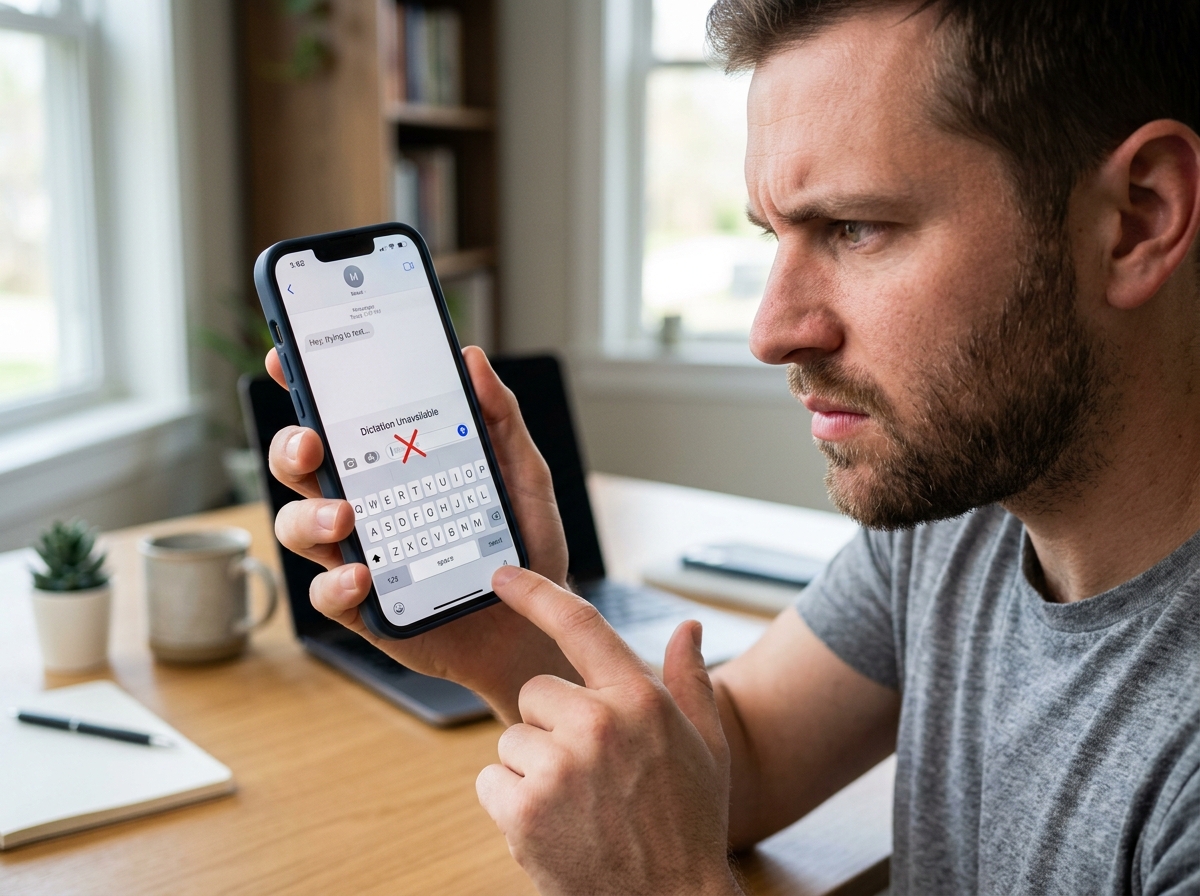

When Voice to Text Not Working on iPhone Stops You in Your Tracks
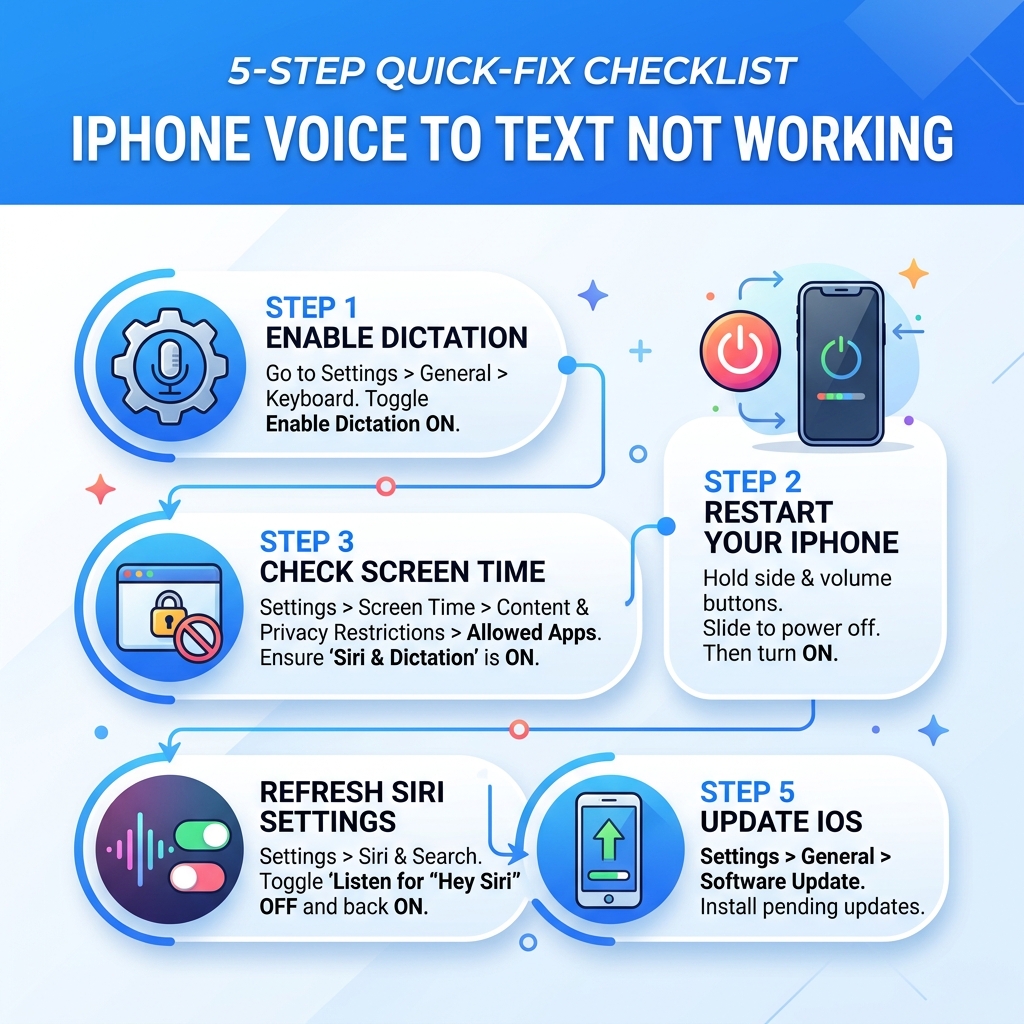
If voice to text not working iphone is your problem right now, here are the fastest fixes to try first:
- Enable Dictation: Go to Settings > General > Keyboard and toggle Enable Dictation on (or off and back on).
- Restart your iPhone: Hold the side and volume buttons, slide to power off, then turn back on.
- Check Screen Time: Go to Settings > Screen Time > Content & Privacy Restrictions > Allowed Apps and make sure Siri & Dictation is enabled.
- Refresh Siri settings: In Settings > Siri & Search, toggle Listen for "Hey Siri" off and back on.
- Update iOS: Go to Settings > General > Software Update and install any pending updates.
You are not alone in this. A single Apple Community thread about dictation suddenly stopping on iPhone 13 collected over 1,100 "Me too" reports. Another thread focused on voice to text failing in the Messages app alone drew over 800 users saying the same thing happened to them. After iOS 17 and 18 updates, the numbers climbed even higher.
The frustrating part? The microphone often works fine in other apps. Calls sound clear. Voice Memos records perfectly. But tap that little mic icon on the keyboard, and nothing happens.
That points to a software or settings issue in most cases — not a broken phone. And that means it is almost always fixable without a trip to the Apple Store.
This guide walks you through every fix, from the simplest 30-second toggle to the more advanced resets, so you can get back to talking instead of typing.
Why is Voice to Text Not Working on iPhone?
Understanding why voice to text not working iphone happens is the first step toward a permanent fix. While it feels like a random glitch, there is usually a logical culprit hiding in your settings or a temporary bug in the operating system.
Common causes include:
- Software Bugs: Major updates like iOS 17.4.1 or iOS 18.5 have been known to "break" dictation for thousands of users.
- Microphone Hardware: While rare if your calls work, a specific microphone used for noise cancellation or dictation could be blocked by lint or a case.
- Internet Connectivity: Older iPhones or specific settings require a handshake with Apple's servers to process speech.
- Settings Conflicts: Sometimes, enabling one accessibility feature accidentally disables another.
- Dictation Timeouts: If you pause for more than a few seconds, the system might think you are finished.
To help you narrow it down, we have put together a quick comparison of symptoms:
| Symptom | Likely Cause | Fix Level |
|---|---|---|
| Mic icon is missing entirely | Settings or Screen Time Restrictions | Easy |
| Mic icon appears but shows an 'X' | Language or Keyboard Conflict | Moderate |
| "Listening" appears but no text is typed | Software Bug or Siri Process Glitch | Moderate |
| Dictation works in Voice Memos but not Messages | App Permission or Cache Issue | Easy |
| Dictation stops after 2 seconds of silence | Siri Settings or Low Power Mode | Easy |
If you want to dive deeper into how the feature is supposed to behave, you can check out the official guide on how to Dictate text on iPhone.
Checking Basic Permissions and Settings
Before we assume your iPhone is "broken," we need to ensure the "brain" of the operation is actually turned on. It sounds simple, but iOS updates have a sneaky habit of toggling settings back to default.
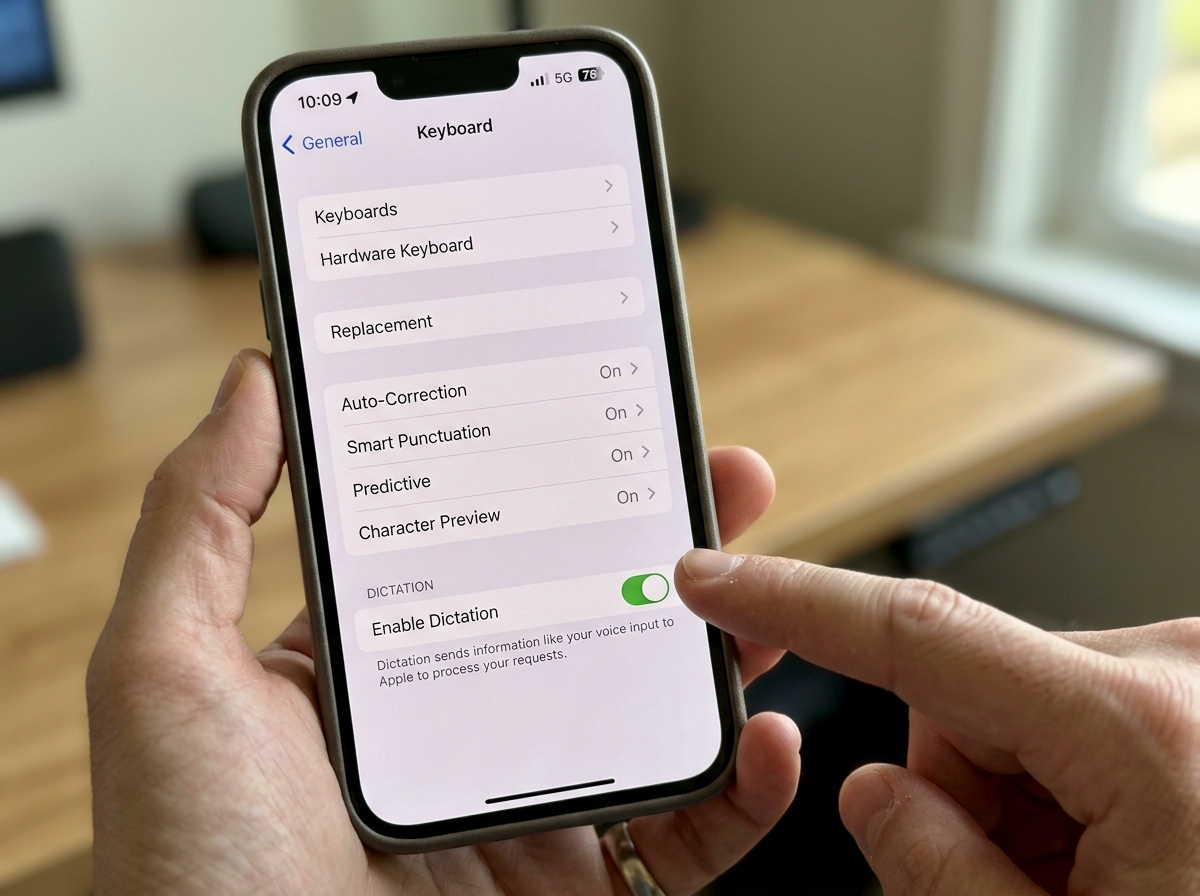
First, verify that Dictation is active. Navigate to Settings > General > Keyboard. Scroll to the bottom and look for Enable Dictation. If it is already on, toggle it off, wait five seconds, and toggle it back on. This "refresh" often jumpstarts the background process.
Next, check your Siri settings. Dictation and Siri share the same speech-recognition engine. If Siri is having a bad day, dictation usually follows suit. Go to Settings > Siri & Search and ensure that "Listen for 'Hey Siri'" and "Press Side Button for Siri" are enabled.
Identifying Hardware vs. Software Issues
Is it the "ears" of the phone or the "brain"? Your iPhone actually has multiple microphones. For example, the iPhone 13 has three, while the Pro models have four. One is at the bottom for calls, one is near the front camera for FaceTime, and one is on the back for video recording.
To rule out a hardware failure, perform the Voice Memos Test:
- Open the Voice Memos app.
- Record yourself speaking at a normal volume.
- Play it back.
If the audio is crystal clear, your microphones are fine, and the problem is 100% software. If the audio is muffled or silent, you might have a physical blockage or a hardware defect. If you suspect the mic itself is struggling with voice commands, Apple has specific steps to follow If "Hey Siri" isn't working on your iPhone.
Step-by-Step Troubleshooting for iPhone Dictation
If the basics didn't work, it is time to get a bit more systematic. We recommend following these steps in order.
The "Big Three" Quick Fixes
- Force Restart: This is more than just turning it off and on. For iPhone 8 and later, press and quickly release Volume Up, press and quickly release Volume Down, then hold the Side button until the Apple logo appears.
- Siri Refresh: Go to Settings, turn Siri off entirely, restart the phone, and then turn Siri back on. This forces the speech-recognition files to re-index.
- Toggle Dictation: As mentioned, the off/on toggle in the Keyboard menu is the "magic button" for most users.
If you need a refresher on the standard reboot process, see Apple's guide to Restart your device.
Fixing the Missing Microphone Icon or Voice to Text Not Working iPhone
Is the microphone icon simply gone? This usually happens because of Screen Time restrictions. Parents often use these to limit what their kids can do, but sometimes we accidentally restrict ourselves!
Go to Settings > Screen Time > Content & Privacy Restrictions > Allowed Apps. Ensure that Siri & Dictation is toggled to ON. If this is off, the microphone icon will vanish from your keyboard across every single app.
Another common culprit is Low Power Mode. When your battery is low and the icon turns yellow, the iPhone cuts back on "unnecessary" background processes. Real-time voice transcription is resource-heavy, so the iPhone might kill the process to save juice. Try plugging in your phone or disabling Low Power Mode in Settings > Battery.
If the keyboard is still acting "weird," you can Return iPhone settings to their defaults by resetting the Keyboard Dictionary. This clears out any corrupted "learned" words that might be jamming the system.
Resolving Language and Keyboard Conflicts
This is a "pro tip" discovered by frustrated users on Apple forums. Sometimes, the iPhone gets confused by the specific dialect of English you are using.
If voice to text not working iphone persists, try the "Canadian Swap":
- Go to Settings > General > Keyboard > Keyboards.
- Tap Add New Keyboard and select English (Canada) or English (UK).
- Remove your original English (US) keyboard.
- Restart your phone.
- Try dictating. If it works, you can add English (US) back and remove the other one.
This forces the iPhone to download a fresh "language pack," which often fixes the issue where the microphone shows an 'X' or refuses to start.
Advanced Fixes for Persistent Dictation Issues
If you have tried the toggles and the language swaps and you are still staring at a silent keyboard, we need to look at the deeper system settings.
Reset Network Settings
Dictation often requires a brief data connection to verify your voice profile. If your network settings are "gunked up," the handshake fails. Go to Settings > General > Transfer or Reset iPhone > Reset > Reset Network Settings. Note: This will erase your saved Wi-Fi passwords, so have them handy!
The Software Update Trap
Ironically, the very thing meant to fix your phone—an update—is often what breaks it. Over 1,500 users reported dictation failure immediately after the iOS 17.4.1 update. If you are on an older version, you should Update your iPhone or iPad to the latest patch, as Apple frequently releases "point updates" (like 17.4.2) specifically to fix these bugs.
If all else fails, a Factory Reset is the nuclear option. Before you even think about this, make sure you Back up your iPhone to iCloud or a computer.
Troubleshooting Voice to Text Not Working iPhone in CarPlay and Bluetooth
Does dictation work everywhere except your car? CarPlay is a common dead zone for voice-to-text.
- Interference: If your phone is connected to both the car's Bluetooth and CarPlay simultaneously, it can create an audio loop that silences the mic.
- The Fix: Go to your Bluetooth settings and "Forget" your car. Then, go to CarPlay settings and remove the car. Restart both the iPhone and the car's head unit, then re-pair them from scratch.
Fixing App-Specific Failures in Messages or Safari
If dictation works in Notes but voice to text not working iphone is only happening in Messages, the app itself might be the problem.
- Force Quit: Swipe up from the bottom of the screen and toss the Messages app window off the top to close it.
- Check Permissions: Go to Settings > Privacy & Security > Microphone and ensure that the specific app has permission to hear you.
- Third-Party Keyboards: If you use Gboard or SwiftKey, they have their own dictation settings. Switch back to the default Apple keyboard to see if the problem persists. If it's a third-party app issue, you may need to How to contact an app developer for a specific patch.
Frequently Asked Questions about iPhone Dictation
Does iPhone dictation work offline without Wi-Fi?
Yes, but with a catch. Since iOS 16, Apple has moved much of the processing "on-device." This means for common languages like English (US), you can dictate without any internet. However, advanced features like auto-punctuation or less common languages still require a connection. If you are offline and dictation isn't working, try moving to a simpler language pack.
Why does the microphone show an 'X' or stop listening prematurely?
The 'X' usually means there is a "permission" or "connection" error. If it stops listening too soon, it is often due to Silence Detection. Apple designed dictation to stop after about 30 seconds of silence to prevent it from recording background noise. If it's cutting you off mid-sentence, try Change Siri settings on iPhone to retrain your voice profile so the phone recognizes your speech patterns better.
What should I do if dictation fails after an iOS update?
This is unfortunately common. If a restart doesn't fix it, your best bet is to "Reset All Settings" (this won't delete your photos, but it will reset your wallpaper and Wi-Fi). If the bug is widespread, keep an eye on Apple Support for a news bulletin or a follow-up software patch.
Conclusion
When voice to text not working iphone disrupts your day, it is more than just a minor inconvenience—it is a barrier to staying connected. Whether the fix was a simple toggle in your keyboard settings or a more complex language-pack swap, we hope these steps got your voice back into your messages.
At Tempo Mail USA, we understand that communication is the heartbeat of your digital life. But as you use voice-to-text to send messages and sign up for services, your privacy is just as important as your convenience. Every time you dictate an email address to a new service, you are potentially exposing your permanent identity to trackers and data brokers.
We provide a secure layer of protection for your digital footprint. By using our temporary email aliases, you can keep your real inbox clean and your private information safe from the prying eyes of the services you interact with. Think of us as a firewall for your identity—allowing you to communicate freely without the long-term risk of spam or data leaks.
Protect your digital identity with temporary email at Tempo Mail USA