



Why Gmail Ads Are Everywhere (And What You Can Do About It)
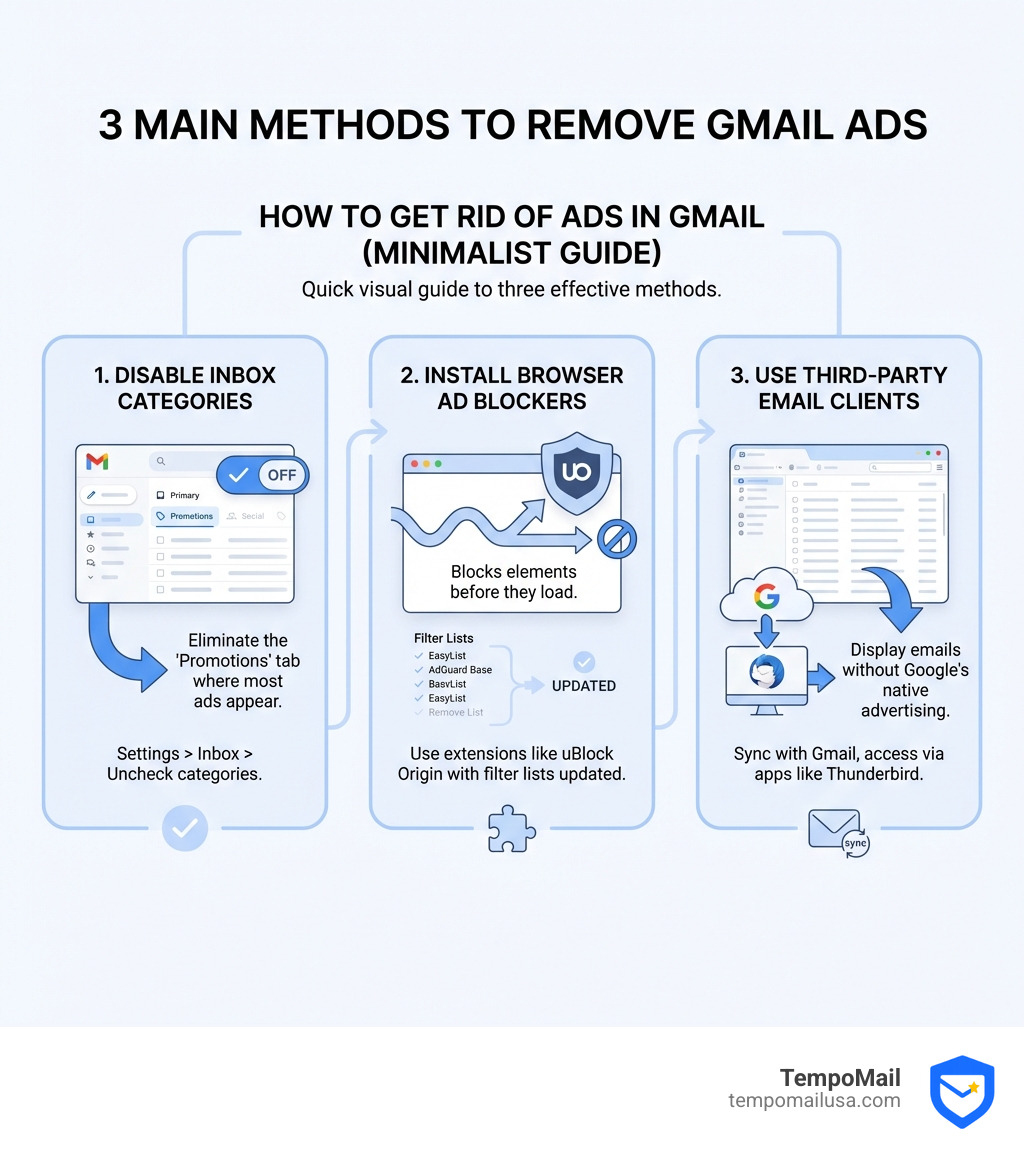
How do I get rid of ads in Gmail? Here are your fastest options:
- Disable inbox categories - Turn off Promotions, Social, and Forums tabs in Settings > Inbox to remove most ads
- Use browser ad blockers - Install extensions like uBlock Origin (works better on Firefox than Chrome)
- Switch to Google Workspace - Pay for an ad-free subscription (around $6-12/month per user)
- Use third-party email clients - Access Gmail through Thunderbird or similar apps that don't display Google's ads
If you've opened your Gmail inbox lately, you've probably noticed more ads than ever. Google makes the majority of its revenue from advertising, and in 2025, those ads aren't just sitting in your Promotions tab anymore-they're showing up directly in your main inbox, looking almost identical to regular emails.
These "Sponsored" messages are an eyesore at best and a serious security risk at worst. In 2023, the ALPHV/BlackCat ransomware gang actually hijacked Google ads to spread malware. Google doesn't need to read your emails to target you-it uses data from your search history, YouTube views, Maps activity, and everything else you do across its ecosystem.
The frustrating truth? Google doesn't offer a simple "turn off ads" button in the free version of Gmail. But there are several workarounds that actually work, from adjusting your inbox settings to using third-party tools.
I'm Mohammad Waseem, and I've spent years building and optimizing web platforms focused on user privacy, monetization strategies, and ad-blocking techniques. Throughout my work testing ad networks and building tools like temporary email services, I've learned exactly how do I get rid of ads in Gmail and which methods hold up against Google's constant changes.
Understanding Why You See Ads in Your Inbox
To understand the question of how do I get rid of ads in Gmail, we first have to look at what we are actually fighting. In the early days, Gmail ads were just small text links on the side. Today, they have evolved into "inline ads" or "Sponsored emails." These are designed to look like a real message from a friend or a brand, complete with a sender name and a subject line. The only giveaway is a tiny "Sponsored" label.
Google is very clear about this in Google’s Privacy Policy. They don't sell your personal information, but they do use it. A common myth is that Google reads your emails to show you ads. While they used to do this years ago, they stopped in 2017. Now, they rely on "ecosystem tracking."
If you search for "best hiking boots" on Google Search, watch a YouTube video about the Appalachian Trail, and look up a local REI on Google Maps, Google knows you are interested in hiking. This data is aggregated to serve you a "Sponsored" email from a boot company directly in your Gmail. You can read more about how Google processes your data to see how they justify this automated process.
How Do I Get Rid of Ads in Gmail by Changing Settings?
The most reliable "official" way to reduce ads is by manipulating Gmail’s own organization system. Gmail uses "Inbox Categories" to sort your mail into tabs: Primary, Social, Promotions, Updates, and Forums.
The catch? Google serves almost all of its Gmail ads within the Promotions and Social tabs. If you disable these tabs, Google has nowhere to "place" the ads. When you revert to a unified inbox, the ads generally disappear because they are technically tied to those specific categories.
However, there is a trade-off. By turning off these categories, all those newsletters, Groupon deals, and Facebook notifications will flood into your Primary inbox. You’ll have an ad-free experience, but you’ll need to be a master of the "Unsubscribe" button to keep your sanity.
| Feature | Categorized Inbox (Default) | Unified Inbox (No Tabs) |
|---|---|---|
| Ads Visibility | High (in Promotions/Social) | None to Very Low |
| Organization | Automated by Google | Manual (User-managed) |
| Clutter Level | Low in Primary tab | High (Everything in one list) |
| Best For | Casual users | "Inbox Zero" enthusiasts |
If you decide to use an extension to help with this, you should also know How to pin the AdBlock menu to your browser so you can quickly toggle settings if a site breaks.
Step-by-Step: How do I get rid of ads in Gmail on desktop?
- Log in to your Gmail account on a web browser.
- Click the Gear icon (Settings) in the top-right corner.
- Click on See all settings.
- Steer to the Inbox tab at the top.
- Under the "Categories" section, uncheck Promotions, Social, and Forums. (Note: You cannot uncheck "Primary").
- Scroll to the bottom and click Save Changes.
Once the page reloads, your tabs will be gone, and the sponsored ads that lived inside them should vanish as well.
Step-by-Step: How do I get rid of ads in Gmail on mobile?
The beauty of this method is that it usually syncs across your devices. If you change it on desktop, it often updates the app. But if you want to do it directly on your phone:
- Open the Gmail app on your Android or iOS device.
- Tap the Hamburger menu (three horizontal lines) in the top-left.
- Scroll down and tap Settings.
- Select the specific email account you want to modify.
- Tap on Inbox categories.
- Toggle off the switches for Promotions and Social.
Using Ad Blockers and Third-Party Tools
If you love your tabs and don't want to give them up, your next line of defense is a browser extension. However, this is becoming more difficult. Google’s transition to Manifest V3 has limited the effectiveness of many ad blockers on Chrome. Since Google owns both Chrome and Gmail, they have a vested interest in making sure their ads still get through.
For the best results, many experts suggest using Firefox with uBlock Origin. Firefox doesn't have the same restrictions as Chrome, allowing the blocker to strip out the CSS elements that Gmail uses to display sponsored messages.
Another step is to visit your Ads Settings page. While this won't turn off ads entirely, it allows you to opt-out of personalized ads. This means Google will stop using your search history to target you. You’ll still see ads, but they will be generic and arguably less "creepy."
If you want to bypass the Gmail interface entirely, consider using an open-source desktop client like Thunderbird. Because Thunderbird connects via IMAP/SMTP, it only pulls your actual emails. It doesn't pull the "Sponsored" code that Google injects into the web and mobile interfaces. It’s a clean, old-school way to manage your mail without the corporate noise.
The Security Risks of Gmail Advertisements
We often think of ads as just a nuisance, but they can be dangerous. The "Sponsored" label can be used to mask phishing attempts. Because these ads appear at the very top of your inbox, they occupy "prime real estate" where your brain expects to see important messages.
In a high-profile case, the ALPHV/BlackCat ransomware gang used malicious Google ads to trick users into downloading malware. This is known as "malvertising." By clicking a sponsored link that looks like a legitimate tool update, a user could inadvertently give a hacker access to their entire system.
If you see an ad that looks suspicious or violates policies, you can provide Google ad feedback to report it. This helps the community, but it doesn't stop the next bad actor from buying an ad slot.
Frequently Asked Questions about Gmail Ads
Can I completely disable ads in the free version of Gmail?
The short answer is: not through a single "Off" switch. Google provides Gmail for free in exchange for showing you ads. According to the Gmail Terms of Use, advertisements are a core part of the service. To get a truly ad-free experience natively, you must upgrade to a Google Workspace paid account.
Does paying for Google One or extra storage remove ads?
This is a common point of confusion. No, paying for extra storage through Google One does not remove ads from Gmail. Google One is a storage and features subscription, not an "ad-free" subscription. Only Workspace accounts (designed for businesses and professionals) offer an ad-free interface.
Why do ads reappear after I click "Stop seeing this ad"?
When you click "Stop seeing this ad," you are giving feedback on that specific advertiser or creative. Google will simply rotate in a different ad from a different company. It’s a feedback loop designed to help Google show you "better" ads, not fewer ads.
Conclusion
Asking "how do i get rid of ads in gmail" is the first step toward reclaiming your digital privacy. Whether you choose to collapse your inbox categories, move to a third-party client like Thunderbird, or use a robust ad blocker on Firefox, you have the power to clean up your workspace.
At TempoMail, we believe that your primary email address should be a fortress, not a billboard. We specialize in identity proxying and cybersecurity, providing you with secure aliases that act as a firewall for your real inbox. By using a proxy service, you can prevent your PII (Personally Identifiable Information) from ending up in the databases that Google uses to target you in the first place.
Ready to take your privacy to the next level? Protect your inbox with anti-spam tracking and see how identity proxying can keep your real email address clean, safe, and ad-free.