



Easily Upload Contacts to Gmail
Keeping your Gmail contacts organized saves time and avoids missed connections. This guide walks you through reliable ways to import and sync contacts — whether you’re moving from another service or consolidating multiple address books. We cover CSV and vCard imports, iPhone and Android sync, Outlook/Excel transfers, and smart habits for a cleaner contact list. Follow these clear steps to avoid common hiccups and keep your contacts tidy.
What Are the Best Methods to Import Contacts to Gmail?
There are a few easy, dependable ways to get contacts into Gmail. Pick the one that fits your source and volume of contacts. The main options are: temporary email.
- CSV File Upload: Upload a CSV file — a universal format that’s easy to create and works well for bulk imports.
- vCard File Upload: vCard files are handy when moving contacts from Apple devices or other address-book apps.
- Direct Sync from Devices: Sync contacts straight from your iPhone or Android to keep everything up to date automatically.
For privacy during sign-ups or tests, consider using temporary email addresses to keep your primary inbox free from spam.
How to Upload CSV Files to Google Contacts for Gmail Import
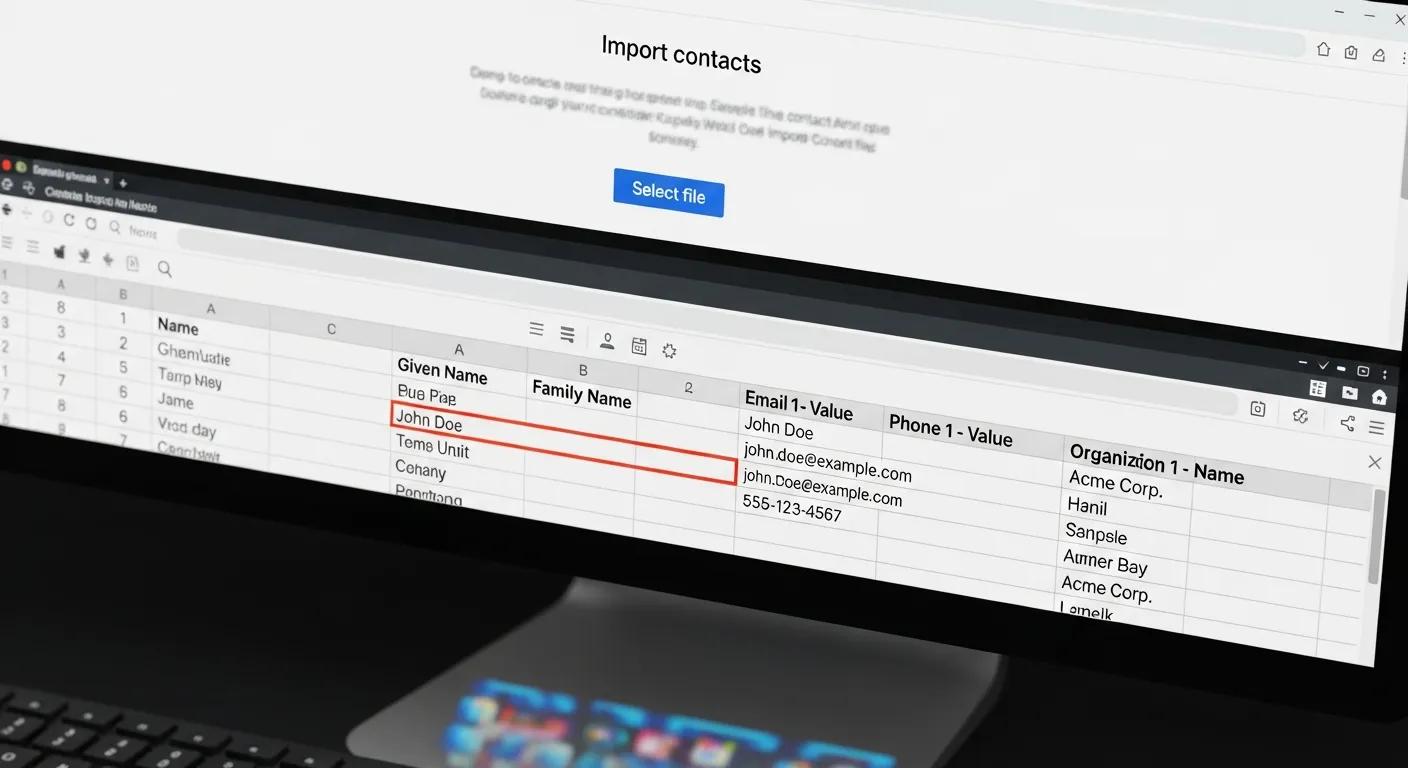
Follow these steps to import contacts from a CSV file:
- Prepare your CSV: Make sure the file has clear headers like Name, Email, Phone, etc. Put each contact on its own line.
- Open Google Contacts: Sign into Gmail, open the Google Apps menu, and select “Contacts.”
- Import the file: Click “Import” in the left sidebar, choose “CSV or vCard file,” pick your CSV, and start the import.
- Check the results: Review imported entries and fix any mismatches or missing fields.
CSV imports are great when you need to move many contacts at once.
How to Use vCard Files to Add Contacts to Gmail
vCard is a convenient format for exporting contacts from many devices. To import vCard files into Gmail:
- Export as vCard: From your contacts app (for example, Apple Contacts), export your contacts as a vCard file.
- Open Google Contacts: Log into Gmail and go to Google Contacts.
- Import the vCard: Choose “Import,” select “CSV or vCard file,” pick your vCard, and import.
- Verify entries: Scan the imported contacts and correct any missing or misplaced info.
vCard is especially useful if you switch often between Apple and Google ecosystems.
How Can You Transfer Contacts from Your iPhone to Gmail?
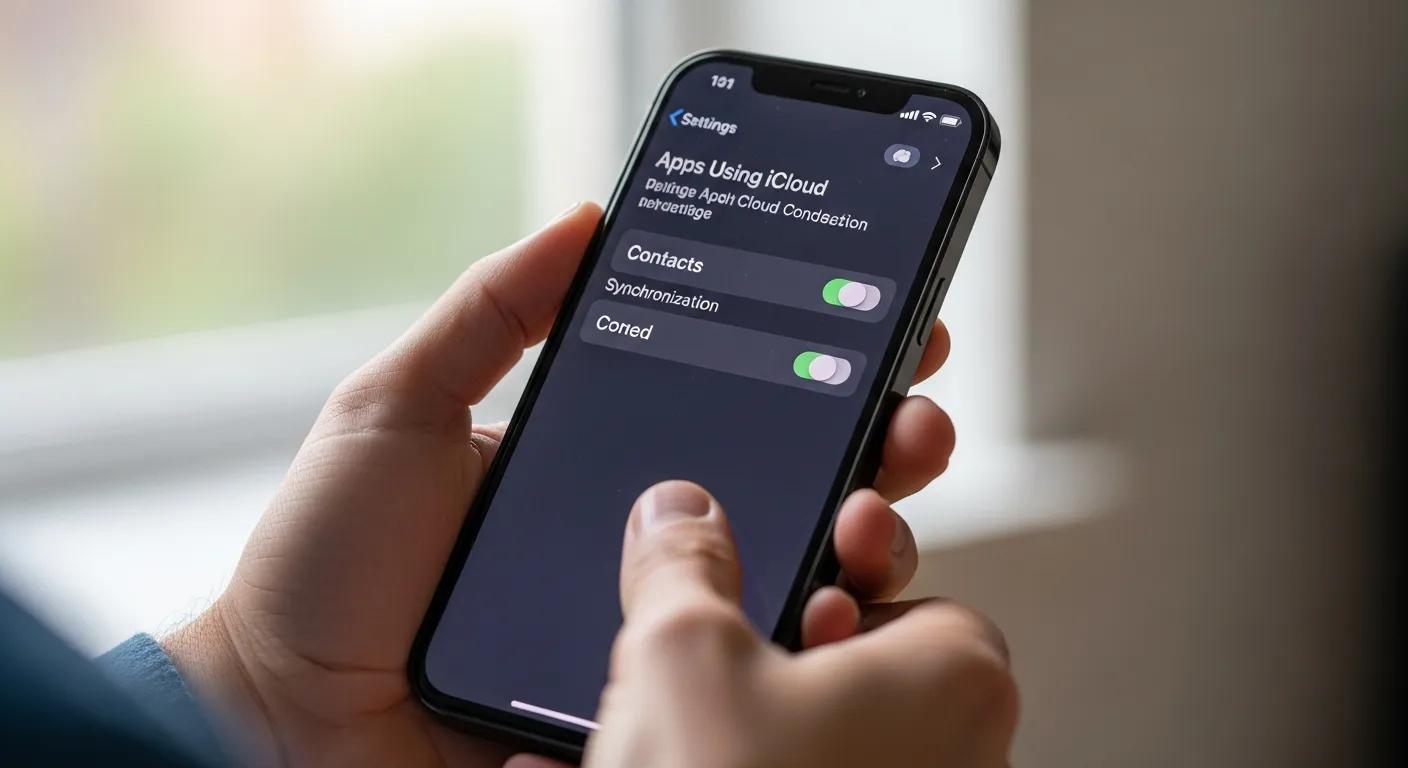
You can move iPhone contacts to Gmail with iCloud export or by syncing your Google account directly on the device. Both are reliable — choose the one that fits your workflow.
Using iCloud to Export iPhone Contacts for Gmail Upload
- Enable iCloud Contacts: On your iPhone, go to Settings > [Your Name] > iCloud and turn on “Contacts.”
- Open iCloud on a computer: Sign in to iCloud.com with your Apple ID and choose “Contacts.”
- Export vCard: Select all contacts, click the gear icon, and choose “Export vCard” to download a .vcf file.
- Import into Google Contacts: Use Google Contacts’ import feature to upload the vCard file.
This method safely transfers your iPhone contacts to Gmail via iCloud.
Direct Sync Options Between iPhone and Google Contacts
- Add your Google account: On the iPhone go to Settings > Mail > Accounts > Add Account and choose Google.
- Turn on Contacts: Sign in and enable the “Contacts” toggle to start syncing.
- Confirm in Google Contacts: Your iPhone contacts will appear in Google Contacts after syncing.
Direct sync keeps contacts updated across iPhone and Gmail in real time.
What Are the Steps to Sync Android Contacts with Gmail?
Syncing Android contacts with Gmail is quick and usually automatic once your Google account is linked.
Enabling Google Account Sync on Android Devices
- Open Settings: Go to Settings > Accounts on your Android device.
- Choose your Google account: Tap your Google account and make sure “Contacts” is turned on.
- Sync now: Use the “Sync now” option to immediately update contacts.
This keeps your contacts consistent across devices and accounts.
Managing Contact Sync Settings for Accurate Upload
- Open sync options: In Accounts, adjust sync preferences for your Google account.
- Pick sync frequency: Let the device sync automatically or trigger it manually as needed.
- Troubleshoot issues: If syncing fails, check connectivity and that the Google account is properly configured.
Proper sync settings help avoid duplicates and missing entries.
How Do You Manually Add or Edit Contacts in Google Contacts?
Adding or editing contacts directly in Google Contacts is fast for one-off updates.
Creating New Contacts Directly in Gmail Contacts Interface
- Open Google Contacts: Sign into Gmail and open Google Contacts.
- Create a contact: Click “Create contact” and enter the name, email, phone, and other details.
- Save: Click “Save” to add the contact to your address book.
Ideal for quickly adding an individual contact.
Editing and Organizing Existing Gmail Contacts
- Select a contact: Click the contact you want to update in Google Contacts.
- Edit details: Use the pencil icon to change phone numbers, emails, or other fields.
- Organize with labels: Add labels to group contacts for easier searching and messaging.
Regular edits and labeling keep your address book useful and tidy.
How Can You Transfer Contacts from Outlook or Excel to Gmail?
Moving contacts from Outlook or Excel into Gmail is straightforward with an export to CSV.
Exporting Contacts from Outlook as CSV for Gmail Import
- Open Outlook: Launch Outlook and go to the “File” menu.
- Export contacts: Choose “Open & Export,” then “Import/Export.” Select “Export to a file” and pick “Comma Separated Values.”
- Choose the contacts folder: Select the folder to export and save the CSV file to your computer.
- Import into Google Contacts: Use Google Contacts’ import tool to upload the CSV file.
This is a reliable path for users switching from Outlook to Gmail.
Preparing Excel Contact Lists for Upload to Google Contacts
- Create your list: In Excel, lay out contacts with headers like Name, Email, and Phone.
- Save as CSV: Export or save the sheet as a CSV file for Google Contacts compatibility.
- Import: Upload the CSV via Google Contacts’ import feature.
Excel lets you clean and format contact data before importing.
What Are Best Practices for Maintaining a Clean and Organized Gmail Contact List?
Keep your contact list useful by pruning regularly and using labels. These habits save time and reduce clutter.
- Regular audits: Periodically remove duplicates and outdated entries.
- Use labels: Group contacts by role or project for quick access.
- Use temporary emails: Use disposable addresses for sign-ups to avoid adding spammy contacts.
Regularly Auditing and Removing Duplicate or Unwanted Contacts
- Find duplicates: Use Google Contacts’ “Merge & fix” tool to spot and combine duplicate entries.
- Delete what you don’t need: Remove contacts that are obsolete or irrelevant.
Routine cleanup keeps your list lean and practical.
Using Temporary Emails to Prevent Spam Contacts in Gmail
- Create temporary emails: Use services like TempMail to generate disposable addresses for sign-ups and trials.
- Protect your main inbox: Temporary emails help keep spam and unwanted contacts out of your primary Gmail account.
Temporary addresses are a simple way to protect privacy and reduce clutter.
| Method | Description | Pros | Cons |
|---|---|---|---|
| CSV Upload | Import contacts from a CSV file | Fast for bulk imports | Needs correct formatting |
| vCard Upload | Import contacts from a vCard file | Works well for Apple users | Limited to vCard format |
| Direct Sync | Sync contacts from devices | Automatic updates | Requires account setup |
| Best Practice | Description | Frequency |
|---|---|---|
| Regular Audits | Review and clean your contact list | Monthly |
| Use Labels | Organize contacts into groups | Ongoing |
| Temporary Emails | Use for sign-ups to avoid spam | As needed |
Follow these methods and habits to keep your Gmail contacts organized, accurate, and easy to use.
Frequently Asked Questions
Can I import contacts from other email services to Gmail?
Yes. Most email services let you export contacts as CSV or vCard files, which Google Contacts can import. If you’re moving from Yahoo or Outlook, export your contacts as CSV and then use the Google Contacts import tool to consolidate everything into one place.
What should I do if my contacts are not syncing between my devices?
First check your internet connection and confirm the Google account is set up on each device. On Android, make sure “Contacts” sync is enabled in account settings. On iPhone, ensure the Google account is added and contact sync is turned on. If problems continue, remove and re-add the Google account to refresh syncing.
How can I recover deleted contacts in Gmail?
If you accidentally delete contacts, use Google Contacts’ “Undo” or restore option. Go to Google Contacts, click “More,” then “Undo changes” and pick a recovery window — from 10 minutes up to 30 days. If you have a backup CSV or vCard, you can re-import that file to restore entries. Recovery key.
Is there a limit to the number of contacts I can store in Gmail?
Yes — Google Contacts currently supports up to 25,000 contacts. There are also limits on the number of labels and groups you can create. Regularly cleaning your list helps you stay within these limits and keeps things efficient.
Can I access my Gmail contacts offline?
Yes. Google Contacts offers an offline mode you can enable in settings. That lets you view and edit contacts without an internet connection; any changes you make will sync back to your account when you reconnect.
What are the benefits of using labels in Google Contacts?
Labels make it quick to find and message groups of people. Tag contacts by category — like family, work, or clients — to filter your list and send group emails faster. Labels simplify organization and save time when you need to contact a specific group.
Conclusion
Importing and syncing contacts in Gmail keeps your communication organized and reliable. Use CSV or vCard files for bulk moves, set up direct sync for ongoing updates, and adopt regular audits and labels to keep your address book tidy. Start with the method that fits your setup, and use these best practices to maintain a clean, useful contact list.