



Mastering your iPhone's VPN settings is crucial for both privacy and seamless connectivity. This expert guide provides a comprehensive, step-by-step walkthrough for every scenario: whether you need to temporarily pause your VPN via iPhone Settings, disconnect from third-party VPN apps, permanently delete VPN apps and their configuration profiles, or troubleshoot persistent auto-reconnect issues like Connect On Demand. We deliver clear, numbered instructions, essential checklists, and advanced troubleshooting tips to ensure your VPN is truly off, giving you complete control over your device's network connections.
Disable VPN from iPhone Settings
Need a quick pause from your VPN? Using the built‑in Settings is the fastest way. You can flip a single switch or disconnect a specific profile without deleting any setup info — perfect when an app needs a direct connection. The profile stays ready if you want to re-enable it later. We'll detail the exact steps and explain precisely why features like Connect On Demand might keep your VPN reconnecting.
Steps to Turn Off VPN in iOS Settings
Follow these quick steps to stop a system‑wide VPN connection from Settings:
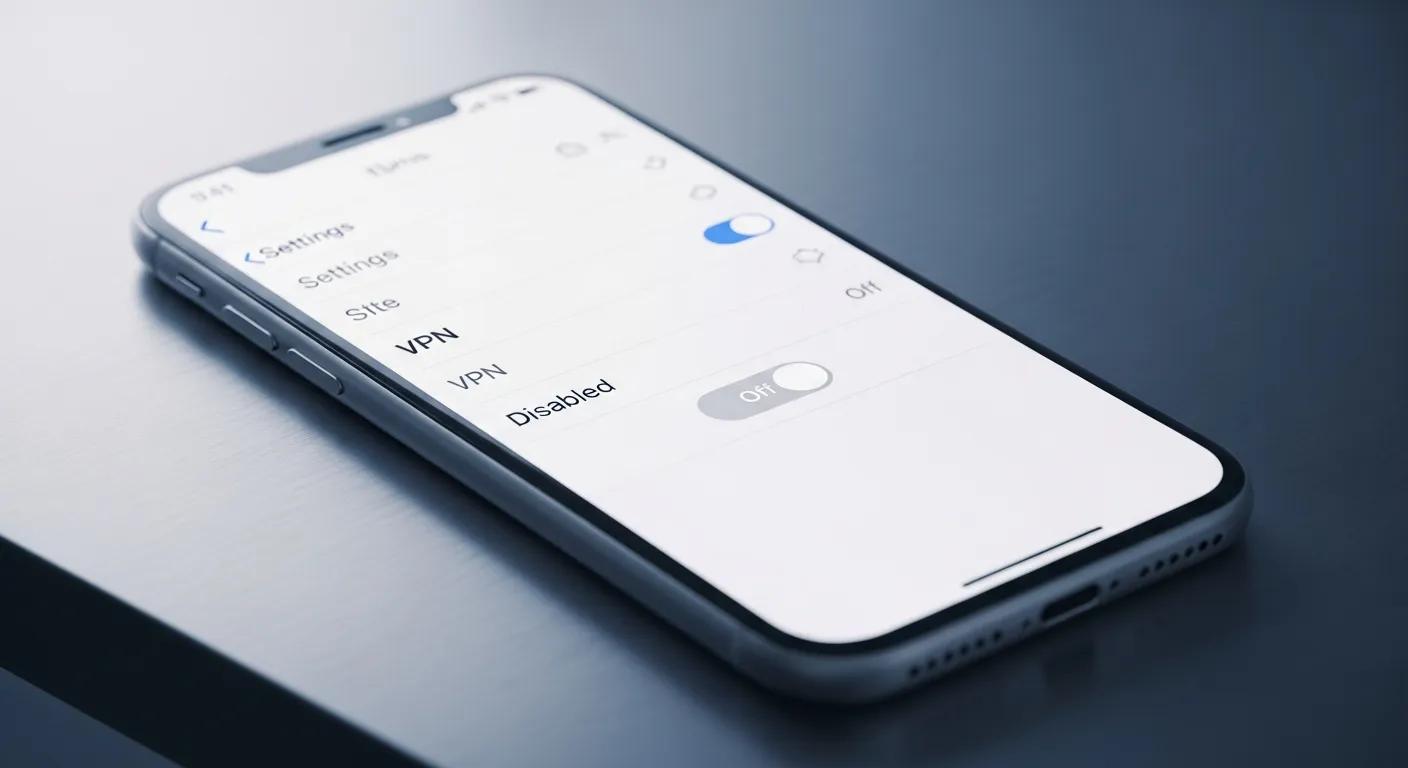
- Open Settings. Tap VPN. (Note: On some iOS versions, this appears under Settings → General → VPN & Device Management.) You'll see the main VPN toggle and any installed profiles.
- Toggle the VPN switch to Off or, if you have multiple profiles, tap the profile you want and choose Disconnect. The status should read "Not Connected" and the VPN icon will disappear from the status bar.
- Verify the change. Load a webpage or open a location‑based app to confirm your Wi‑Fi or cellular traffic is routing normally and the VPN icon is absent from the status bar.
If the toggle is greyed out or the VPN keeps reconnecting, read on — we'll cover Connect On Demand and managed profiles next.
Turn Off Connect On Demand to Stop Auto VPN Activation
When your VPN starts itself automatically, Connect On Demand is often the reason. It launches the VPN when you visit certain sites or networks. Turning it off prevents those automatic connections.
- Open Settings → General → VPN & Device Management.
- Select the VPN configuration (or tap Profiles if shown).
- Disable the 'Connect On Demand' switch inside that profile and save changes if prompted.
If this option is locked or unavailable, the profile is almost certainly managed by a configuration profile or your organization's Mobile Device Management (MDM). In such cases, you must contact your IT administrator for assistance. After turning off Connect On Demand, try the app or site that used to trigger the VPN to confirm it stays off.
Disconnect VPN from the VPN App
Sometimes the app controls the connection, especially if it includes features like a kill switch or auto‑reconnect. Most VPN apps show a big Disconnect or Stop button on their main screen — tap that and the system VPN status should update. If the app persistently reconnects, thoroughly check its internal settings for auto-connect options or background permissions.
General Steps to Disconnect in VPN Apps
Disconnecting from inside the VPN app is usually the simplest first step:
- Open the VPN app.
- Tap the main connection button (usually labeled Disconnect or Stop).
- Confirm the app shows 'Disconnected.' Then check Settings → VPN to make sure iOS shows "Not Connected."
If the app immediately reconnects, access its settings and disable options such as auto-connect, always-on, or similar features. Force-quit the app and reopen it to definitively verify it remains disconnected. Should a system VPN entry still appear, proceed to the provider-specific advice below.
How Provider VPN Apps Differ When Disconnecting
Some providers add features that change how disconnecting behaves. These can include aggressive auto‑reconnect, always‑on protection, or system‑level controls that survive restarts.
- Auto‑reconnect: Often tucked in Connection or Advanced settings — turn it off to stop automatic relaunches.
- Always‑on/system protection: May require removing a configuration profile or changing system permissions to fully disable.
- Background App Refresh & notifications: These can let the app relaunch in the background — toggle them off if the app keeps reconnecting.
Understanding your provider’s specific controls is crucial for determining whether a simple disconnect suffices, or if uninstalling the app or removing its profile is necessary for a permanent resolution.
Remove a VPN Permanently from iPhone
To erase a VPN completely, delete both the VPN app and any configuration profiles it installed. Uninstalling an app often removes local files, but a leftover profile or an MDM policy can still force connections. Removing the profile from Settings clears system‑level VPN entries. If your device is managed by your workplace or school, administrators may prevent profile removal — in that case you’ll need their help. The table below provides a concise summary of removal options and their respective control mechanisms.
This outlines the function of each removal method and the party responsible for its execution.
| Approach | What It Removes | Who's in Control? |
|---|---|---|
| Uninstall App | Removes the VPN app and its local data. | You — delete it from the Home screen or App Library. |
| Delete Configuration Profile | Erases the system VPN setup that controls routing and auto‑connect. | You can remove it unless it's managed by MDM. |
| MDM Removal (Admin) | Removes managed profiles and policies pushed by an organization. | Only your IT admin can remove these. |
Deleting both the app and its profile is the most complete way to remove a VPN yourself. If profiles are managed, contact your administrator. Next, we'll cover the exact steps for uninstalling the app and removing profiles.
Delete a VPN App from Your iPhone
While uninstalling the app is straightforward, it's critical to remember that this action alone may not remove system-level profiles. Always verify your Settings afterward.
- To delete the app: Long‑press the VPN app icon on your Home screen or find it in the App Library.
- Select 'Remove App', then choose 'Delete App' and confirm. This deletes the app and its local data.
After uninstalling, go to Settings → VPN (or Settings → General → VPN & Device Management) to confirm the VPN entry is gone. If a profile remains, follow the configuration removal steps below.
Remove VPN Configuration Profiles (Device Management)
Configuration profiles hold system‑level VPN settings and can enforce connections. Removing them clears those rules.
- Open Settings → General → VPN & Device Management (or Profiles).
- Select the profile tied to the VPN.
- Tap 'Remove Profile.' You may need to enter your passcode to confirm.
Following removal, a reboot of your iPhone is recommended to ensure all managed settings are completely cleared. If the Remove option is missing or greyed out, the profile is managed by MDM — contact your administrator. Once removed, verify the VPN is gone and test your connection.
When VPN Keeps Turning On — What to Do
If your VPN keeps turning on, common causes are Connect On Demand, app auto‑connect features, or managed configuration profiles that force the VPN. Start with simple checks — app settings, Connect On Demand, and any profiles — and only reset network settings as a last resort since that clears Wi‑Fi passwords and Bluetooth pairings. The comprehensive troubleshooting table below will guide you in matching symptoms to the most effective solutions.
| What's Happening? (Symptom) | Why It's Likely Happening (Cause) | Your Best First Step (Fix) |
|---|---|---|
| VPN reconnects when you open certain apps. | That app has auto‑connect enabled or Connect On Demand is active. | Turn off auto‑connect in the app and disable Connect On Demand. |
| VPN turns back on after a restart. | A configuration profile or MDM policy is enforcing it. | Check Profiles/Device Management and contact your admin if it's managed. |
| VPN remains active after deleting the app. | A leftover profile or system VPN entry still exists. | Remove the profile in Settings, then restart your iPhone. |
Use the table to try the simplest fixes first, then move to fixes that require more steps or admin help. The sections that follow show the step‑by‑step troubleshooting actions.
Troubleshoot Common VPN Connection Issues on iPhone
Start with the easy fixes to minimize disruption and narrow down the cause.
- Restart your iPhone and the VPN app. That often clears temporary glitches.
- Open the VPN app and disable any auto‑connect settings. Confirm it reports 'Disconnected.'
- Check Settings → VPN to make sure the status reads "Not Connected."
- Review Profiles/Device Management for any active profiles that might force the VPN. Remove them if possible; if not, contact your administrator.
If these initial steps prove insufficient, consider the network reset option described next as a definitive last resort.
When to Reset Network Settings — and How
Resetting network settings can fix stubborn routing or profile conflicts, but it erases saved Wi‑Fi networks, Bluetooth pairings, and VPN setups. Utilize this option only after all other troubleshooting avenues have been exhausted and you have securely backed up all important passwords.
To reset:
- Go to Settings → General → Transfer or Reset iPhone → Reset → Reset Network Settings.
- Enter your passcode and confirm.
Your iPhone will restart. Rejoin Wi‑Fi networks and re‑pair Bluetooth devices afterward. If your device is managed by an organization, it is imperative to consult with your IT department before initiating a reset to prevent potential policy conflicts. After the reset, reinstall or reconfigure any VPNs intentionally, and disable auto‑start if you don't want them connecting automatically.
When & Why You'd Turn Off VPN on iPhone
Turning off your VPN can be useful for several practical reasons: troubleshooting app issues, accessing local services that block VPNs, improving speeds for large downloads, or using location‑specific carrier services. However, it is crucial to acknowledge the inherent trade-off: without the VPN's encrypted tunnel, your IP address and certain traffic may become exposed, particularly on public Wi-Fi networks. The sections below cover common scenarios and the privacy implications so you can choose the right approach.
Common Reasons to Disable VPN
People often turn off their VPN when they need:
- App compatibility: Some apps won't work with a VPN active.
- Local access: To reach services that block VPN traffic.
- Better speed: For big downloads or high‑quality streaming.
Temporarily disabling the VPN is also handy for troubleshooting, testing local servers, or when a carrier service requires your real network identity. Carefully assess whether a temporary disconnect will suffice or if a complete removal of the VPN is warranted.
Security and Privacy When VPN Is Off
When you turn off your VPN, the encrypted tunnel that hides your IP and masks traffic ends. This increases exposure to on‑network snooping, particularly on public Wi‑Fi, and your ISP may see DNS queries. If operating without a VPN is unavoidable, restrict your activity to trusted networks, exclusively use HTTPS sites, and refrain from sensitive transactions. For selective needs, consider disabling the VPN only for a specific app or network rather than system‑wide. Crucially, remember to re-enable your VPN whenever you are on public networks or handling sensitive data.
Expert Insights: Mastering Your iPhone's VPN Control
Beyond the basic steps, understanding these nuances will give you full command over your iPhone's VPN behavior and ensure you maintain optimal privacy and performance.
- Prioritize Official Settings: Always start with iOS Settings for system-wide VPN control. Third-party apps can sometimes override these, but the core toggle and profile management are found here.
- The "Connect On Demand" Trap: This feature is a common culprit for unexpected VPN activations. Regularly check and disable it within specific VPN profiles if you want manual control.
- MDM Overrides Everything: If your iPhone is managed by an organization (Mobile Device Management), your IT administrator has ultimate control. Many VPN settings, including profile removal, will be locked. Always consult your admin in such cases.
- Post-Removal Verification: Simply deleting an app isn't enough. Always verify in Settings → General → VPN & Device Management that no lingering profiles remain. A quick reboot after removal can also help clear cached settings.
- Network Reset as a Last Resort: While effective for stubborn issues, remember that resetting network settings is a broad action. It clears Wi-Fi passwords, Bluetooth pairings, and all network configurations. Use it judiciously and only after other methods fail.
- Contextual VPN Use: Understand why you're turning off your VPN. For public Wi-Fi, keeping it on is generally safer. For specific app compatibility or speed, a temporary disablement is fine, but be mindful of your exposure.
Frequently Asked Questions
What should I do if my VPN app keeps reconnecting after I try to disconnect it?
If it keeps reconnecting, check the app's settings for an auto‑connect or always‑on option and turn it off. Also verify Connect On Demand is disabled in iOS VPN settings. If it persists, uninstall the app and remove any related configuration profiles from Settings → General → VPN & Device Management.
Can I use my iPhone without a VPN, and what are the risks?
Yes — but without a VPN your traffic is less private, especially on public Wi‑Fi. Your IP and some activity can be visible to your ISP and other parties. Use HTTPS, avoid sensitive actions on untrusted networks, and re‑enable the VPN for public Wi‑Fi or when privacy matters.
How can I check if my VPN is completely disabled on my iPhone?
Go to Settings → VPN. It should say "Not Connected." Try opening a site or app that needed a direct connection; if it works, the VPN is likely off. Also check Settings → General → VPN & Device Management for any remaining profiles.
What are the benefits of temporarily disabling my VPN?
Temporarily disabling a VPN can fix app compatibility problems, let you access location‑restricted content, and sometimes improve download or streaming speeds. It’s a fast troubleshooting step before making permanent changes.
Is it safe to turn off my VPN while using public Wi‑Fi?
Generally no — public Wi‑Fi is often insecure and can expose your data. If you must use it without a VPN, avoid sensitive transactions and stick to HTTPS sites. Better: keep the VPN on when using public networks.
What should I do if I can't find the VPN settings on my iPhone?
Make sure iOS is up to date. Search "VPN" in the Settings search bar or go to Settings → General → VPN & Device Management. If your device is managed by an organization, some settings may be restricted and you'll need to contact IT.
Permanently Turn Off VPN on iPhone
To remove a VPN for good, delete both the VPN app and any configuration profiles it installed. That ensures no system entries remain that could restart the VPN.
- First, delete the VPN app from your Home screen.
- Then, open Settings → General → VPN & Device Management (or Profiles).
- Remove any VPN profiles you find there.
- Reboot your iPhone to clear leftover settings.
Afterwards, check Settings to confirm there's no active VPN. If a profile is managed by MDM and you can't remove it, contact your administrator to have it removed. Once everything is gone, browse a few sites to confirm your VPN status is cleared.
Why You Can't Turn Off VPN on iPhone
If you can't disable the VPN, common causes include:
- Connect On Demand or always‑on settings are enabled.
- An MDM‑managed configuration profile is enforcing the VPN.
- Your VPN app has aggressive auto‑reconnect behavior.
How to diagnose it:
- Check Profiles/Device Management for locked policies.
- Open the VPN app and disable auto‑connect or always‑on features.
- Confirm Connect On Demand is off in the profile settings.
If policies block changes, contact your IT department. Otherwise, uninstall the app, remove any profiles, and reboot — that usually restores control and stops automatic reconnections.
Quick Checklist to Confirm Your VPN Is Really Gone:
- Did you remove the VPN app from your Home screen?
- Did you delete all VPN configuration profiles in Settings?
- Did you reboot your iPhone and confirm Settings now says "Not Connected"?